1. Введение
The Brother DCP-L2640DW is a compact, high-performance monochrome laser all-in-one printer designed for home offices and small workgroups. This manual provides essential information for setting up, operating, maintaining, and troubleshooting your printer to ensure optimal performance.
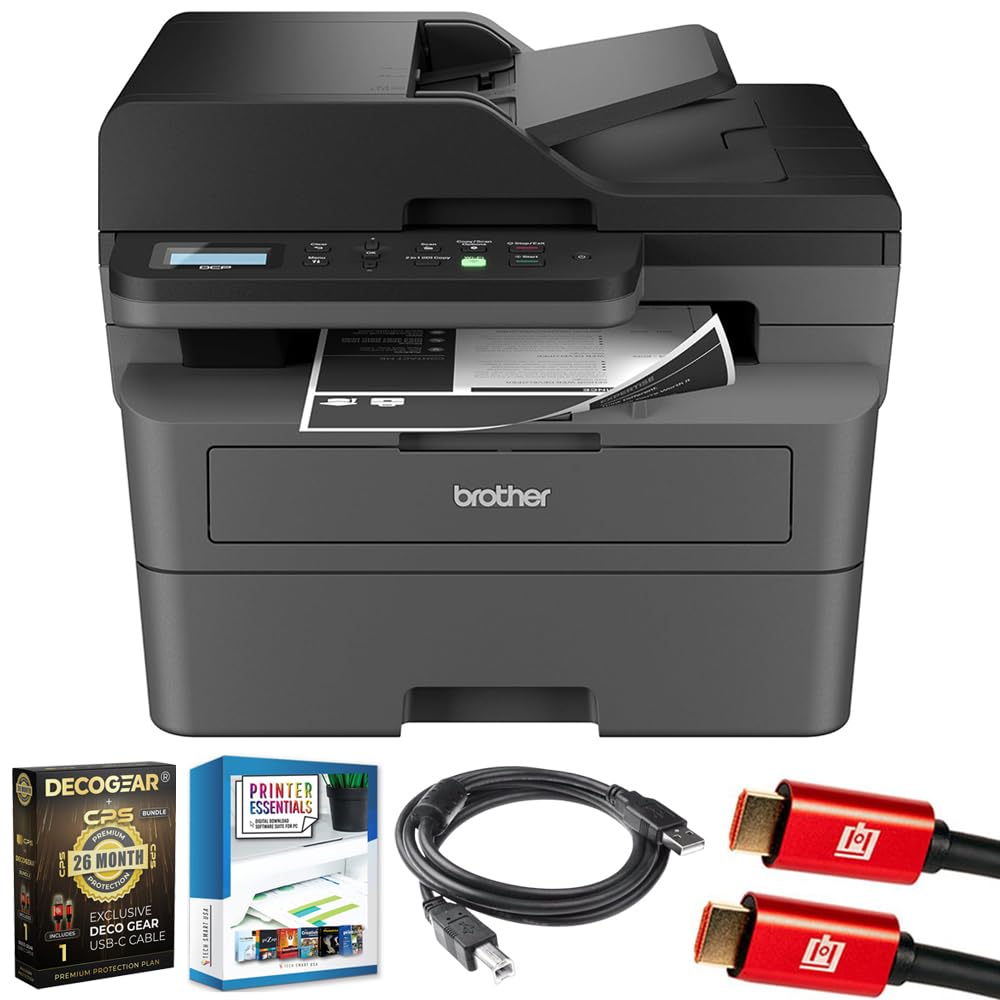
Image 1.1: Brother DCP-L2640DW Compact Monochrome Laser Printer
2.Основные характеристики
- 3-в-1 Функциональность: Print, copy, and scan capabilities in a compact design.
- Быстрая скорость печати: Delivers up to 36 pages per minute for efficient task completion.
- Автоматическая двусторонняя печать: Built-in two-sided printing to save time and paper.
- Автоматический податчик документов на 50 листов (АПД): Для эффективного сканирования и копирования многостраничных документов.
- High-Capacity Paper Handling: 250-sheet paper tray plus a manual feed slot for diverse media types.
- Гибкие возможности подключения: Dual-band Wi-Fi, Ethernet, USB, and mobile printing via Brother Mobile Connect, AirPrint, Mopria, and Wi-Fi Direct.
- Расширенные возможности сетевой безопасности: Features like TLS/SSL, SNMP v3, and IP filtering for secure operation.

Изображение 2.1: оконченоview of the Brother DCP-L2640DW's key features including print speed, connectivity, and compact design.
3. Что в коробке
- Brother DCP-L2640DW Monochrome Laser Printer
- Стартовый черный тонер-картридж (примерно 700 страниц)
- Brother DR830 Drum Unit (approx. 15,000 pages)
- Шнур питания переменного тока
- Documentation (Quick Setup Guide, Product Safety and Protection Information)
4. Настройка
4.1. Распаковка
- Осторожно извлеките принтер из упаковки.
- Удалите все защитные ленты и упаковочные материалы с внешней и внутренней части принтера.
4.2. Toner Cartridge and Drum Unit Installation
- Откройте переднюю крышку принтера.
- Извлеките картридж с тонером и блок фотобарабана из принтера.
- Распакуйте новый картридж с тонером и барабанный блок.
- Вставьте картридж с тонером плотно в блок фотобарабана до щелчка.
- Slide the green tab on the drum unit from left to right several times to clean the corona wire. Return the tab to the home position.
- Reinstall the toner cartridge and drum unit assembly into the printer.
- Закройте переднюю крышку.
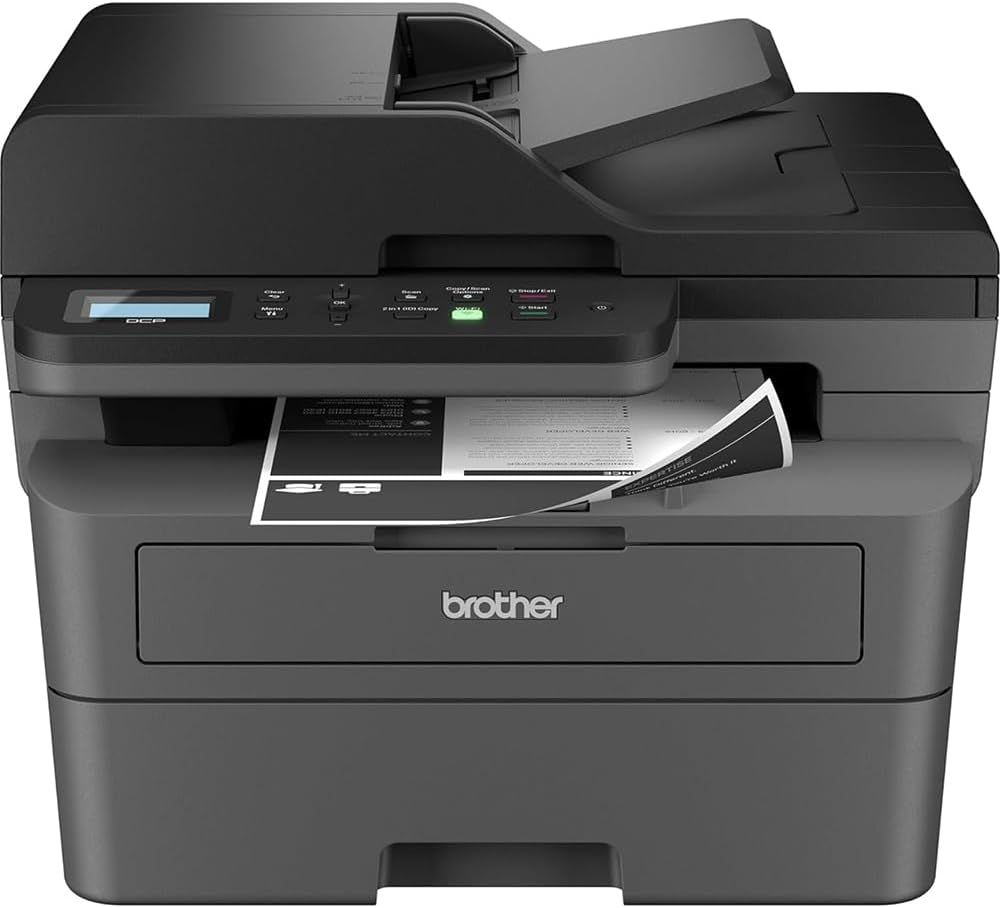
Image 4.1: The Brother DCP-L2640DW printer with the front cover open, showing the toner cartridge and drum unit assembly.
4.3. Подключение питания
- Подключите сетевой шнур питания к разъему питания принтера.
- Вставьте другой конец шнура питания в заземленную электрическую розетку.
- Нажмите кнопку питания, чтобы включить принтер.
4.4. Первоначальная настройка и подключение
Follow the on-screen instructions on the printer's LCD display to complete the initial setup, including language selection and date/time settings.
- Настройка беспроводной сети: Navigate to the network settings on the printer's control panel, select your Wi-Fi network, and enter the password.
- Ethernet-подключение: Подключите кабель Ethernet от маршрутизатора или сетевого концентратора к порту Ethernet принтера.
- USB-подключение: Подключите USB-кабель от компьютера к USB-порту принтера.
- Установка драйвера: Install the printer drivers from the included CD-ROM or download them from the official Brother support webсайт.
Видео 4.1: Продукт, превосходящий по качеству.view video demonstrating the Brother DCP-L2640DW printer's features and ease of use.
5. Инструкция по эксплуатации
5.1. Печать документов
- Load paper into the 250-sheet paper tray or the manual feed slot.
- На компьютере или мобильном устройстве откройте документ, который вы хотите распечатать.
- Выберите пункт «Печать» в меню приложения.
- Choose your Brother DCP-L2640DW printer.
- Adjust print settings (e.g., number of copies, duplex printing) as needed.
- Нажмите «Печать».
5.2. Копирование документов
- Поместите документ лицевой стороной вниз на стекло сканера или лицевой стороной вверх в устройство автоматической подачи документов (АПД).
- На панели управления принтера нажмите кнопку «Копировать».
- Use the arrow keys to select the number of copies or adjust other settings.
- Нажмите «Старт», чтобы начать копирование.

Image 5.1: The Brother DCP-L2640DW highlighting its Automatic Document Feeder for multi-page tasks.
5.3. Сканирование документов
- Положите документ лицевой стороной вниз на стекло сканера или лицевой стороной вверх в устройство автоматической подачи документов.
- On the printer's control panel, press the 'Scan' button.
- Select your desired scan destination (e.g., PC, email, cloud).
- Adjust scan settings (e.g., resolution, color mode) as needed.
- Нажмите «Старт», чтобы начать сканирование.
5.4. Мобильная печать
The Brother DCP-L2640DW supports various mobile printing solutions:
- Приложение Brother Mobile Connect: Download the app to manage your printer, print, and scan from your smartphone or tablet.
- Apple AirPrint: Print directly from your Apple iOS device without installing drivers.
- Типография Mopria: Print from Mopria-certified Android devices.
- Wi-Fi Direct: Print directly from your mobile device to the printer without needing a router.

Image 5.2: The Brother Mobile Connect App interface, showing options for document print, photo print, scan, copy, and toner monitoring.
6. Техническое обслуживание
6.1. Замена тонера
When the toner is low or empty, the printer's display will indicate that the toner cartridge needs to be replaced. Always use genuine Brother toner cartridges for optimal performance and print quality.
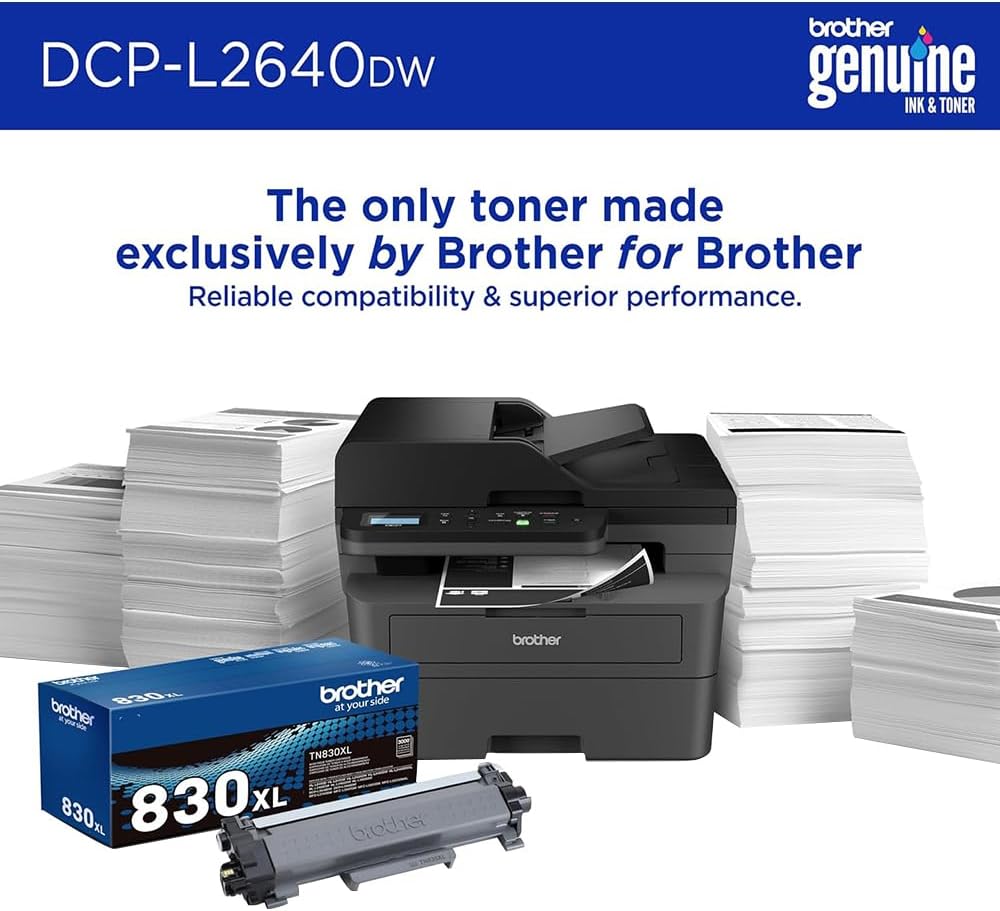
Image 6.1: Brother Genuine Ink & Toner packaging, emphasizing reliable compatibility and superior performance.
6.2. Drum Unit Replacement
The drum unit is a separate consumable that needs to be replaced periodically, typically after approximately 15,000 pages. The printer will notify you when it's time to replace the drum unit.
6.3. Уборка
- Экстерьер: Протрите корпус принтера мягкой безворсовой тканью.
- Стекло сканера: Clean the scanner glass with a soft, lint-free cloth moistened with glass cleaner.
- Corona Wire: Regularly clean the corona wire inside the drum unit by sliding the green tab.
7. Поиск Неисправностей
- Застревание бумаги: Follow the on-screen instructions or refer to the printer's documentation to clear paper jams from various access points.
- Проблемы с подключением: Ensure the printer is connected to the correct network (Wi-Fi or Ethernet) or directly to the computer via USB. Restarting the printer and router can often resolve temporary connection problems.
- Плохое качество печати: Check toner levels, clean the corona wire, and ensure you are using appropriate paper for your print job.
- Сообщения об ошибках: Refer to the printer's LCD display for specific error codes and consult the online manual or Brother support for solutions.
8. Технические характеристики
| Особенность | Деталь |
|---|---|
| Номер модели | DCP-L2640DW |
| Технология печати | Лазер |
| Вывод на принтер | Монохромный |
| Максимальная скорость печати, монохромная | 36 частей на миллион |
| Максимальное разрешение черно-белой печати | 1200 x 1200 точек на дюйм |
| Автоматическая двусторонняя печать | Да |
| Тип сканера | Платформа |
| Максимальная емкость входного листа | 250 листов |
| Емкость устройства автоматической подачи документов (АПД) | 50 листов |
| Технология связи | USB, Ethernet, Dual-band Wi-Fi |
| Совместимый картридж | TN830, TN830XL |
| Размеры продукта | 15.7"Д x 16.1"Ш x 12.5"В |
| Масса | Not specified in provided data, typically around 20-30 lbs for similar models. |
9. Гарантия и поддержка
The Brother DCP-L2640DW Monochrome Laser Printer comes with a Limited Warranty. For specific warranty terms and conditions, please refer to the documentation included with your product or visit the official Brother support webсайт.
Для технической поддержки, загрузки драйверов и дополнительных ресурсов посетите сайт Поддержка Брата Webсайт.


