1 Важная информация по безопасности
The SCULPFUN iCube Ultra Dual Laser Engraver is designed with user safety as a priority. Adhere to all safety guidelines to prevent injury or damage to the device.
- This device is FDA Class 1 certified, indicating a low-power laser system that is safe under normal operating conditions.
- The fully enclosed design includes a door stop function, which automatically pauses operation if the door is opened during engraving or cutting.
- An emergency stop button is provided for immediate shutdown in critical situations.
- A built-in temperature sensor monitors the device's internal temperature and will stop operation if it exceeds safe limits.
- A USB security key is required for operation, providing an additional layer of safety.
- The integrated smoke filter and removable acrylic protective cover allow operation without protective goggles under normal circumstances. However, always exercise caution and avoid direct eye exposure to the laser.

Figure 1: Key safety features including the temperature sensor, USB security key, safety door, and auto-focus button.
2. Продукт закончилсяview
The SCULPFUN iCube Ultra Dual is a versatile desktop laser engraver and cutter, featuring a dual-laser system for broad material compatibility. Its compact design integrates advanced safety features and high-precision capabilities.
2.1 Основные характеристики
- Двойная лазерная система: Equipped with a 12W blue diode laser (455nm) for cutting and engraving various materials, and a 1.2W infrared laser (1064nm) specifically for engraving metals and plastics.
- Широкая совместимость материалов: Capable of processing materials such as wood, leather, stone, paper, stainless steel, plastic, acrylic, ceramic, brass, and aluminum alloy.
- Generous Working Area: Features a 150mm x 150mm engraving area with an 80mm processing height, accommodating a variety of project sizes.
- High Efficiency & Precision: Achieves engraving speeds up to 10,000 mm/min with 32-bit control and 0.1 mm movement precision for sharp results.
- One-Button Autofocus: Simplifies setup by automatically adjusting the laser focus.
- Interchangeable Laser Lenses: Allows for lens replacement to maintain optimal performance and extend service life.
- Расширяемая функциональность: Includes reserved interfaces for optional upgrades such as a camera, air pump, and rotation axis.
- Широкая совместимость: Supports Windows, macOS, Android, and iOS operating systems, with compatibility for LightBurn, LaserGRBL, and the dedicated Sculpfun App.

Figure 2: The SCULPFUN iCube Ultra Dual, highlighting its compact design and key features.

Figure 3: Illustration of the interchangeable 12W Diode and 1.2W Infrared laser modules.

Figure 4: Visual comparison of the iCube Ultra Dual's working area.
3. Настройка
Follow these steps to set up your SCULPFUN iCube Ultra Dual Laser Engraver for first use.
3.1 Распаковка и размещение
- Carefully remove the engraver and all accessories from the packaging.
- Place the device on a stable, level, and heat-resistant surface. Ensure there is adequate space around the unit for ventilation and operation.
3.2 Подключение питания
- Connect the provided power adapter to the engraver and then to a suitable power outlet.
- Insert the USB security key into the designated port. The device will not operate without the security key.
3.3 Установка и подключение программного обеспечения
- Download and install the official Sculpfun software, LightBurn, or LaserGRBL on your computer or the Sculpfun App on your mobile device.
- Connect the engraver to your computer via USB cable or pair it with your mobile device via Bluetooth.

Figure 5: The engraver's compatibility with various software and devices.
3.4 Auto-Focus
- Разместите материал на гравировальной платформе.
- Press the auto-focus button (refer to Figure 1 for location). The laser module will automatically adjust its height to achieve optimal focus for the material.
3.5 Video Guide: Setup and Basic Operation
Video 1: This video demonstrates the setup process, including material placement, auto-focus, camera positioning, and the built-in air filtration system. It also showcases the dual laser functionality and use with the RA Mini Roller accessory.
4. Инструкция по эксплуатации
This section outlines the general procedures for operating your SCULPFUN iCube Ultra Dual Laser Engraver.
4.1 Подготовка материалов
- Убедитесь, что ваш материал чистый и не содержит мусора.
- Verify that the material dimensions fit within the 150mm x 150mm working area and does not exceed the 80mm processing height.
4.2 Загрузка материала
- Open the safety door of the engraver.
- Carefully place your material onto the engraving platform.
- Close the safety door securely before proceeding.
4.3 Laser Module Selection and Installation
The iCube Ultra Dual allows you to switch between the 12W Diode Laser and the 1.2W Infrared Laser depending on your material and desired effect.
- To change modules, ensure the device is powered off and the USB security key is removed.
- Carefully remove the currently installed laser module by gently pulling it upwards.
- Insert the desired laser module (12W Diode or 1.2W Infrared) into the slot, ensuring it is seated firmly.
- Reconnect the USB security key and power on the device.

Figure 6: The 1.2W Infrared Laser module's precision on metal surfaces.
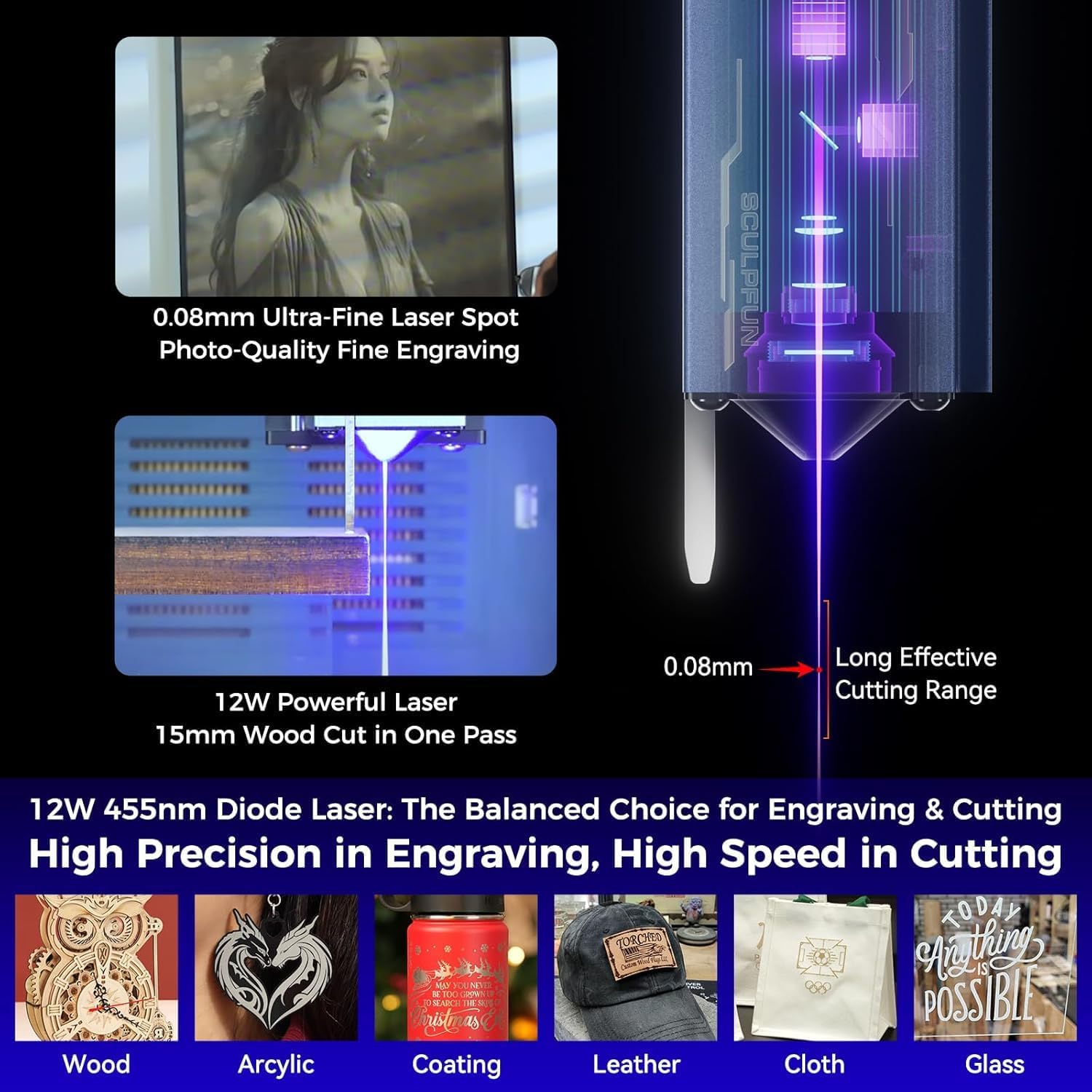
Figure 7: The 12W Diode Laser module's capability for cutting and engraving various materials.
4.4 Процесс гравировки/резки
- Open your chosen software (Sculpfun App, LightBurn, or LaserGRBL) and load or create your design.
- Adjust parameters such as power, speed, and passes according to your material and desired outcome. Refer to the software's documentation for detailed parameter settings.
- If using an optional camera accessory, utilize the camera positioning feature in the software for precise alignment of your design on the material.
- Initiate the engraving or cutting process from the software. The device will begin operation.
- The safety door mechanism will instantly stop the laser if the door is opened during operation and resume when closed.
4.5 Использование дополнительных принадлежностей
- Система воздушной поддержки: Connect an optional air assist system to improve cutting performance and reduce charring on materials.
- RA Mini Roller: For engraving cylindrical objects, install the RA Mini Roller accessory as per its instructions and adjust software settings accordingly.
5. Техническое обслуживание
Regular maintenance ensures the longevity and optimal performance of your SCULPFUN iCube Ultra Dual Laser Engraver.
5.1 Smoke Filter System
- The iCube Ultra Dual features a built-in high-efficiency smoke filter system with multiple layers, including a multi-layer fiber laminated filter and an activated carbon layer.
- Regularly inspect the filters for accumulation of smoke, dust, and odors. Replace filters when their effectiveness diminishes.
- For extensive cutting operations or materials that produce significant fumes, an external exhaust system can be connected to the designated port for enhanced filtration.

Figure 8: Components of the built-in smoke filter system.
5.2 Laser Lens Maintenance
- The laser lenses are interchangeable to ensure consistently sharp results and maximum service life.
- Periodically inspect the laser lens for any dust or residue. Clean gently with a suitable lens cleaning solution and cloth if necessary.
- Replace the laser lens if it becomes scratched or damaged to maintain engraving and cutting quality.
6. Поиск Неисправностей
This section provides solutions to common issues you might encounter during operation.
- Устройство не включается: Ensure the power adapter is securely connected and the USB security key is fully inserted. Check the power outlet.
- Лазер не стреляет: Verify that the USB security key is inserted. Confirm the safety door is closed. Check software settings for laser power and enable status.
- Низкое качество гравировки/резки:
- Check the laser focus using the one-button autofocus feature.
- Ensure the correct laser module (Diode or Infrared) is installed for your material.
- Adjust engraving/cutting parameters (power, speed, passes) in the software.
- Если линза лазера загрязнена, очистите её.
- Проблемы с подключением (USB/Bluetooth): Ensure cables are securely connected. For Bluetooth, verify the device is paired correctly. Restart the engraver, computer/mobile device, and software.
- Device Stops During Operation: This is often due to the safety door being opened or the temperature sensor detecting overheating. Close the door or allow the device to cool down.
- Необычные шумы: Power off the device immediately. Inspect for any obstructions or loose components. Contact support if the issue persists.
7. Технические характеристики
Detailed technical specifications for the SCULPFUN iCube Ultra Dual Laser Engraver.
| Особенность | Спецификация |
|---|---|
| Размеры продукта | 11.42 x 12.99 x 14.17 дюйма |
| Номер модели товара | XXL-iCube Ultra Dual |
| Вес товара | 19.8 фунта |
| Производитель | СКУЛЬПФАН |
| Laser Type (Diode) | 12W Blue Laser (455nm) |
| Laser Type (Infrared) | Инфракрасный лазер мощностью 1.2 Вт (1064 нм) |
| Рабочая зона | 150 х 150 мм |
| Processing Height | 80 мм |
| Скорость гравировки | До 10,000 мм/мин |
| Movement Precision | 0.1 мм |
| Сертификация безопасности | Класс 1 по классификации FDA |
| Операционные системы | Windows, MacOS, Android, iOS |
| Совместимое программное обеспечение | Sculpfun App, LightBurn, LaserGRBL |
8. Гарантия и поддержка
For detailed warranty information, technical support, and service inquiries, please visit the official SCULPFUN webПосетите их сайт или свяжитесь со службой поддержки клиентов. Сохраните чек для подтверждения гарантии.


