
1. Введение
This manual provides essential information for setting up, operating, maintaining, and troubleshooting your new jumper Ezbook P1 laptop. Please read this guide thoroughly to ensure optimal performance and longevity of your device. The jumper Ezbook P1 is designed for productivity and entertainment, featuring a large 17.6-inch display, a powerful Intel N95 processor, and Windows 11 operating system.

Image 1.1: The jumper Ezbook P1 laptop, showcasing большой дисплей и элегантный дизайн.
2. Начало работы (настройка)
2.1 Распаковка и первоначальный осмотр
Аккуратно извлеките ноутбук и все аксессуары из упаковки. Убедитесь в наличии всех компонентов:
- jumper Ezbook P1 Laptop
- Адаптер питания
- Руководство пользователя (этот документ)
Осмотрите ноутбук на предмет физических повреждений. При обнаружении каких-либо повреждений или отсутствии каких-либо компонентов немедленно обратитесь в службу поддержки клиентов.
2.2 Подключение адаптера питания
Before first use, ensure the laptop is fully charged. Connect the power adapter to the DC charging port on the laptop and then plug the adapter into a power outlet. The charging indicator light will illuminate.
2.3 Первая загрузка и установка Windows 11
Press the power button to turn on the laptop. The system will guide you through the initial Windows 11 setup process. Follow the on-screen instructions to configure language, region, network connection, and user account settings.
3. Работа с ноутбуком
3.1 Клавиатура и сенсорная панель
The laptop features a full-sized keyboard with a numeric keypad for efficient data entry. The keyboard is backlit, allowing for comfortable typing in low-light conditions. To activate or adjust the backlight, press Фн + Ф5.
The integrated touchpad supports multi-touch gestures for navigation. Refer to Windows settings for customizing touchpad sensitivity and gestures.

Image 3.1: The laptop's backlit keyboard with a dedicated numeric keypad.
3.2 Дисплей
The Ezbook P1 is equipped with a 17.6-inch Full HD (1920x1200) IPS display, offering wide viewing angles and accurate color reproduction (100% sRGB). The screen also features anti-glare technology to reduce reflections and eye strain.
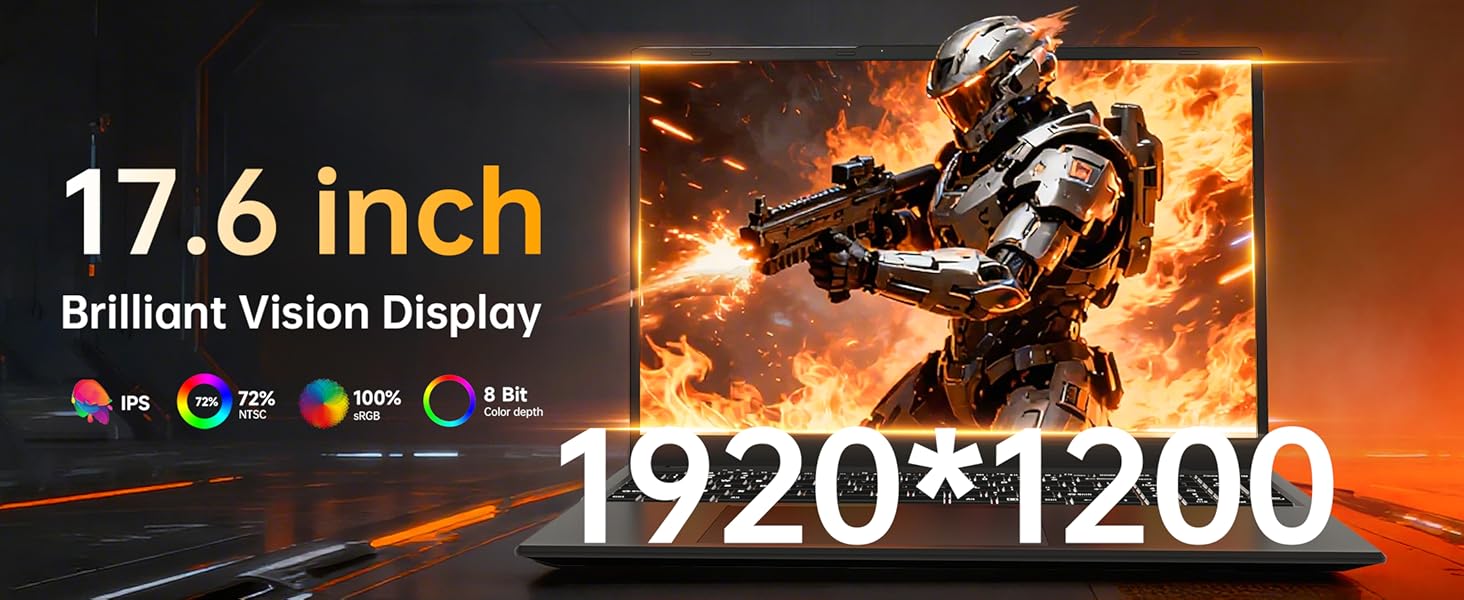
Image 3.2: Illustration of the anti-glare, eye-protection screen technology.
3.3 Порты и соединения
The laptop provides various ports for connecting peripherals and external devices:
- Порты USB 3.0 (x3): For connecting USB devices like mice, keyboards, and external storage.
- Порт HDMI: Для подключения к внешним мониторам или проекторам.
- Порт Type-C: A full-featured port supporting data transfer, video output, and Power Delivery (PD) fast charging.
- Разъем для наушников 3.5 мм: Для вывода звука на наушники или внешние динамики.
- Слот для TF-карты: For expanding storage with a microSD card (up to 1TB).
- Порт зарядки постоянного тока: Dedicated port for the included power adapter.

Изображение 3.3: оконченоview различных входных/выходных портов ноутбука.
3.4. Беспроводное подключение
- Wi-Fi 6: Provides faster and more reliable wireless internet connectivity.
- Bluetooth 5.2: Для подключения беспроводных периферийных устройств, таких как наушники, мыши и клавиатуры.
3.5 Webкамера и аудио
Интегрированный webcam is suitable for video calls and online meetings. A physical webcam shield is included for privacy. Slide the cover to open or close the camera lens. The laptop also features stereo speakers and a digital microphone for clear audio communication.
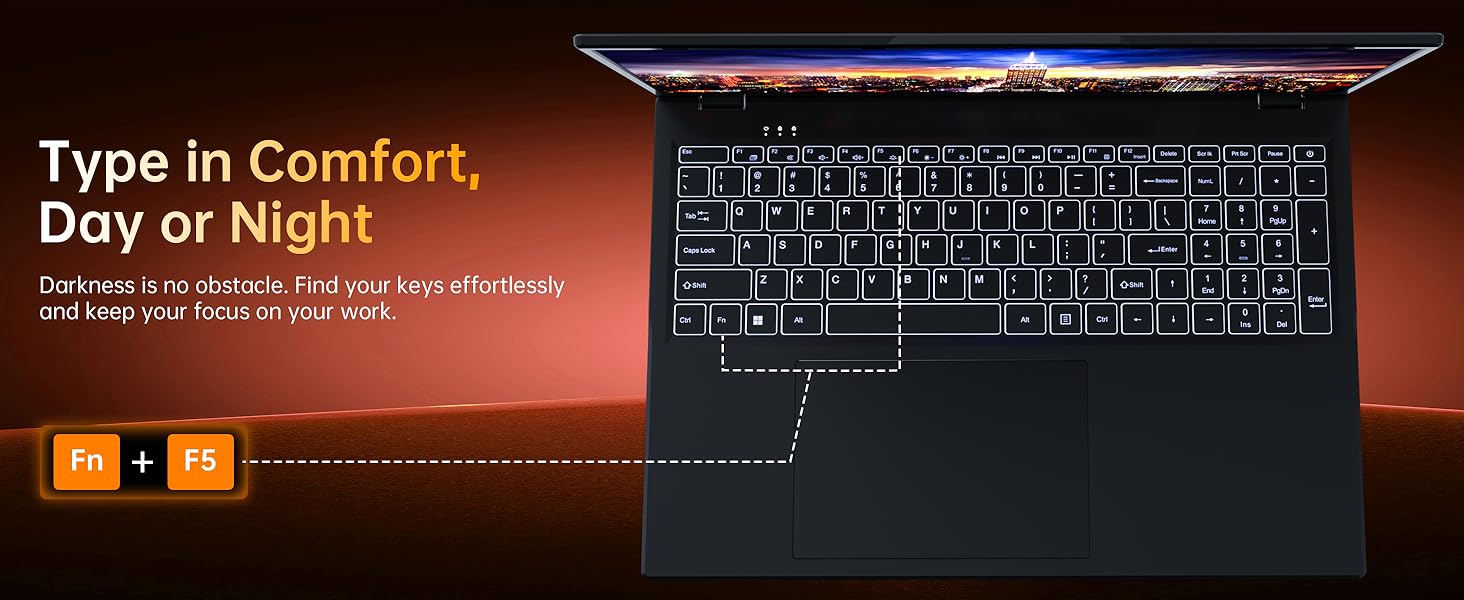
Image 3.4: The laptop's webcam with an integrated privacy switch.
4. Управление энергопотреблением
The Ezbook P1 is equipped with a 7000mAh battery, providing extended usage time. It supports PD fast charging via the Type-C port in addition to the dedicated DC charging port.
- Зарядка: Connect the power adapter to either the DC port or the Type-C port (with a compatible PD charger, not included) to charge the battery.
- Срок службы батареи: Battery life varies based on usage. To optimize battery life, adjust screen brightness, close unused applications, and utilize power-saving modes in Windows settings.

Image 4.1: The laptop's 7000mAh battery and dual charging options.
5. Техническое обслуживание
5.1 Чистка ноутбука
- Экран: Слегка используйте мягкую безворсовую ткань.ampСмочите экран водой или очистителем для экранов. Не распыляйте жидкость непосредственно на экран.
- Клавиатура и Casing: Используйте мягкую сухую ткань. Для удаления стойких загрязнений используйте слегка мягкую ткань.amp Можно использовать ткань, смоченную слабым мыльным раствором, следя за тем, чтобы жидкость не попала внутрь устройства.
- Вентили: Periodically clean the ventilation openings with compressed air to prevent dust buildup, which can affect cooling performance.
5.2 Обновления программного обеспечения
Регулярно проверяйте наличие обновлений Windows и устанавливайте их, чтобы ваша система была оснащена последними исправлениями безопасности и улучшениями производительности. Перейти к Настройки > Центр обновления Windows.
6. Поиск Неисправностей
| Проблема | Возможное решение |
|---|---|
| Ноутбук не включается. | Ensure the power adapter is securely connected and the outlet is functional. The battery might be completely drained; allow it to charge for at least 30 minutes before attempting to power on again. |
| Экран пустой или черный. | Check if the laptop is powered on. Try adjusting the screen brightness. If an external monitor is connected, ensure the display output is correctly configured (Fn + F10 or Windows P key). |
| Проблемы с подключением к Wi-Fi. | Verify Wi-Fi is enabled in Windows settings. Restart your router and the laptop. Ensure you are within range of the Wi-Fi network and have the correct password. |
| Клавиатура или тачпад не реагируют. | Restart the laptop. Check Windows settings for touchpad and keyboard drivers. Ensure no external devices are interfering. |
| Система работает медленно или не отвечает. | Close unnecessary applications. Check Task Manager for processes consuming high CPU/RAM. Ensure sufficient free storage space. Run a system scan for malware. |
7. Технические характеристики
| Особенность | Деталь |
|---|---|
| Название модели | Ezbook P1 |
| Размер дисплея | 17.6 дюйма |
| Разрешение экрана | 1920 x 1200 pixels (FHD IPS, 100% sRGB) |
| Процессор | Intel N95 (up to 3.4 GHz) |
| БАРАН | 16 ГБ DDR5 |
| Хранилище | 640GB SSD (512GB SSD + 128GB eMMC), expandable via TF card |
| Графический сопроцессор | Intel UHD-графика |
| Операционная система | Windows 11 Домашняя |
| Беспроводное подключение | Wi-Fi 6, Bluetooth 5.2 |
| Порты | 3x USB 3.0, 1x HDMI, 1x Full-featured Type-C, 1x 3.5mm Audio Jack, 1x TF Card Slot, 1x DC Charging Port |
| Аккумулятор | 7000мАч |
| Масса | 3.67 фунта (приблизительно 1.66 кг) |
| Размеры (ДxШxВ) | 14.37 x 9.61 x 0.79 дюйма |
| Особые возможности | Backlit Keyboard, Webcam Privacy Shield, Office 365 (12-month subscription included) |
8. Гарантия и поддержка
8.1 Информация о гарантии
jumper laptops come with a one-year warranty from the date of purchase. This warranty covers manufacturing defects. Please retain your proof of purchase for warranty claims.
8.2 Поддержка клиентов
For any product-related issues, technical assistance, or warranty inquiries, please contact jumper customer support:
- Электронная почта: service@jumper-customersupport.com
- Онлайн: Log in to your Amazon buyer account, find your order, and click "Get Product Support."
Our support team aims to assist you within 24 hours.

Image 8.1: Contact information for jumper customer support.


