1. Продукт закончилсяview
The HP OmniDesk M02 Tower Desktop is a high-performance personal computer designed for business and productivity. It features an AMD Ryzen 7 8700G processor, ample DDR5 RAM, and fast SSD storage, running on Windows 11 Home. This manual provides essential information for setting up, operating, maintaining, and troubleshooting your device.
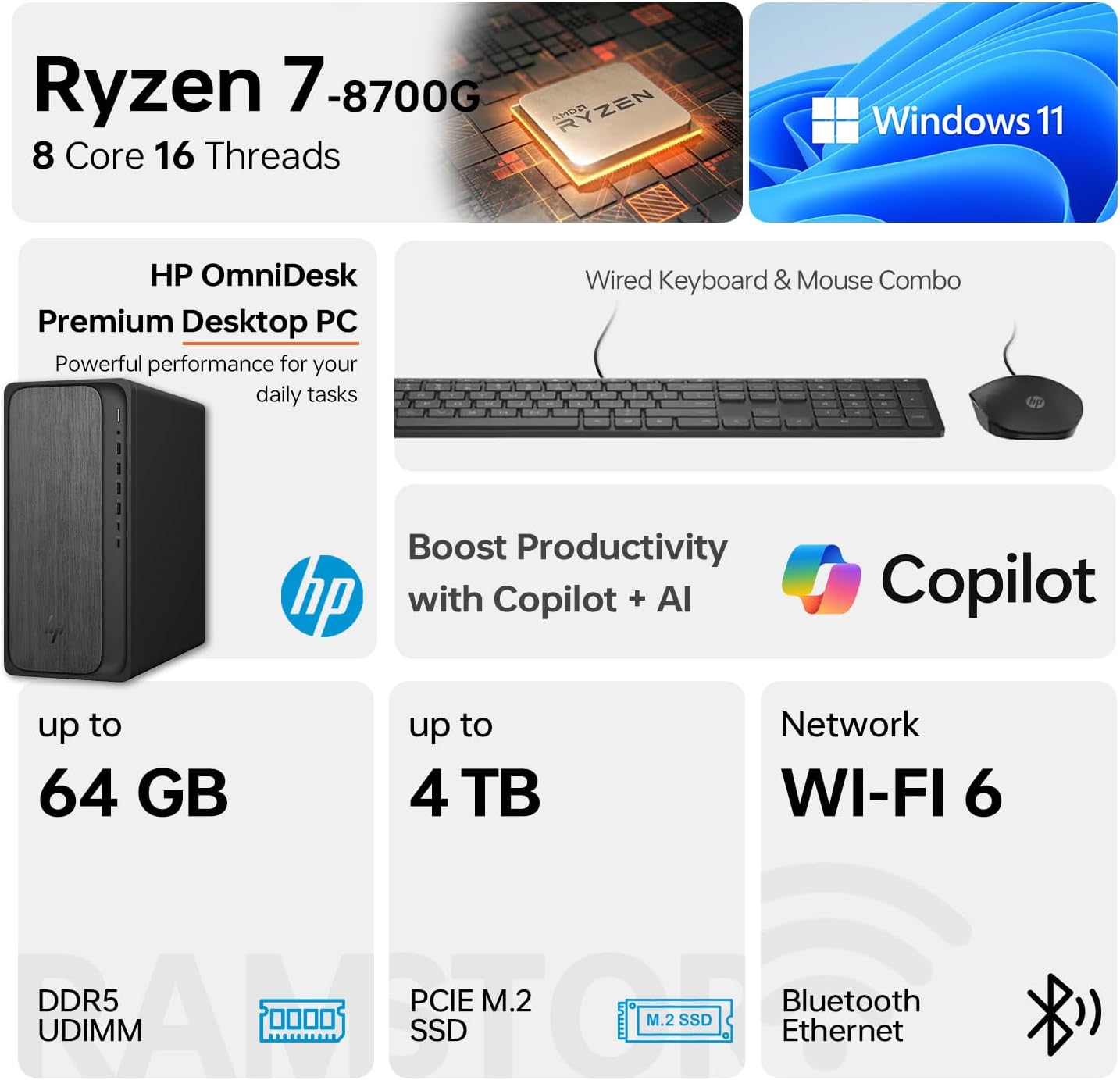
Image 1.1: HP OmniDesk M02 Tower Desktop highlighting its AMD Ryzen 7 8700G processor, Windows 11 operating system, Wi-Fi 6 connectivity, and memory/storage capabilities.
Основные характеристики:
- Процессор: AMD Ryzen 7 8700G (8 Cores, 16 Threads, up to 5.1GHz Max Boost)
- Память: 16 ГБ оперативной памяти DDR5 (с возможностью расширения до 64 ГБ)
- Хранилище: 1TB PCIe M.2 SSD, bundled with ADATA 512GB External SSD
- Операционная система: Windows 11 Домашняя
- Графика: Интегрированная графика AMD Radeon
- Связь: Wi-Fi 6, Bluetooth, Ethernet (RJ-45)
- Порты: Multiple USB Type-A and Type-C ports, HDMI, DisplayPort, audio jacks
- Included Peripherals: Проводная клавиатура и мышь
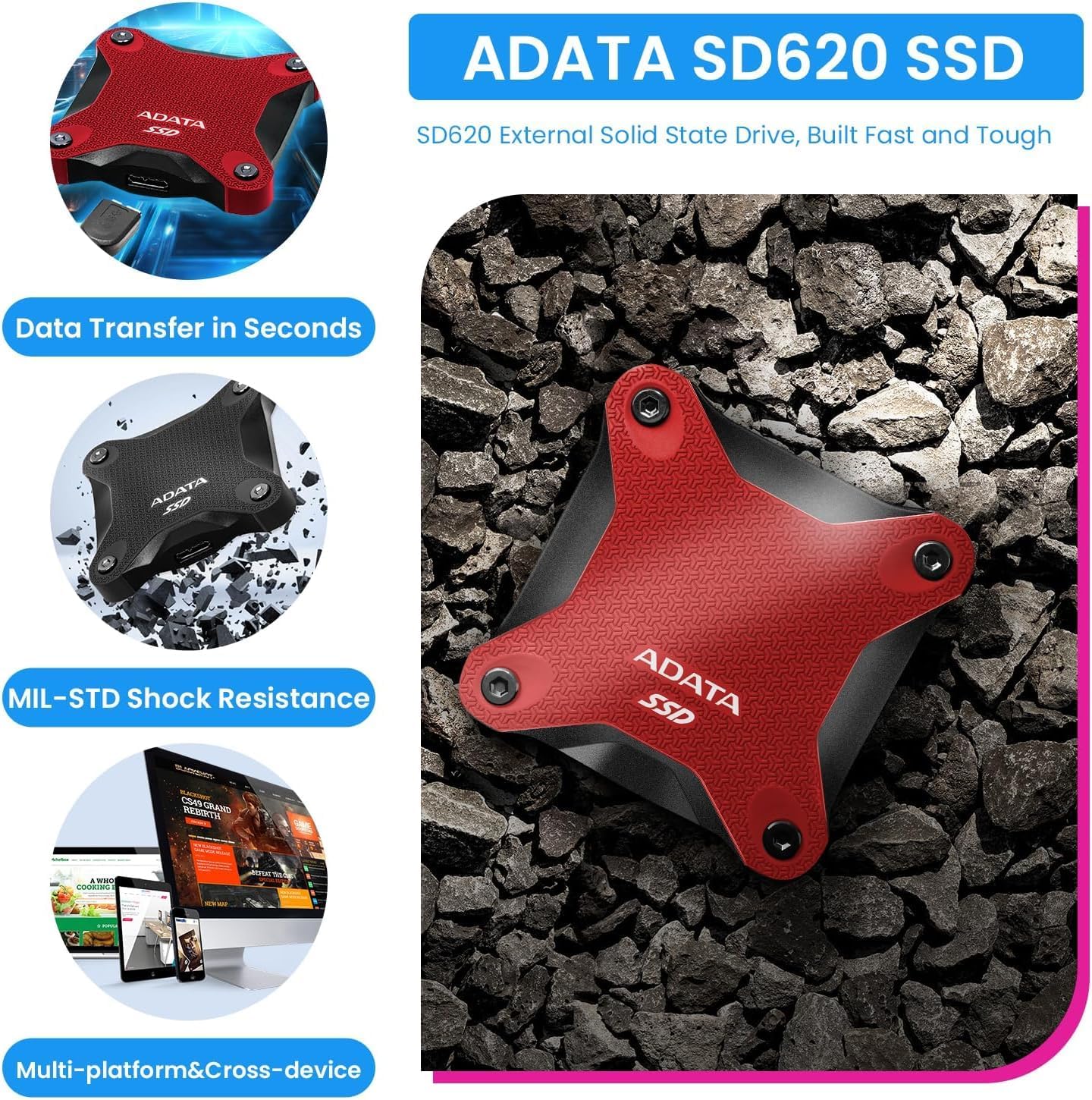
Image 1.2: The ADATA SD620 External SSD, included with the HP OmniDesk M02, highlighting its data transfer speed and MIL-STD shock resistance.
2. Инструкции по настройке
Follow these steps to set up your HP OmniDesk M02 Tower Desktop.
2.1 Распаковка
- Аккуратно извлеките все компоненты из упаковки.
- Verify that all items are present: HP OmniDesk M02 Tower Desktop, Wired Keyboard, Wired Mouse, Power Cable, and ADATA 512GB External SSD.
- Retain packaging materials for future transport or service.
2.2 Подключение периферийных устройств
Connect your monitor, keyboard, mouse, and other devices to the appropriate ports on the desktop.

Изображение 2.1: Подробно view of the front and rear ports on the HP OmniDesk M02 Tower Desktop, indicating their types and functions.
- Монитор: Connect your monitor to either the HDMI or DisplayPort on the rear of the desktop.
- Клавиатура и мышь: Connect the wired keyboard and mouse to any available USB Type-A ports.
- Власть: Connect the power cable to the desktop's power input and then to a wall outlet.
- Внешний SSD: Connect the ADATA 512GB External SSD to an available USB port.
- Сеть (необязательно): Для проводного подключения к интернету подключите кабель Ethernet к порту RJ-45.
2.3 Первоначальная загрузка
- Нажмите кнопку питания на передней панели настольного компьютера.
- Follow the on-screen instructions to complete the Windows 11 Home setup. This typically involves selecting your region, language, and creating a user account.
- Ensure an internet connection is established during setup for updates and account synchronization.
3. Инструкция по эксплуатации
This section covers basic operation of your HP OmniDesk M02.
3.1 Включение/выключение питания и перезагрузка
- Включение питания: Нажмите кнопку питания на передней панели настольного компьютера.
- Неисправность: В Windows 11 нажмите кнопку «Пуск», затем выберите «Питание» > «Выключить».
- Перезапуск: Нажмите кнопку «Пуск», затем выберите «Питание» > «Перезагрузка».
3.2 Подключение к Wi-Fi и Bluetooth
- Wi-Fi: Click the Network icon in the taskbar, select your desired Wi-Fi network, enter the password, and click Connect.
- Bluetooth: Go to Settings > Bluetooth & devices, ensure Bluetooth is turned on, and then click "Add device" to pair new Bluetooth devices.
3.3 Using Windows 11 and AI Features
Your HP OmniDesk M02 comes with Windows 11 Home, offering a modern interface and integrated AI capabilities through Copilot.
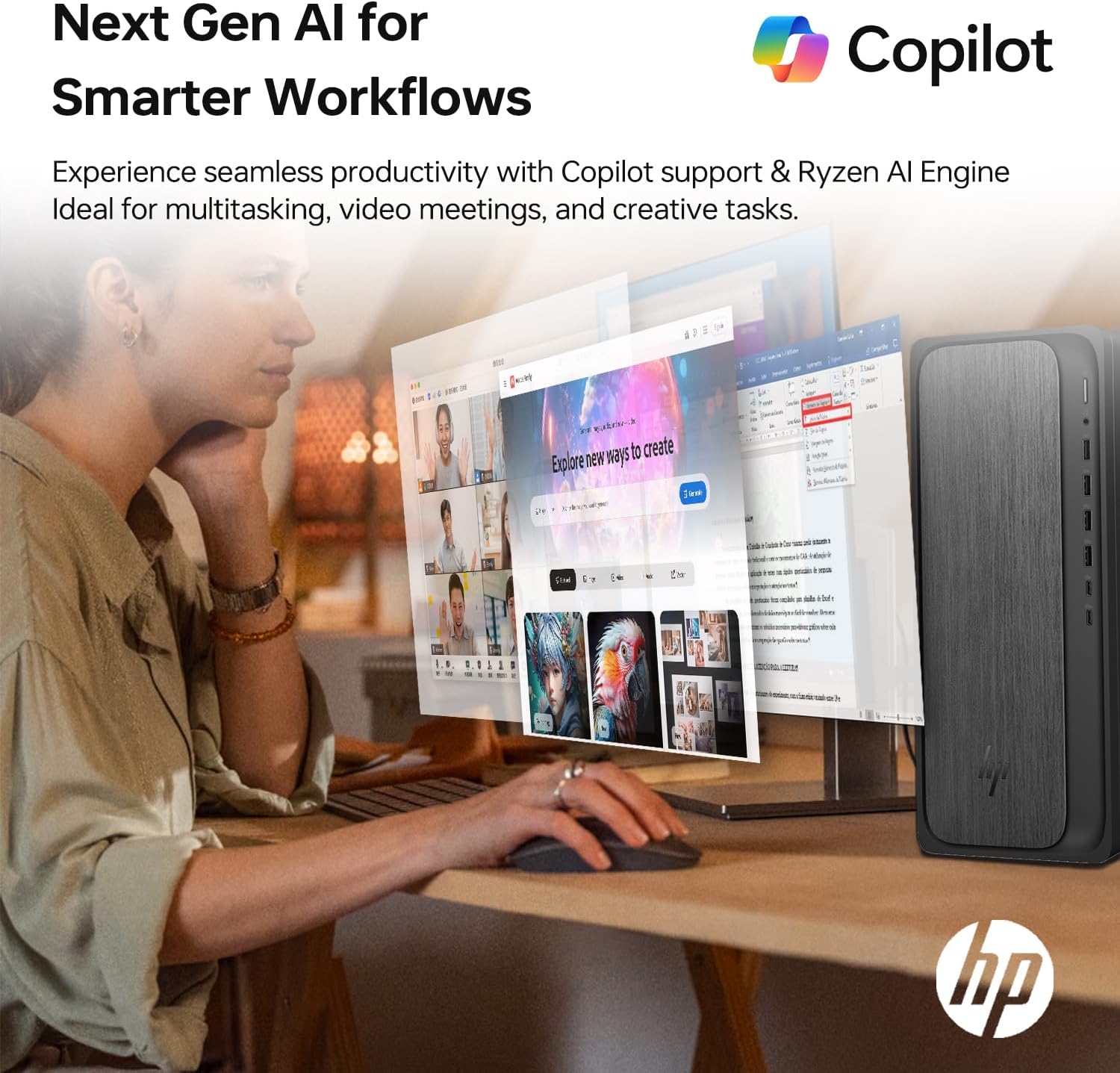
Image 3.1: A user interacting with the HP OmniDesk M02, demonstrating the integration of Copilot for enhanced productivity and AI-driven workflows.
- Меню «Пуск»: Access applications, settings, and power options from the centered Start menu.
- Виджеты: Personalize your desktop with widgets for news, weather, and more.
- Второй пилот: Utilize the integrated Copilot AI for assistance with tasks, content creation, and system navigation. Access it via the taskbar icon.
4. Техническое обслуживание
Proper maintenance ensures the longevity and optimal performance of your desktop.
4.1 Очистка
- Экстерьер: Используйте мягкую, безворсовую ткань, слегкаampПромойте водой или мягким моющим средством. Избегайте использования агрессивных химикатов.
- Вентили: Periodically clean dust from the ventilation grilles using compressed air to prevent overheating. Ensure the desktop is powered off before cleaning vents.
4.2 Обновления программного обеспечения
Регулярно обновляйте операционную систему и драйверы для обеспечения безопасности и производительности.
- Обновления Windows: Откройте «Настройки» > «Центр обновления Windows» и проверьте наличие доступных обновлений.
- Обновления драйверов: Посетите официальную поддержку HP website for your model to download the latest drivers for components like graphics and chipset.
4.3 Модернизация оборудования
The HP OmniDesk M02 supports upgrades for RAM and internal storage.
- БАРАН: The system supports up to 64GB DDR5 UDIMM RAM.
- Внутренний SSD: The system supports up to 4TB PCIe M.2 SSD.
- Важный: Opening the chassis for upgrades may affect the original manufacturer's warranty. Consult the warranty section for details.
5. Поиск Неисправностей
В этом разделе рассматриваются распространенные проблемы, с которыми вы можете столкнуться.
5.1 Нет питания
- Ensure the power cable is securely connected to both the desktop and a working power outlet.
- Проверьте работоспособность розетки, подключив к ней другое устройство.
- Verify the power supply unit (PSU) switch (if present) is in the ON position.
5.2 Нет изображения на мониторе
- Confirm the monitor is powered on and its input source is correctly selected (HDMI/DisplayPort).
- Check that the video cable is securely connected to both the desktop and the monitor.
- Try connecting the monitor to a different video port on the desktop if available.
5.3 Проблемы с сетевым подключением
- Wired: Ensure the Ethernet cable is properly connected and your router/modem is working.
- Wi-Fi: Verify Wi-Fi is enabled in Windows settings and you are connected to the correct network with the correct password. Restart your router/modem.
6. Технические характеристики
Detailed technical specifications for the HP OmniDesk M02 Tower Desktop.

Изображение 6.1: Крупный план view of the AMD Ryzen 7 8700G processor, highlighting its core count, thread count, clock speed, and L3 cache.
| Компонент | Спецификация |
|---|---|
| Номер модели | ТПК-Ф134-МТ |
| Процессор | AMD Ryzen 7 8700G (8 Cores, 16 Threads, 4.2GHz base, up to 5.1GHz max turbo) |
| БАРАН | 16GB DDR5 UDIMM (4800 MHz), expandable to 64GB |
| Внутреннее хранилище | 1TB PCIe M.2 SSD, expandable to 4TB |
| Внешнее хранилище | ADATA 512GB External SSD (bundled) |
| Графика | Интегрированная графика AMD Radeon |
| Операционная система | Windows 11 Домашняя |
| Беспроводное подключение | Wi-Fi 6 (802.11ax), Bluetooth |
| Передние порты | 1x USB Type-C 10 Гбит/с, 1x USB Type-C 5 Гбит/с, 2x USB Type-A 10 Гбит/с, 2x USB Type-A 5 Гбит/с, 1x комбинированный разъем для наушников и микрофона |
| Задние порты | 4 порта USB 2.0 Type-A, 1 порт RJ-45 (Ethernet), 3 комбинированных аудиоразъема 3.5 мм, 1 порт HDMI, 1 порта DisplayPort |
| Размеры (ДxШxВ) | 6.10" x 13.27" x 12.40" (15.5 x 33.7 x 31.5 см) |
| Масса | 12.72 фунта (5.77 кг) |
| Цвет | Серый |
7. Гарантия и поддержка
7.1 Информация о гарантии
The HP OmniDesk M02 Tower Desktop comes with a manufacturer's warranty. For this specific configuration, a 1-year warranty on the upgraded RAM and SSD is provided by PCOnline US. All other original components retain the standard 1-year manufacturer's warranty from HP.
Пожалуйста, сохраните документ, подтверждающий покупку, для претензий по гарантии.
7.2 Техническая поддержка
For technical assistance, please refer to the official HP support website or contact their customer service. For issues related to the upgraded RAM or SSD, please contact PCOnline US directly.
Поддержка HP: www.hp.com/support