1. Введение и окончаниеview
This manual provides essential information for setting up, operating, maintaining, and troubleshooting your HP OmniDesk Desktop PC. Designed for efficiency and performance, this system is equipped with advanced components to meet your computing needs.
Основные характеристики:
- AMD Ryzen 7 8700G Processor: Optimized for high-speed performance, gaming, and responsiveness, ensuring cool and quiet operation.
- Графический процессор AMD Radeon 780M: Integrated graphics deliver impressive visual fidelity and high-definition gaming capabilities.
- 32 ГБ оперативной памяти DDR5 5200 МГц: High-bandwidth memory for smooth multitasking, graphics-intensive applications, and seamless browsing.
- 1TB PCIe 4.0 SSD Storage: Provides fast data transfer speeds and efficient storage for quick boot-ups and application loading.
- Windows 11 Pro with Microsoft Copilot: Enhanced operating system with intelligent AI assistance for improved productivity and creativity.

Figure 1: HP OmniDesk Desktop PC with included keyboard and mouse.
2. Настройка
Follow these steps to set up your HP OmniDesk Desktop PC:
- Распаковываем компоненты: Carefully remove the desktop tower, keyboard, mouse, power cable, and any other accessories from their packaging.
- Подключить монитор: Connect your monitor to the desktop PC using either the DisplayPort 1.4 or HDMI port on the rear of the tower. Ensure the monitor's power cable is also connected.
- Подключите клавиатуру и мышь: Plug the USB cables from the keyboard and mouse into any available USB-A ports on the desktop PC.
- Подключите питание: Connect the power cable to the power input on the rear of the desktop PC, then plug the other end into a wall outlet or surge protector.
- Включение питания: Press the power button on the front of the desktop PC to turn it on. Follow the on-screen instructions for initial Windows 11 Pro setup.

Figure 2: Rear ports of the HP OmniDesk Desktop PC, including DisplayPort, HDMI, USB-A, and Ethernet.

Figure 3: Front ports of the HP OmniDesk Desktop PC, including headphone/microphone combo, USB-A, and USB-C ports.
3. Инструкция по эксплуатации
Your HP OmniDesk Desktop PC comes pre-installed with Windows 11 Pro, offering a user-friendly interface and powerful features.
Основная операция:
- Включение/выключение питания: Press the power button on the front of the tower to turn the PC on. To shut down, click the Start button, then Power, and select "Shut down."
- Связь: Utilize the multiple USB ports (USB-A 3.0, USB-A 3.1, USB-C 3.0, USB-C 3.1, USB-A 2.0) for connecting peripherals. Wi-Fi 6 and Bluetooth connectivity are built-in for wireless networking and device pairing.
- Microsoft Copilot: Access the AI-powered intelligent assistant by pressing the dedicated Copilot key on your keyboard or through the Windows Start menu for quick answers and task assistance.
- Аудио: Connect headphones or speakers to the front headphone/microphone combo jack or use the rear audio ports for surround sound configurations.
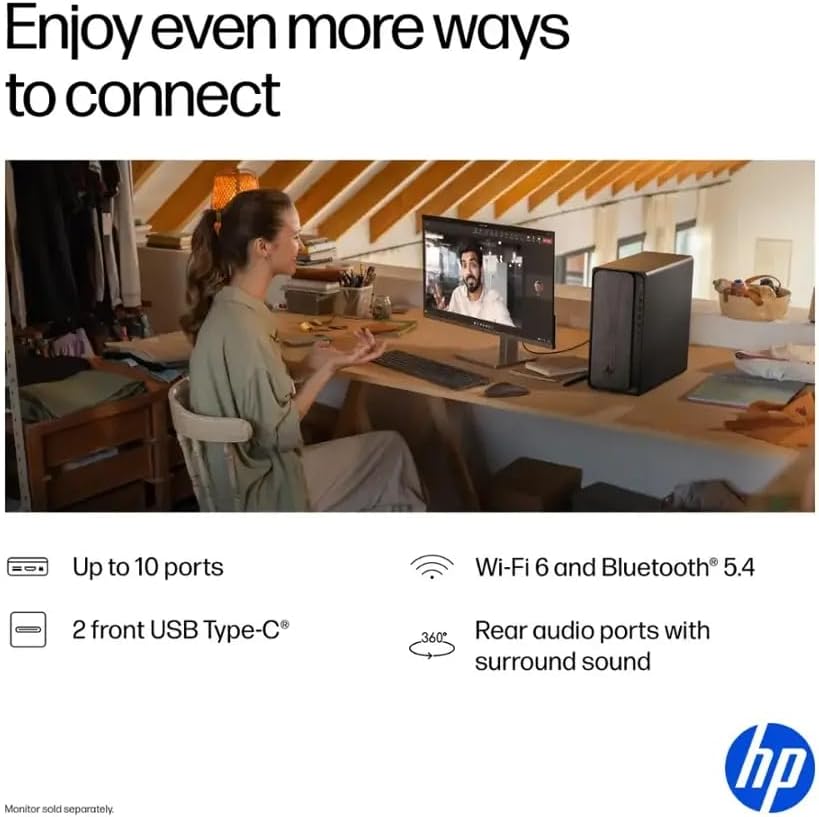
Figure 4: User interacting with the HP OmniDesk Desktop PC, highlighting its productivity features.
4. Техническое обслуживание
Regular maintenance ensures optimal performance and longevity of your HP OmniDesk Desktop PC.
- Соблюдайте чистоту: Regularly clean the exterior of the PC with a soft, dry cloth. Use compressed air to clear dust from vents and ports to prevent overheating.
- Обновления программного обеспечения: Ensure your Windows 11 Pro operating system and drivers are up-to-date. This can be done through Windows Update settings.
- Антивирусная защита: Install and regularly update antivirus software to protect against malware and viruses.
- Резервные данные: Периодически создавайте резервные копии важных файлов. fileдля сохранения данных на внешний накопитель или в облачное хранилище, чтобы предотвратить их потерю.
- System Restore Points: Create system restore points before installing new software or making significant system changes.
5. Поиск Неисправностей
Вот решения распространенных проблем, с которыми вы можете столкнуться:
- Компьютер не включается:
- Проверьте, надежно ли подключен кабель питания к компьютеру и розетке.
- Ensure the power outlet is functional by plugging in another device.
- Нет изображения на мониторе:
- Verify that the monitor is powered on and the video cable (HDMI/DisplayPort) is securely connected to both the PC and the monitor.
- Try a different video port or cable if available.
- Низкая производительность:
- Закройте ненужные приложения, работающие в фоновом режиме.
- Проверьте наличие и установите все ожидаемые обновления Windows.
- Выполните очистку и дефрагментацию диска (для жестких дисков, для SSD не требуется).
- Сканирование на наличие вредоносных программ и вирусов.
- Периферийное устройство не обнаружено:
- Убедитесь, что периферийное устройство правильно подключено к исправному порту USB.
- Попробуйте подключить периферийное устройство к другому USB-порту.
- Update or reinstall the peripheral's drivers.
6. Технические характеристики
| Компонент | Деталь |
|---|---|
| Процессор | AMD Ryzen 7 8700G (Up to 5.1 GHz, 8-core) |
| Нейронный процессор (НПУ) | Yes (Max 16 TOPS) |
| Память (ОЗУ) | 32 ГБ DDR5 5200 МГц |
| Хранилище | 1TB SSD PCIe 4.0 |
| Графика | AMD Radeon 780M (интегрированная) |
| Операционная система | Windows 11 Профессиональная |
| Беспроводное подключение | Wi-Fi 6, Bluetooth |
| USB-порты | 2x USB-A 3.0, 2x USB-A 3.1, 1x USB-C 3.0, 1x USB-C 3.1, 4x USB-A 2.0 |
| Видео порты | 1x DisplayPort 1.4, 1x HDMI |
| Ethernet-порты | 1 |
| Аудио порты | Microphone Input, Rear Audio Ports with Surround Sound |
| CPU Cooling System | Воздух |
| Размеры (ДxШxВ) | 13.27 x 6.1 x 12.4 дюйма |
| Масса | 12.72 фунта |
| Включенные периферийные устройства | Клавиатура, Мышь |

Figure 5: Dimensions of the HP OmniDesk Desktop PC.
7. Гарантия и поддержка
Your HP OmniDesk Desktop PC is covered by HP's standard warranty. For detailed information regarding your product's warranty period and terms, please refer to the documentation included with your purchase or visit the official HP support webсайт.
For technical assistance, troubleshooting, or service requests, please contact HP Customer Support. You can find contact information on the HP website or in your product's warranty documentation.
Для продления гарантийного срока сверх стандартного периода могут быть доступны дополнительные планы защиты, которые можно приобрести отдельно.
8. Видеоролики о продуктах
Watch this video for additional information and visual guides:
Stratos Gallery Video
Это видео дает визуальное представлениеview of the Stratos PC, showcasing its design and features. Note: This video is for a related product (Stratos PC) by Empowered PC, a seller, and is included for general reference on PC features.