1. Введение
The TABWEE 10.1 Inch WiFi Digital Calendar, Model P10, is an interactive touchscreen display designed to streamline family organization. It integrates calendars, task management, meal planning, and digital photo frame capabilities into a single device. This manual provides detailed instructions to help you set up and utilize all features of your new digital calendar.

Изображение 1.1: The TABWEE Digital Calendar in use, showcasing its calendar interface and mobile app synchronization.
2. Информация по технике безопасности
- Убедитесь, что устройство установлено на устойчивой ровной поверхности, чтобы предотвратить случайные падения.
- Используйте только прилагаемый адаптер питания. Использование неоригинальных адаптеров может привести к повреждению устройства и аннулированию гарантии.
- Держите устройство вдали от воды, влаги и экстремальных температур.
- Не пытайтесь самостоятельно вскрывать или ремонтировать устройство. Для проведения технического обслуживания или ремонта обращайтесь к квалифицированным специалистам.
- Keep out of reach of small children to prevent accidental ingestion of small parts or damage to the device.
3. Содержимое упаковки
Проверьте наличие всех предметов в упаковке:
- TABWEE 10.1 Inch WiFi Digital Calendar (Model P10)
- Адаптер питания
- Руководство пользователя (этот документ)
4. Продукт закончилсяview
Familiarize yourself with the physical components of your TABWEE Digital Calendar.

Изображение 4.1: Technical details and component layout of the TABWEE Digital Calendar.
- Кнопка включения / выключения питания: Расположен сбоку для включения и выключения устройства.
- Кнопки увеличения / уменьшения громкости: Adjust the device's audio output.
- Датчик освещенности: Автоматически регулирует яркость экрана в зависимости от окружающего освещения.
- Опорная стойка: Integrated stand for desk placement.
5. Настройка
5.1 Первоначальное включение питания
- Connect the provided power adapter to the device's power port.
- Plug the adapter into a standard electrical outlet. The device will automatically power on.
- Следуйте инструкциям на экране, чтобы выбрать язык и регион.
Сетевое подключение 5.2
- On the initial setup screen, select your Wi-Fi network from the list.
- Enter your Wi-Fi password and tap 'Connect'.
- Ensure the device is connected to a stable internet connection for full functionality.
5.3 Установка приложения и создание учетной записи
To fully utilize the calendar's features, download and set up the companion 'eCalendar' app on your smartphone (iOS or Android).

Изображение 5.1: Steps for downloading and creating an account on the eCalendar app.
- Scan the QR code displayed on the calendar screen or search for 'eCalendar' in your device's app store (Google Play Store for Android, Apple App Store for iOS).
- Загрузите и установите приложение.
- Open the eCalendar app and follow the prompts to create a new account or log in if you already have one.
- Согласен с Пользовательским соглашением и Политикой конфиденциальности.
5.4 Device Linking
Link your TABWEE Digital Calendar to your eCalendar app account.

Изображение 5.2: Linking the calendar device to the eCalendar app and setting up your unique calendar email.
- In the eCalendar app, select the option to 'Add Device' or 'Activate a new eCalendar Frame'.
- Follow the on-screen instructions to pair your device. This may involve scanning a QR code displayed on the calendar or entering a pairing code.
- Once linked, you can set up your unique calendar email address within the app.
6. Операция
6.1 Базовая навигация
The TABWEE Digital Calendar features a responsive touchscreen. Navigate through menus and features by tapping, swiping, and pinching as you would on a tablet device.
6.2 Управление календарем
The core function of your device is calendar management, allowing for seamless synchronization and event organization.
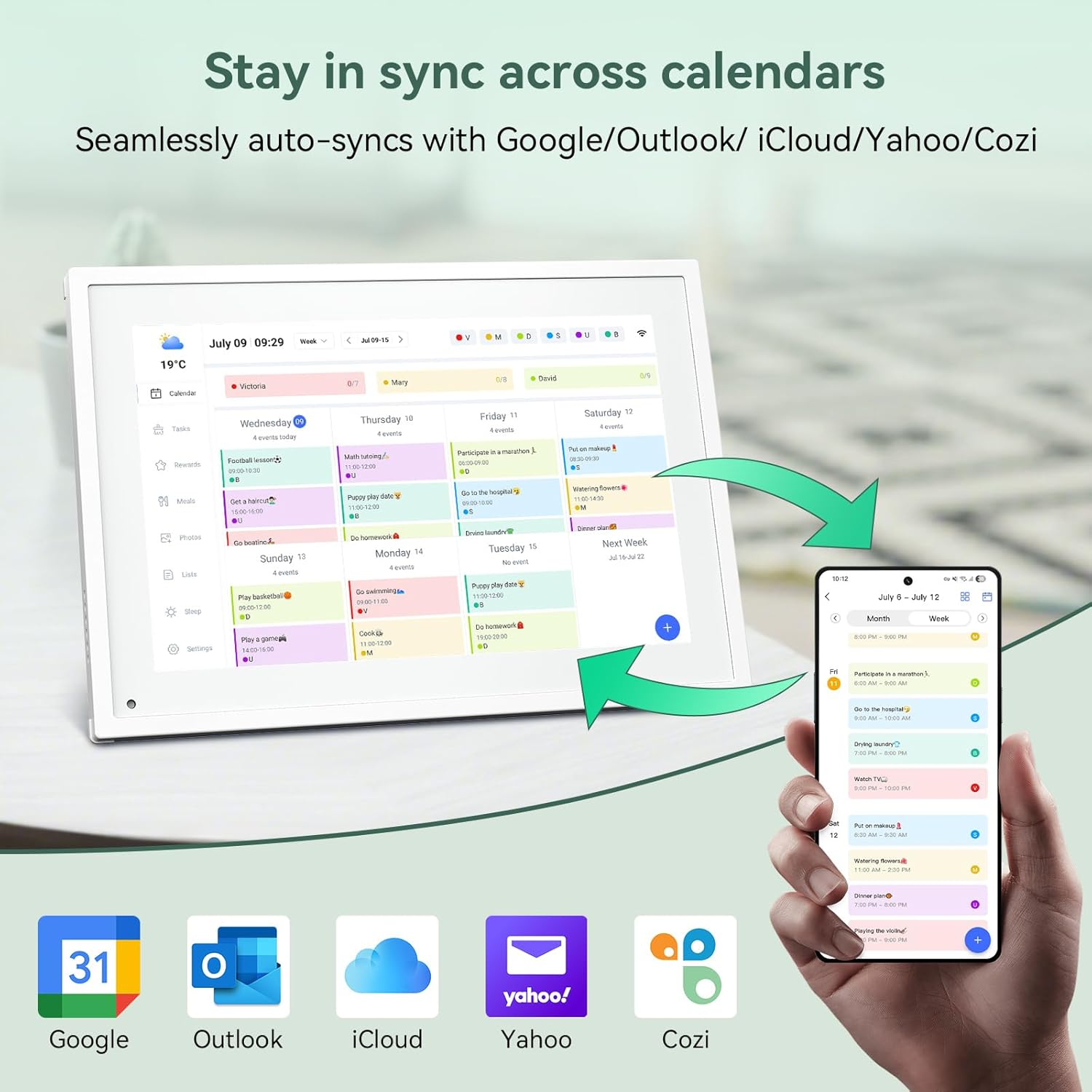
Изображение 6.1: Seamless synchronization of the digital calendar with various external calendar services.
- Syncing External Calendars: Within the eCalendar app settings, you can link your Google, Apple, Outlook, Yahoo, or Cozi calendars. Events from these linked accounts will automatically appear on your TABWEE Digital Calendar.
- Adding/Editing Events: Tap on a date or time slot on the calendar display or use the eCalendar app to add new events. You can specify event details, set reminders, and assign participants.
- Индивидуальный Views: Switch between day, week, or month views directly on the device or through the app.
6.3 Task Management (Chore Chart)
Organize tasks and chores for family members with a built-in reward system.
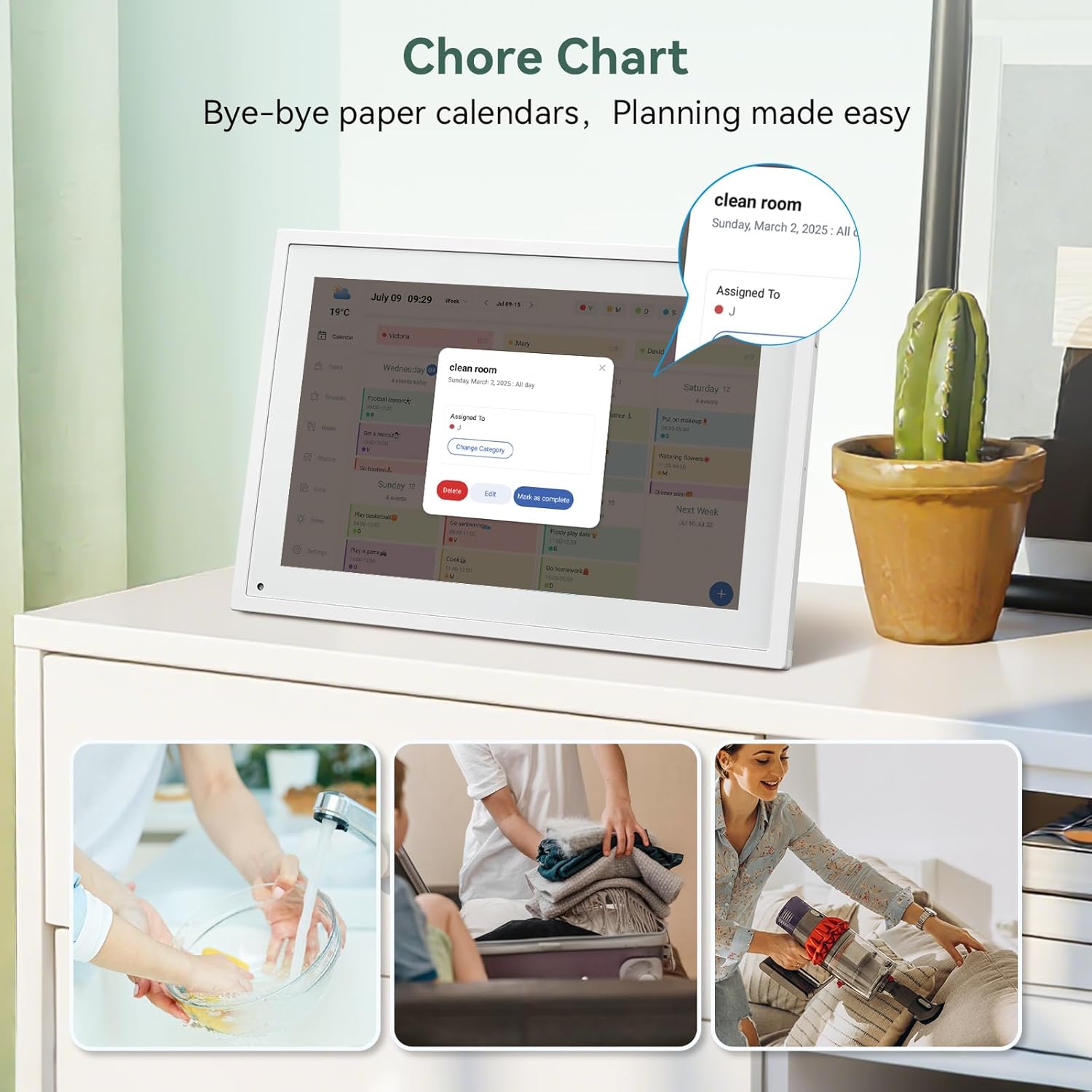
Изображение 6.2: Managing tasks and chores on the digital calendar interface.
- Creating Tasks: Use the 'Tasks' section on the device or app to create new tasks. Assign them to specific individuals, set due dates, and configure recurring tasks.
- Отслеживание прогресса: Users can mark tasks as complete. The system tracks completion and can be configured to award points.
- Система вознаграждений: Set up a star-point reward system within the app. Points earned from completed tasks can be redeemed for custom rewards, encouraging participation.

Изображение 6.3: The task manager and rewards interface, designed for engaging users.
6.4 Meal Planning
Plan your meals directly on the device or through the app.

Изображение 6.4: Visual meal planning interface on the digital calendar.
- Create Meal Plans: Access the 'Meals' section to plan breakfasts, lunches, dinners, and snacks for the week.
- Пользовательские рецепты: Upload and store your favorite recipes.
- Grocery Lists: Generate grocery lists based on your meal plans.
6.5 Функциональность цифровой фоторамки
The device can also function as a digital photo frame.

Изображение 6.5: The digital calendar switching between calendar and photo frame modes, in both landscape and portrait orientations.
- Режимы переключения: Navigate to the 'Photos' section on the device or app to activate the digital photo frame mode.
- Загрузка фотографий: Upload your favorite memories directly from your smartphone via the eCalendar app.
- Ориентация: The device supports both landscape and portrait orientations, automatically adjusting the display.
6.6 Другие функции
The TABWEE Digital Calendar includes additional smart features to enhance usability.
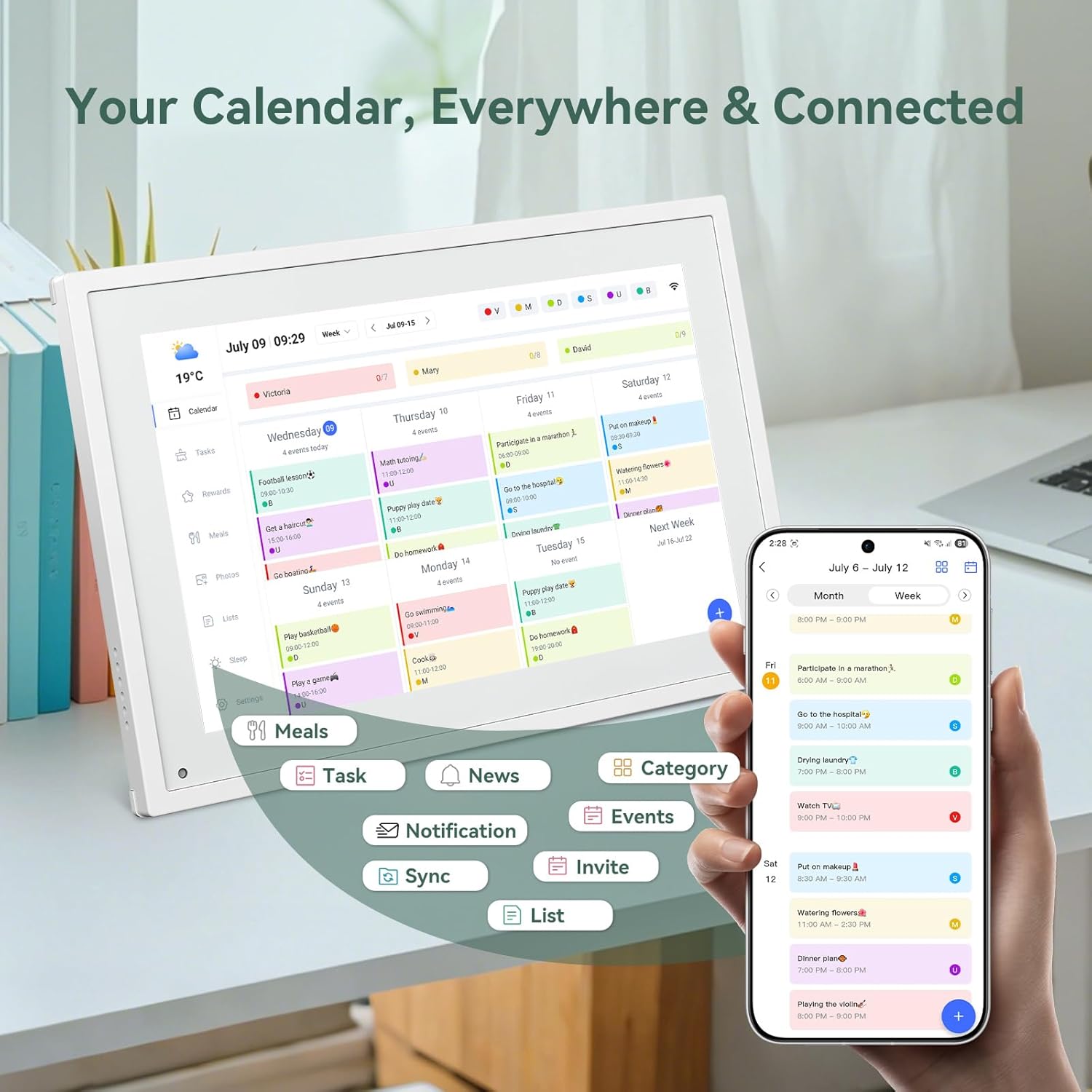
Изображение 6.6: Надview of smart features and app connectivity.
- Live Weather Forecasts: Отображает текущие погодные условия и прогнозы.
- Автояркость: The built-in light sensor automatically adjusts screen brightness for optimal viewинж.
- Спящий режим: Configure scheduled times for the device to enter a low-power sleep mode.
- Custom Lists: Create and manage various lists (e.g., shopping lists, packing lists).
- Цветовое кодирование: Assign different colors to events or tasks for easy visual identification.
7. Техническое обслуживание
7.1 Очистка устройства
- Аккуратно протрите экран мягкой тканью без ворса. Для удаления стойких пятен слегка протрите.ampсмочите ткань водой или раствором для чистки экранов.
- Избегайте нанесения на устройство агрессивных химикатов, абразивных материалов или аэрозольных баллончиков.
- Перед чисткой убедитесь, что устройство выключено и отсоединено от сети.
7.2 Обновления программного обеспечения
Устройство может периодически получать обновления программного обеспечения для повышения производительности и добавления новых функций. Убедитесь, что ваше устройство подключено к Wi-Fi, чтобы получать эти обновления. Обычно вы будете получать уведомление на экране, когда будет доступно обновление.
8. Поиск Неисправностей
| Проблема | Возможная причина | Решение |
|---|---|---|
| Устройство не включается. | Адаптер питания не подключен или неисправен. | Убедитесь, что адаптер питания надежно подключен к устройству и к исправной розетке. |
| Невозможно подключиться к Wi-Fi. | Неверный пароль, вне зоны действия сети или проблема с сетью. | Verify Wi-Fi password. Move the device closer to the router. Restart your router. |
| События календаря не синхронизируются. | App not linked, external calendar not connected, or internet issue. | Check app-device linking. Ensure external calendars are correctly linked in the eCalendar app. Verify internet connection. |
| Экран не реагирует. | Временный сбой программного обеспечения. | Restart the device by holding the power button until it turns off, then power it back on. |
9. Технические характеристики
| Особенность | Деталь |
|---|---|
| Номер модели | Р10 |
| Размер экрана | 10.1 дюйма |
| Тип дисплея | Сенсорный экран |
| Связность | Wi-Fi |
| Размеры продукта | 10.51 x 0.91 x 7.32 дюйма (26.7 x 2.3 x 18.6 см) |
| Вес товара | 2.58 фунта (1.17 кг) |
| Тип крепления | Desk Mount (not wall-mountable) |
| Источник питания | Plug-in (no internal battery) |
| Цвет | Белый |
10. Гарантия и поддержка
The TABWEE Digital Calendar comes with a standard manufacturer's warranty. For specific warranty terms and conditions, please refer to the warranty card included in your product packaging or visit the official TABWEE webсайт.
For technical support, troubleshooting assistance, or any inquiries regarding your product, please contact TABWEE customer service through their official webсайт или контактную информацию, указанную в документации к вашему продукту.


