1. Введение
This manual provides detailed instructions for the setup, operation, and maintenance of your CRUA 34-inch Curved UWQHD 120Hz IPS Gaming Monitor, Model CR340E. Please read this manual thoroughly before using the product to ensure proper functionality and to prevent damage.
2. Особенности продукта
- 34-inch IPS Curved Panel: Experience enhanced immersion and a wide viewing angle with the 34-inch 21:9 ultrawide 1900R IPS curved panel. A 178° wide viewing angle ensures no color distortion at the edges, ideal for both movie watching and multitasking.

Изображение: Спереди view of the CRUA 34-inch Curved UWQHD 120Hz IPS Gaming Monitor, showcasing its curved design.
- Professional-Grade Color: Achieve cinema-standard color reproduction with 98% DCI-P3 coverage. High brightness of 350 cd/m² and a 2000:1 contrast ratio vividly display HDR content. The 8-bit (16.7 million colors) panel ensures smooth color gradations.

Image: Visual representation of the monitor's DCI-P3 98% color gamut, 130% sRGB, 2000:1 contrast ratio, 8-bit color depth, and 350 cd/m² brightness.
- Повышение производительности: The expansive 3440x1440 UWQHD resolution screen allows for simultaneous viewing of document comparisons and video editing timelines. The 21:9 aspect ratio significantly boosts work efficiency for remote work and professional tasks.

Image: A comparison demonstrating the superior detail and clarity of UWQHD (3440x1440) resolution compared to FHD.
- Игровая производительность: Eliminates screen tearing and stuttering with a 120Hz high refresh rate and AMD FreeSync technology. Leveraging the curved IPS panel, it provides an immersive experience for the vast worlds of RPGs and simulation games.

Image: A dynamic scene of a motorcycle race, illustrating the smooth motion provided by the 120Hz refresh rate and AMD FreeSync technology.
- Excellent Expandability: Connect gaming consoles (e.g., PS5) and PCs simultaneously with 2x HDMI 2.0 and 2x DP 1.4 ports. A 3.5mm earphone jack and 100x100mm VESA mount compatibility offer complete flexibility for audio setup and installation.

Image: A diagram showing the monitor's dimensions and the location of its various ports, including HDMI 2.0, DP 1.4, audio output, and DC power input.
3. Инструкции по настройке
3.1 Содержимое упаковки
Пожалуйста, проверьте наличие всех компонентов в упаковке:
- CRUA 34-inch Curved Monitor
- Подставка для монитора (основание и горловина)
- Адаптер питания и кабель
- HDMI-кабель
- Кабель DisplayPort (DP)
- USB-C Cable (if applicable, check your specific model)
- Руководство пользователя (этот документ)
- Крепежные винты (для крепления VESA)
3.2 Сборка подставки
- Аккуратно извлеките монитор из упаковки и положите его экраном вниз на мягкую чистую поверхность, чтобы предотвратить появление царапин.
- Прикрепите подставку к панели монитора с помощью прилагаемых винтов.
- Прикрепите основание подставки к шейке подставки, закрепив его соответствующим винтом.
- Перед установкой монитора в вертикальное положение убедитесь, что все соединения надежно закреплены.
3.3 Установка настенного крепления VESA (опционально)
The monitor supports a 100x100mm VESA mount. If using a VESA mount, remove the stand and attach the VESA bracket to the monitor's rear panel using the provided screws. Follow the instructions included with your VESA mount for proper installation.
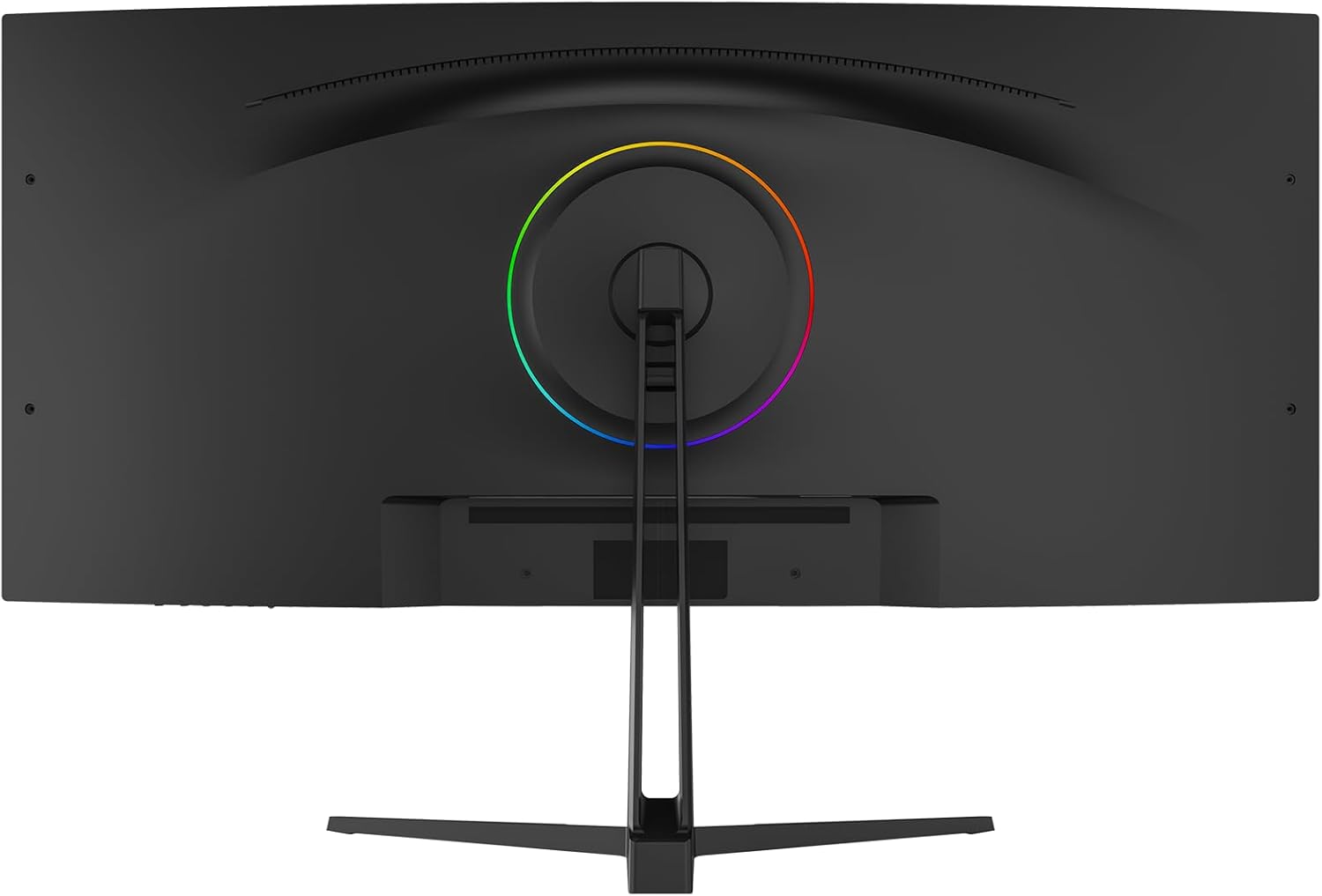
Изображение: сзади view of the monitor, highlighting the VESA mount compatibility and the RGB lighting ring.
3.4 Подключение к устройству
- Подключите один конец кабеля HDMI или DisplayPort к соответствующему порту на вашем компьютере или игровой консоли.
- Connect the other end of the cable to an available HDMI (HDMI 1 or HDMI 2) or DisplayPort (DP 1 or DP 2) input on the monitor.
- Connect the power adapter to the monitor's DC input, then plug the power cable into a power outlet.
- For audio output, connect headphones or external speakers to the 3.5mm audio jack on the monitor.
4. Инструкция по эксплуатации
4.1 Включение/выключение питания
Чтобы включить или выключить монитор, нажмите кнопку питания, которая обычно расположена на задней или нижней панели. Индикатор питания загорается, когда монитор включён.
4.2 Навигация по экранному меню
The On-Screen Display (OSD) menu is controlled via a joystick or buttons, typically located on the back or bottom of the monitor. Use the joystick/buttons to navigate through the menu options and adjust settings.
- Нажимать: Enter/Confirm selection.
- Вверх вниз: Навигация по опциям меню.
- Слева/справа: Adjust values or navigate sub-menus.
4.3 Выбор источника входного сигнала
Access the OSD menu and navigate to the 'Input' or 'Source' section to select between HDMI 1, HDMI 2, DP 1, or DP 2 inputs.
4.4 Настройки изображения
Adjust display settings through the OSD menu:
- Яркость: Регулирует общую яркость экрана.
- Контраст: Управляет разницей между светлыми и темными областями.
- Цветовая температура: Позволяет выбрать предустановленные цветовые температуры (например, Теплые, Холодные, Пользовательские) или вручную настроить значения RGB.
- Режим HDR: Enables or disables High Dynamic Range display for compatible content.
- Уменьшение синего света: Уменьшает излучение синего света, сводя к минимуму нагрузку на глаза.
4.5 Игровые возможности
- Частота обновления: The monitor supports up to 120Hz. Ensure your connected device is configured to output at the desired refresh rate.
- AMD FreeSync: Enable FreeSync in the OSD menu and on your AMD graphics card settings to synchronize the monitor's refresh rate with your GPU's frame rate, eliminating screen tearing and stuttering.
4.6 Регулировка наклона
The monitor stand allows for tilt adjustment. Gently hold the top and bottom edges of the monitor and tilt it to your preferred viewугол наклона.
5. Техническое обслуживание
5.1 Очистка экрана
Turn off the monitor and unplug the power cord. Use a soft, lint-free cloth lightly dampОбработайте водой или специальным средством для чистки экранов. Не распыляйте чистящее средство непосредственно на экран.
5.2 Общий уход
- Не кладите тяжелые предметы на монитор или его кабели.
- Держите монитор вдали от прямых солнечных лучей, источников тепла и чрезмерной влажности.
- Не закрывайте вентиляционные отверстия на мониторе.
- Отключайте монитор от сети во время грозы или при длительном бездействии.
6. Поиск Неисправностей
Если у вас возникли проблемы с монитором, ознакомьтесь со следующими распространенными проблемами и решениями:
| Проблема | Возможная причина | Решение |
|---|---|---|
| Нет изображения на экране | Кабель питания отсоединен, неправильный источник входного сигнала, устройство не включается. | Проверьте подключение питания, выберите правильный источник входного сигнала через экранное меню, убедитесь, что подключенное устройство включено. |
| Изображение мерцает или нестабильно | Loose video cable, incompatible refresh rate, FreeSync issue. | Ensure video cables are securely connected. Adjust refresh rate on your device. Check FreeSync settings. |
| Dead pixels or abnormal display | Производственный дефект. | Обратитесь за помощью в службу поддержки клиентов. |
| Нет звука | Аудиокабель отсоединен, громкость слишком низкая, на устройстве выбран неправильный аудиовыход. | Check 3.5mm audio jack connection. Adjust monitor and device volume. Ensure monitor is selected as audio output on your device. |
If the problem persists after attempting these solutions, please contact CRUA customer support.
7. Технические характеристики
| Особенность | Спецификация |
|---|---|
| Бренд | КРУА |
| Модельный ряд | CR340E |
| Номер модели продукта | CR340E |
| Цвет | Черный |
| Размеры продукта (Ш x В x Г) | 81.4 х 51.1 х 22.4 см |
| Вес продукта | 8.46 кг |
| Размер экрана | 34 дюймов |
| Тип панели | IPS Curved |
| Кривизна | 1900Р |
| Разрешение | 3440 x 1440 пикселей (UWQHD) |
| Соотношение сторон | 21:9 |
| Частота обновления | 120 Гц |
| Цветовая гамма | DCI-P3 98% |
| Яркость | 350 кд/м² |
| Коэффициент контрастности | 2000:1 |
| Глубина цвета | 8-bit (16.7M colors) |
| Поверхность экрана | Не бликует |
| HDMI-порты | 2 (HDMI 2.0) |
| DisplayPort (DP) Ports | 2 (DP 1.4) |
| Аудиовыход | 3.5-мм разъем для наушников |
| Совместимость с креплениями VESA | 100 х 100 мм |
8. Гарантия и поддержка
8.1 Информация о гарантии
CRUA products typically come with a warranty period of 1 to 3 years. Please refer to your purchase documentation or contact CRUA customer support for specific warranty terms applicable to your region and product.
8.2 Поддержка клиентов
For technical assistance, troubleshooting, or warranty claims, please contact CRUA customer support. Support is available 24 hours a day. You can typically find contact information (email, phone, or online chat) on the official CRUA webсайте или через вашего розничного продавца.
Для получения более подробной информации посетите CRUA Brand Store.


