Введение
Thank you for choosing the Maxfree Dual Portable Monitor M4. This manual provides essential information for setting up, operating, and maintaining your new dual monitor system. Please read this manual thoroughly before use to ensure optimal performance and longevity of your device.
Продукт болееview
The Maxfree Dual Portable Monitor M4 is designed to expand your workspace with two 15.6-inch 1080P FHD IPS displays. Its folding design enhances portability, making it ideal for travel and various work environments.

Image: The Maxfree Dual Portable Monitor M4, featuring two 15.6-inch screens in an open, stacked configuration, ready for use.
Основные характеристики:
- Dual 15.6-inch 1080P FHD IPS Displays
- Plug & Play USB-C Connectivity
- Folding Design for Portability
- Matte Screen with Anti-glare, No Flicker, and Eye Care Functions
- 100% цветовая гамма sRGB
- Multiple Display Modes and 330° Rotation
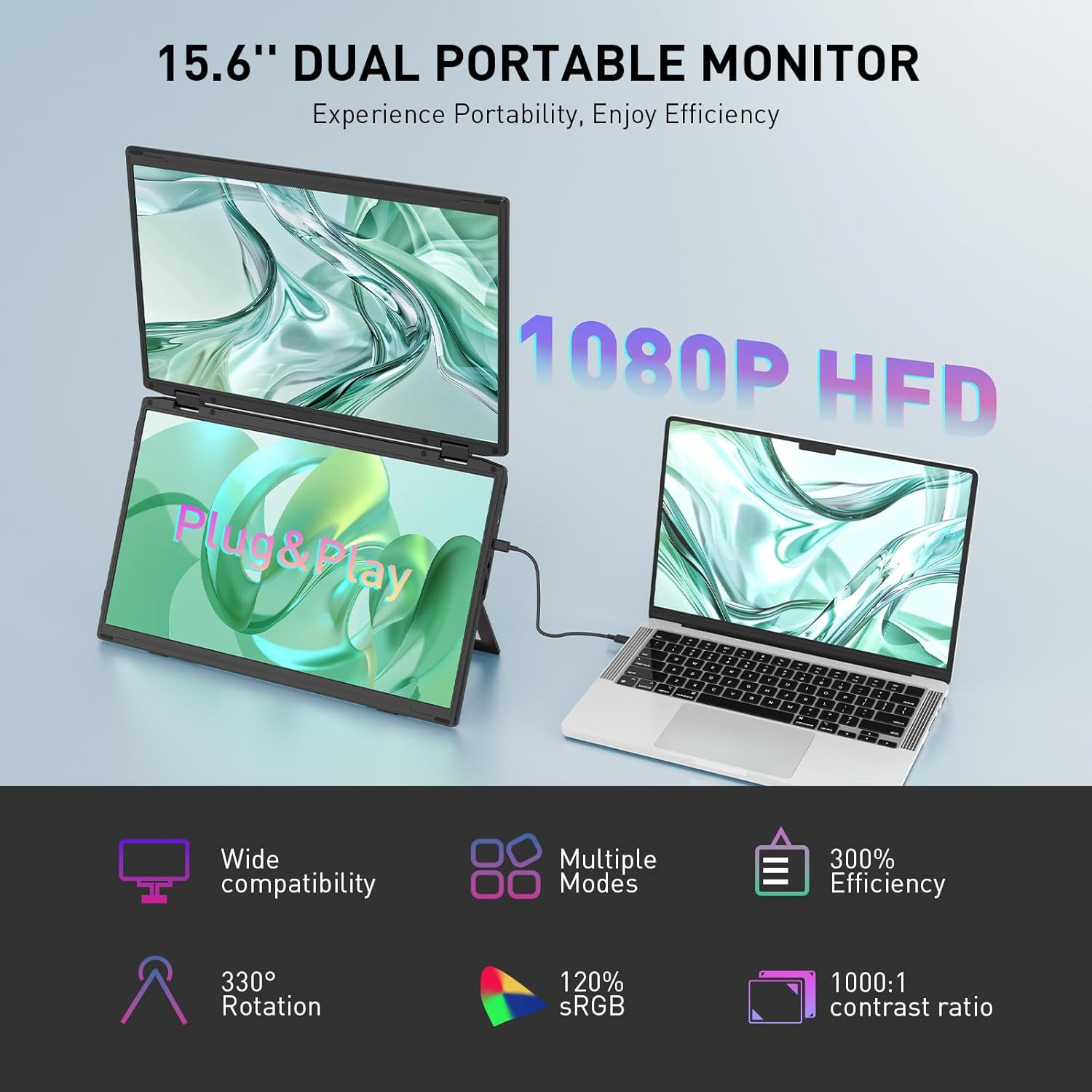
Image: The Maxfree Dual Portable Monitor M4 connected to a laptop, illustrating its plug-and-play functionality and various display modes.
Инструкции по установке
- Распаковать монитор: Аккуратно извлеките монитор и все аксессуары из упаковки.
- Расположите монитор: Place the monitor on a stable, flat surface. Adjust the integrated stand to your desired viewугол наклона.
- Connect to Power (Recommended): For optimal performance, connect the monitor to a power source using the provided USB-C power adapter (if included) or a compatible USB-C port on your device that supports power delivery.
- Подключиться к устройству:
- Соединение USB-C: Connect one end of the provided USB-C cable to the monitor's USB-C port and the other end to a full-featured USB-C port on your laptop or PC. This single cable can transmit video, audio, and power.
- HDMI + USB-A Connection (if applicable): If your device does not have a full-featured USB-C port, you may need to use an HDMI cable for video and a USB-A to USB-C cable for power and touch functionality (if supported by your model). Refer to your device's manual for specific port requirements.
- Включение питания: Press the power button on the monitor. Your device should automatically detect and extend the display.
- Отрегулируйте настройки дисплея: On your computer, navigate to Display Settings to configure the dual monitors (e.g., extend, duplicate, arrange displays).
Инструкция по эксплуатации
Режимы отображения:
The Maxfree Dual Portable Monitor supports various display modes to enhance productivity:
- Расширенный режим: Expands your desktop across both screens, providing a larger workspace. This is ideal for multitasking.
- Дублированный режим: Mirrors your primary display onto the portable monitors. Useful for presentations or sharing content.
- Вертикальная компоновка: The unique vertical stacking design minimizes scrolling and page switching, reducing eye and neck fatigue, especially for document review or coding.
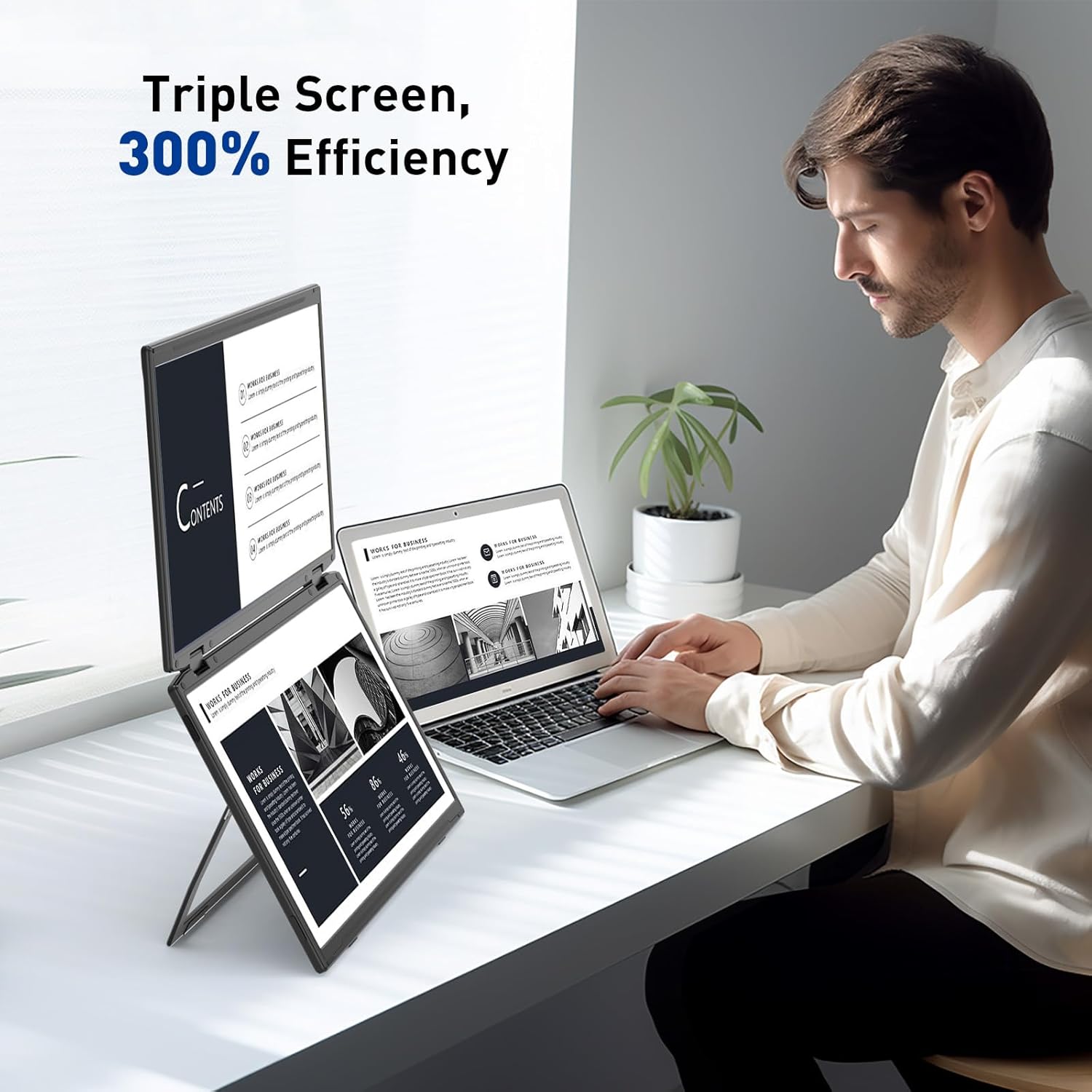
Image: A user demonstrating the Maxfree Dual Portable Monitor M4 in a vertical stacked setup, illustrating how it creates an efficient triple-screen workspace.
Экранное меню (OSD):
Use the buttons on the side of the monitor to access and navigate the OSD menu. This menu allows you to adjust settings such as:
- Яркость и контрастность
- Color Settings (e.g., sRGB, color temperature)
- Выбор источника входного сигнала
- Соотношение сторон
- Volume (if applicable)
Refer to the on-screen prompts for specific button functions (e.g., Menu, Up, Down, Exit).
Технические характеристики
| Особенность | Деталь |
|---|---|
| Размер экрана | Двойные 15.6 дюйма |
| Разрешение | 1920 x 1080 (FHD 1080p) |
| Тип панели | ИПС |
| Соотношение сторон | 16:9 |
| Поверхность экрана | Матовый |
| Яркость изображения | 300 XNUMX кандел |
| Цветовая гамма | 100% sRGB |
| Связность | USB-C (Full-featured), HDMI (if applicable) |
| Общее количество портов USB | 1 (USB-C for main connection) |
| Томtage | 5 Вольт |
| Размеры продукта | 0.5 x 14 x 9 дюйма |
| Вес товара | 3.5 фунта |
| Номер модели | M4 |
Поиск неисправностей
- Нет дисплея:
- Убедитесь, что кабель USB-C надежно подключен к монитору и вашему устройству.
- Verify that your device's USB-C port supports video output (DisplayPort Alternate Mode).
- Connect the monitor to an external power source if your device cannot provide sufficient power.
- Проверьте настройки дисплея вашего компьютера, чтобы убедиться, что внешний монитор обнаружен и включен.
- Мерцающий экран:
- Убедитесь в надёжности кабельных соединений.
- Попробуйте использовать другой кабель USB-C.
- Reduce the display resolution or refresh rate on your computer.
- Проблемы с качеством изображения (размытость, некорректные цвета):
- Adjust the brightness, contrast, and color settings via the OSD menu.
- Ensure your computer's display resolution matches the monitor's native resolution (1920x1080).
- Монитор не включается:
- Confirm the power cable is properly connected and the power outlet is functional.
- Плотно нажмите кнопку питания.
Обслуживание
- Очистка экрана: Аккуратно протрите экран мягкой тканью без ворса. Для удаления стойких загрязнений слегка потрите.ampСмочите ткань водой или чистящим средством для экрана. Избегайте использования агрессивных химикатов и абразивных материалов.
- Очистка Casing: Используйте мягкую сухую ткань, чтобы протереть поверхность монитора.asing.
- Хранилище: When not in use, fold the monitor and store it in a cool, dry place, preferably in its original packaging or a protective case to prevent damage.
- Избегайте экстремальных условий: Не подвергайте монитор воздействию экстремальных температур, влажности или прямых солнечных лучей.
Гарантия и поддержка
For warranty information, technical support, or service inquiries, please refer to the warranty card included with your product or visit the official Maxfree webсайт.
Производитель: Shenzhen Baijiayoupu Technology CO., Ltd.


