1. Введение
The FIREBAT X3 Wired RGB Gaming Mouse is designed for precision and comfort, suitable for various computing tasks including gaming, office work, and general use. This manual provides detailed instructions for setting up, operating, and maintaining your mouse.

Надview of the FIREBAT X3 Wired RGB Gaming Mouse highlighting its main features.
2. Настройка
2.1 Подключение мыши
The FIREBAT X3 Gaming Mouse features a simple plug-and-play design for easy setup.
- Locate an available USB-A port on your computer or laptop.
- Insert the USB connector of the mouse into the USB-A port.
- Your operating system will automatically detect and install the necessary drivers. No additional software installation is required for basic functionality.

The FIREBAT X3 mouse connects via a standard USB-A port for immediate use.
3. Операция
3.1 Функции кнопок
The FIREBAT X3 Gaming Mouse is equipped with 6 programmable buttons for enhanced control.
- Левая кнопка: Стандартная функция щелчка.
- Правая кнопка: Стандартная функция щелчка правой кнопкой мыши.
- Колесо прокрутки: Scrolls up and down. Can also be pressed for a middle-click function.
- Клавиша регулировки DPI: Изменяет чувствительность мыши (DPI).
- Кнопка вперед: Перемещается вперед в web браузеры или file исследователи.
- Кнопка «Назад»: Перемещает назад в web браузеры или file исследователи.

Illustration of the 6-button layout on the FIREBAT X3 Gaming Mouse.
3.2 Настройка DPI (чувствительности)
The mouse features 4 adjustable DPI levels to suit different tasks and preferences.
- Нажмите Клавиша регулировки DPI (located behind the scroll wheel) to cycle through the preset DPI settings.
- The default DPI levels are 1200, 1800, 2400, and 3600.
- Each press will switch to the next DPI level, allowing you to find the optimal sensitivity for your current activity.

The DPI adjustment key allows for quick changes in mouse sensitivity.
3.3 режимов RGB-подсветки
The FIREBAT X3 mouse features 7 dynamic RGB backlit modes to enhance your setup.
- The RGB lighting automatically cycles through its 7 distinct modes.
- There is no manual button to change the RGB mode; the mouse will continuously display various lighting effects.
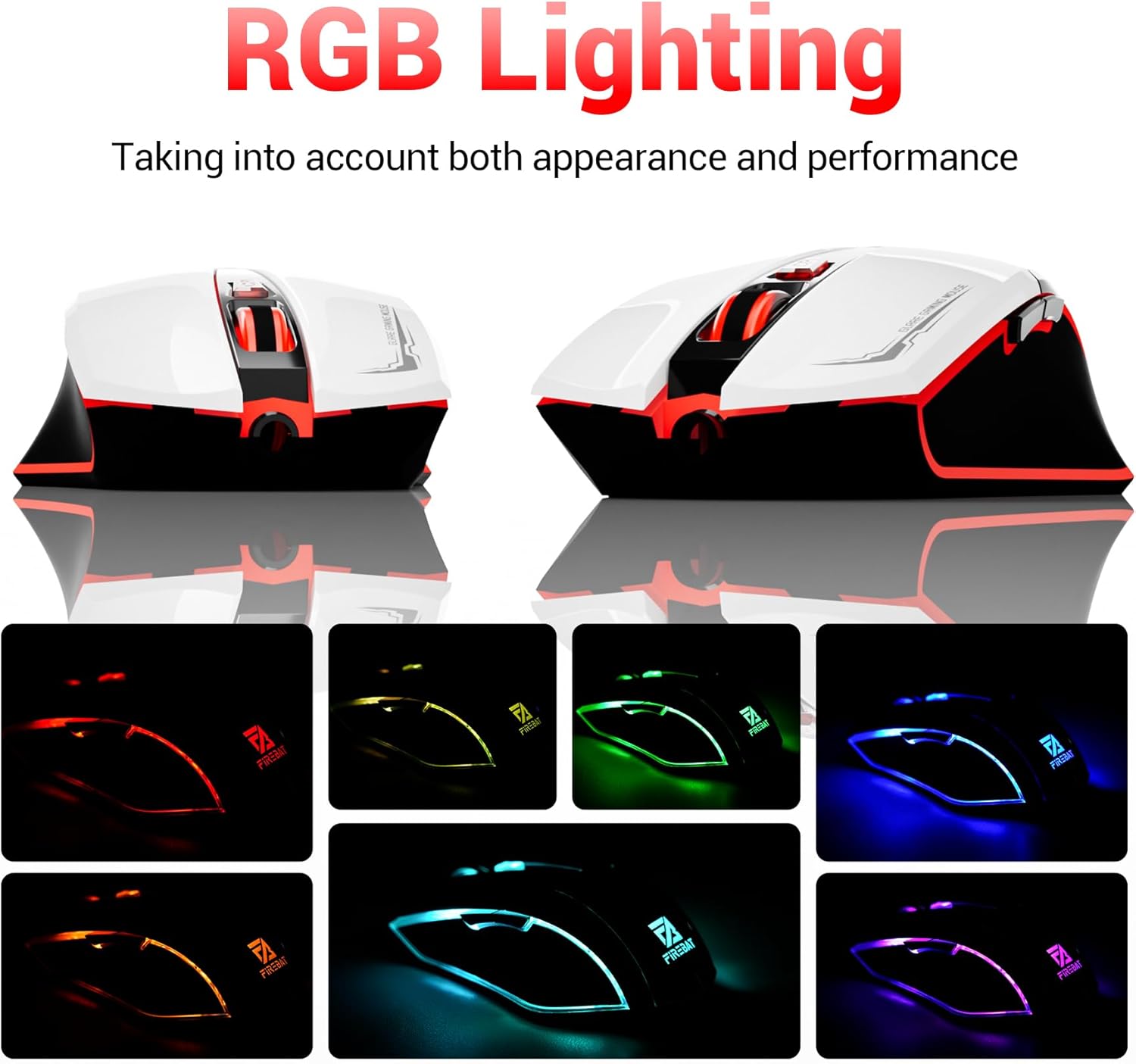
The mouse features vibrant RGB lighting with multiple dynamic modes.
3.4 Эргономичный дизайн и комфорт
The mouse is designed with an ergonomic shape to provide a comfortable grip and reduce hand fatigue during extended use, suitable for both right and left-hand users.

The ergonomic design ensures comfort during prolonged use.
3.5 Quiet Click Feature
The mouse incorporates a 'Heavy Bass Design' for its key sounds, ensuring soft clicks without excessive noise, which is beneficial in quiet environments.

The mouse features quiet clicks, minimizing noise during use.
4. Техническое обслуживание
4.1 Очистка
To ensure optimal performance and longevity, keep your mouse clean.
- Перед чисткой отсоедините мышь от компьютера.
- Слегка используйте мягкую безворсовую ткань.ampСмочите поверхность мыши водой или мягким чистящим раствором.
- Избегайте использования едких химикатов, абразивных чистящих средств и чрезмерной влажности, так как они могут повредить мышь.
- For the optical sensor, use a cotton swab to gently remove any dust or debris.
4.2 Хранение
Если мышь не используется, храните ее в чистом, сухом месте, вдали от экстремальных температур и прямых солнечных лучей.
5. Поиск Неисправностей
5.1 Мышь не реагирует
- Проверьте USB-подключение: Убедитесь, что USB-кабель надежно подключен к исправному USB-порту вашего компьютера. Попробуйте другой USB-порт.
- Перезагрузить компьютер: Иногда простая перезагрузка может решить проблемы с подключением.
- Тест на другом компьютере: Если возможно, проверьте работу мыши на другом компьютере, чтобы определить, связана ли проблема с самой мышью или с настройками вашего компьютера.
5.2 Движение курсора происходит неравномерно или скачкообразно
- Чистый оптический датчик: Dust or debris on the optical sensor can cause erratic movement. Refer to the cleaning instructions in the Maintenance section.
- Use a Mouse Pad: Ensure you are using the mouse on a suitable surface. Reflective, transparent, or uneven surfaces can interfere with the optical sensor.
5.3 RGB-подсветка не работает
- Проверьте питание USB: Ensure the mouse is receiving sufficient power through the USB connection.
- No Manual Control: Remember that the RGB lighting cycles automatically and does not have a manual control button. If the mouse is functioning otherwise, the lighting should be active.
6. Технические характеристики
| Особенность | Деталь |
|---|---|
| Номер модели | X3 Gaming Mouse |
| Бренд | FIREBAT |
| Технология связи | Проводной USB |
| Обнаружение движения | Оптический |
| Уровни DPI | 1200/1800/2400/3600 |
| Количество кнопок | 6 (программируемый) |
| Подсветка | 7 режимов RGB |
| Размеры продукта | 5 x 3 x 0.1 дюйма (12.7 x 7.6 x 0.25 см) |
| Вес товара | 5.1 унции (144.6 грамма) |
| Эргономика | Right or Left Hand Use |
| Производитель | FIREBAT |
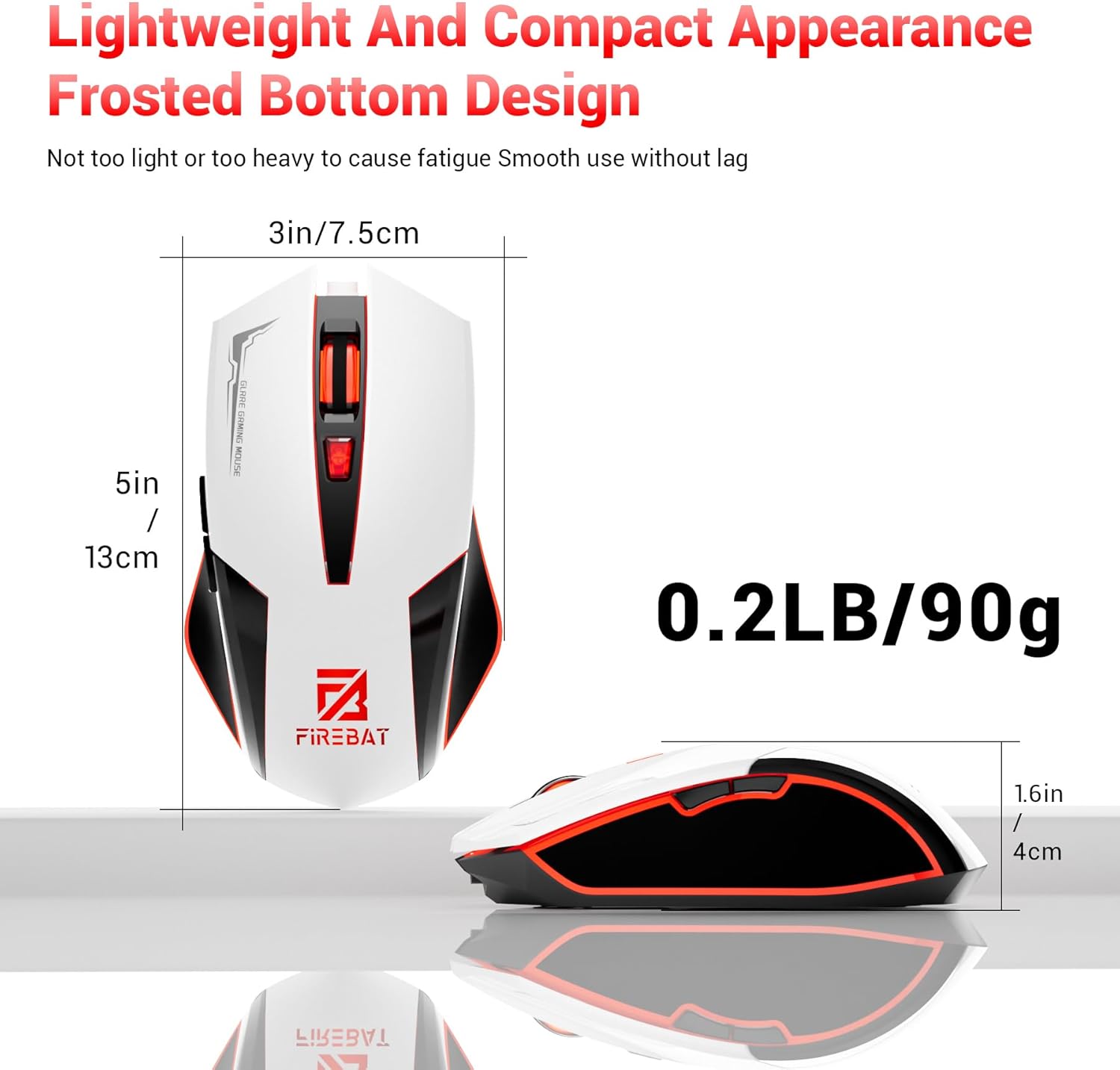
Physical dimensions and weight of the FIREBAT X3 Gaming Mouse.
7. Гарантия и поддержка
7.1 Информация о гарантии
FIREBAT products are manufactured to high-quality standards. For specific warranty details, please refer to the warranty card included with your product or visit the official FIREBAT webКак правило, на продукцию распространяется ограниченная гарантия, покрывающая производственные дефекты.
7.2 Поддержка клиентов
If you encounter any issues or have questions regarding your FIREBAT X3 Gaming Mouse, please contact our customer support team:
- Электронная почта: support@firebatpc.com
- Webсайт: www.firebatpc.com
Please provide your product model number (X3 Gaming Mouse) and a detailed description of your issue when contacting support for faster assistance.


