1. Начальная настройка
This section guides you through the initial steps to set up your TCL 65C69K Smart TV, from unpacking to the first power-on.
1.1 Распаковка телевизора
Carefully remove the TV and all accessories from the packaging. Retain the packaging materials for future transport or service needs. Ensure all components listed in the packing list are present.
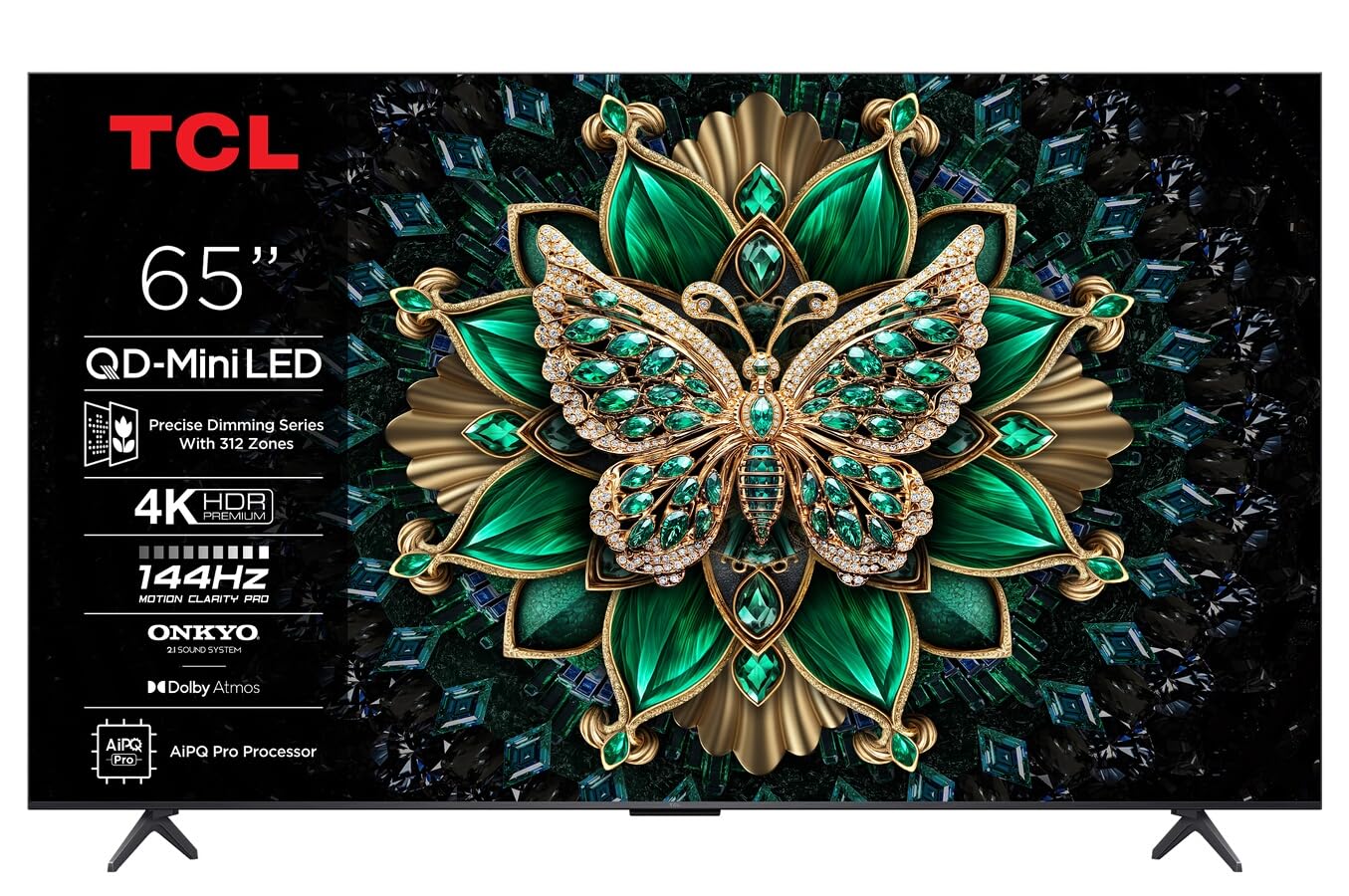
Изображение: Спереди view of the TCL 65C69K QD-MiniLED 4K Smart TV. The TV features a slim bezel and a central stand, showcasing его дисплей и дизайн.
1.2 Установка на подставку или настенное крепление
Для установки на стойку: Place the TV screen-down on a soft, flat surface. Align the stand with the designated slots on the bottom of the TV and secure it using the provided screws. Ensure the stand is firmly attached before placing the TV upright.
Для настенного монтажа: Refer to the wall mount kit instructions (sold separately) for proper installation. Ensure the wall mount is compatible with VESA standards for your TV model. Always seek professional assistance for wall mounting to prevent damage or injury.
1.3 Подключение периферийных устройств
- Силовой кабель: Подключите кабель питания к разъему питания телевизора, а затем к розетке.
- HDMI-устройства: Connect external devices such as Blu-ray players, game consoles, or set-top boxes to the HDMI ports. This TV supports 4K resolution via HDMI.
- Антенна/кабель: Connect an antenna or cable TV coaxial cable to the "ANT/CABLE IN" port for broadcast television.
- Подключение к сети: For internet access, connect an Ethernet cable to the LAN port or use the built-in Wi-Fi connectivity.
- Аудиоустройства: For external audio systems, use the optical digital audio output or HDMI ARC/eARC port. The TV features Onkyo 2.1 audio.
1.4 First Power On and Initial Configuration
After connecting all necessary cables, press the power button on the TV or remote control. The TV will guide you through the initial setup process, which includes:
- Выбор языка: Выберите желаемый язык.
- Настройка сети: Connect to your Wi-Fi network or confirm the Ethernet connection.
- Google TV Account: Sign in with your Google account to access smart features, apps, and personalized recommendations.
- Сканирование каналов: При подключении антенны или кабеля выполните поиск доступных каналов вещания.
- Настройки конфиденциальности: Review и при желании настройте параметры конфиденциальности.
2. Управление телевизором
This section details the basic operation of your TCL 65C69K Smart TV, including remote control functions and smart features.
2.1 Дистанционное управлениеview
The remote control allows you to navigate the TV's interface, adjust settings, and access smart features. Familiarize yourself with buttons for power, volume, channel, input selection, home, back, and dedicated app buttons (if present).
2.2 Основные функции
- Включение/выключение питания: Нажмите Власть кнопку на пульте дистанционного управления или телевизоре.
- Регулировка громкости: Используйте Увеличение/уменьшение громкости кнопки.
- Выбор канала: Используйте Канал вверх / вниз кнопки или цифровая клавиатура.
- Выбор входа: Нажмите Вход button to switch between connected devices (HDMI 1, HDMI 2, TV, etc.).
2.3 Функции Smart TV (Google TV)
Your TCL 65C69K runs on Google TV, providing access to a vast library of apps and streaming services. Press the Дом button to access the Google TV interface. From here, you can:
- Browse and launch pre-installed apps like Netflix, Amazon Prime Video, and Hulu.
- Download new apps from the Google Play Store.
- Получите персонализированные рекомендации по контенту.
- Use Google Assistant for voice commands (if supported by your remote).
2.4 Настройки изображения и звука
Зайдите в меню настроек телевизора, чтобы настроить его под себя. viewing and listening experience. Navigate to Настройки > Дисплей и звук.
- Режимы изображения: Select from various picture modes (e.g., Standard, Movie, Game, Vivid) or customize settings like brightness, contrast, color, and sharpness. The QD-MiniLED panel and 4K resolution deliver exceptional clarity.
- Расширенные настройки изображения: Adjust settings related to Dolby Vision IQ for optimized picture quality based on ambient light. The TV supports a 120Hz refresh rate for smooth motion.
- Звуковые режимы: Choose sound modes (e.g., Standard, Music, Movie) or adjust equalizer settings. The integrated Onkyo 2.1 audio system with Dolby Atmos provides immersive sound.
3. Техническое обслуживание
Proper maintenance ensures the longevity and optimal performance of your TCL 65C69K Smart TV.
3.1 Очистка экрана и рамки
- Перед чисткой всегда отключайте телевизор от сети.
- Use a soft, lint-free cloth (e.g., microfiber) to gently wipe the screen. For stubborn marks, lightly dampСмочите ткань водой или специальным средством для чистки экранов. Никогда не распыляйте чистящее средство непосредственно на экран.
- Wipe the TV frame and stand with a dry, soft cloth. Avoid abrasive cleaners or solvents.
3.2 Обновления программного обеспечения
Regular software updates provide new features, performance improvements, and security enhancements. To check for updates, navigate to Настройки > Система > О системе > Обновление системы. Follow the on-screen prompts to download and install any available updates. Ensure your TV is connected to the internet during this process.
4. Поиск Неисправностей
This section addresses common issues you might encounter with your TCL 65C69K Smart TV and provides solutions.
- Нет питания:
- Убедитесь, что кабель питания надежно подключен к телевизору и рабочей розетке.
- Проверьте работоспособность розетки, подключив к ней другое устройство.
- Попробуйте нажать кнопку питания на самом телевизоре, а не только на пульте дистанционного управления.
- Нет изображения, но есть звук:
- Убедитесь, что выбран правильный источник входного сигнала (например, HDMI 1, TV).
- Check the HDMI cable connection to both the TV and the external device. Try a different HDMI port or cable.
- Restart the connected external device.
- Нет звука, но изображение есть:
- Increase the volume on the TV and ensure it is not muted.
- Check audio output settings in the TV menu (e.g., internal speakers, external audio system).
- При использовании внешних динамиков убедитесь, что они включены и правильно подключены.
- Проблемы с сетевым подключением:
- Перезагрузите Wi-Fi-роутер и модем.
- Перейти к Настройки> Сеть и Интернет и восстановите соединение.
- If using Wi-Fi, try moving the TV closer to the router or using an Ethernet cable for a more stable connection.
- Пульт дистанционного управления не отвечает:
- Замените батарейки в пульте дистанционного управления.
- Убедитесь, что между пультом ДУ и ИК-датчиком телевизора нет препятствий.
- If it's a Bluetooth remote, try re-pairing it with the TV (refer to the TV's on-screen help for pairing instructions).
If problems persist after trying these solutions, please contact TCL customer support for further assistance.
5. Технические характеристики
Below are the key technical specifications for the TCL 65C69K Smart TV.
| Название модели | 65C69K |
| Бренд | ТКЛ |
| Размер экрана | 65 дюйма |
| Технология отображения | Мини светодиод |
| Разрешение | 4K UHD (3840 x 2160) |
| Частота обновления | 120 Гц (родная частота) |
| Особые возможности | Mini LED, 4K UHD, Premium Design, Smart Functions, Dolby Vision IQ |
| Технология связи | Wi-Fi, HDMI, USB, Ethernet |
| Соотношение сторон | 16:9 |
| Поддерживаемые интернет-сервисы | Netflix, Amazon Prime Video, Hulu, Google TV ecosystem |
| Аудиосистема | Onkyo 2.1, Dolby Atmos |


