1. Введение
This manual provides essential information for setting up, operating, maintaining, and troubleshooting your Roku Smart TV 2025 – 24-Inch Select Series 720p HD TV. Please read these instructions carefully before using your television.
The Roku Select Series HD TV offers a streamlined entertainment experience. It features bright HD picture quality, auto speech clarity, and a night mode. Access free live television directly from the home screen and utilize the voice remote for content discovery across various applications. This television is suitable for various rooms including bedrooms, living rooms, kitchens, or children's rooms.
2. Что в коробке
Убедитесь, что все компоненты присутствуют в упаковке:
- Roku Select Series 24" HD TV
- Stands and screws
- Roku Voice Remote with batteries
- Краткое руководство пользователя
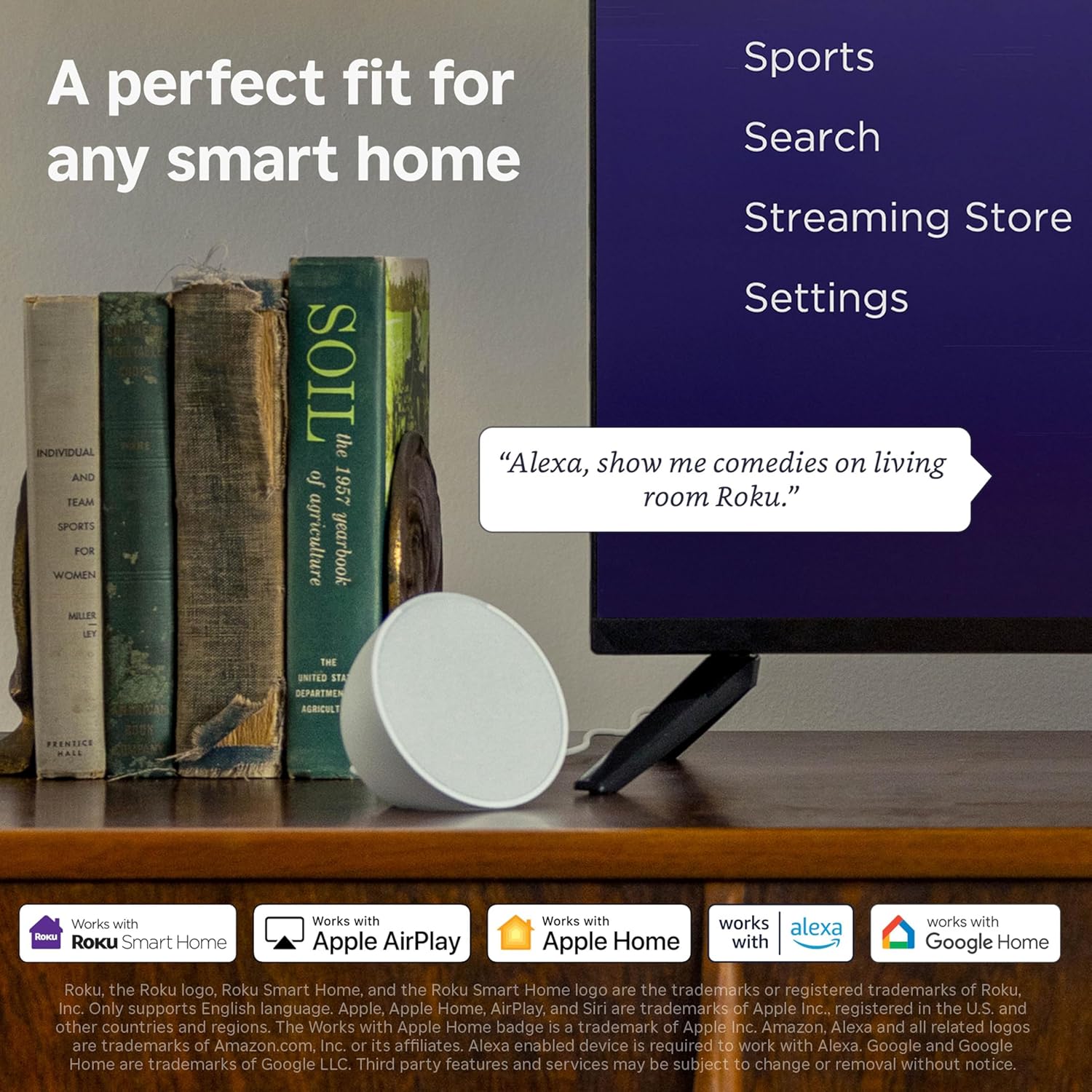
Image: The Roku Select Series TV box contents, showing the television, remote, and stand components.
3. Настройка
3.1 Крепление подставок для телевизора
- Осторожно положите телевизор экраном вниз на мягкую чистую поверхность, чтобы не поцарапать его.
- Совместите каждую подставку с соответствующими отверстиями для винтов в нижней части телевизора.
- Закрепите стойки с помощью прилагаемых винтов. Убедитесь, что они надёжно затянуты.
3.2 Подключение периферийных устройств
Your Roku TV includes multiple ports for connecting external devices:
- Порты HDMI: Connect devices such as cable boxes, gaming consoles, or Blu-ray players. The HDMI 1 (ARC) port supports Audio Return Channel for simplified audio connections.
- USB-порт: For media playback from a USB drive or powering compatible devices.
- Вход антенны/кабеля: Подключите антенну для эфирного вещания или кабельного телевидения.
- Оптический аудиовыход: Для подключения к звуковой панели или аудиоресиверу.
- AV-вход: Для подключения старых устройств с помощью композитных видео- и стереоаудиокабелей.

Image: Close-up of the back of the Roku TV, highlighting the HDMI, USB, optical, and AV input ports.
3.3 Первоначальное включение и сетевое подключение
- Подключите кабель питания к телевизору, а затем к розетке.
- Insert the included AAA batteries into the voice remote.
- Нажмите кнопку питания на пульте дистанционного управления, чтобы включить телевизор.
- Следуйте инструкциям на экране, чтобы выбрать язык, подключиться к сети Wi-Fi и активировать свою учетную запись Roku.
4. Operating Your Roku TV
4.1 Использование голосового пульта дистанционного управления
The Roku Voice Remote simplifies navigation and content search. It features dedicated buttons for popular streaming services and voice control capabilities.
- Голосовая кнопка: Press and hold to speak commands for searching content, launching apps, or controlling playback.
- Панель навигации: Use the directional arrows and OK button to move through menus and select items.
- Ярлыки приложений: Dedicated buttons provide quick access to services like Netflix, Disney+, and Prime Video.
- Регуляторы громкости: Adjust TV volume directly from the remote.
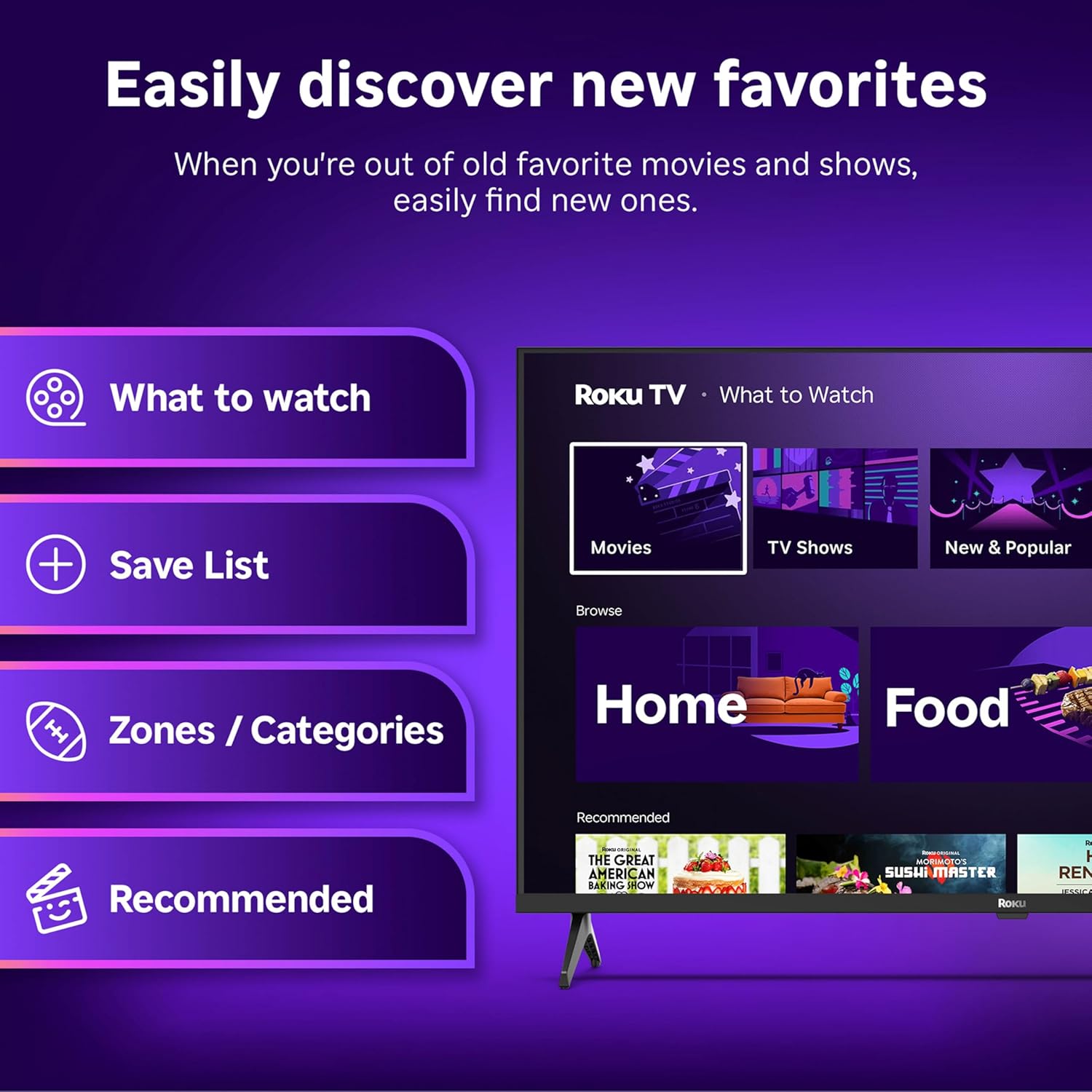
Image: The Roku Voice Remote, showing its layout and key functions.
4.2 Streaming and App Navigation
The Roku TV home screen provides quick access to all your streaming channels and inputs. You can customize the order of your apps for personalized access.
- Главный экран: Displays your installed apps, recommended content, and TV inputs.
- Магазин потокового вещания: Просматривайте и добавляйте новые потоковые каналы.
- Прямой эфир: Access free live television channels directly from the home screen.
- Поиск: Use the search function or voice remote to find movies, shows, actors, or directors across various services.

Image: The Roku TV user interface, showing the home screen with app tiles and menu options.
4.3 Настройки изображения и звука
Your Roku TV features Smart Picture technology to optimize viewing and offers enhanced audio features.
- Smart Picture: Automatically adjusts picture settings based on the content being viewed (e.g., movie, sports, vivid, standard).
- Чёткость звука: Designed for clear speech and louder sound.
- Режим Bluetooth-наушников: Connect your wireless headphones for private listening.

Image: A vibrant nature scene displayed on the Roku TV, demonstrating the clear picture quality.
4.4 Интеграция с умным домом
The Roku TV integrates with various smart home ecosystems for convenient voice control and content sharing.
- Голосовое управление: Compatible with Roku Voice, Siri, Alexa, and Google Assistant for hands-free operation.
- Apple AirPlay: Effortlessly share videos, photos, and music from your Apple devices to your TV.

Image: A Roku TV screen with a smart speaker nearby, illustrating voice control integration with smart home systems.
5. Техническое обслуживание
5.1 Очистка телевизора
- Перед чисткой всегда отключайте телевизор от сети.
- Аккуратно протрите экран и корпус мягкой безворсовой тканью.
- Для удаления стойких пятен слегка потритеampСмочите ткань водой или мягким неабразивным чистящим средством для экрана. Никогда не распыляйте чистящее средство непосредственно на экран.
- Избегайте использования едких химикатов, абразивных губок или растворителей.
5.2 Обновления программного обеспечения
Your Roku TV receives automatic software updates to provide new features and improve performance. Ensure your TV is connected to the internet to receive these updates.
6. Поиск Неисправностей
If you encounter issues with your Roku TV, try the following basic troubleshooting steps:
- Нет питания: Убедитесь, что кабель питания надёжно подключён к телевизору и к работающей розетке. Попробуйте использовать другую розетку.
- Нет изображения/звука: Verify that the correct input source is selected. Check all cable connections (HDMI, AV, etc.) are secure.
- Удаленно не отвечает: Замените батарейки в пульте дистанционного управления. Убедитесь, что между пультом дистанционного управления и телевизором нет препятствий.
- Проблемы с сетевым подключением: Restart your Wi-Fi router. Go to the TV's network settings to reconnect to your Wi-Fi.
- App Not Loading: Try restarting the app. If the issue persists, remove the app and reinstall it from the Streaming Store.
- Сброс к заводским настройкам: As a last resort, a factory reset can resolve many software issues. This will erase all personal settings and installed apps. Access this option through the TV's Settings menu.
7. Технические характеристики
| Особенность | Спецификация |
|---|---|
| Бренд | Року |
| Номер модели | 24R2D5 |
| Размер экрана | 24 дюйма |
| Технология отображения | ВЕЛ |
| Разрешение | 720p |
| Частота обновления | 60 Гц |
| Соотношение сторон | 16:9 |
| Технология связи | Bluetooth, Wi-Fi |
| Особые возможности | Bluetooth Headphone Mode, Dolby Audio, Voice Remote |
| Вес товара | 5.7 фунта |
| Размеры продукта | 7 x 21.1 x 14.3 дюйма |
| Требуются батареи | 2 батарейки типа ААА (для пульта) |
8. Гарантия и поддержка
For warranty information and technical support, please refer to the documentation included with your product or visit the official Roku support webсайт. Сохраните чек о покупке на случай гарантийных претензий.
Roku offers various support resources, including online FAQs, troubleshooting guides, and customer service contact options.


