Введение
The Intelbras SS 3532 MF is an advanced facial access controller from the Bio-T line, designed for secure and efficient access management. It supports multiple authentication methods including facial recognition, RFID MF 13.56 MHz cards, QR Codes, and passwords. This device is suitable for both indoor and outdoor environments and can be integrated with various door locking systems such as electric locks, electromagnets, or solenoids. This manual provides essential information for the proper installation, operation, and maintenance of your SS 3532 MF controller.
Продукт болееview
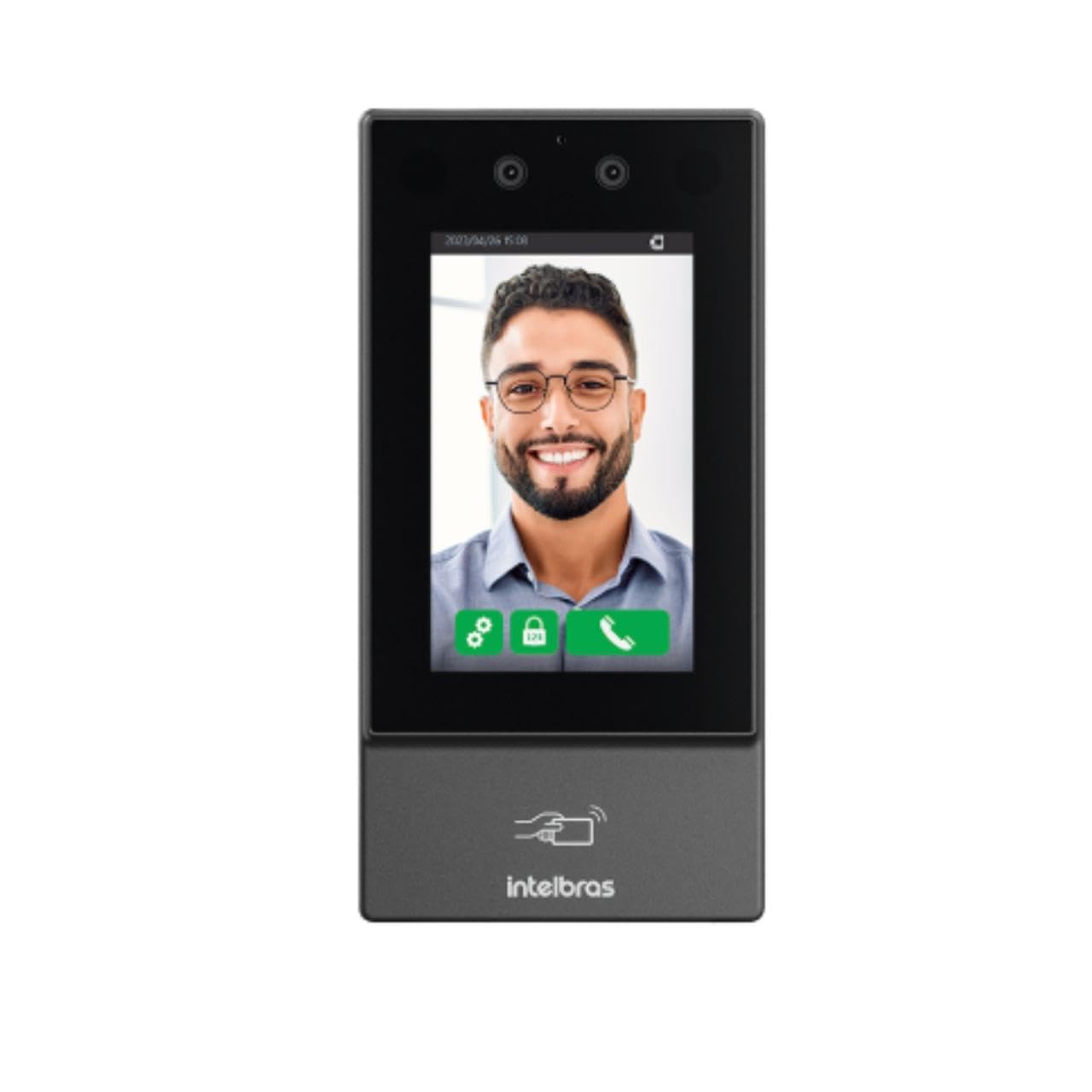
Изображение: Спереди view of the Intelbras SS 3532 MF Facial Access Controller. The device features a large screen displaying a smiling man's face, indicating successful facial recognition. Below the screen, the Intelbras logo and an RFID card icon are visible. The device is sleek and dark gray, designed for modern security applications.
Основные характеристики:
- Распознавание лиц: Advanced anti-fake system prevents access via photos or videos.
- Multi-Authentication: Supports facial recognition, RFID MF 13.56 MHz cards, QR Codes, and passwords.
- Обнаружение масок: Alerts and/or blocks access if a mask is detected.
- Сенсорный ЖК-экран: Capacitive touch-sensitive LCD screen for intuitive operation.
- Внутреннее / наружное использование: IP55 protection rating suitable for various environments.
- Высокая емкость: Stores up to 10,000 users, 20,000 cards/QR Codes (up to 5 per user), 10,000 passwords (1 per user), and 10,000 facial templates (up to 2 per user).
- Быстрое распознавание: Facial recognition time of 0.2 seconds with over 99.5% verification accuracy.
- Хранение данных: User data saved directly on the controller.
- Связь: Ethernet connection (no Wi-Fi).
- Интеграция программного обеспечения: Compatible with InControl Web, Defense IA, and third-party software via SDK, API/CGI.
Содержимое упаковки
Проверьте наличие всех предметов в упаковке:
- 1 × SS 3532 MF Access Controller (without Wi-Fi connection)
- 1 × Set of wall plugs and screws
- 1 × Wall mounting bracket
- 1 × Руководство пользователя
Note: The XR 2201 relay module and power supply are not included.
Технические характеристики
| Особенность | Деталь |
|---|---|
| Электропитание Voltage | 12 Vdc 2A (power supply not included) |
| Максимальное потребление | 24 Вт |
| Размеры (Ш × В × Г) | 90.1 × 180.1 × 27 мм |
| Рабочая температура | -30 °C до 60 °C |
| Относительная влажность воздуха при эксплуатации | Относительная влажность от 0% до 90% (без конденсации) |
| Рейтинг защиты | IP55 (для использования внутри и снаружи помещений) |
| Вес брутто | 0.70 кг |
| Материал корпуса | ПК+АБС |
| Среда установки | В помещении и на открытом воздухе |
| Интеграция | SDK, API/CGI |
| Facial Verification Accuracy | > 99.5% |
| Facial Recognition Time | 0.2 секунд |
| Обновление прошивки | Via DEFENSE IA |
Настройка и установка
1. Подготовка места:
- Ensure the installation environment is suitable for an IP55 rated device, whether indoor or outdoor.
- Prepare a stable surface for mounting the device.
2. Монтаж устройства:
- Используйте прилагаемый кронштейн для настенного крепления в качестве шаблона для разметки мест сверления на стене.
- Просверлите отверстия и вставьте дюбели.
- Закрепите монтажный кронштейн на стене с помощью прилагаемых винтов.
- Attach the SS 3532 MF controller to the mounted bracket.
3. Подключение питания:
- Connect a 12 Vdc 2A power supply (not included) to the device's power input.
- Убедитесь, что источник питания соответствует указанной мощности.tagе и текущие требования по предотвращению повреждений.
4. Сетевое подключение:
- Connect an Ethernet cable to the device's network port for online operation and software integration.
- The device does not support Wi-Fi connectivity.
5. Lock Integration:
- Connect the device to your electric lock, electromagnet, or solenoid system as per the wiring diagram in the full user manual (not provided here).
- Note that the XR 2201 relay module is not included and may be required for certain lock types.
Инструкция по эксплуатации
1. Первоначальное включение:
- Once powered, the device will boot up and display the main interface on its LCD touchscreen.
2. Управление пользователями:
- Access the device's menu via the touchscreen to add, edit, or delete users.
- Each user can be assigned facial templates, RFID cards, QR Codes, and passwords.
- The device supports up to 10,000 users and 10,000 facial templates (2 per user).
3. Authentication Methods:
- Распознавание лиц: Stand in front of the device's camera. The system will automatically detect and verify your face. The anti-fake system prevents unauthorized access using photos or videos.
- RFID-карта: Present your RFID MF 13.56 MHz card to the designated reader area on the device.
- QR-код: Present a valid QR Code to the device's camera for scanning.
- Пароль: Enter your assigned password using the touchscreen keypad.
4. Mask Detection:
- The device can be configured to alert or block access if a user is detected wearing a mask, depending on security policies.
5. Software Integration:
- For advanced management, connect the device to InControl Web, Defense IA, or other compatible third-party software via Ethernet.
- Refer to the respective software manuals for detailed configuration and operation instructions.
Обслуживание
- Уборка: Regularly clean the touchscreen and camera lenses with a soft, dry, lint-free cloth. Avoid abrasive cleaners or solvents.
- Обновления прошивки: Keep the device's firmware updated via DEFENSE IA software to ensure optimal performance and security.
- Экологическая проверка: Periodically inspect the device for any signs of wear or damage, especially if installed outdoors. Ensure connections are secure.
Поиск неисправностей
- Устройство не включается:
- Check if the 12 Vdc 2A power supply is correctly connected and functioning.
- Verify the power outlet.
- Facial Recognition Failure:
- Ensure adequate lighting in front of the device.
- Очистите линзы камеры.
- Confirm the user's facial template is properly enrolled and up-to-date.
- Adjust the user's distance and angle to the device.
- RFID Card Not Detected:
- Ensure the card is an RFID MF 13.56 MHz type.
- Present the card correctly to the reader area.
- Verify the card is enrolled for the user.
- Нет подключения к сети:
- Проверьте подключение кабеля Ethernet.
- Verify network settings on the device and your network infrastructure.
- Дверь не открывается:
- Confirm successful authentication on the device.
- Check wiring to the electric lock/electromagnet/solenoid.
- Убедитесь, что механизм блокировки работает правильно.


