Введение
This manual provides essential instructions for setting up, operating, and maintaining your Epson EcoTank L1270 WiFi printer. Please read this guide thoroughly to ensure proper use and to maximize the performance and longevity of your device. The Epson EcoTank L1270 is an inkjet printer designed for efficient printing with a rechargeable ink tank system and Wi-Fi connectivity.
1. Настройка
1.1 Распаковка принтера
Carefully remove the printer from its packaging. Ensure all protective tapes and materials are removed from the exterior and interior of the printer. Keep the packaging materials for future transport or storage.
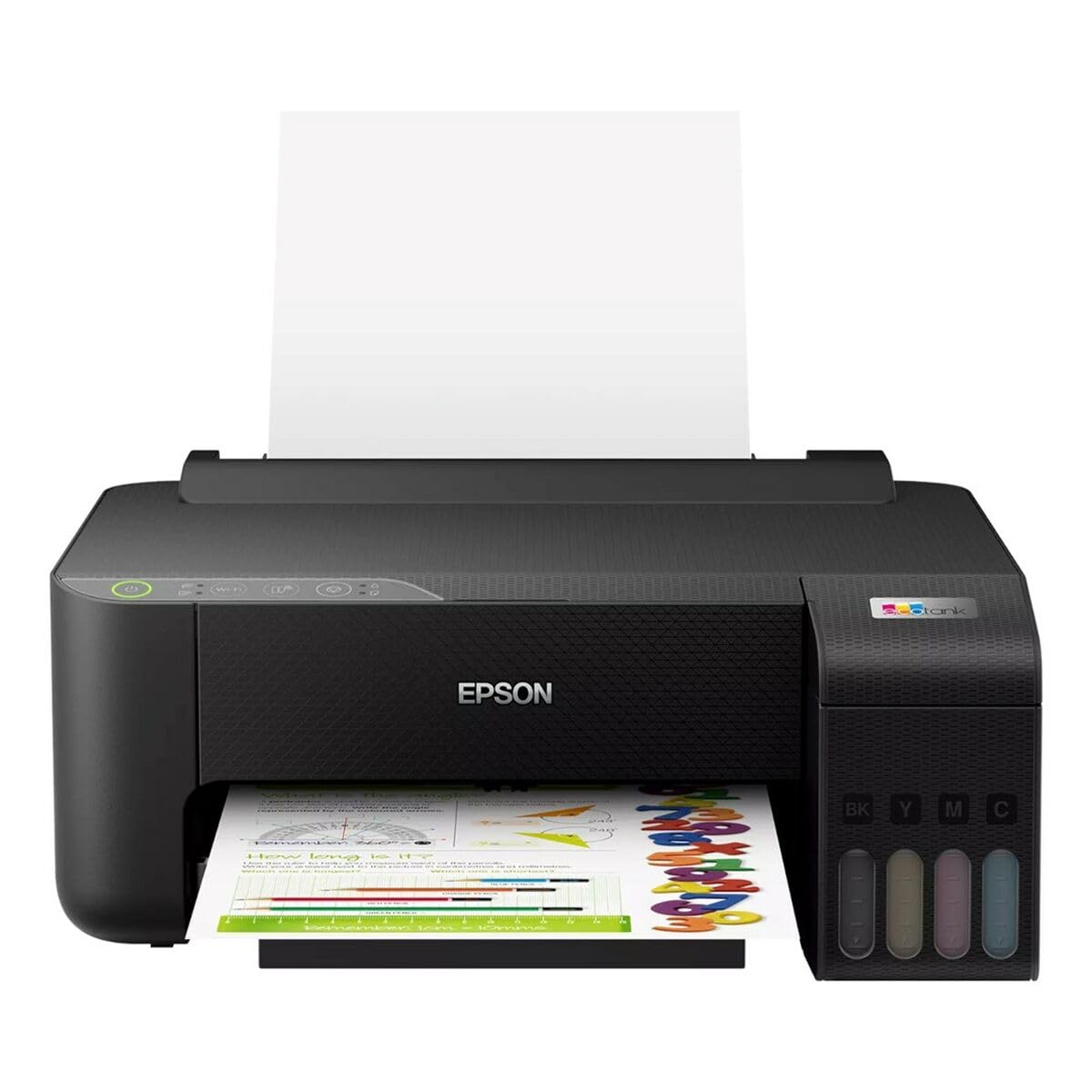
Image 1.1: Epson EcoTank L1270 WiFi Printer. This image shows the printer ready for initial setup after unpacking.
1.2 Заполнение чернильниц
Принтер EcoTank L1270 использует систему многоразовых чернильных резервуаров. Для заправки чернильных резервуаров выполните следующие действия:
- Open the ink tank unit cover on the printer.
- Uncap the ink bottle for the corresponding color. Each bottle is keyed to fit only the correct tank.
- Вставьте флакон с чернилами в заправочное отверстие. Чернила начнут автоматически заполнять резервуар. Не сжимайте флакон.
- После заполнения резервуара извлеките бутылку и закройте ее крышкой. Закройте крышку блока чернильных резервуаров.
- Повторите для всех цветов.
Примечание: Use only genuine Epson ink bottles to prevent damage and ensure optimal print quality.
1.3 Подключение питания
Connect the power cord to the printer and then to a wall outlet. Press the power button to turn on the printer. The printer will perform an initial setup process, which may take a few minutes.
1.4 Установка программного обеспечения и драйверов
To use your printer, you need to install the necessary drivers and software on your computer. Visit the official Epson support website for the EcoTank L1270 model to download the latest drivers and utilities. Follow the on-screen instructions provided by the installer.
- Перейти к Поддержка Epson.
- Искать "EcoTank L1270".
- Download and run the recommended driver package.
1.5 Настройка Wi-Fi
The Epson EcoTank L1270 supports Wi-Fi connectivity. You can connect the printer to your wireless network using one of the following methods:
- Использование панели управления принтера: Navigate to the Wi-Fi settings on the printer's control panel, select your network, and enter the password.
- Using EpsonNet Setup: If installed, use the EpsonNet Setup utility on your computer to configure the wireless connection.
- WPS (защищенная настройка Wi-Fi): If your router supports WPS, press the WPS button on your router, then follow the instructions on the printer's control panel to establish a connection.
2. Эксплуатация принтера
2.1 Загрузка бумаги
Load paper into the rear paper feeder. Ensure the paper guides are adjusted to the width of the paper. The printer supports various paper types and sizes, up to A4.
- Fan the paper stack before loading to prevent misfeeds.
- Do not overload the paper feeder; refer to the maximum capacity (100 sheets for plain paper).
2.2 Печать документов
Чтобы распечатать документ с компьютера:
- Откройте документ, который хотите распечатать.
- Выберите «Печать» в меню приложения (например, File > Печать).
- Choose "Epson EcoTank L1270" as your printer.
- Adjust print settings such as paper size, print quality, and number of copies.
- Нажмите «Печать».
2.3 Duplex Printing (Two-Sided Printing)
The EcoTank L1270 supports manual duplex printing. To print on both sides of the paper:
- In your print settings, select the option for "Manual Duplex Printing" or "Print on Both Sides".
- Сначала распечатайте страницы с нечетными номерами.
- When prompted, reload the printed pages into the paper feeder according to the on-screen instructions to print the even-numbered pages on the reverse side.
3. Техническое обслуживание
3.1 Проверка уровня чернил
Visually inspect the ink tanks on the front of the printer to check current ink levels. The tanks are transparent, allowing for easy monitoring. Refill ink when levels are low to avoid running out during a print job.
3.2 Заправка чернильниц
When an ink tank is low, purchase genuine Epson replacement ink bottles. Follow the same procedure as described in Section 1.2 "Filling the Ink Tanks".
3.3 Очистка печатающей головки
If print quality declines (e.g., missing lines, faded colors), perform a print head cleaning. This can be done through the printer's utility software on your computer or via the printer's control panel. Refer to the software's help guide for detailed steps.
3.4 Очистка тракта подачи бумаги
If you experience paper jams or streaks on prints, the paper path may need cleaning. Consult the printer's software utility or the online manual for instructions on how to perform a paper path cleaning.
4. Поиск Неисправностей
В этом разделе рассматриваются распространенные проблемы, с которыми вы можете столкнуться при использовании принтера Epson EcoTank L1270.
4.1 Printer Not Printing / Blank Pages
- Проверьте уровень чернил: Ensure all ink tanks have sufficient ink.
- Print Head Clogged: Perform a print head cleaning (see Section 3.3).
- Paper Loaded Correctly: Verify paper is loaded properly and not jammed.
- Установка драйвера: Ensure printer drivers are correctly installed and up to date. Reinstall if necessary.
4.2 Проблемы с подключением Wi-Fi
- Router Range: Убедитесь, что принтер находится в зоне действия вашего Wi-Fi-роутера.
- Сетевой пароль: Double-check that the correct Wi-Fi password has been entered.
- Перезагрузите устройства: Try restarting your printer, computer, and Wi-Fi router.
- Reconfigure Wi-Fi: Attempt to set up the Wi-Fi connection again (see Section 1.5).
4.3 Плохое качество печати
- Очистка печатающей головки: Выполните очистку печатающей головки и проверку дюз.
- Тип бумаги: Ensure you are using the correct paper type for your print settings.
- Ink Quality: Use genuine Epson inks for best results.
For more complex issues, refer to the comprehensive online manual on the Epson support webсайт или обратитесь в службу поддержки клиентов Epson.
5. Технические характеристики
| Особенность | Деталь |
|---|---|
| Бренд | Эпсон |
| Название модели | EcoTank L1270 WiFi |
| Технология печати | Струйный |
| Связность | Wi-Fi |
| Максимальное разрешение печати (цветное) | 5760 x 1440 точек на дюйм |
| Максимальное разрешение печати (черно-белая) | 5760 точек на дюйм |
| Максимальная скорость печати (монохромная) | 15 страниц в минуту |
| Max Paper Capacity | 100 листов (обычная бумага) |
| Двусторонняя печать | Да (вручную) |
| Специальная характеристика | Rechargeable Ink Tank |
| Размеры (Д x Ш x В) | 26P x 42,5l x 46H cm (approx.) |
6. Информация о гарантии
The Epson EcoTank L1270 WiFi printer comes with a limited warranty. For specific terms, conditions, and duration of your warranty, please refer to the warranty documentation included with your product or visit the official Epson support webСохраните чек о покупке для предъявления гарантийных претензий.
7 Поддержка
Для получения дополнительной помощи, технической поддержки или загрузки последних драйверов и руководств посетите официальный сайт поддержки Epson. webсайт:
Официальная поддержка Epson Webсайт
Вы также можете найти полезные ресурсы и ответы на часто задаваемые вопросы на их сайте. webсайт.