1. Введение
Thank you for choosing the EvoFox Deathray v2 Pro Gaming Keyboard. This manual provides detailed instructions for setting up, operating, and maintaining your new gaming keyboard. Please read this manual carefully to ensure optimal performance and longevity of your device.
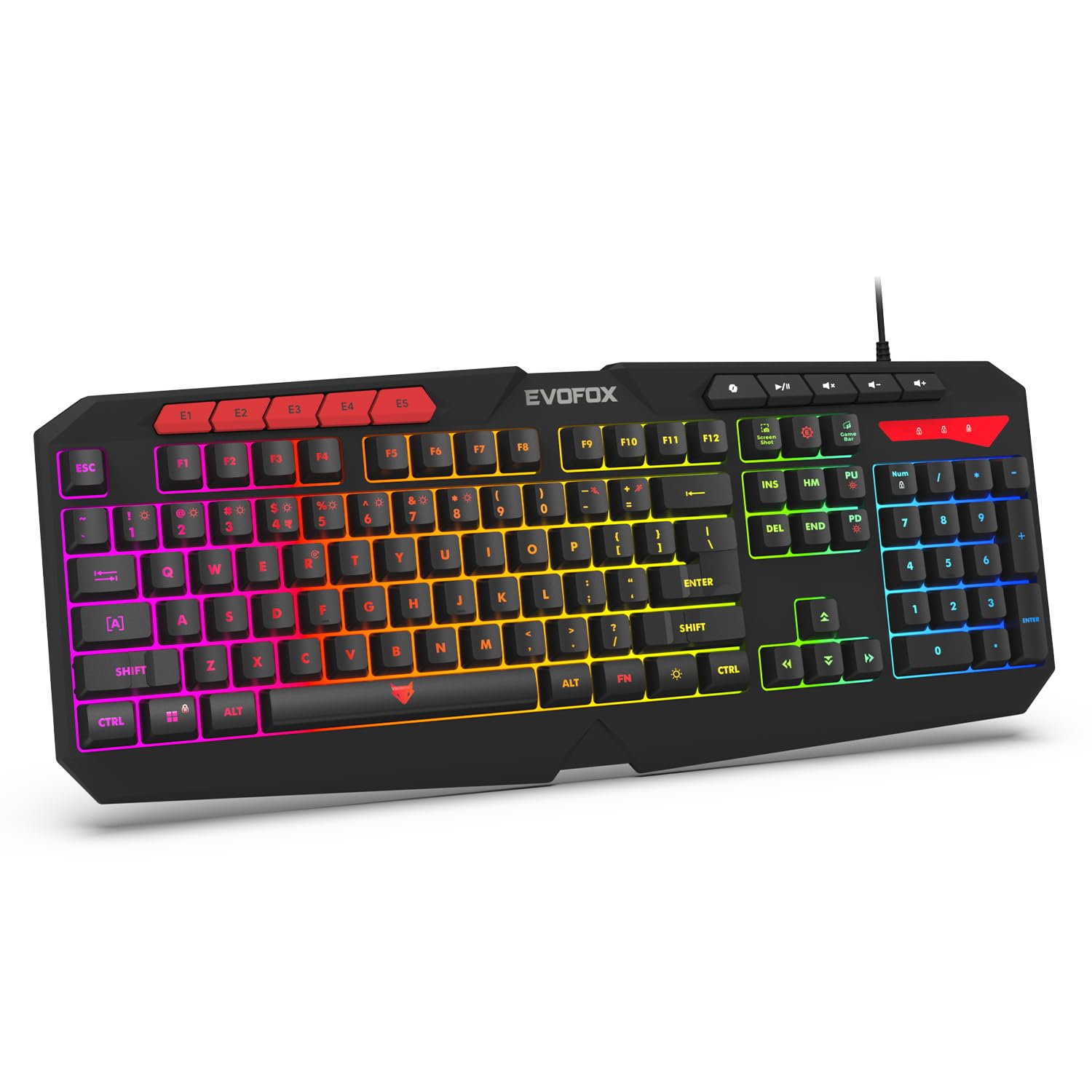
Image 1.1: EvoFox Deathray v2 Pro Gaming Keyboard overview.
2. Содержимое упаковки
- EvoFox Deathray v2 Pro Gaming Keyboard
- Руководство пользователя
3. Инструкции по настройке
3.1 Подключение клавиатуры
- Unpack the EvoFox Deathray v2 Pro Gaming Keyboard from its packaging.
- Найдите свободный USB-порт на вашем компьютере (ПК или ноутбуке).
- Подключите USB-разъем клавиатуры к USB-порту.
- The keyboard will automatically install the necessary drivers. This process may take a few moments.
- Once installed, the RGB backlighting will illuminate, indicating the keyboard is ready for use.
The keyboard features a durable 1.8m braided cable for reliable connectivity.

Image 3.1: Keyboard with durable braided cable and soft membrane keys.
4. Инструкция по эксплуатации
4.1 Настройка RGB-подсветки
The EvoFox Deathray v2 Pro features 6-zone customizable RGB backlighting with 8 dynamic lighting modes. You can personalize your gaming setup for an immersive experience.
- Изменение режимов освещения: Use the dedicated lighting control keys (often indicated by a sun or lightbulb icon, or through a combination with the Fn key) to cycle through the 8 available dynamic lighting modes.
- Индивидуальное освещение: Refer to the keyboard's software (if available, check the official EvoFox website) for advanced custom lighting profiles and per-key RGB customization.

Image 4.1: Keyboard showcasing 6-zone RGB backlighting with 7 lighting presets and 1 custom lighting option.

Image 4.2: Comparison illustrating the difference between RGB lighting with full color customization per zone and standard rainbow lighting with fixed color zones.
4.2 Programmable Macro Keys
The keyboard includes 5 programmable macro keys (E1-E5) to streamline your gameplay with customizable macros for lightning-fast responses. These keys allow you to record and assign complex sequences of commands to a single key press.
- Запись макросов: Typically, macro recording is initiated by a dedicated macro recording key (often labeled 'MR' or similar, or accessed via Fn key combination). Follow the on-screen prompts or software instructions to record your desired key sequence.
- Назначение макросов: Once recorded, assign the macro to one of the programmable macro keys (E1-E5) using the keyboard's software.

Image 4.3: Highlight of the 5 programmable macro keys (E1-E5) for executing complex commands.
4.3 Специальные функциональные клавиши
Access essential tools quickly with dedicated shortcuts for Screenshot, Macro Recording, and Xbox Game Bar. These functions are typically accessed via specific keys or Fn key combinations.
- Обозначения для скриншотов: Captures a screenshot of your display.
- Macro Recording Key: Initiates macro recording.
- Xbox Game Bar Key: Opens the Xbox Game Bar interface for gaming features.
- Ключ второго пилота: Activates the Copilot feature (if supported by your operating system).

Image 4.4: Illustration of special function keys for Screenshot, Macro Recording, Xbox Game Bar, and Copilot.
4.4 Клавиши с защитой от фантомных нажатий
The keyboard features 19 anti-ghosting keys, ensuring flawless input during high-stakes moments. This technology allows multiple key presses to be registered simultaneously and accurately, preventing missed commands.

Image 4.5: Keyboard layout highlighting the 19 anti-ghosting keys for precise, uninterrupted gameplay.
4.5 Ergonomic Full-Size Layout
Designed for comfort during extended gaming sessions, the keyboard features an ergonomic full-size layout with soft and silent membrane keys. This design aims to provide precision without sacrificing ease of use.
5. Техническое обслуживание
5.1 Чистка клавиатуры
- Перед чисткой отсоедините клавиатуру от компьютера.
- Используйте мягкую, безворсовую ткань, слегкаampСмочите поверхность клавиатуры водой или мягким чистящим раствором.
- Для удаления пыли и мусора между клавишами используйте сжатый воздух.
- Избегайте использования агрессивных химикатов, абразивных чистящих средств или растворителей, так как они могут повредить покрытие клавиатуры и надписи на клавишах.
- Перед подключением клавиатуры к компьютеру убедитесь, что она полностью высохла.
6. Поиск Неисправностей
6.1 Клавиатура не отвечает
- Проверьте USB-подключение: Убедитесь, что USB-кабель надежно подключен к исправному USB-порту вашего компьютера. Попробуйте другой USB-порт.
- Перезагрузить компьютер: Иногда простая перезагрузка может решить проблемы с подключением.
- Переустановка драйвера: If the issue persists, try uninstalling the keyboard drivers from your computer's Device Manager and then reconnecting the keyboard to allow for automatic reinstallation.
6.2 Подсветка RGB не работает
- Проверьте настройки яркости: Ensure the brightness level is not set to minimum or off. Use the dedicated lighting control keys to adjust brightness.
- Режимы цикла: Cycle through different RGB modes to see if any mode activates.
- Проверка программного обеспечения: Если используется пользовательский профессиональныйfiles, ensure the keyboard software is running and configured correctly.
6.3 Макро-клавиши не работают
- Конфигурация программного обеспечения: Verify that macros are correctly recorded and assigned to the desired keys within the keyboard's software.
- Программное обеспечение запущено: Ensure the keyboard's macro software (if applicable) is running in the background.
7. Технические характеристики
| Особенность | Спецификация |
|---|---|
| Бренд | ЭвоФокс |
| Модель | 498 |
| Размеры продукта | 44.7 х 17.2 х 2.6 см |
| Вес товара | 565 г |
| Аппаратная платформа | Окна |
| Совместимые устройства | Ноутбук, ПК |
| Особые возможности | Compact Design, Silent Membrane Keyboard, True Prims RGB |
| Описание клавиатуры | Игровой |
| Тип разъема | USB |
| Материал | АБС-пластик |
| Страна происхождения | Китай |
8. Гарантия и поддержка
8.1 Информация о гарантии
The EvoFox Deathray v2 Pro Gaming Keyboard typically comes with a Ограниченная гарантия сроком на 1 год с даты покупки. Данная гарантия распространяется на производственные дефекты и гарантирует работоспособность изделия в соответствии с его назначением при нормальном использовании. Сохраните чек о покупке для предъявления гарантийных претензий.
8.2 Поддержка клиентов
For technical assistance, warranty claims, or any product-related inquiries, please contact EvoFox customer support through their official website or the contact information provided with your product packaging. You may also refer to the Amkette helpline mentioned in some product documentation.


