Введение
This manual provides essential information for the setup, operation, maintenance, and troubleshooting of your Onn 22 inch 1080P 100 Hz FHD LED Monitor. Please read this guide thoroughly before using the product to ensure optimal performance and safety.
The Onn 22 inch FHD LED Monitor is designed for a variety of applications, offering a vivid 1920x1080 resolution, a 100Hz refresh rate, and a 6.5ms response time for efficient performance. Its slim profile and T-shaped base are ideal for saving desk space.
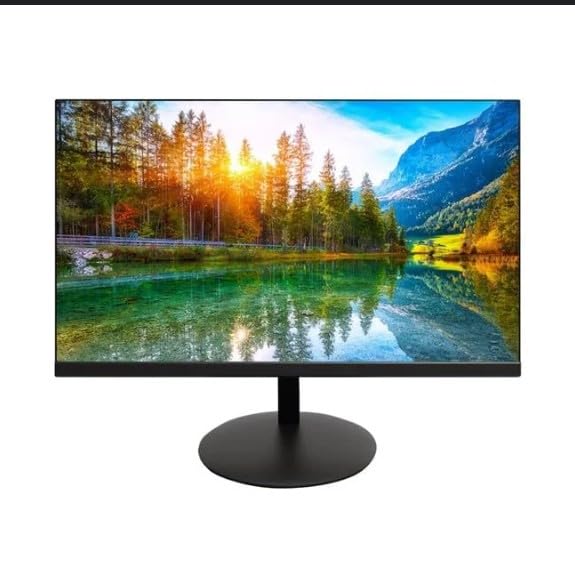
The image shows the Onn 22 inch FHD LED Monitor, highlighting its 100Hz refresh rate and 1080p resolution. The monitor features a slim design and a T-shaped base.
Инструкции по установке
- Распаковка: Carefully remove the monitor and all accessories from the packaging. Ensure all components are present: monitor, T-shaped base, HDMI cable, and power adapter.
- Сборка подставки: Attach the T-shaped base to the monitor. The design is screw-less for easy assembly. Ensure it is securely fastened.
- Подключение к устройству:
The monitor supports both HDMI and VGA inputs. Connect the provided HDMI cable from your computer's HDMI output to the HDMI IN port on the monitor. Alternatively, use a VGA cable for VGA input.

This image displays the rear panel of the Onn monitor, illustrating the available input ports: HDMI IN, VGA IN, and the DC 12V power input. These ports are essential for connecting the monitor to a computer or other devices.
- Подключение питания: Connect the power adapter to the DC 12V input port on the monitor, then plug the adapter into a power outlet.
- Настройка монитора: The monitor is capable of swivel, tilt, rotation, and height adjustment. Adjust the screen to your preferred viewУгол наклона для эргономического комфорта.
- Настройка двух мониторов: This monitor is suitable for a fully functioning dual monitor setup. Connect a second monitor using the appropriate cables and configure your operating system's display settings.
Инструкция по эксплуатации
- Включение/выключение питания: Press the power button, usually located on the bottom or back of the monitor, to turn it on or off.
- Выбор входа: If the monitor does not automatically detect the input source, use the On-Screen Display (OSD) menu buttons to manually select between HDMI and VGA inputs.
- Навигация по экранному меню: Use the physical buttons on the monitor (typically on the back or bottom edge) to navigate the OSD menu. This allows you to adjust settings such as brightness, contrast, color temperature, and input source.
- Разрешение и частота обновления: The monitor supports a native resolution of 1920x1080 at a 100Hz refresh rate. Ensure your computer's display settings are configured to these specifications for the best visual experience.
- Адаптивная синхронизация: The monitor features Adaptive Sync for gaming, which helps to reduce screen tearing and stuttering. Ensure this feature is enabled in your graphics card settings if supported.
Обслуживание
- Очистка экрана: Аккуратно протрите экран мягкой тканью без ворса. Для удаления стойких загрязнений слегка потрите.ampen the cloth with water or a non-abrasive, monitor-specific cleaning solution. Avoid spraying liquids directly onto the screen.
- Очистка Casing: Для чистки монитора используйте мягкую сухую ткань.asing. Do not use strong detergents or solvents, as they may damage the finish.
- Вентиляция: Во избежание перегрева убедитесь, что вентиляционные отверстия монитора не заблокированы.
- Хранилище: Если монитор не используется в течение длительного времени, храните его в прохладном, сухом месте, вдали от прямых солнечных лучей и экстремальных температур.
Поиск неисправностей
- Нет питания:
- Проверьте, надежно ли подключен кабель питания к монитору и розетке.
- Убедитесь, что розетка работает правильно.
- Нет сигнала:
- Ensure the video cable (HDMI or VGA) is firmly connected to both the monitor and the computer.
- Выберите правильный источник входного сигнала с помощью экранного меню монитора.
- Проверьте, включен ли ваш компьютер и не находится ли он в спящем режиме.
- Мерцание экрана или низкое качество изображения:
- Проверьте видеокабель на наличие повреждений или ослабленных соединений.
- Adjust the resolution and refresh rate settings on your computer to match the monitor's specifications (1920x1080, 100Hz).
- Сбросьте настройки монитора до заводских значений через экранное меню.
- Кнопки не реагируют:
- Unplug the monitor from the power outlet, wait for 30 seconds, and then plug it back in.
If problems persist, please refer to the support information provided in the "Support and Warranty" section.
Технические характеристики
| Бренд | Онн |
| Номер модели | 100140681 |
| Название модели | ОТТО |
| Размер экрана | 21.5 дюйма |
| Тип дисплея | Светодиодный, ЖК-дисплей |
| Разрешение | 1920 x 1080 (FHD 1080p) |
| Частота обновления | 100 Гц |
| Время отклика | 6.5 миллисекунды |
| аппаратный интерфейс | HDMI, VGA |
| Особые возможности | Регулировка высоты |
| Viewугол наклона | 160 градусов |
| Соотношение сторон | 16:9 |
| Размеры продукта | 49.2 x 20 x 37.2 см; 3.24 кг |
Поддержка и гарантия
For technical support, product inquiries, or warranty information, please visit the official Onn support webсайт или свяжитесь с их службой поддержки.
- Официальная поддержка Webсайт: onnsupport.ca
- Гарантия: Specific warranty details may vary by region and purchase date. Please refer to the documentation included with your product or visit the support webсайт для получения самой актуальной информации о гарантии.


