1. Введение
The Tera P150 is a robust Android 12 handheld barcode scanner PDA designed for efficient data collection in various environments such as logistics, warehouses, retail, and construction. It features a high-precision Zebra SE4710 scanning head, a powerful octa-core processor, and advanced wireless connectivity options to streamline operations.
2. Содержимое упаковки
Убедитесь, что все перечисленные ниже предметы входят в комплект. Если какие-либо предметы отсутствуют или повреждены, обратитесь в службу поддержки клиентов.
- 1x Tera P150 Android 12 Handheld Barcode Scanner
- 1x USB-кабель
- 1x Защитная пленка для экрана
- Выдвижной лоток 1x SIM
- 1x Ремешок
- 1x Руководство пользователя (этот документ)
- 1x SDK (Software Development Kit)
- 1x Rugged Rubber Boot
- 1x ремешок на руку

Image: Tera P150 Android Barcode Scanner and its included accessories, such as the USB cable, screen protector, hand strap, and rugged rubber boot.
3. Продукт закончилсяview
The Tera P150 is designed for ergonomic handling and durability. It features a 5.5-inch full touch screen, a rear-mounted barcode scanner, and various ports and buttons for operation.
Ключевые компоненты:
- 5.5-дюймовый дисплей: High-resolution touch screen, responsive even with gloves or wet hands.
- Сканер штрих-кода: Integrated Zebra SE4710 for 1D, 2D, and QR code scanning.
- Кнопка питания: Расположен сбоку для включения/выключения устройства и блокировки экрана.
- Кнопки громкости: Отрегулируйте уровень звука.
- Порт USB-C: Для зарядки и передачи данных.
- Слот для SIM/SD-карты: For cellular connectivity and expandable storage.
- Hand Strap Attachment Points: For securing the included hand strap.
4. Настройка
4.1 Первоначальная зарядка
Before first use, fully charge the Tera P150. Connect the provided USB cable to the device's USB-C port and a compatible power adapter. A full charge typically takes approximately 3 hours for the 5000mAh battery.

Image: The Tera P150 Barcode Scanner displaying its battery status, indicating it is designed for all-day use with a 5000mAh battery, offering over 300 hours standby and 12 hours working time.
4.2 Установка SIM-карты/SD-карты
- Найдите лоток для SIM/SD-карты на боковой панели устройства.
- Воспользуйтесь прилагаемым инструментом для извлечения лотка для SIM-карты, чтобы открыть лоток.
- Carefully place your Nano-SIM card(s) and/or microSD card into the designated slots.
- Аккуратно задвиньте лоток обратно в устройство до щелчка.
4.3 Включение/выключение питания
- Для включения: Press and hold the Power button until the Tera logo appears on the screen.
- Чтобы выключить: Нажмите и удерживайте кнопку питания, пока не появится меню параметров питания. Выберите «Выключить».
- Начать заново: Нажмите и удерживайте кнопку питания, пока не появится меню параметров питания. Выберите «Перезагрузить».
4.4 Первоначальная настройка Android
Upon first power-on, follow the on-screen prompts to complete the Android 12 setup process. This includes selecting your language, connecting to a Wi-Fi network, and setting up your Google account (optional).
5. Инструкция по эксплуатации
5.1 Сканирование штрих-кода
The Tera P150 is equipped with a Zebra SE4710 scanning head for rapid and accurate barcode capture.
- Откройте приложение для сканирования на вашем устройстве.
- Point the scanner window at the barcode you wish to scan. Ensure the red aiming line or dot covers the entire barcode.
- Press the dedicated scan button (usually on the side or front of the device).
- Как правило, успешное сканирование сопровождается звуковым сигналом и/или визуальным подтверждением на экране.

Image: A worker in a warehouse environment using the Tera P150 handheld device, demonstrating the use of its integrated Zebra SE4710 scanner to read barcodes on inventory.
5.2 Дисплей и сенсорный экран
The 5.5-inch full touch screen offers a clear display and responsive interaction. It supports operation even when wearing gloves or with wet hands, enhancing usability in various work conditions.
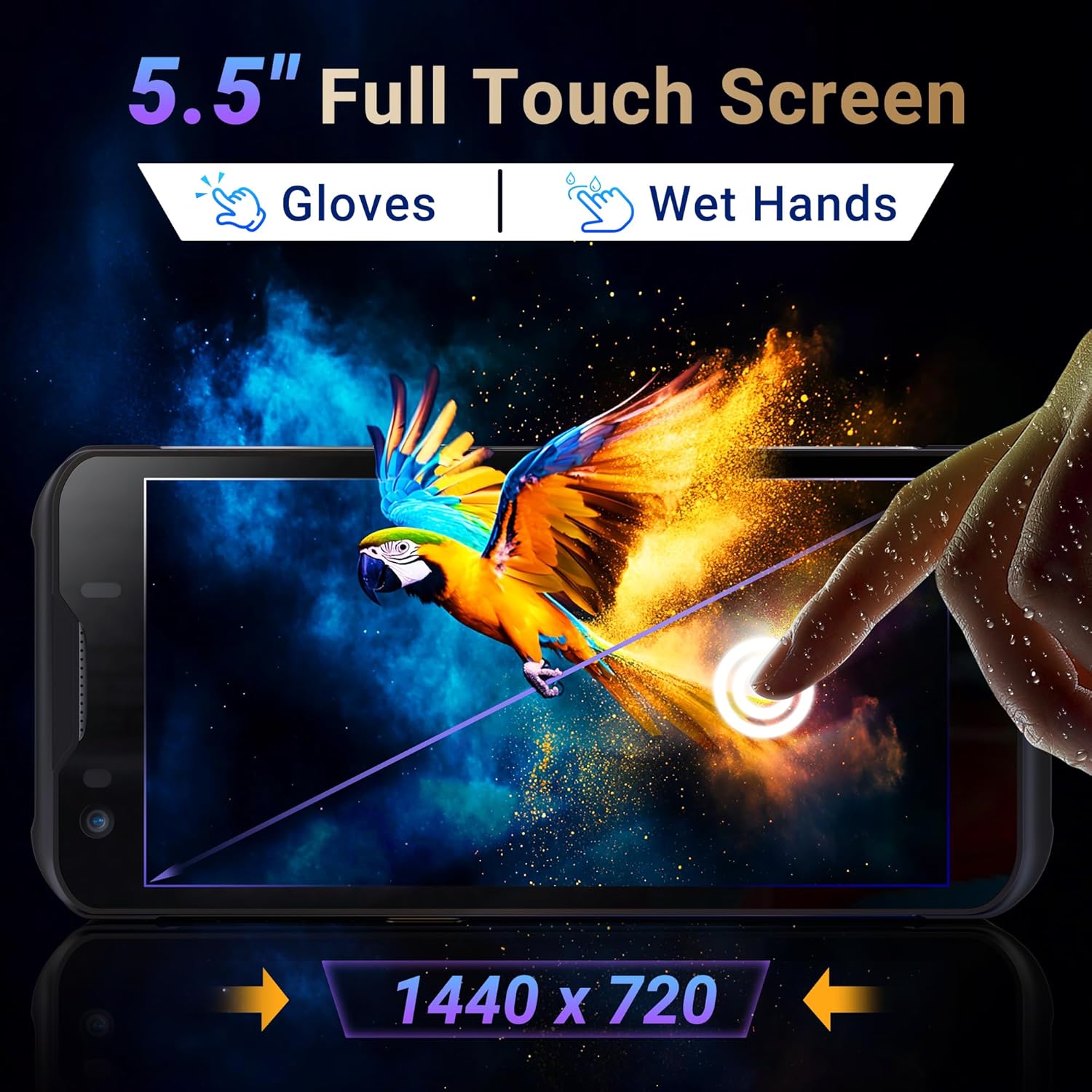
Image: The Tera P150's 5.5-inch full touch screen, highlighting its 1440x720 resolution and compatibility with both gloved and wet-hand operation.
5.3 Связь
The device supports multiple connectivity options for seamless data transmission.
- Wi-Fi: Go to Settings > Network & internet > Wi-Fi to connect to available wireless networks. Supports dual-band Wi-Fi for stable connections.
- Bluetooth 5.0: Go to Settings > Connected devices > Bluetooth to pair with Bluetooth-enabled accessories. Bluetooth 5.0 offers faster speeds and extended range.
- 4G/3G Cellular: Insert a SIM card (as described in Section 4.2) to enable cellular data and communication.
- GPS: The integrated GPS module allows for location tracking and navigation.
5.4 Производительность и многозадачность
Powered by an MTK 2.0GHz octa-core processor with 4GB RAM and 64GB storage, the Tera P150 ensures smooth operation and efficient multitasking.

Image: The Tera P150 device highlighting its MTK 2.0GHz Octa-core processor and 4GB RAM + 64GB memory, indicating superior processing and performance compared to other devices.

Image: The Tera P150 device showcasing its Android 12 operating system and 4GB RAM + 64GB storage, illustrating its capability for seamless multitasking with multiple applications open.
6. Техническое обслуживание
6.1 Очистка устройства
To maintain optimal performance and appearance, clean the device regularly.
- Используйте мягкую, безворсовую ткань, слегкаampпромыть водой или мягким средством для чистки экранов.
- Избегайте использования агрессивных химикатов, абразивных чистящих средств или растворителей, так как они могут повредить экран и...asing.
- Перед чисткой убедитесь, что устройство выключено и отключено от источника питания.
6.2 Уход за аккумулятором
The Tera P150 features a 5000mAh battery designed for extended use. Proper battery care can prolong its lifespan.
- Избегайте экстремальных температур (как высоких, так и низких), так как они могут ухудшить работу аккумулятора.
- Do not fully discharge the battery frequently. Charge it before it drops to very low levels.
- Используйте только прилагаемые или одобренные зарядные устройства.
6.3 Характеристики долговечности
The Tera P150 is built with industrial-grade materials, featuring IP67 waterproofing and a 1.5-meter drop rating, making it suitable for harsh working environments.
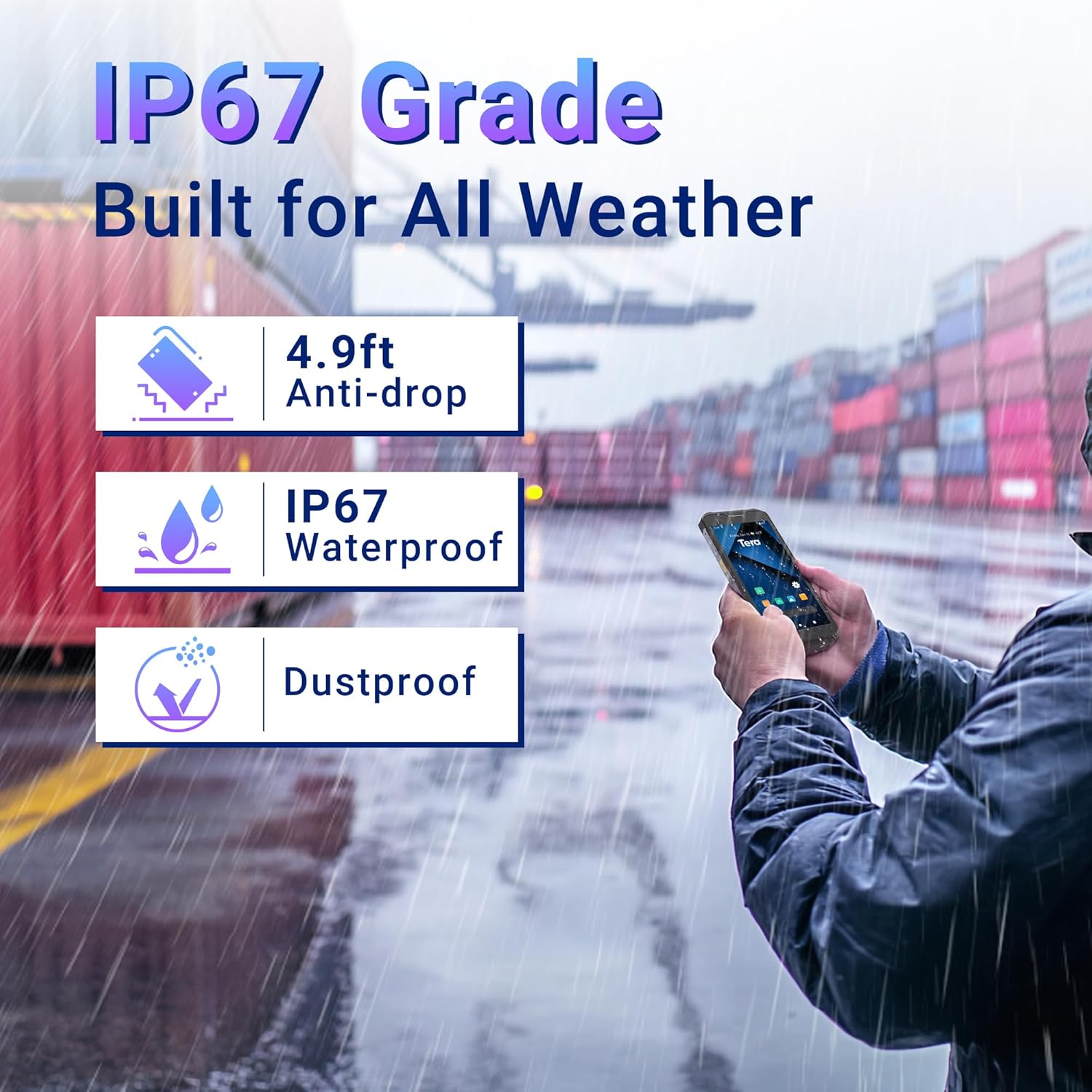
Image: The Tera P150 device highlighting its IP67 grade, 4.9ft anti-drop, IP67 waterproof, and dustproof capabilities, indicating its suitability for all-weather and rugged use.
7. Поиск Неисправностей
This section addresses common issues you might encounter with your Tera P150.
| Проблема | Возможная причина | Решение |
|---|---|---|
| Устройство не включается | Низкий заряд батареи; Сбой системы | Charge the device for at least 30 minutes. If still unresponsive, perform a forced restart by holding the Power button for 10-15 seconds. |
| Сканер штрихкодов не работает. | Scanning application not open; Barcode damaged/unreadable; Scanner module issue | Ensure the scanning application is active. Try scanning a different, known-good barcode. Clean the scanner window. Restart the device. |
| Невозможно подключиться к Wi-Fi | Неверный пароль; Выход за пределы зоны действия; Проблема с маршрутизатором. | Verify Wi-Fi password. Move closer to the Wi-Fi router. Restart the device and the router. |
| Сенсорный экран не отвечает | Временный программный сбой; помехи от защитной пленки для экрана. | Restart the device. Ensure the screen protector is correctly applied and not interfering. |
8. Технические характеристики
Detailed technical specifications for the Tera P150 Android Barcode Scanner PDA.
- Модель: Р150
- Операционная система: Андроид 12
- Процессор: MTK 2.0GHz Octa-core
- БАРАН: 4 ГБ
- Хранилище: 64 ГБ
- Отображать: 5.5-inch Full Touch Screen (1440 x 720 resolution)
- Сканер штрих-кода: Zebra SE4710 (1D, 2D, QR)
- Аккумулятор: 5000mAh (Standby >300H, Working >12H, Charging >3H)
- Связь: 4G, 3G, Dual-band Wi-Fi, Bluetooth 5.0, GPS
- Прочность: IP67 Waterproof, 1.5-meter Drop Rating, Industrial-grade materials
- Совместимые устройства: Android devices (smartphones, tablets), POS systems
- Размеры посылки: 20 х 11 х 8 см
- Масса: 540 г
9. Гарантия и поддержка
Tera products are manufactured to high-quality standards. For warranty information, please refer to the warranty card included with your product or visit the official Tera webсайт.
For technical support, troubleshooting assistance, or inquiries regarding your Tera P150, please contact Tera customer service:
- Контактный номер: +1 (626)438-1404
- Онлайн поддержка: Refer to the official Tera webсайт для ответов на часто задаваемые вопросы и получения ресурсов поддержки.


