1. Введение
Thank you for choosing the TECPHILE K936 Wireless Keyboard and Mouse Combo. This product is designed to provide versatile and efficient input for multiple devices, featuring both Bluetooth 5.0 and 2.4GHz USB connectivity. This manual will guide you through the setup, operation, and maintenance of your new keyboard and mouse.
2. Содержимое упаковки
- TECPHILE K936 Wireless Keyboard
- TECPHILE Wireless Mouse
- USB-приемник (хранится в батарейном отсеке мыши)
- Зарядный кабель USB-C
- Защитный чехол для клавиатуры
- Руководство пользователя
3. Продукт закончилсяview
Familiarize yourself with the components of your TECPHILE K936 Wireless Keyboard and Mouse Combo.

Изображение 3.1: The TECPHILE K936 Wireless Keyboard and Mouse Combo in Grey. The keyboard features a full layout with a numeric keypad, and the mouse is a compact, ergonomic design.

Изображение 3.2: Diagram showing the dimensions of the keyboard (368mm x 121mm) and mouse (110mm x 63mm x 30mm).
Характеристики клавиатуры:
- Multi-device connectivity: 3 x Bluetooth 5.0, 1 x 2.4GHz USB
- Dedicated function keys (F1-F12) with multimedia controls
- Перезаряжаемая литиевая батарея 300mAh
- Порт зарядки Type-C
- Automatic sleep mode for power saving
- Scissor-leg key structure for comfortable typing
- Transparent protective cover included
Особенности мыши:
- Dual-mode connectivity: 1 x Bluetooth, 1 x 2.4GHz USB
- Optical movement detection technology
- Симметричный дизайн
- Quiet click buttons
4. Настройка
4.1 Первоначальная зарядка
Before first use, fully charge both the keyboard and mouse. Connect the provided USB-C charging cable to the charging port on the keyboard and mouse, and the other end to a 5V/1A power adapter (not included) or a computer USB port. The charging indicator light will show charging status and turn off when fully charged.
Note: Only use a 5V/1 Amp power adapter for charging to ensure optimal battery life.

Изображение 4.1: Illustration of the keyboard's battery specifications: 2-4 hours charging time, 300mAh battery capacity, and up to 180 days standby time.
4.2 Подключение клавиатуры
The keyboard supports up to three Bluetooth connections and one 2.4GHz USB connection.

Изображение 4.2: Diagram illustrating the keyboard's ability to connect to multiple devices via Bluetooth (3 channels) and 2.4GHz USB.
2.4GHz USB Connection:
- Найдите USB-приемник внутри батарейного отсека мыши.
- Подключите USB-приемник к свободному USB-порту вашего компьютера или устройства.
- Включите клавиатуру. Клавиатура должна подключиться автоматически.
Подключение по Bluetooth (BT1, BT2, BT3):
- Включите клавиатуру.
- Нажмите и удерживайте Fn key and one of the Bluetooth keys (БТ1, БТ2, или БТ3) for 3-5 seconds until the corresponding indicator light flashes rapidly. This indicates pairing mode.
- На вашем устройстве (компьютере, планшете, смартфоне) перейдите в настройки Bluetooth и выполните поиск новых устройств.
- Select "TECPHILE Keyboard" from the list of available devices to pair.
- Once paired, the indicator light will stop flashing and remain solid for a few seconds before turning off.
- Repeat for other Bluetooth channels to connect to additional devices.
4.3 Подключение мыши
The mouse supports one Bluetooth connection and one 2.4GHz USB connection.
2.4GHz USB Connection:
- Убедитесь, что USB-приемник подключен к вашему устройству.
- Switch the mouse to 2.4GHz mode using the switch on the bottom of the mouse.
- Мышь должна автоматически подключиться.
Подключение Bluetooth:
- Switch the mouse to Bluetooth mode using the switch on the bottom of the mouse.
- Press and hold the Bluetooth pairing button on the bottom of the mouse for 3-5 seconds until the indicator light flashes.
- На вашем устройстве перейдите в настройки Bluetooth и выполните поиск новых устройств.
- Select "TECPHILE Mouse" from the list to pair.
5. Инструкция по эксплуатации
5.1 Переключение между устройствами (клавиатура)
To switch between connected devices on the keyboard, simply press the Fn key along with the corresponding connection key (БТ1, БТ2, БТ3, или 2.4G for USB). The keyboard will switch to the selected device instantly.
5.2 Switching Between Devices (Mouse)
To switch between 2.4GHz USB and Bluetooth modes on the mouse, use the toggle switch located on the bottom of the mouse.
5.3 Function Keys (Keyboard)
The keyboard features dedicated function keys (F1-F12) that can be used in conjunction with the Fn key for various multimedia and system controls.
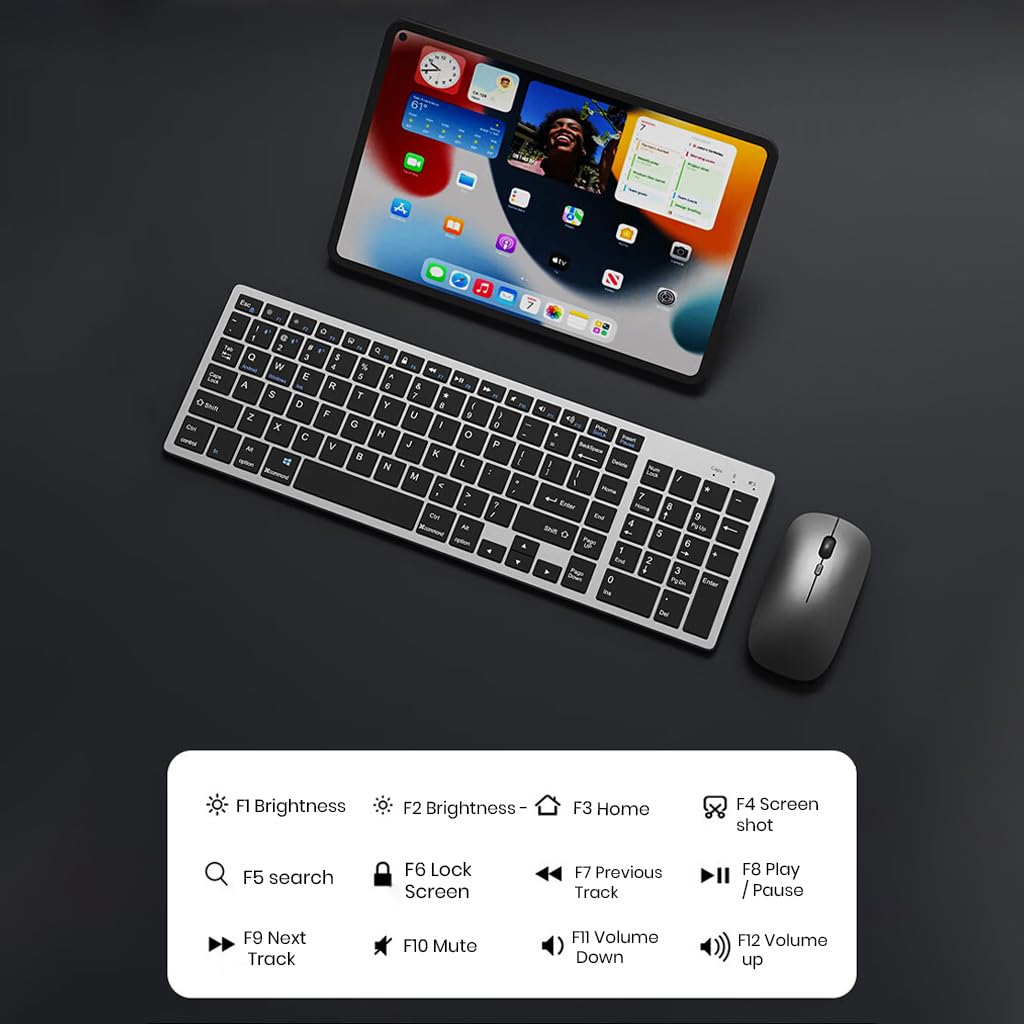
Изображение 5.1: The keyboard displaying its function keys and their associated actions, such as brightness control, home, screen shot, search, lock screen, media playback, and volume control.
- Fn+F1: Яркость вниз
- Fn+F2: Яркость вверх
- Fn+F3: Дом
- Fn+F4: Скриншот
- Fn+F5: Поиск
- Fn+F6: Экран блокировки
- Fn+F7: Предыдущий трек
- Fn+F8: Воспроизведение/Пауза
- Fn+F9: Следующий трек
- Fn+F10: Немой
- Fn+F11: Уменьшить громкость
- Fn+F12: Увеличить громкость
5.4 Режим энергосбережения
The keyboard and mouse are equipped with an automatic sleep mode to conserve battery life. If inactive for 10 minutes, the devices will enter sleep mode. To wake them up, simply press any key on the keyboard or move/click the mouse.

Изображение 5.2: Diagram illustrating the auto-sleep mode and how to reactivate the keyboard and mouse by pressing any key.
6. Техническое обслуживание
- Уборка: Для чистки клавиатуры и мыши используйте мягкую сухую ткань. Для удаления стойких загрязнений слегка протрите поверхность сухой тканью.amp можно использовать ткань, следя за тем, чтобы жидкость не попала в устройство.
- Защитный чехол: Utilize the included transparent protective cover for the keyboard to guard against dust and accidental spills.
- Хранилище: Храните устройства в прохладном, сухом месте, вдали от прямых солнечных лучей и экстремальных температур.
- Зарядка: Always use a 5V/1A power adapter for charging to prevent damage and ensure battery longevity.

Изображение 6.1: The keyboard shown with its transparent protective keyskin, designed to prevent dust and spills.
7. Поиск Неисправностей
| Проблема | Возможная причина | Решение |
|---|---|---|
| Keyboard/Mouse not connecting via 2.4GHz USB. | USB receiver not properly inserted, low battery, incorrect mode selected. |
|
| Клавиатура/мышь не подключаются по Bluetooth. | Not in pairing mode, device's Bluetooth is off, already connected to max devices, low battery. |
|
| Задержка или прерывание соединения. | Помехи, расстояние до приемника/устройства, низкий заряд батареи. |
|
| Клавиши клавиатуры не реагируют. | Low battery, device in sleep mode, connection issue. |
|
8. Технические характеристики
| Особенность | Деталь |
|---|---|
| Бренд | ТЕХФАЙЛ |
| Модель | К936 |
| Технология связи | Keyboard: 3 x Bluetooth 5.0, 1 x 2.4GHz USB; Mouse: 1 x Bluetooth, 1 x 2.4GHz USB |
| Совместимые устройства | Ноутбук, персональный компьютер, смартфон, планшет |
| Операционная система | Android, iOS, Windows, macOS |
| Аккумулятор для клавиатуры | 300 мАч литий-ионный (перезаряжаемый) |
| Порт зарядки | USB-порт типа C |
| Время зарядки | 2-4 часов (прибл.) |
| Время в режиме ожидания | До 180 дней |
| Размеры клавиатуры (ДxШxВ) | 36 х 13 х 1.5 см |
| Размеры мыши (ДхШхВ) | 11 x 6.3 x 3 см (приблизительно) |
| Вес товара | 661 г (комбо) |
| Технология обнаружения движения | Оптический |
| Ориентация руки | Двусторонний |
9. Гарантия и поддержка
TECPHILE products come with a standard warranty. For warranty claims, technical support, or any product-related inquiries, please contact TECPHILE customer service through the retailer where the product was purchased or visit the official TECPHILE webсайт для контактной информации.
Сохраните чек о покупке для гарантийных целей.
Manufacturer/Importer: TECPHILE, 2nd Floor, A36, Block B, Naraina Industrial Area Phase 2, Naraina, New Delhi, Delhi, 110028


