1. Введение
This manual provides detailed instructions for setting up, operating, and maintaining your THOMSON 40-inch FHD Fire TV. Please read this manual thoroughly before using the television to ensure proper functionality and safety. Keep this manual for future reference.
2. Информация по технике безопасности
Всегда соблюдайте основные меры предосторожности при использовании данного изделия, чтобы снизить риск возникновения пожара, поражения электрическим током и травм.
- Не подвергайте телевизор воздействию дождя или влаги.
- Не закрывайте вентиляционные отверстия.
- Обеспечьте надлежащее заземление вилки питания.
- Отключайте телевизор от сети во время грозы или при длительном бездействии.
- По всем вопросам обслуживания обращайтесь к квалифицированному персоналу.
3. Содержимое упаковки
Убедитесь, что все предметы включены в ваш пакет:
- THOMSON 40-inch FHD Fire TV
- Пульт дистанционного управления (с батарейками)
- Шнур питания
- Подставка под телевизор (2 шт.)
- Винты для подставки под телевизор
- Руководство пользователя (этот документ)

Image: The product box illustrating the TV, remote control, and various features like Fire TV, Alexa, and Dolby Audio.
4. Продукт закончилсяview
Familiarize yourself with the components and connections of your THOMSON Fire TV.
Фронт 4.1 View

Image: The front of the TV, showcasing its slim bezel and the Fire TV smart interface with popular streaming applications.
4.2 Сторона View и размеры
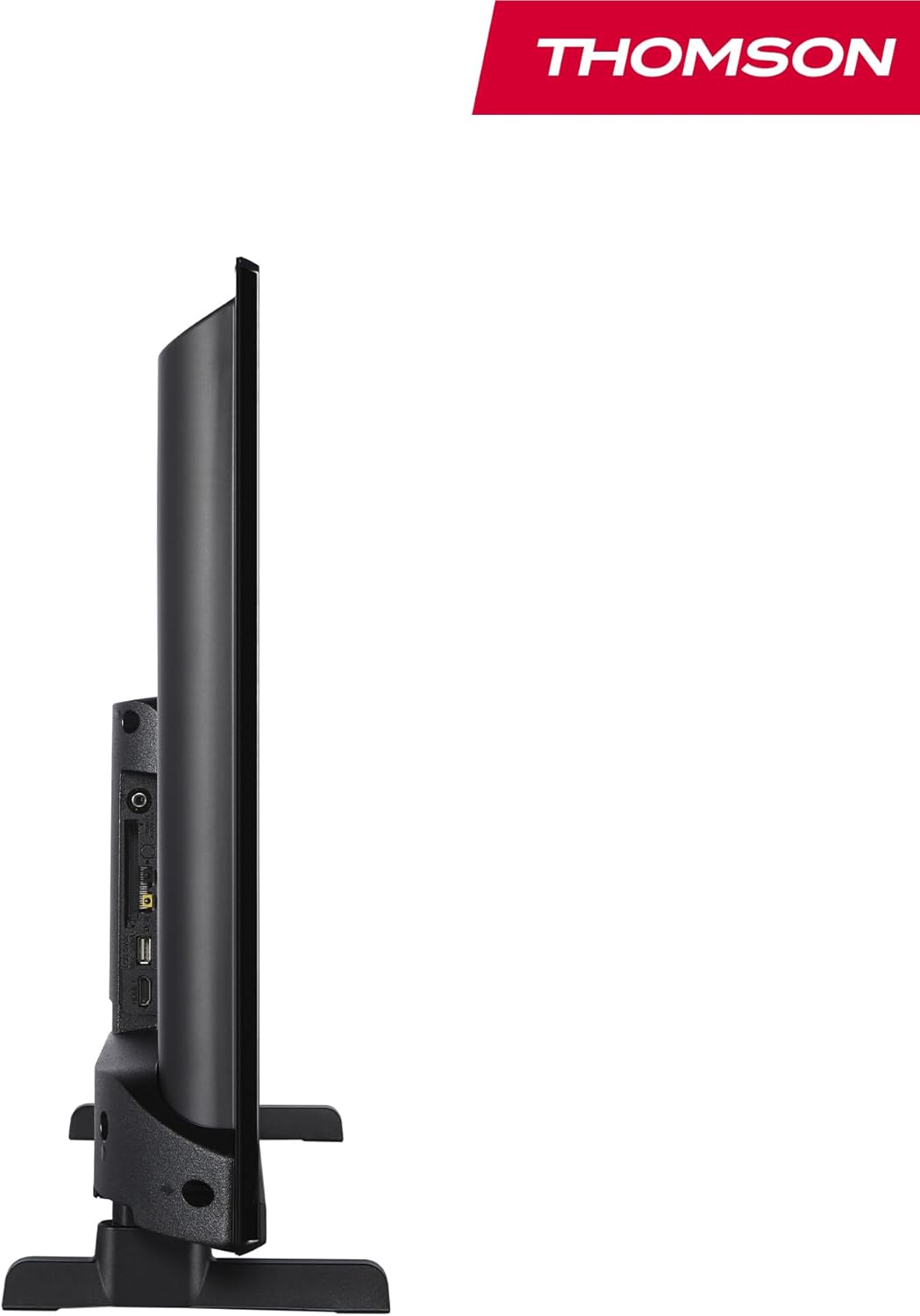
Изображение: вид сбоку view of the television, demonstrating its thin profile.

Image: A diagram illustrating the physical dimensions of the TV, including width, height, and depth with the stand.
4.3 Задняя часть View и порты
The rear panel of your TV features various input and output ports for connecting external devices.

Изображение: Подробный view of the TV's rear panel, highlighting all connectivity ports such as HDMI, USB, Audio Out, CI+, and antenna inputs.
- Аудио выход: Для подключения внешних аудиосистем.
- КИ+: Слот Common Interface Plus для модулей условного доступа.
- Наушники: Разъем 3.5 мм для прослушивания в приватном режиме.
- АВ ВХОД: Для подключения старых устройств с композитным видеосигналом и стереозвуком.
- USB 2.0: Для воспроизведения медиафайлов с USB-накопителей.
- HDMI 1.4 (x2): High-Definition Multimedia Interface for connecting Blu-ray players, game consoles, etc.
- Антенна: For connecting a terrestrial antenna (DVB-T2).
- Спутник: Для подключения спутниковой антенны (DVB-S2).
- LAN: Порт Ethernet для проводного сетевого подключения.
5. Настройка
5.1 Крепление подставки под телевизор
- Осторожно положите телевизор экраном вниз на мягкую ровную поверхность, чтобы не повредить экран.
- Совместите детали подставки с соответствующими пазами на нижней части телевизора.
- Закрепите стойки с помощью прилагаемых винтов.
5.2 Первоначальное включение и сетевое подключение
- Подключите шнур питания к телевизору и розетке.
- Нажмите кнопку питания на телевизоре или пульте дистанционного управления, чтобы включить его.
- Follow the on-screen instructions for initial setup, including language selection and network connection (Wi-Fi or Ethernet).
- Log in with your Amazon account to activate Fire TV features.
5.3 Tuner Setup (Triple-Tuner)
Your TV is equipped with a triple-tuner for DVB-C (cable), DVB-S2 (satellite), and DVB-T2 (terrestrial) reception.

Image: The DVB-T2/C/S2 tuner inputs, allowing connection to various broadcast sources.
- Connect your antenna or satellite cable to the appropriate input on the TV.
- Navigate to the TV settings and select 'Channel Scan' or 'Tuner Setup'.
- Choose your broadcast type (Antenna, Cable, or Satellite) and follow the prompts to scan for available channels.
6. Инструкция по эксплуатации
6.1 Интерфейс Fire TV
The Fire TV interface provides easy access to your favorite streaming services, apps, and live TV.
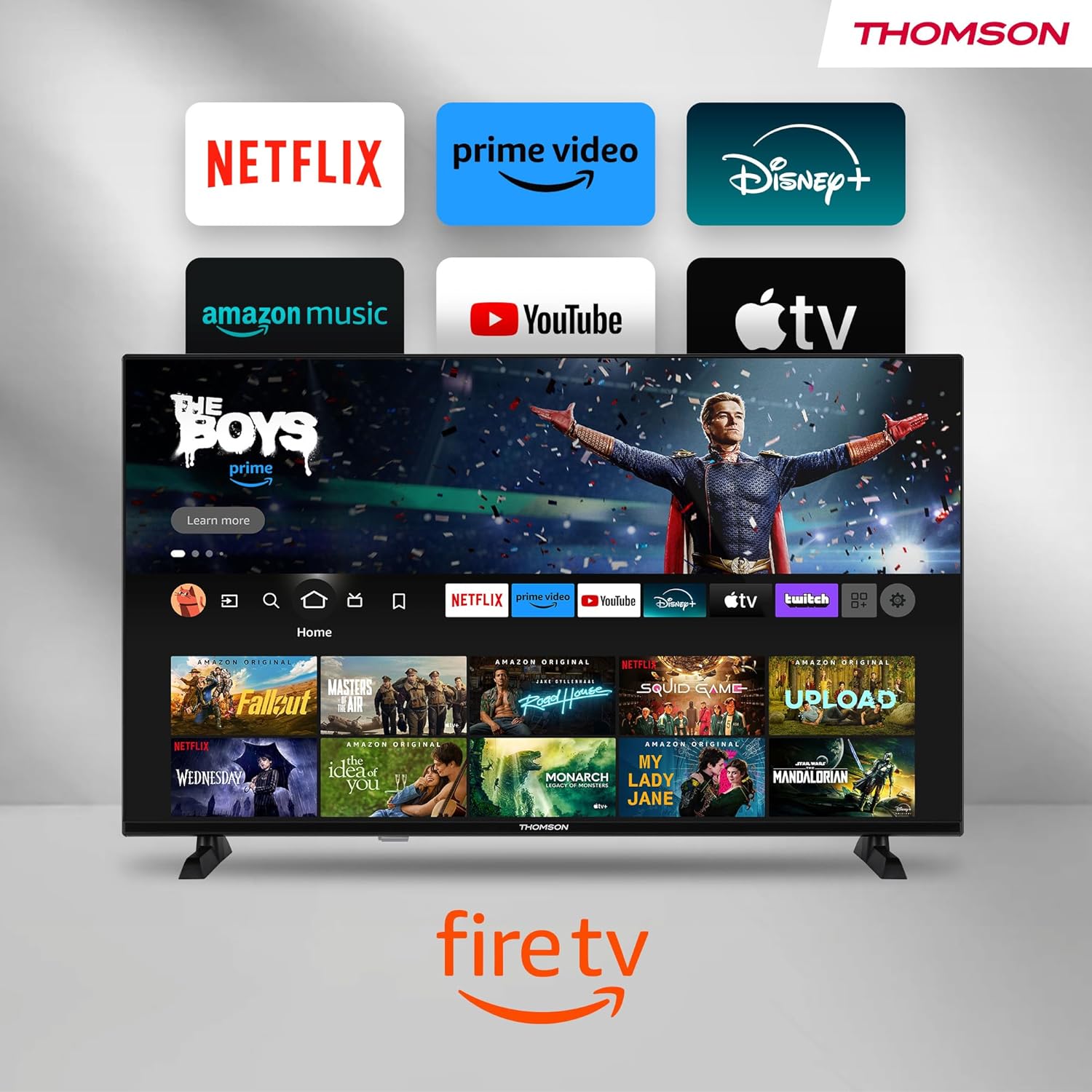
Image: The Fire TV home screen, showing a selection of popular streaming apps and content recommendations.
Navigate using the remote control's directional pad. The home screen provides personalized recommendations and quick access to your installed applications.
6.2 Голосовое управление Alexa
Use the integrated Alexa voice control for hands-free operation.
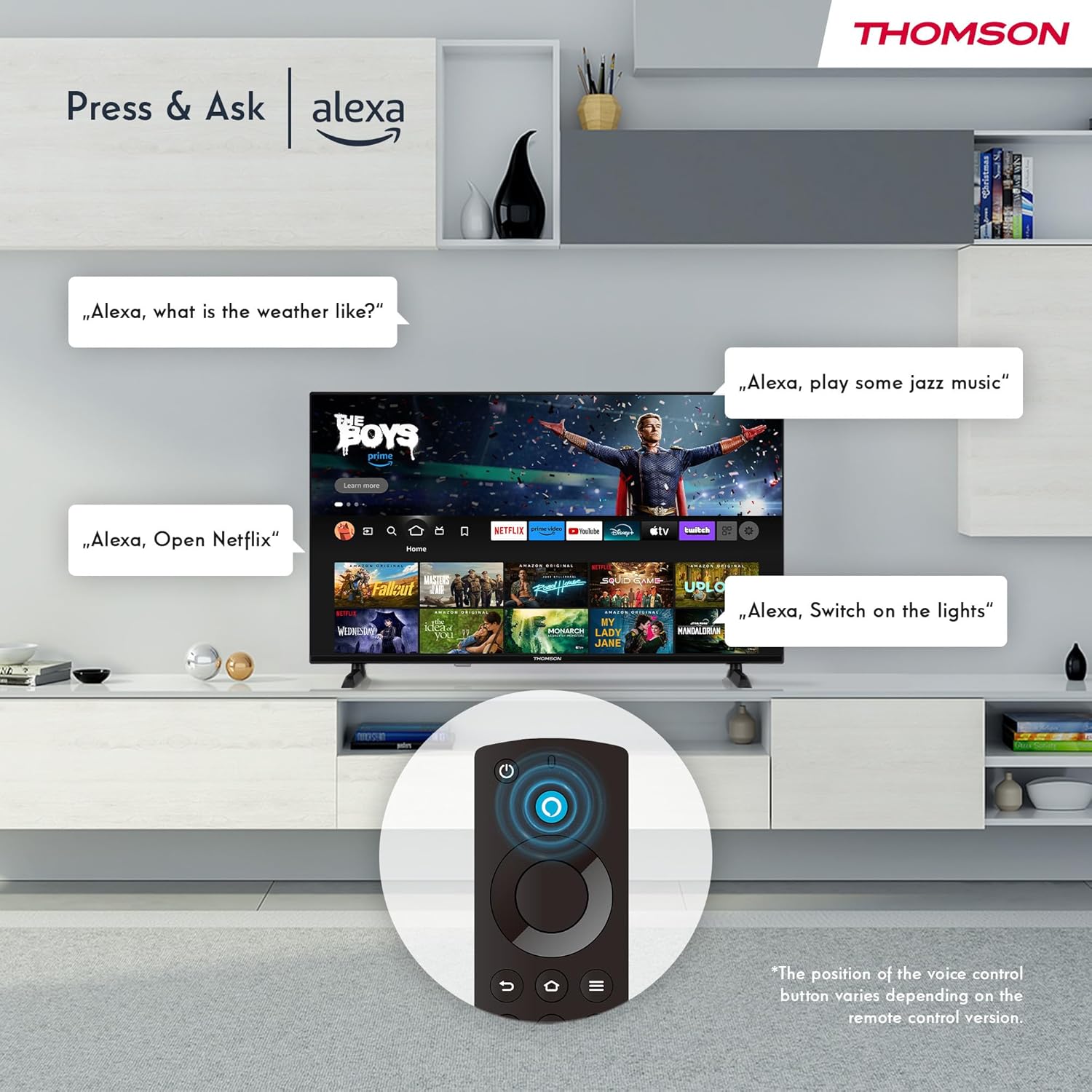
Image: Demonstrating Alexa voice commands for controlling the TV, searching content, and managing smart home devices.
Нажмите кнопку Alexa на пульте дистанционного управления и произнесите команду. Вы можете попросить Alexa:
- Искать фильмы или телешоу.
- Запуск приложений.
- Control playback (pause, play, skip).
- Check the weather or news.
- Управляйте совместимыми устройствами умного дома.
6.3 Интеграция с умным домом
Manage your connected smart home devices directly from your TV's integrated dashboard.

Image: The Smart Home dashboard, providing a centralized control panel for various smart devices in your home.
Access the Smart Home dashboard to monitor and control devices such as cameras, lights, and plugs.
6.4 AirPlay Functionality
Stream content directly from your Apple devices (iPhone, iPad, Mac) to your THOMSON Fire TV using AirPlay.

Image: A demonstration of Apple AirPlay, showing content being mirrored from an iOS device to the television screen.
Ensure both your Apple device and the TV are connected to the same Wi-Fi network. Select the AirPlay icon on your Apple device and choose your THOMSON TV from the list of available devices.
6.5 Creating User Profiles
Создать многопользовательскую профессиональнуюfiles for personalized content recommendations and settings.

Image: The user profile selection screen on Fire TV, allowing different users to have their own personalized viewопыт.
From the Fire TV home screen, navigate to the profile selection to add or switch profileс. Каждый профессионалfile can have its own watch history and app preferences.
6.6 HDR10 и Dolby Audio
Experience enhanced picture quality with HDR10 and immersive sound with Dolby Audio.

Image: A visual comparison demonstrating the improved contrast and color vibrancy offered by HDR10 technology.

Image: A graphic illustrating the immersive sound experience provided by Dolby Audio.
HDR10 provides a wider range of colors and contrasts, while Dolby Audio delivers rich, clear, and powerful sound.
Пульт дистанционного управления 6.7
The ergonomic Bluetooth remote control provides easy navigation and direct access to key features.
- Алекса Баттон: Нажмите и удерживайте, чтобы активировать голосовые команды.
- Панель навигации: For moving through menus and selecting items.
- Кнопки Netflix/Prime Video: Прямой доступ к этим стриминговым сервисам.
- Amazon Silk Button: Прямой доступ к web браузер.
7. Техническое обслуживание
Чтобы обеспечить долговечность и оптимальную работу вашего телевизора, следуйте следующим рекомендациям по обслуживанию:
- Очистка экрана: Аккуратно протрите экран мягкой безворсовой тканью. Для удаления стойких загрязнений используйте специальное чистящее средство для телевизоров, нанося его на ткань, а не непосредственно на экран.
- Чистка шкафа: Протирайте корпус телевизора мягкой сухой тканью. Не используйте абразивные чистящие средства или растворители.
- Вентиляция: Во избежание перегрева убедитесь, что вентиляционные отверстия на задней панели телевизора не заблокированы.
- Шнур питания: Регулярно проверяйте сетевой шнур на наличие повреждений. При обнаружении повреждений немедленно замените его.
8. Поиск Неисправностей
Если у вас возникли проблемы с телевизором, ознакомьтесь со следующими распространенными проблемами и решениями:
| Проблема | Возможная причина/решение |
|---|---|
| Нет электричества | Проверьте, надежно ли подключен шнур питания к телевизору и розетке. Убедитесь, что розетка активна. |
| Нет изображения, но есть звук | Check input source. Ensure external devices are properly connected and powered on. |
| Нет звука, но есть изображение | Check volume level. Ensure Mute is not activated. Check audio cables for external devices. |
| Пульт дистанционного управления не работает | Check batteries. Ensure there are no obstructions between the remote and the TV. Re-pair the Bluetooth remote if necessary. |
| Невозможно подключиться к Wi-Fi | Ensure Wi-Fi is enabled on the TV. Check Wi-Fi password. Restart your router. Move TV closer to router. |
| Приложения работают медленно или зависают | Restart the TV. Clear app cache or data in settings. Ensure sufficient internet speed. |
Если проблема не устранена, обратитесь в службу поддержки клиентов.
9. Технические характеристики
| Особенность | Деталь |
|---|---|
| Номер модели | 40FF2S34 |
| Размер экрана | 40.0 дюйма (100 см) |
| Технология отображения | ВЕЛ |
| Разрешение | 1080p (Full HD) |
| Частота обновления | 60 Гц |
| Соотношение сторон | 16:9 |
| Связность | Wi-Fi, Bluetooth 5.0, 2x HDMI 1.4, USB 2.0, AV IN, Audio Out, CI+, LAN |
| Тюнеры | DVB-C, DVB-S2, DVB-T2 |
| Особые возможности | Fire TV, Alexa Voice Control, AirPlay, HDR10, Dolby Audio, Smart Home Dashboard, User Profiles |
| Размеры (с подставкой) | 90.2 x 55.4 x 17.5 см (Ш x В x Г) |
| Масса | 9 кг |
| Рейтинг энергоэффективности | E |
| Включенные компоненты | Дистанционное управление |
| Поддерживаемые языки | Spanish, French, English, Italian, Germanic languages |
10. Гарантия и поддержка
Your THOMSON Fire TV comes with a manufacturer's warranty. Please refer to the warranty card included in your package for specific terms and conditions.
For technical support, troubleshooting assistance, or warranty claims, please visit the official THOMSON support website or contact their customer service line. Keep your purchase receipt and model number (40FF2S34) handy when contacting support.
Онлайн поддержка: www.thomsonconsumer.com/support


