1. Введение
This user manual provides comprehensive instructions for setting up, operating, and maintaining your THOMSON 10.1-inch WiFi Digital Photo Frame. Please read this manual carefully before using the device to ensure proper functionality and longevity.
2. Продукт закончилсяview
The THOMSON Digital Photo Frame is designed to display your cherished memories with ease. It features a high-definition IPS touchscreen and WiFi connectivity for convenient photo sharing.
Основные характеристики:
- 32 ГБ встроенной памяти: Stores approximately 50,000 photos. Supports SD Card/SDHC Card/MMC Card/USB Drive expansion up to 256GB.
- Простая настройка: Connects to WiFi, automatically sets local date and time.
- 10.1-inch 1280x800 HD IPS Screen: Provides clear image viewing with a 180° viewугол наклона.
- Несколько интерфейсов: Supports DC-4.0, Type-C, SD, 3.5mm Jack, and USB.
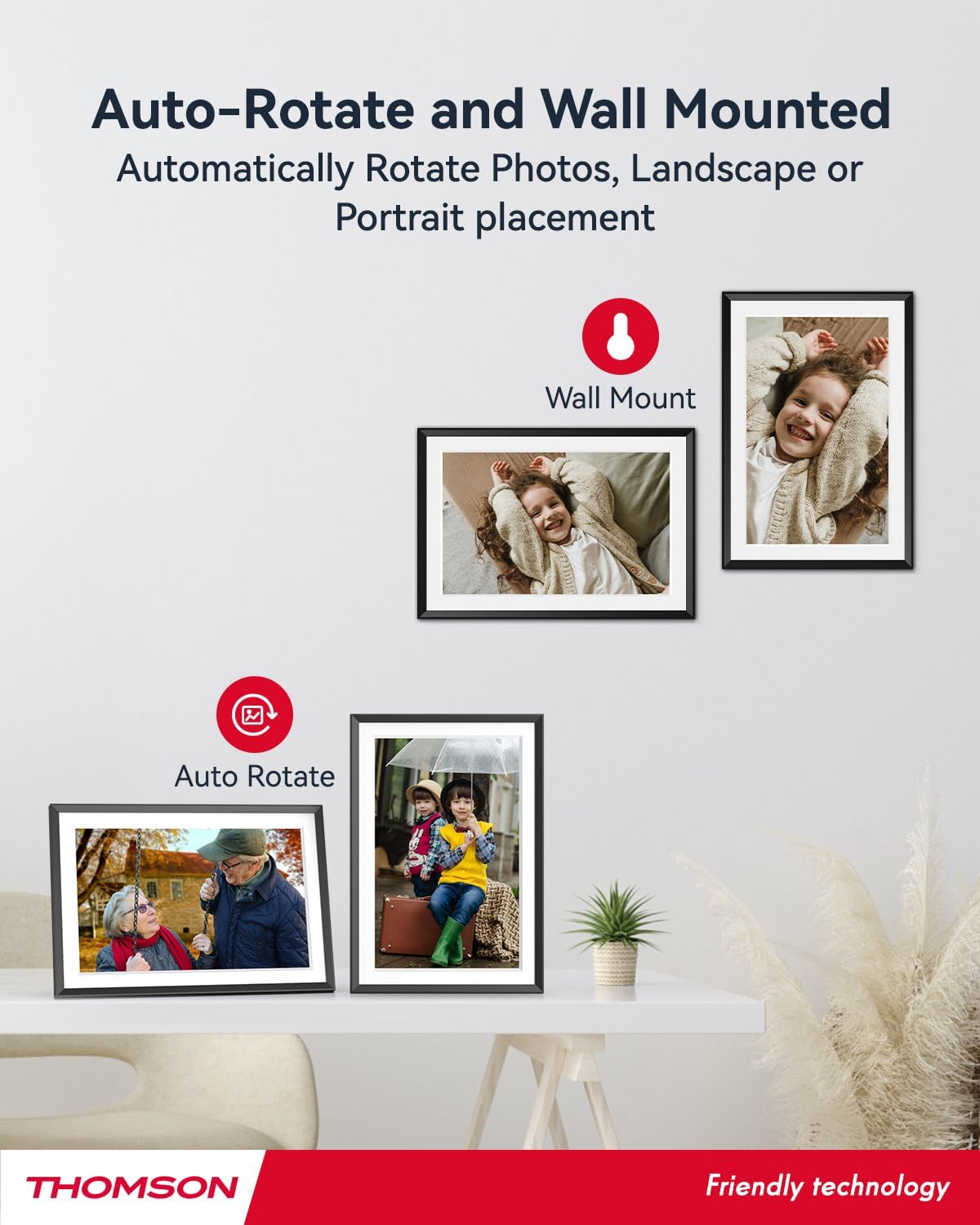
- Автоматическое вращение: Displays photos correctly in any orientation.
- Фоновая музыка: Play music during slideshows.
- Google Photo Support: Send photos directly from Google Photos.





3. Настройка
3.1 Распаковка и первоначальный осмотр
- Аккуратно извлеките все компоненты из упаковки.
- Verify that all items listed in the 'Product OverviewРазделы присутствуют.
- Inspect the frame for any signs of damage. If damaged, do not proceed and contact customer support.
3.2 Подключение питания
- Connect the power adapter to the DC-4.0 port on the back of the photo frame.
- Подключите адаптер питания к стандартной электрической розетке.
- Рамка включится автоматически.
3.3 Сетевое подключение (Wi-Fi)
- On the frame's touchscreen, navigate to 'Settings' or 'Wi-Fi Settings'.
- Выберите нужную сеть Wi-Fi из списка доступных сетей.
- Введите пароль от Wi-Fi с помощью экранной клавиатуры.
- Confirm the connection. Once connected, the frame will automatically synchronize the date and time.
3.4 App Installation (Thomson Smart Frame)
To share photos wirelessly from your smartphone, download the 'Thomson Smart Frame' app:
- For Android devices, search for 'Thomson Smart Frame' on the Магазин Google Play.
- For iOS devices, search for 'Thomson Smart Frame' on the Магазин приложений Apple.
- Follow the on-screen instructions within the app to pair it with your digital photo frame.
4. Инструкция по эксплуатации
4.1 Добавление фотографий и видео
- Via Thomson Smart Frame App: Use the paired smartphone app to wirelessly send photos and videos to the frame.
- Через SD-карту/USB-накопитель: Insert a compatible SD card or USB drive into the respective slot. The frame will detect the media, and you can import files to the internal memory or play directly.
- Via Google Photos: The frame supports integration with Google Photos for direct photo sharing. Refer to the frame's on-screen instructions for linking your Google Photos account.
4.2 Сенсорная навигация
The frame features an intuitive touchscreen interface. Tap to select, swipe to scroll, and pinch to zoom (if supported by the specific function).
4.3 Slideshow Settings
Customize your photo slideshow experience:
- Slideshow Speed: Отрегулируйте продолжительность отображения каждой фотографии.
- Переходные эффекты: Choose from various transition styles between photos.
- Фоновая музыка: Выберите аудио files to play during the slideshow.
4.4 Автоматическое вращение
The frame automatically detects its orientation (landscape or portrait) and adjusts the displayed photos accordingly. Ensure the auto-rotate function is enabled in the settings if you wish to utilize this feature.
4.5 Многопользовательское подключение
Multiple users can connect to the same frame via the Thomson Smart Frame app, allowing family and friends to share their photos to your frame from different locations.
5. Техническое обслуживание
5.1 Очистка экрана
- Turn off the photo frame and unplug it from the power source.
- Для протирки экрана используйте мягкую безворсовую ткань (например, салфетку из микрофибры).
- Для стойких пятен слегка разотритеampen the cloth with water or a screen-cleaning solution specifically designed for electronic displays. Do not spray liquid directly onto the screen.
5.2 Общий уход
- Избегайте воздействия на раму экстремальных температур, прямых солнечных лучей или высокой влажности.
- Keep the frame away from water and other liquids.
- Do not block the ventilation openings on the frame.
- Handle the frame with care to prevent drops or impacts.
6. Поиск Неисправностей
| Проблема | Возможная причина | Решение |
|---|---|---|
| Рама не включается. | Адаптер питания не подключен или неисправна розетка. | Ensure power adapter is securely connected to the frame and a working electrical outlet. Try a different outlet. |
| Невозможно подключиться к Wi-Fi. | Неверный пароль, слабый сигнал или проблемы с сетью. | Дважды проверьте пароль Wi-Fi. Поднесите рамку ближе к роутеру. Перезагрузите роутер и рамку. |
| Photos not displaying. | Неподдерживаемый file format, no photos loaded, or storage issue. | Ensure photos are in supported formats (e.g., JPEG, PNG). Verify photos are loaded onto the frame's internal memory or connected storage. Check storage space. |
| Сенсорный экран не отвечает. | Временный сбой программного обеспечения. | Для перезагрузки устройства отсоедините и снова подключите адаптер питания. |
7. Технические характеристики
| Особенность | Деталь |
|---|---|
| Бренд | Томсон |
| Номер модели | ТДФ-1001П |
| Размер экрана | 10.1 дюймов |
| Разрешение дисплея | 1280 x 800 HD |
| Тип дисплея | Сенсорный экран IPS |
| Внутренняя память | 32 ГБ |
| Расширяемая память | SD Card/SDHC Card/MMC Card/USB Drive (up to 256GB) |
| Технология связи | Wi-Fi |
| Совместимые устройства | Android and iOS Smartphones |
| Источник питания | Проводной электрический |
| Соотношение сторон | 16:10 |
| Материал рамы | Пластик |
| Размеры продукта (Д x Ш x В) | 26.5 х 18.4 х 2.51 см |
| Вес продукта | 530 грамм |
8. Гарантия и поддержка
For warranty information or technical support, please refer to the documentation included with your purchase or visit the official Thomson website. You may also contact Thomson customer service directly for assistance with product issues or inquiries.


