Введение
This manual provides detailed instructions for the TECPHILE iPad Keyboard Case, Model T5509D. It covers setup, operation, maintenance, and troubleshooting to ensure optimal use of your device. Please read this manual thoroughly before using the product.
Совместимость
The TECPHILE iPad Keyboard Case (Model T5509D) is specifically designed for the following iPad Pro 12.9-inch models:
- iPad Pro 12.9-inch (6th Generation, 2022): Модели A2436, A2764, A2437, A2766
- iPad Pro 12.9-inch (5th Generation, 2021): Модели A2378, A2379, A2461, A2462
- iPad Pro 12.9-inch (4th Generation, 2020): Модели A2233, A2229, A2069, A2232
- iPad Pro 12.9-inch (3rd Generation, 2018): Модели A1876, A2014, A1895, A1983
This case is not compatible with any other iPad models.

Image: Compatibility chart for TECPHILE iPad Keyboard Case. Please verify your iPad model number on the back of your device to ensure compatibility.
Содержимое упаковки
При открытии упаковки убедитесь, что все предметы на месте:
- TECPHILE iPad Keyboard Case (with integrated kickstand and pencil holder)
- Detachable Wireless Backlit Keyboard
- Зарядный кабель USB-C
- Руководство пользователя (этот документ)
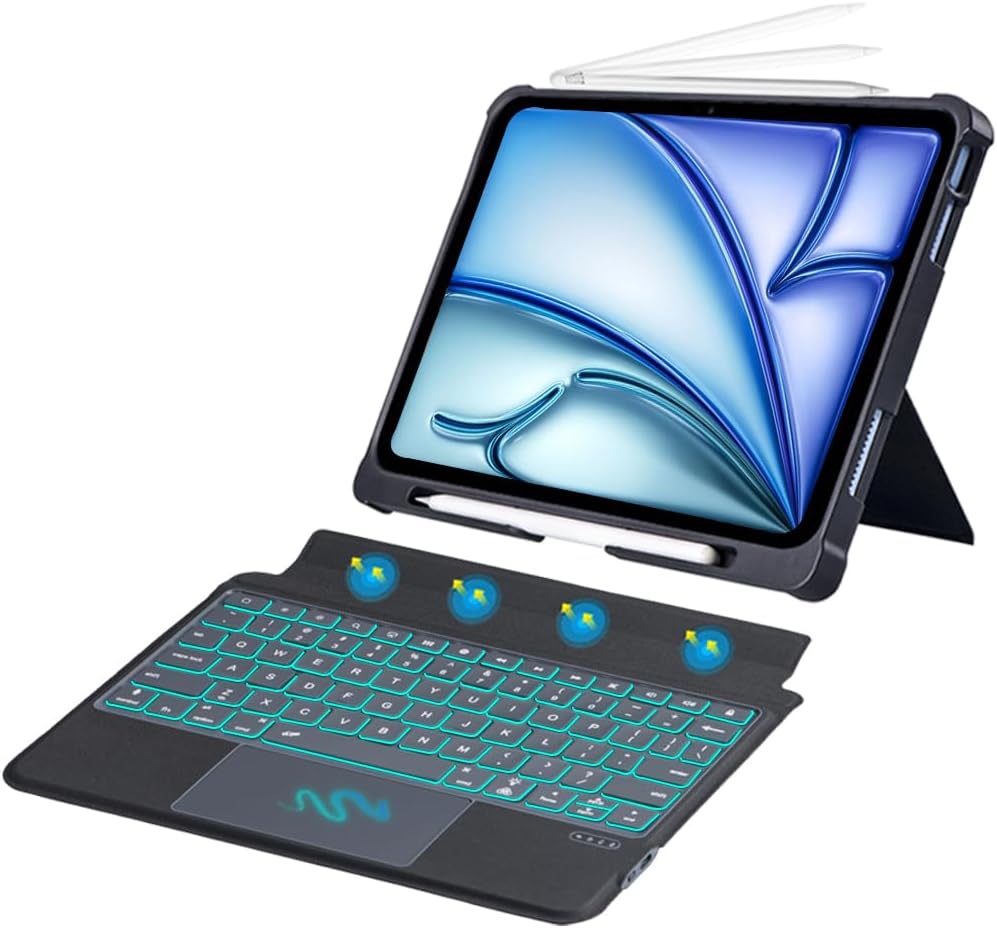
Изображение: Оверview of the TECPHILE iPad Keyboard Case components, including the case with an iPad and the detached wireless keyboard.
Руководство по настройке
1. Крепление iPad к чехлу
- Gently align your iPad Pro 12.9-inch with the case.
- Insert the iPad into the protective shell, ensuring all corners are securely fitted. The case provides full protection and features honeycomb heat release design.
- The case includes a dedicated pencil holder and supports wireless charging for your Apple Pencil.
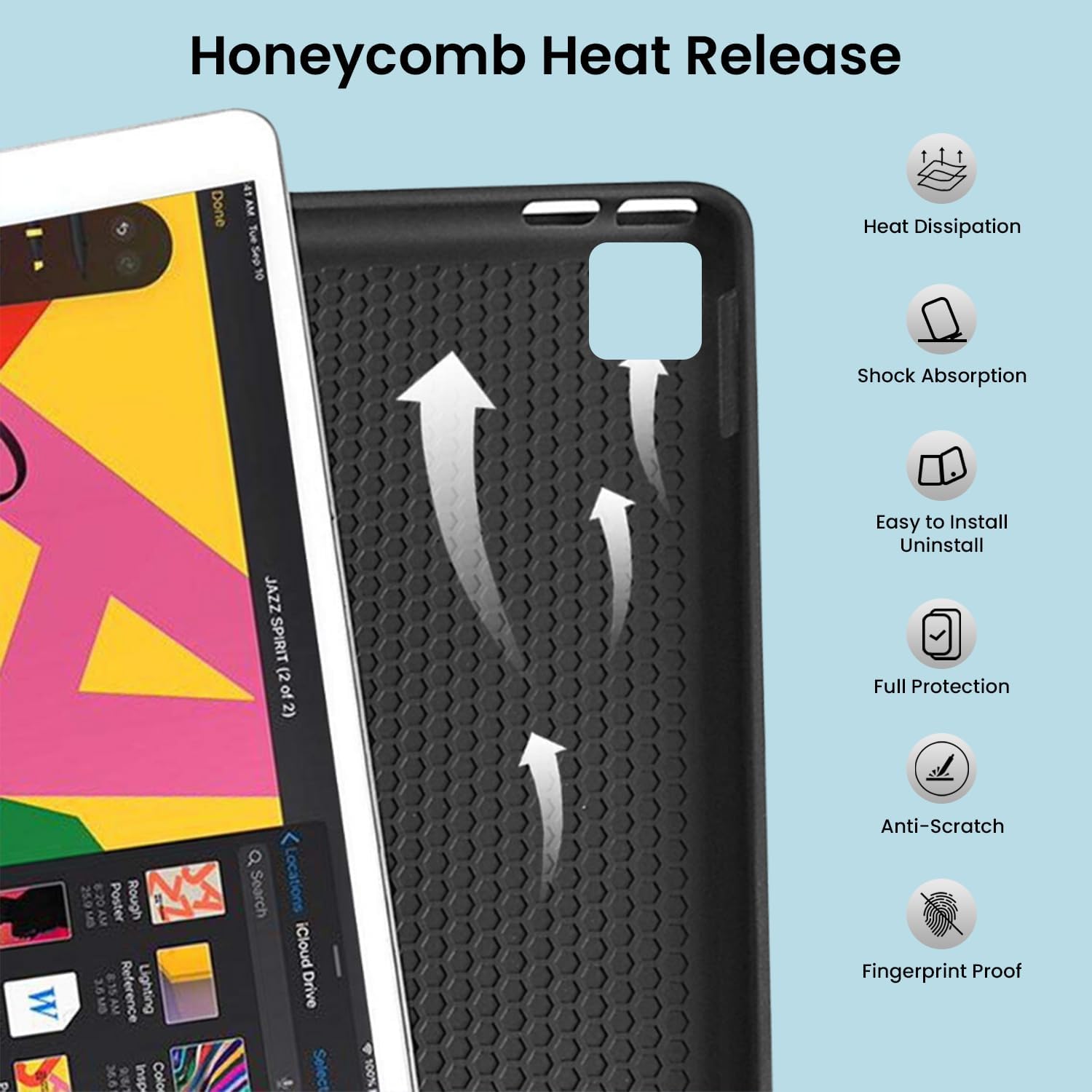
Image: Detail of the case's honeycomb structure for heat dissipation and protective features.

Image: Illustrates the wireless charging capability for the Apple Pencil and the integrated pencil holder.
2. Зарядка клавиатуры
Before initial use, fully charge the keyboard. The keyboard has a 500mAh battery capacity.
- Найдите порт зарядки USB-C на боковой стороне клавиатуры.
- Connect the provided USB-C cable to the keyboard and a power source (e.g., USB wall adapter, computer USB port).
- The charging indicator light will illuminate. Once fully charged, the light may change or turn off.
A full charge provides approximately 80 hours of use without backlight or 5 hours with backlight enabled.

Image: Keyboard charging port and battery performance details.
3. Подключение клавиатуры через Bluetooth
The keyboard connects wirelessly to your iPad via Bluetooth.
- Убедитесь, что клавиатура заряжена и включена.
- На клавиатуре нажмите кнопку Fн + Z keys simultaneously. The Bluetooth indicator light will start blinking, indicating it's in pairing mode.
- На вашем iPad перейдите в Настройки > Bluetooth.
- Включите Bluetooth. Ваш iPad начнет поиск доступных устройств.
- Locate and tap "Bluetooth Keyboard" (or similar name) in the list of devices to connect.
- После подключения индикатор Bluetooth на клавиатуре перестанет мигать.

Изображение: Визуальное руководство по процессу сопряжения по Bluetooth.
Инструкция по эксплуатации
Функции клавиатуры
The detachable keyboard features a QWERTY layout with additional function keys for iPad control.
- Управление подсветкой: Нажимать Фн + 💡 (light bulb icon) to turn on/off the backlight and cycle through 7 different colors. Press Фн + ☀️ (sun icon) to adjust the 3 levels of brightness.
- Full Shortcut Row: Access common iPad functions directly from the top row of keys.
- Intelligent Voice Input Function: Utilize the dedicated key for voice input.

Изображение: подробное view of the keyboard's backlit keys and function controls.
Smart Multi-Gesture Trackpad
The integrated large trackpad supports multi-touch gestures for enhanced navigation.
- Базовая навигация: Move the cursor by sliding your finger across the trackpad.
- Click Functions: Supports right and left click functions.
- Multi-Finger Gestures: Utilize native iPad multi-finger gestures for scrolling, swiping, and other actions. Refer to your iPad's settings for a full list of supported gestures.
- Turn On/Off Trackpad: Нажимать Фн + 🖱️ (trackpad icon) to enable or disable the trackpad.
Adjustable Kickstand and Usage Modes
The case features an adjustable kickstand that allows for multiple viewing angles and usage modes.
- Режим ввода: Position the iPad upright with the keyboard attached for a laptop-like experience.
- View Режим: Adjust the kickstand to a comfortable angle for watching videos or presentations without the keyboard.
- Режим чтения: Fold the keyboard behind the iPad for a tablet-like reading experience.
- Режим эскизирования: Lower the angle for drawing or writing with the Apple Pencil.
The kickstand offers a seamless range of angles, smoothly reclining from 30° to 160° while maintaining stability.

Image: Various usage modes enabled by the adjustable kickstand and detachable keyboard.
Функция автоматического пробуждения/сна
The keyboard case includes an auto wake/sleep function to conserve battery life. Closing the case will put your iPad to sleep, and opening it will wake it up.
Обслуживание
- Уборка: Используйте мягкий, damp Для протирки внешней поверхности корпуса и клавиатуры используйте тряпку. Избегайте агрессивных химикатов и абразивных материалов.
- Хранилище: Когда клавиатура не используется в течение длительного времени, храните её в прохладном, сухом месте. Для экономии заряда батареи убедитесь, что клавиатура выключена.
- Уход батареи: Чтобы продлить срок службы батареи, избегайте частой полной разрядки клавиатуры. Регулярно заряжайте её.
Поиск неисправностей
Клавиатура не подключается
- Проверьте мощность: Убедитесь, что клавиатура включена и имеет достаточный заряд батареи.
- Повторное сопряжение Bluetooth:
- На вашем iPad перейдите в Настройки > Bluetooth.
- Forget or unpair the "Bluetooth Keyboard" if it appears in "My Devices".
- Перезагрузите свой iPad.
- Put the keyboard into pairing mode (press Fн + Z).
- Искать and connect to the keyboard again on your iPad.
- Вмешательство: Отойдите от других беспроводных устройств, которые могут создавать помехи.
Клавиши не отвечают
- Уровень заряда батареи: Полностью зарядите клавиатуру.
- Подключение Bluetooth: Убедитесь, что клавиатура правильно подключена по Bluetooth.
- Перезапуск: Выключите и снова включите клавиатуру.
Тачпад не работает
- Enable Trackpad: Убедитесь, что сенсорная панель включена, нажав... Фн + 🖱️ (trackpad icon).
- Настройки iPad: Check iPad accessibility settings for pointer control.
- Чистый трекпад: Убедитесь, что поверхность тачпада чистая и свободна от мусора.
Технические характеристики
| Название модели | Т5509Д |
| Совместимость | iPad Pro 12.9" (6th, 5th, 4th, 3rd Gen) |
| Связность | Bluetooth |
| Раскладка клавиатуры | QWERTY |
| Подсветка | 7 цветов, 3 уровня яркости |
| Трекпад | Large Multi-Gesture Trackpad |
| Емкость аккумулятора | 500 мАч (литий-ионный) |
| Battery Life (Non-backlight) | До 80 часов |
| Время работы от батареи (подсветка) | До 5 часов |
| Порт зарядки | USB-C |
| Размеры продукта | 29 х 24 х 2 см |
| Вес товара | 735 г |
| Материал | Leatherite and ABS Plastic |
| Особые возможности | Adjustable Kickstand (30°-160°), Detachable Keyboard, Pencil Holder, Wireless Pencil Charging Support, Auto Wake/Sleep, Honeycomb Heat Release |
Гарантия и поддержка
For warranty information or technical support, please refer to the documentation included with your purchase or contact TECPHILE customer service through the retailer where the product was purchased. Please have your model number (T5509D) and purchase details ready when contacting support.
