Введение
The Baseus AeQur GH02 RGB Gaming Headset is designed to provide an immersive audio experience for gaming and multimedia. Featuring high-quality sound drivers, customizable RGB lighting, and versatile connectivity options, this headset offers comfort and performance for extended use. This manual provides detailed instructions on setting up, operating, maintaining, and troubleshooting your headset.

Image: The Baseus AeQur GH02 RGB Gaming Headset, showcasing its sleek black design and integrated microphone.
Продукт болееview и особенности
The AeQur GH02 headset combines advanced audio technology with user-friendly features:
- 40-мм драйверы: Delivers powerful and clear sound with a frequency range of 20-40,000Hz for an immersive audio experience.
- RGB-подсветка: Customizable RGB illumination to enhance your gaming setup.
- Универсальные возможности подключения: Supports Bluetooth, 3.5mm wired connection, and 2.4GHz wireless via a USB dongle for broad compatibility.
- Съемный микрофон: High-sensitivity microphone (-45dB) ensures clear communication and can be detached when not needed.
- Накладная конструкция: Provides acoustic isolation and prolonged comfort during long gaming sessions.
- Длительный срок службы батареи: До 40 часов воспроизведения на одном заряде.
- Активное шумоподавление: Снижает уровень окружающего шума для более сфокусированного прослушивания.

Image: Close-up of the headset's ear cup, highlighting the vibrant RGB lighting around the edge, which can be customized for different visual effects.
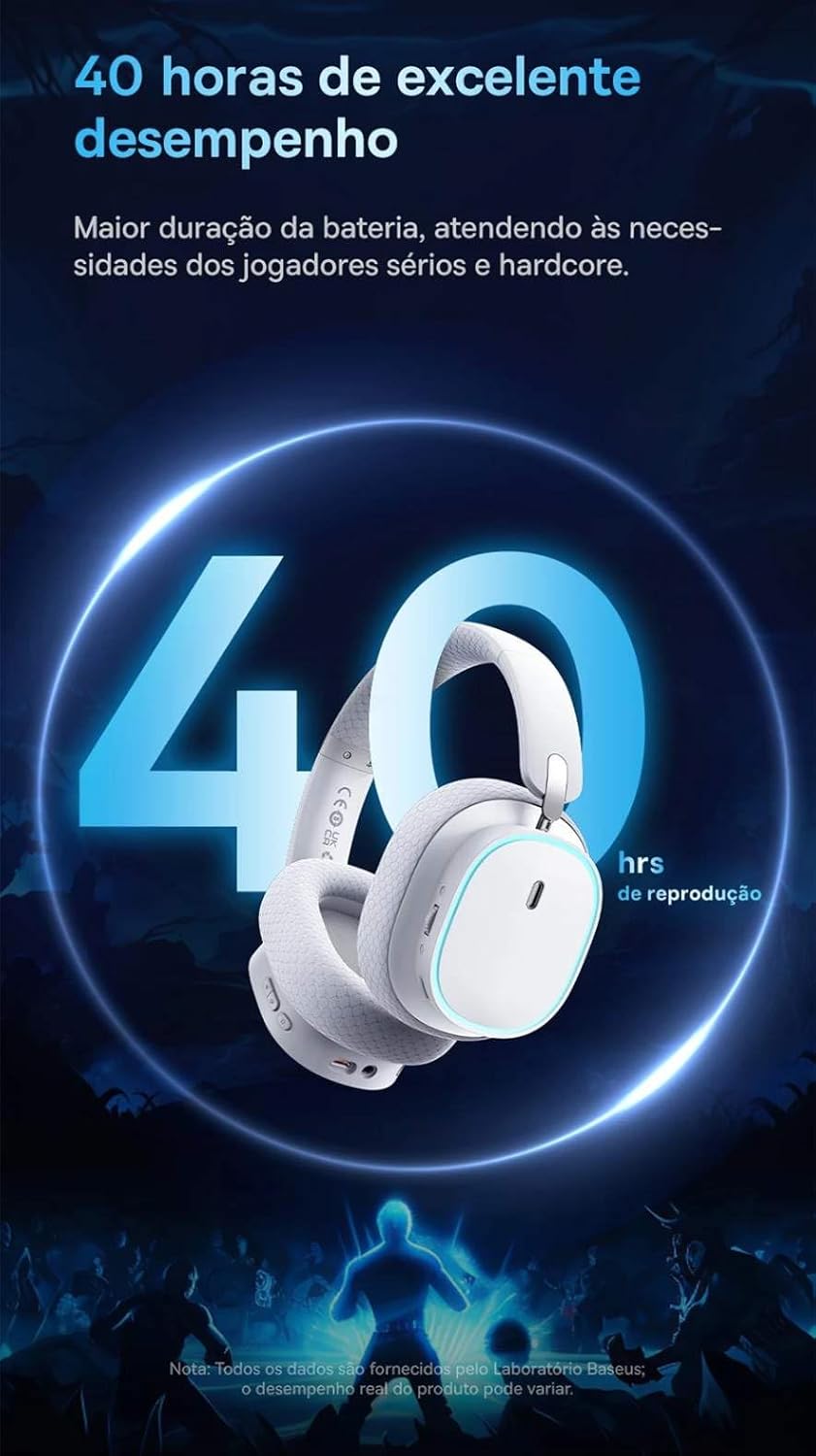
Image: A visual representation of the headset emphasizing its 40-hour battery life, indicating extended usage without frequent recharging.
Настраивать
1. Зарядка гарнитуры
Before first use, fully charge the headset. Connect the provided USB-C charging cable to the headset's charging port and the other end to a USB power source (e.g., computer USB port, wall adapter). The LED indicator will show charging status and turn off or change color when fully charged.
2. Подключение по беспроводной сети 2.4 ГГц (рекомендуется для игр)
- Locate the 2.4GHz USB wireless dongle included with your headset.
- Plug the USB dongle into an available USB port on your PC, PlayStation (PS4/PS5), or other compatible gaming device.
- Power on the headset. It should automatically connect to the dongle. The LED indicator will confirm a successful connection.
- Убедитесь, что в настройках звука вашего устройства гарнитура выбрана в качестве устройства вывода и ввода звука.
3. Подключение по Bluetooth.
- With the headset powered on, activate Bluetooth pairing mode (refer to the operating section for specific button presses). The LED indicator will typically flash to indicate pairing mode.
- On your smartphone, tablet, or PC, go to Bluetooth settings and search for available devices.
- Select "Baseus AeQur GH02" from the list of found devices to pair.
- После сопряжения светодиодный индикатор будет гореть постоянно.
4. Connecting via 3.5mm Audio Cable
- Подключите один конец 3.5-мм аудиокабеля к 3.5-мм аудиоразъему гарнитуры.
- Connect the other end to the 3.5mm audio output port on your device (e.g., PC, console controller, phone).
- When connected via 3.5mm cable, the headset operates in passive mode, and battery power is not required for audio, though some features like RGB lighting may be disabled.

Image: The Baseus AeQur GH02 headset displayed alongside various compatible gaming and mobile devices, including a PC, PlayStation console, Nintendo Switch, and smartphone, illustrating its broad connectivity.

Image: Icons representing compatibility with Android smartphones/tablets, PCs/notebooks, and gaming consoles like PS5/PS4/Switch/Steam Deck/VR, highlighting the headset's versatile use cases.
Управление гарнитурой
Управление
- Кнопка питания: Нажмите и удерживайте для включения/выключения. Короткое нажатие для воспроизведения/паузы (в режиме Bluetooth).
- Колесо громкости: Сверните рулон вверх, чтобы увеличить объем, сверните рулон вниз, чтобы уменьшить объем.
- Кнопка отключения микрофона: Нажмите, чтобы отключить/включить микрофон.
- RGB Lighting Button: Short press to cycle through RGB lighting modes or turn off.
Использование микрофона
The microphone is removable. To attach, align the microphone jack with the port on the left ear cup and insert firmly. To remove, gently pull it out. Ensure the microphone is properly inserted for clear voice pickup.
Интеграция приложений Baseus
For advanced customization, download the official Baseus app on your smartphone. The app allows you to:
- Adjust EQ settings (Equalizer).
- Настройте эффекты и цвета RGB-подсветки.
- Switch between audio modes (e.g., Normal Mode, Music Mode, Game Mode for spatial acoustics).
- View заряд батареи.

Image: Screenshots of the Baseus mobile application interface, demonstrating options for spatial acoustics, EQ mode, and lamp effects, allowing users to customize their headset's performance and lighting.
Обслуживание
- Уборка: Для чистки гарнитуры используйте мягкую сухую ткань. Для амбушюров используйте слегка мягкую ткань.amp Можно использовать ткань, но убедитесь, что она полностью сухая перед использованием. Не используйте агрессивные химикаты или абразивные материалы.
- Хранилище: Store the headset in a cool, dry place away from direct sunlight and extreme temperatures. If storing for extended periods, ensure it is partially charged (around 50%) to preserve battery health.
- Умение обращаться: Avoid dropping the headset or subjecting it to strong impacts. Do not twist or bend the headband excessively.
Поиск неисправностей
| Проблема | Возможная причина | Решение |
|---|---|---|
| Нет звука в гарнитуре | Headset not powered on; Low battery; Not properly connected (Bluetooth/2.4GHz/3.5mm); Incorrect audio output selected on device. | Ensure headset is powered on and charged. Re-pair Bluetooth or re-plug 2.4GHz dongle/3.5mm cable. Check device's sound settings to ensure "Baseus AeQur GH02" is selected as output. |
| Микрофон не работает | Microphone muted; Not properly inserted; Incorrect input device selected; Software issues. | Ensure microphone is not muted (check mute button). Re-insert the removable microphone firmly. Check device's sound settings to ensure "Baseus AeQur GH02" is selected as input. Restart application/game. |
| Гарнитура не сопрягается/не подключается. | Out of range; Interference; Headset not in pairing mode; Device's Bluetooth/USB port issue. | Ensure headset is in pairing mode and within range. Turn off other Bluetooth devices. Try connecting to a different USB port or device. Restart headset and device. |
| Короткое время работы батареи | Not fully charged; High volume usage; RGB lighting always on. | Ensure headset is fully charged. Reduce volume. Turn off RGB lighting when not needed. |
| Cannot use while charging | Ограничение в проектировании изделия. | The Baseus AeQur GH02 headset is designed not to be used while charging. Please allow the headset to fully charge before resuming use. |
Технические характеристики
| Особенность | Деталь |
|---|---|
| Название модели | AeQur GH02 |
| Технология связи | Wireless (Bluetooth, Wi-Fi 2.4GHz), Wired (3.5mm) |
| Диаметр драйвера | 40 мм |
| Частота наушников | 20 - 40000Hz |
| Чувствительность микрофона | -45дБ |
| Контроль шума | Активное шумоподавление |
| Срок службы батареи (средний) | 40 часов |
| Совместимые устройства | Mobile Phones, Gaming Consoles (PC, PS5, PS4), Desktops, Laptops |
| Материал | Металл, Пластик |
| Особые возможности | Fast charging, Volume control, Noise isolation, Lightweight, Built-in microphone |
| Цвет | Черный |
| Сопротивление | 35 Ом |
| Сертификация | Anatel: 004842514894 |
Гарантия и поддержка
The Baseus AeQur GH02 RGB Gaming Headset comes with a Гарантия производителя 12 месяца Гарантия распространяется на дефекты материалов и изготовления, возникающие с даты покупки при условии нормального использования. Сохраните чек для предъявления гарантийных претензий.
For further support, technical assistance, or warranty inquiries, please visit the official Baseus store or contact their customer service through the details provided on their official webсайте или упаковке продукта.
Вы также можете посетить Baseus Official Store on Amazon для получения дополнительной информации и ресурсов поддержки.


