1. Введение
This manual provides detailed instructions for the setup, operation, and maintenance of your Pisichen 16-inch 1920x1200P Touch Panel Portable Monitor. Please read this manual thoroughly before using the product to ensure proper functionality and to prevent damage.

Image 1.1: The Pisichen 16-inch Portable Monitor, showcasing благодаря яркому дисплею и тонкому дизайну.
2. Информация по технике безопасности
- Do not expose the monitor to rain or moisture to avoid electric shock or fire hazards.
- Не открывайте монитор casinг. По всем вопросам обслуживания обращайтесь к квалифицированному персоналу.
- Не размещайте монитор под прямыми солнечными лучами или рядом с источниками тепла.
- Use only the power adapter and cables provided or approved by the manufacturer.
- Протрите экран мягкой безворсовой тканью. Не используйте жидкие чистящие средства или аэрозольные баллончики непосредственно на экране.
3. Содержимое упаковки
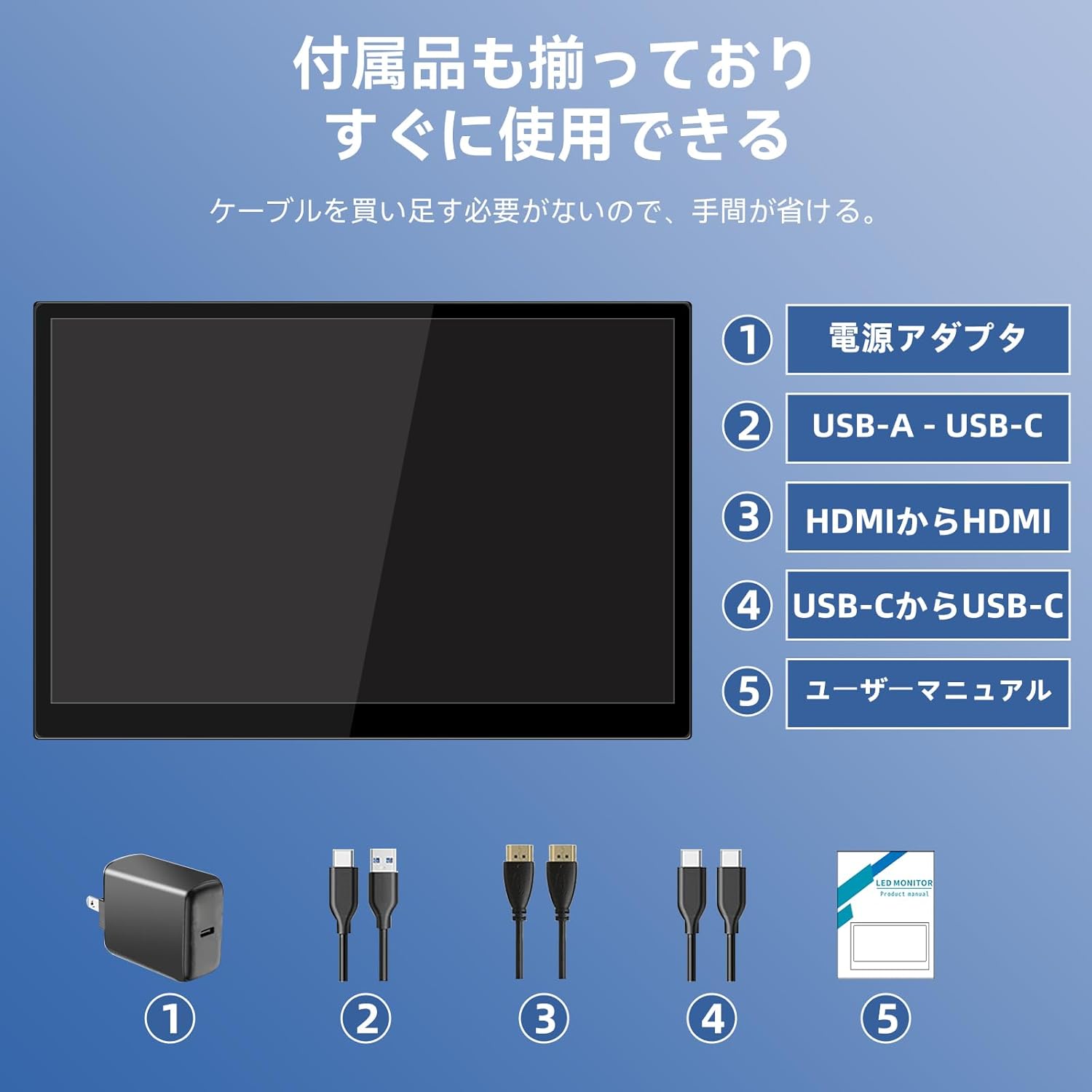
Проверьте комплектацию на наличие следующих предметов:
- Pisichen 16-inch Portable Monitor
- Адаптер питания
- Кабель USB-A — USB-C
- Кабель HDMI к HDMI
- Кабель USB-C-USB-C
- Руководство пользователя (этот документ)

Image 3.1: All items included in the product package, ready for immediate use.
4. Продукт закончилсяview
The monitor features multiple ports for versatile connectivity and control buttons for easy navigation of settings.
4.1. Порты и кнопки
Изображение 4.1: Подробно view of the monitor's interfaces, including audio port, USB-C ports, HDMI port, brightness controls, menu/OK button, volume/down button, and USB-A port.
- Аудиопорт 3.5 мм: Для подключения наушников или внешних динамиков.
- USB-C Port 1 (Full-function): Supports power, video, and touch signal transmission.
- USB-C Port 2 (Full-function): Supports power, video, and touch signal transmission.
- Порт HDMI: For video signal input from devices.
- Brightness Up / Power Button: Short press to increase brightness, long press to power on/off.
- Меню / Кнопка ОК: Press to open OSD menu, press again to confirm selection.
- Volume Down / Back Button: Short press to decrease volume, long press to go back in OSD menu.
- USB-A Port (OTG): Для подключения мыши или клавиатуры.
5. Настройка
Follow these steps to connect your portable monitor to various devices.
5.1. Single Cable Connection (USB-C)
For devices with a full-function USB-C port (supporting DisplayPort Alternate Mode and power delivery), a single USB-C to USB-C cable can transmit video, audio, touch signals, and power.
- Connect one end of the USB-C to USB-C cable to a full-function USB-C port on your device (e.g., laptop, smartphone).
- Connect the other end to either USB-C Port 1 or USB-C Port 2 on the monitor.
- The monitor should automatically power on and display the content. Touch functionality will also be active.
5.2. Dual Cable Connection (HDMI + USB-C for Power/Touch)
For devices with an HDMI output, or if your USB-C port does not support power delivery, you will need two cables.
- Connect one end of the HDMI to HDMI cable to your device's HDMI output.
- Connect the other end to the HDMI Port on the monitor.
- Connect the power adapter to one of the monitor's USB-C ports (Port 1 or Port 2) for power.
- For touch functionality, connect the USB-A end of the USB-A to USB-C cable to your device's USB-A port, and the USB-C end to the other available USB-C port on the monitor.

Image 5.1: Illustration of different connection methods: single USB-C cable for power, video, and touch, and dual cable setup using HDMI for video and USB-C for power and touch.
6. Инструкция по эксплуатации
6.1. Включение/выключение питания
Long press the Brightness Up / Power Button (5) for approximately 3 seconds to power the monitor on or off.
6.2. Экранное меню (OSD)
Press the Menu / OK Button (6) to access the OSD menu. Use the Brightness Up / Power Button (5) and Volume Down / Back Button (7) to navigate through options. Press the Menu / OK Button (6) to confirm selections. Long press the Volume Down / Back Button (7) to exit the menu.
6.3. Сенсорная функциональность
The monitor supports 10-point capacitive multi-touch. Ensure a USB connection (via full-function USB-C or USB-A to USB-C cable) is established for touch input to work. The touch screen allows for intuitive interaction, including swiping, writing, and annotating.
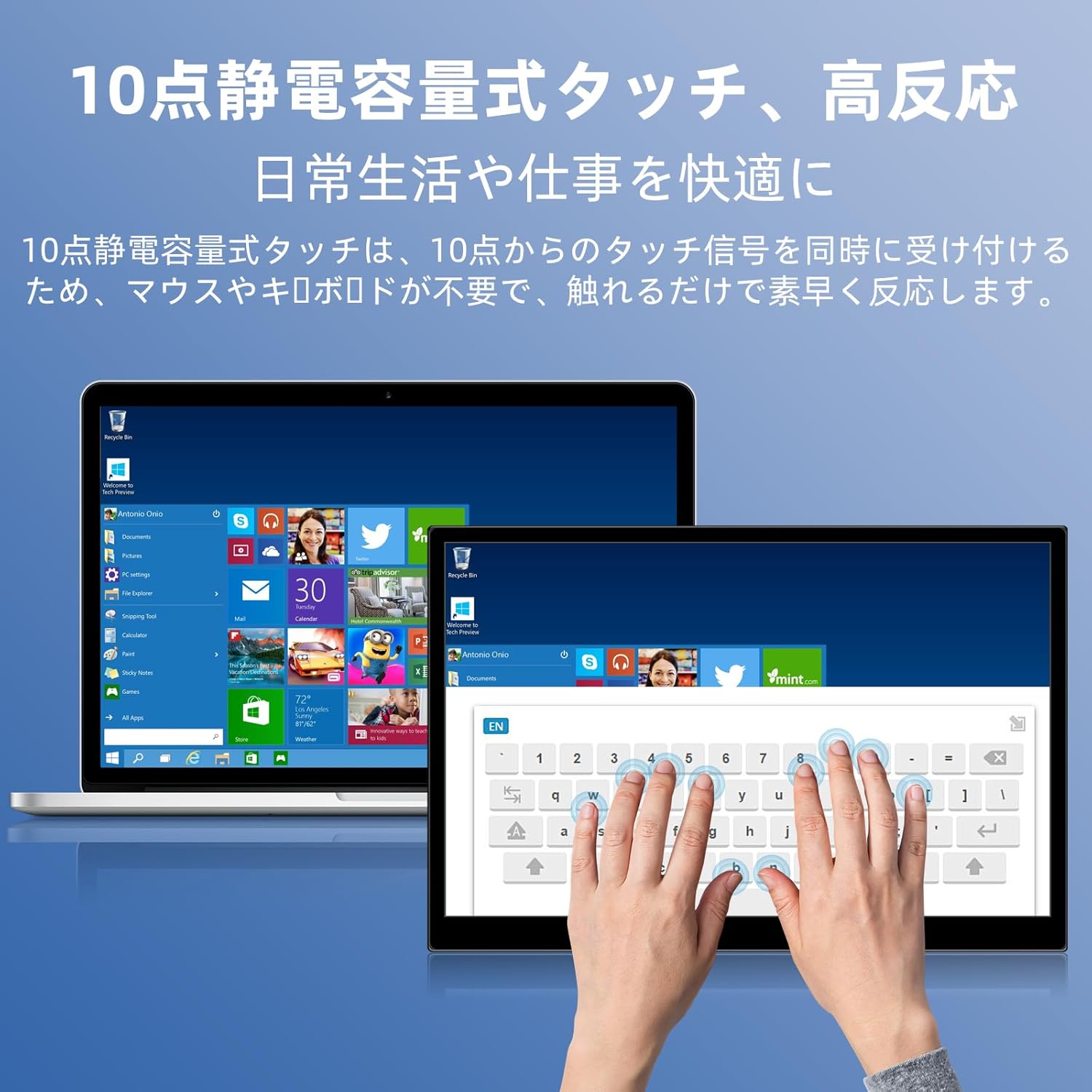
Image 6.1: A user demonstrating the responsive 10-point capacitive touch functionality on the portable monitor, enabling smooth interaction with on-screen content.
6.4. Режимы отображения
Монитор поддерживает различные режимы отображения при подключении к компьютеру:
- Дублированный режим: Отображает содержимое вашего основного экрана.
- Расширенный режим: Расширяет рабочий стол, предоставляя больше места на экране для многозадачности.
- Режим второго экрана: В качестве дисплея используется только переносной монитор.
6.5. Ориентация экрана
The monitor supports both landscape and portrait orientations. You can adjust the display settings on your connected device (e.g., Windows Display Settings, macOS Display Preferences) to change the orientation as needed for different tasks like document viewing or design work.
6.6. HDR Technology
The monitor features HDR (High Dynamic Range) mode, which provides deeper and more realistic colors for an enhanced visual experience. This setting can typically be toggled within the OSD menu or your device's display settings.

Изображение 6.2: Примерamples of the monitor's versatility, showing its use for entertainment, mobile productivity, and as an extended display for a home office.
7. Техническое обслуживание
- Очистка экрана: Аккуратно протрите экран мягкой, сухой тканью без ворса. Для удаления стойких загрязнений слегка потрите.ampen the cloth with water or a screen-specific cleaner (apply to cloth, not directly to screen).
- Очистка Casing: Используйте мягкую сухую ткань, чтобы протереть монитор.asinг. Избегайте использования абразивных чистящих средств.
- Хранилище: When not in use for extended periods, store the monitor in a cool, dry place, preferably in its original packaging or a protective sleeve.
- Управление кабелями: Во избежание повреждений не допускайте чрезмерного сгибания или скручивания кабелей.
8. Поиск Неисправностей
| Проблема | Возможная причина | Решение |
|---|---|---|
| Нет изображения / Сообщение "Нет сигнала" | Неправильное подключение кабеля, недостаточное питание, неправильный источник входного сигнала. | Ensure cables are securely connected. Verify the device's USB-C port supports video output. Connect the power adapter if using HDMI or if USB-C power is insufficient. Check OSD menu for correct input source. |
| Сенсорная функция не работает | No USB connection for touch, driver issue (rare). | Ensure the USB-C cable is full-function or that the USB-A to USB-C cable is connected for touch data. Restart the monitor and connected device. |
| Мерцание экрана | Unstable power, faulty cable, refresh rate mismatch. | Use the provided power adapter. Try a different cable. Adjust the refresh rate in your device's display settings. |
| Image is distorted or stretched | Incorrect aspect ratio settings. | Adjust the aspect ratio in the OSD menu or your device's display settings to match the monitor's native resolution (1920x1200). |

Image 8.1: Demonstrating the importance of correct aspect ratio settings to avoid image distortion.
9. Технические характеристики
| Особенность | Спецификация |
|---|---|
| Бренд | Писичен |
| Номер модели | 16QTHCM-1200P |
| Размер экрана | 16 дюймов |
| Разрешение | 1920 x 1200 пикселей (FHD) |
| Тип панели | ИПС |
| Viewугол наклона | 178° |
| Частота обновления | 60 Гц |
| Коэффициент контрастности | 1000:1 |
| Яркость | 300 кд/м² |
| Цветовая гамма | 100% sRGB |
| Глубина цвета | 16.7 миллионов цветов |
| Сенсорный экран | 10-точечный емкостный сенсорный экран |
| Связность | 2x Full-function USB-C 3.1, 1x HDMI, 1x USB-A (OTG), 1x 3.5mm Audio Jack |
| Поддержка HDR | Да |
| Совместимость с креплением VESA | Да |
| Размеры продукта (Ш x В x Г) | 350 х 230 х 10 мм |
| Масса | 1.62 кг |
10. Гарантия и поддержка
For warranty information and technical support, please refer to the warranty card included in your product package or contact Pisichen customer service through their official website or the retailer where the product was purchased. Please have your model number (16QTHCM-1200P) and purchase details ready when contacting support.


