1. Введение
Спасибо за покупкуasing the WiMiUS S27 Pro Mini Projector. This manual provides detailed instructions for setting up, operating, and maintaining your projector to ensure optimal performance and longevity. The S27 Pro features 4K support, 1080P native resolution, 18000LM brightness, 270° rotation, automatic keystone correction, Wi-Fi 6, and Bluetooth 5.3 connectivity, offering a versatile and immersive viewопыт.
2. Информация по технике безопасности
- Не смотрите прямо в объектив проектора, когда он включен.amp включено, так как это может вызвать повреждение глаз.
- Обеспечьте достаточную вентиляцию вокруг проектора, чтобы предотвратить перегрев. Не закрывайте вентиляционные отверстия.
- Используйте только тот адаптер питания, который входит в комплект поставки проектора.
- Держите проектор вдали от воды, влаги и экстремальных температур.
- Не пытайтесь разбирать или ремонтировать проектор самостоятельно. Обратитесь за помощью к квалифицированному специалисту.
- Храните проектор в недоступном для детей месте.
3. Продукт закончилсяview
3.1 Компоненты и порты
The WiMiUS S27 Pro Mini Projector is designed for portability and ease of use. It features a compact design with various ports for connectivity.

Изображение: сзади view of the WiMiUS S27 Pro Projector, highlighting the HDMI, USB, and Audio ports for connecting various devices.
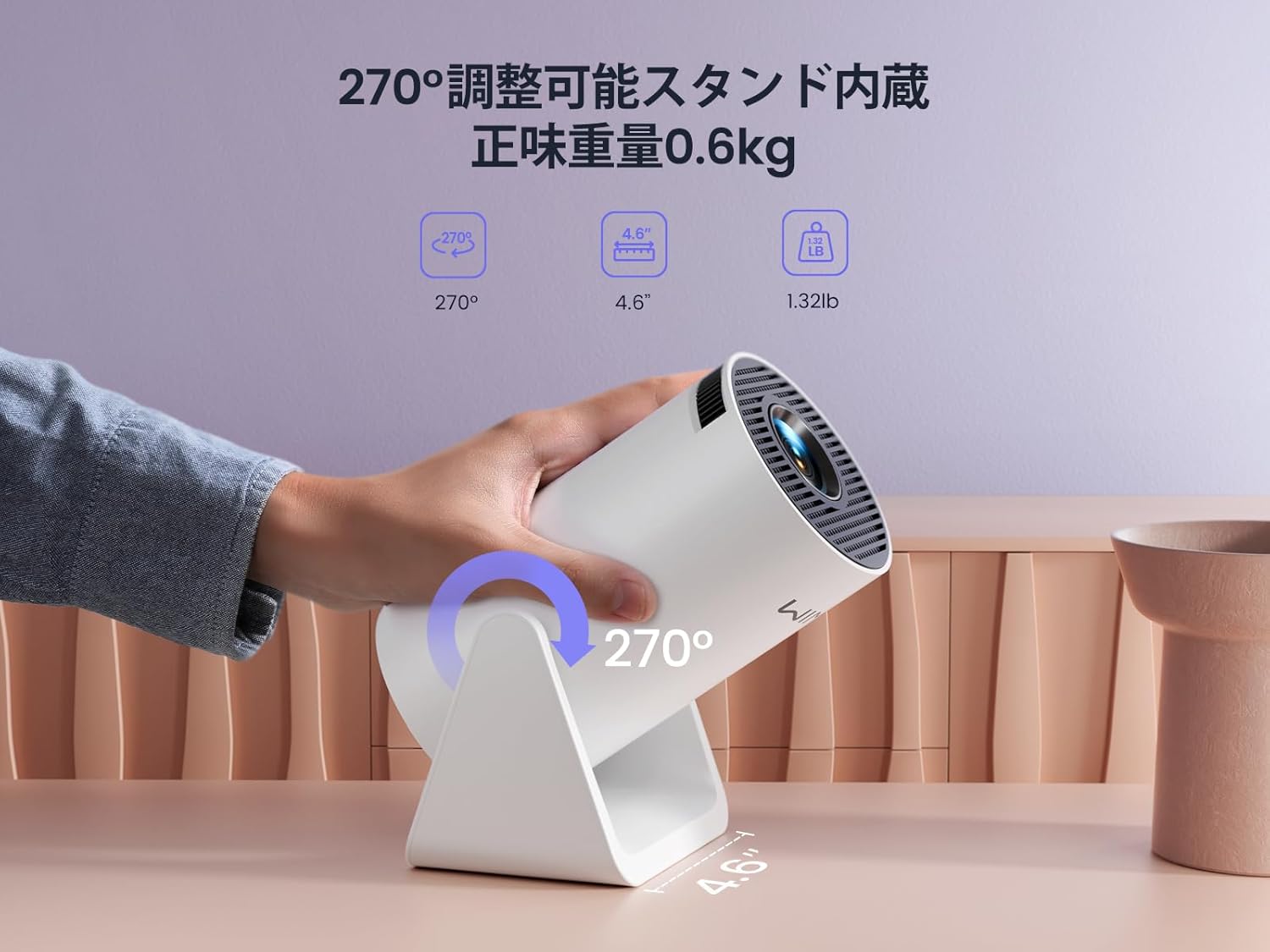
Image: The WiMiUS S27 Pro Projector on its integrated 270° adjustable stand, demonstrating its flexible projection angles and compact size (0.6kg).
4. Настройка
4.1. Размещение
The S27 Pro's 270° rotatable stand allows for flexible placement, including ceiling projection. Position the projector between 0.8 meters and 5 meters from the projection surface to achieve a screen size of 40 to 200 inches.

Image: The projector displaying an image on a wall, demonstrating its automatic vertical keystone correction feature for a perfectly rectangular picture.
4.2. Подключение питания
Connect the provided power adapter to the projector's DC input port and then plug it into a power outlet.
4.3. Первоначальное включение
Press the power button on the projector or the remote control to turn on the device. The projector will display the main menu.
4.4. Коррекция фокуса и трапецеидального искажения
- Автоматическая вертикальная коррекция трапецеидальных искажений: Проектор автоматически корректирует вертикальные искажения изображения.
- Ручная фокусировка: Поверните кольцо фокусировки на объективе проектора до тех пор, пока изображение не станет четким.
- Цифровой зум: Use the remote control to adjust the image size from 85% to 100% to fit your screen.

Image: A projected image demonstrating the 85% to 100% zoom function, allowing adjustment for various room sizes.
5. Инструкция по эксплуатации
5.1. Навигация
Use the remote control to navigate through the projector's menu and select desired functions.
5.2. Wi-Fi соединение
The S27 Pro supports ultra-fast Wi-Fi 6 (5G and 2.4G dual-band) for stable and quick streaming.
- From the homepage, select "Set" (Settings).
- Enter the "WiFi" menu and turn on the WiFi function.
- Wait for the projector to detect available WiFi networks.
- Select your home WiFi network and enter the password to connect.

Image: The projector's interface displaying options for Wi-Fi 6 and Bluetooth 5.3, indicating advanced wireless connectivity.
5.3. Подключение по Bluetooth.
The built-in Bluetooth 5.3 chip allows connection to headphones, speakers, and AirPods for enhanced audio.
- From the homepage, select "Set" (Settings).
- Enter the "BT Model" (Bluetooth) menu and turn on Bluetooth.
- Искать available Bluetooth devices and select your device to pair.

Image: The WiMiUS S27 Pro Projector connected wirelessly to headphones and a smart speaker via Bluetooth 5.2, illustrating its audio connectivity options.
5.4. Зеркальное отображение экрана
Mirror your smartphone, tablet, or PC screen wirelessly to the projector.
- From the homepage, select "Mirroring".
- Choose "Wireless screen" for wireless mirroring.
- Для iOS-устройств: Connect your iPhone to the same Wi-Fi network as the projector. Open Control Center, tap "Screen Mirroring", and select the projector from the list (e.g., "VB6_3AF9_itv").
- Для Android-устройств: Connect your Android device to the same Wi-Fi network as the projector. Open the screen mirroring function (often called "Smart View", "Cast", "Wireless Display", etc.) and select the projector.

Image: A smartphone wirelessly mirroring its screen content to the WiMiUS S27 Pro Projector, demonstrating the seamless screen mirroring function.
Video: iPhone Screen Mirroring Method
Video: This video demonstrates the steps to connect your iPhone to the WiMiUS S27 Pro Projector using the screen mirroring function.
5.5. Подключение внешних устройств
Проектор поддерживает различные проводные соединения:
- HDMI: Connect devices like TV Sticks, PS5, Switch, iPad, or PCs.
- USB: Connect USB drives or smartphones for media playback.
- Аудиовыход 3.5 мм: Connect external speakers, headphones, or earphones.
Video: Connecting with TV Stick
Video: This video illustrates how to connect a TV Stick to the WiMiUS S27 Pro Projector via the HDMI port for streaming content.
6. Техническое обслуживание
- Чистка линз: Use a soft, lint-free cloth and lens cleaning solution to gently wipe the lens. Avoid abrasive materials.
- Вентиляция: Regularly check and clean the ventilation openings to prevent dust buildup, which can affect performance and lead to overheating. The projector features a dustproof design to minimize internal dust accumulation.
- Обновления программного обеспечения (OTA): The projector supports Online Over-The-Air (OTA) updates. Check for new firmware versions in the settings menu to ensure your device has the latest features and improvements.
7. Поиск Неисправностей
- Изображение размыто: Adjust the manual focus ring on the lens. Ensure the projector is within the recommended projection distance (0.8m-5m).
- Нет сигнала: Check if the correct input source (HDMI, USB) is selected. Verify all cables are securely connected.
- Проблемы с подключением по Wi-Fi/Bluetooth: Ensure the projector and your device are connected to the same Wi-Fi network. Restart both devices and try reconnecting.
- Cannot play copyrighted content (Netflix, Prime Video, Hulu): Due to copyright restrictions, these apps cannot be mirrored directly from a smartphone. Use an external streaming device like a TV Stick or Roku connected via HDMI.
- Перегрев: Ensure the projector has adequate ventilation and that the vents are not blocked. Allow the projector to cool down if it becomes excessively hot.
- Image distortion: The projector features automatic vertical keystone correction. If horizontal distortion occurs, adjust the projector's physical position.
8. Технические характеристики
| Бренд | WiMiUS |
| Модель | S27 Про |
| Размер продукта | 9 х 11 х 17 см |
| Масса | 600 г |
| Собственное разрешение | 1920 x 1080 (Full HD) |
| Поддерживаемое разрешение | До 3840 x 2160 (4K) |
| Яркость | 18000LM (400 ANSI) |
| Связность | Wi-Fi 6 (5G/2.4G), Bluetooth 5.3, HDMI, USB, 3.5mm Audio Out |
| Коэффициент проекции | 1.26:1 (короткий бросок) |
| Размер проекции | 40-200 дюймов |
| Коррекция трапецеидальных искажений | Автоматическая вертикальная |
| Функция масштабирования | 50% Digital Zoom (85%-100%) |
| Потребляемая мощность | 59.99 Вт |
9. Гарантия и поддержка
The WiMiUS S27 Pro Mini Projector comes with a Гарантия 3 год. If you encounter any issues or have questions regarding your product, please contact our customer support team. For technical assistance or warranty claims, refer to the contact information provided in your purchase documentation or visit the official WiMiUS webсайт.


