Введение
This manual provides essential instructions for setting up, operating, and maintaining your HP Prodesk 600 G4 Mini PC Desktop. This compact and powerful micro computer is designed for efficient performance, featuring an Intel Core i5-8500T processor, 16GB RAM, and a 512GB NVMe SSD, running on Windows 11 Pro. Please read this manual thoroughly before using your device.
Что в коробке?
Проверьте наличие всех предметов в упаковке:
- HP Prodesk 600 G4 Mini PC Desktop
- Проводная клавиатура
- Проводная мышь
- Шнур питания
- USB WiFi adapter (if included with your specific renewed unit)
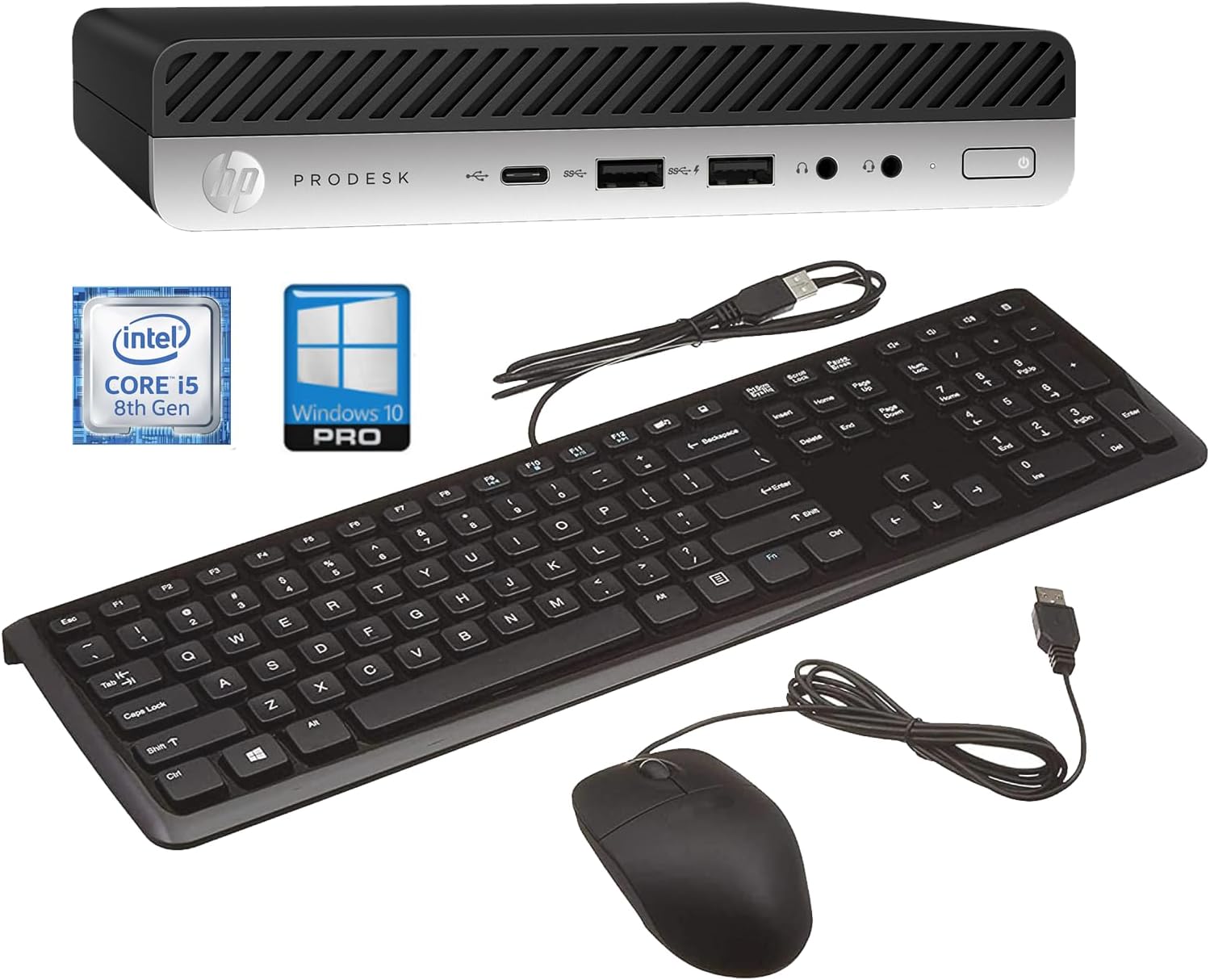
Image: The HP Prodesk 600 G4 Mini PC shown with its accompanying wired keyboard and mouse, illustrating the complete package contents.
Инструкции по установке
- Подключите периферийные устройства:
- Connect the wired keyboard to an available USB port on the Mini PC.
- Connect the wired mouse to another available USB port.
- If a USB WiFi adapter is included, plug it into an available USB port.
- Подключить дисплей:
Connect your monitor(s) to the Mini PC using the DisplayPort (DP 1.2) outputs. This model supports dual 4K displays (3840x2160).

Изображение: сзади view of the HP Prodesk 600 G4 Mini PC, highlighting the DisplayPort outputs and various USB ports for connecting external devices.
- Подключите питание:
Plug the power cord into the power input on the back of the Mini PC, then connect the other end to a power outlet.
- Включение питания:
Press the power button located on the front of the Mini PC. The system will boot up, and you should see the operating system load on your connected display.
Инструкция по эксплуатации
Initial Setup (Windows 11 Pro)
Upon first boot, you may be guided through the Windows 11 Pro initial setup process. Follow the on-screen prompts to:
- Выберите свой регион и раскладку клавиатуры.
- Connect to a network (wired Ethernet or Wi-Fi via the USB adapter).
- Создайте учетную запись Microsoft или войдите в нее, используя существующую.
- Установите PIN-код или пароль.
Управление питанием
- Включение питания: Нажмите кнопку питания на передней панели.
- Неисправность: Нажмите кнопку «Пуск» в Windows, затем выберите «Питание» > «Завершение работы».
- Перезапуск: Нажмите кнопку «Пуск» в Windows, затем выберите «Питание» > «Перезагрузка».
- Спать: Нажмите кнопку «Пуск» в Windows, затем выберите «Питание» > «Спящий режим».
Связь и порты
The HP Prodesk 600 G4 Mini PC offers a variety of ports for connecting peripherals and displays.
Порты на передней панели
- 1 порт USB 3.1 Gen 1
- 2 портов USB 3.1 Gen 2
- Headphone/Microphone combo jack
- Разъем для наушников
- Кнопка питания

Изображение: Спереди view of the HP Prodesk 600 G4 Mini PC, detailing the accessible USB ports, audio jacks, and power button for convenient access.
Порты на задней панели
- 2 x DisplayPort 1.2 outputs (for dual monitor support)
- 1 порт USB 3.1 Gen 1
- 2 портов USB 3.1 Gen 2
- 1 x Serial port
- 1 x RJ-45 Ethernet port
- Потребляемая мощность
Изображение: сзади view of the HP Prodesk 600 G4 Mini PC, illustrating the DisplayPort connections, additional USB ports, Ethernet port, and power input.
Технические характеристики
| Особенность | Деталь |
|---|---|
| Модель | HP Prodesk 600 G4 Mini PC |
| Процессор | Intel Core i5-8500T (2.1GHz up to 3.5GHz) |
| БАРАН | 16 ГБ DDR SDRAM |
| Хранилище | 512GB NVMe M.2 Solid State Drive (SSD) |
| Графика | Intel UHD Graphics 630 (интегрированная) |
| Операционная система | Windows 11 Профессиональная |
| Вывод на дисплей | 2 x DisplayPort 1.2 (supports dual 4K displays) |
| USB-порты (спереди) | 1 x USB 3.1 Gen 1, 2 x USB 3.1 Gen 2 |
| USB-порты (сзади) | 1 x USB 3.1 Gen 1, 2 x USB 3.1 Gen 2 |
| Нетворкинг | RJ-45 Ethernet, Intel Wi-Fi (via USB adapter) |
| Размеры (ДxШxВ) | 13 x 23 x 53 inches (Note: This dimension appears unusually large for a mini PC. Please refer to official HP documentation for precise measurements.) |
| Масса | 5.54 фунта |
Обслуживание
Регулярное обслуживание поможет обеспечить долговечность и оптимальную производительность вашего мини-ПК.
- Содержать в чистоте: Regularly dust the exterior of the PC and ensure ventilation openings are clear to prevent overheating. Use a soft, dry cloth.
- Обновления программного обеспечения: Регулярно обновляйте операционную систему Windows и драйверы для обеспечения безопасности и производительности.
- Резервные данные: Периодически создавайте резервные копии важных файлов. fileна внешний накопитель или в облачное хранилище.
- Избегайте жидкостей: Do not expose the Mini PC to liquids or excessive moisture.
- Правильное выключение: Always shut down the system properly through the operating system rather than simply unplugging it.
Поиск неисправностей
Вот решения распространенных проблем, с которыми вы можете столкнуться:
- Нет питания:
Ensure the power cord is securely connected to both the PC and the power outlet. Test the outlet with another device. If using a power strip, ensure it is switched on.
- Нет дисплея:
Verify that the monitor is powered on and the display cable (DisplayPort) is securely connected to both the PC and the monitor. Try a different display cable or monitor if available. Ensure the correct input source is selected on your monitor.
- Клавиатура/мышь не отвечает:
Check USB connections. Try plugging the keyboard/mouse into different USB ports. If using a wireless set, ensure batteries are charged and the receiver is properly connected.
- Нет соединения с интернетом:
For wired connections, check the Ethernet cable and router status. For Wi-Fi, ensure the USB Wi-Fi adapter is properly installed and drivers are updated. Check network settings in Windows.
- Замедление работы системы:
Close unnecessary applications. Check for background processes consuming high resources (Task Manager). Ensure Windows and drivers are up to date. Run a disk cleanup.
Гарантия и поддержка
This HP Prodesk 600 G4 Mini PC Desktop is a renewed product and comes with a 90-day warranty. For technical support or warranty claims, please refer to the vendor from whom the product was purchased. Additional support resources may be available on the official HP support webсайт.
For general Windows 11 support, visit the official Microsoft support webсайт: support.microsoft.com/en-us/windows