1. Введение
This manual provides essential information for the safe and effective operation of your xTool S1 20W Enclosed Diode Engraver and Cutter. Please read this manual thoroughly before using the device to ensure proper setup, operation, and maintenance. Keep this manual for future reference.
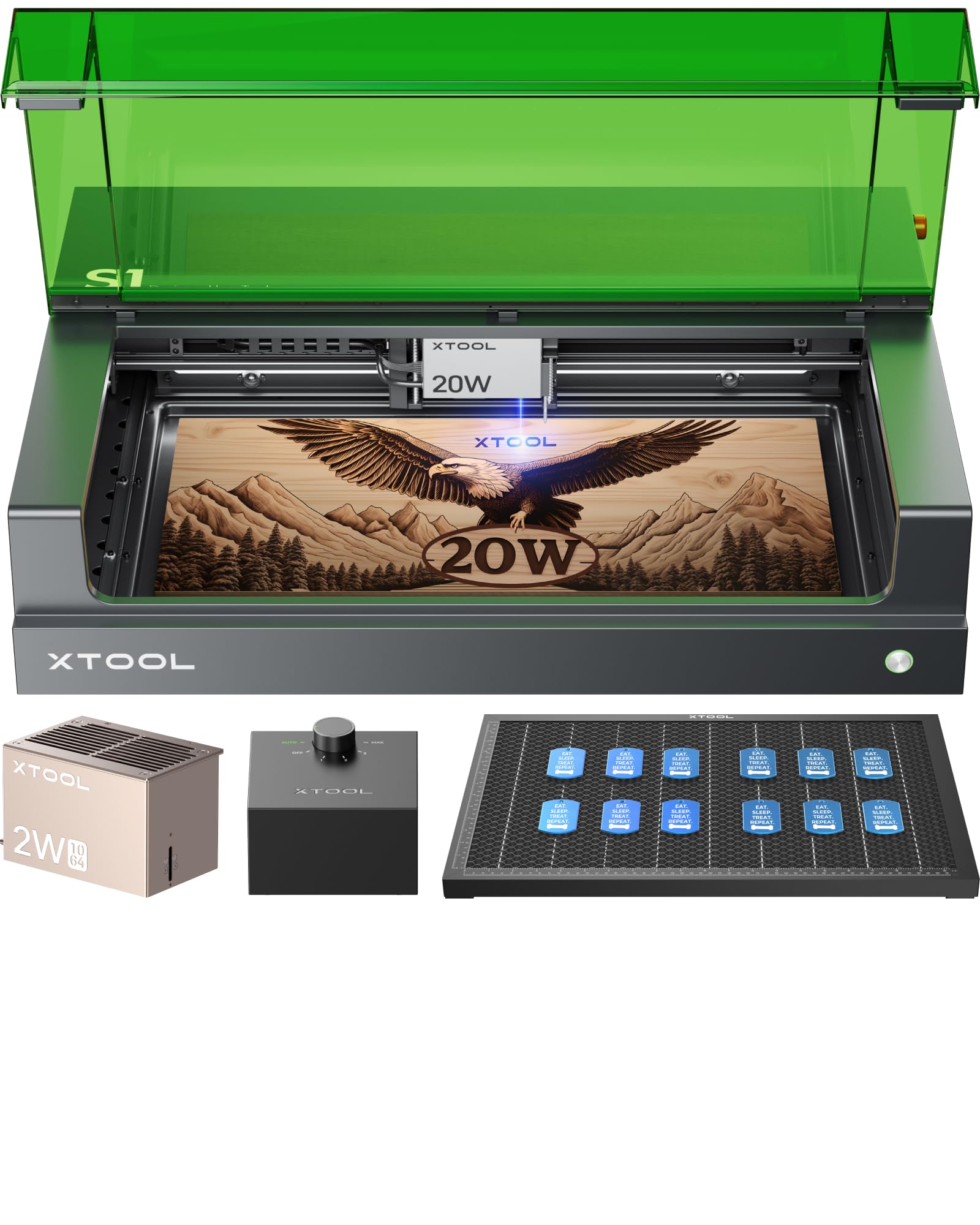
Image: The xTool S1 20W Enclosed Diode Engraver and Cutter, a compact laser processing machine.
2. Информация по технике безопасности
The xTool S1 is a Class 1 (FDA certified) laser engraving machine designed with multiple safety features. Adhering to these guidelines is crucial for user safety.
- Закрытая конструкция: The machine features an enclosed and eye-friendly design that filters both diode and infrared laser emissions.
- Lid-open Safety Stop: Operation automatically stops if the lid is opened, preventing laser leakage.
- Экстренная остановка: An easily accessible emergency stop button is provided to halt operations immediately.
- Enhanced Flame Detection: Equipped with five flame sensors and one temperature sensor to detect potential fire hazards during engraving or cutting.
- Bottom Plate Safety: The machine will automatically stop if the bottom plate is removed or tilted.

Image: Diagram illustrating the xTool S1's safety features, including enhanced 5-direction flame detection, emergency stop design, enclosed and eye-friendly casing, and lid-open safety stop.

Image: Comparison showing the xTool S1's enclosed design and safety features versus an open laser machine with visible smoke and laser exposure.
3. Руководство по установке
3.1 Распаковка и проверка комплектации
Carefully remove all components from the packaging. Verify that all items listed in the packing list are present and undamaged. The standard bundle includes the S1 20W machine, Smart Air Assist, Honeycomb Panel, and a 1064nm Infrared Module.
3.2 Размещение машины
Place the xTool S1 on a stable, level surface in a well-ventilated area. Ensure adequate space around the machine for operation and maintenance.
3.3 Питание и подключение
- Подключите адаптер питания к устройству, а затем к розетке.
- Connect the machine to your computer via USB cable or establish a Wi-Fi connection.
3.4 Установка программного обеспечения
Загрузите и установите программное обеспечение xTool Creative Space (XCS) с официального сайта xTool. website. Follow the on-screen instructions for installation and initial setup.

Image: Screenshot of the xTool Creative Space (XCS) software interface, showing design tools and project parameters.
4. Инструкция по эксплуатации
4.1 Включение и выключение
- To power on, press the power button located on the machine.
- To power off, press and hold the power button until the machine shuts down, or use the emergency stop button for immediate shutdown.
4.2 Material Loading
Open the lid and place your material securely on the honeycomb panel. Ensure the material is flat and within the working area of 498x330mm.
4.3 Установка лазерного модуля
The xTool S1 supports interchangeable laser modules. To install a module (e.g., 20W Diode or 1064nm Infrared), carefully align it with the carriage and secure it according to the instructions provided with the module. The 20W diode module is suitable for cutting and engraving various materials, while the 1064nm infrared module is ideal for engraving metals, plastics, and opaque acrylics.

Image: Illustration showing different laser modules (2W IR, 10W, 20W, 40W) for the xTool S1, highlighting their interchangeability.
4.4 Фокусировка
The xTool S1 features dynamic auto-focus for precise engraving and cutting.
- One-click Auto-focus: In the XCS software, use the one-click auto-focus function. This system intelligently guides the laser beam for optimal focus without manual screw adjustments.
- Dynamic Auto-focus for Curved Surfaces: For uneven or curved materials, the system automatically adjusts the Z-axis and constructs a 3D model to maintain focus across the surface, ensuring consistent results.

Image: Diagram illustrating the xTool S1's auto-focus system, showing the laser beam adjusting to cut through a 10mm thick material.

Image: The xTool S1 laser module engraving a pattern onto a curved plate, demonstrating its dynamic focus capability for uneven surfaces.

Image: Comparison of one-click precise autofocus in XCS software versus a four-step manual focus process, highlighting the ease of use of the S1's system.
4.5 Project Creation and Execution
- Design in XCS: Use the xTool Creative Space software to create or import your design.
- Настройки материала: Select the appropriate material type and thickness in the software. The software offers over 500 preset parameters for various materials.
- Позиционирование: Utilize the twin-point positioning technique for precise placement of your design on the material. This advanced algorithm determines the exact processing location and tracks the light head's position in real-time.
- Начать процесс: Initiate the engraving or cutting process from the software. The machine operates at speeds up to 600mm/s for efficient production.

Image: Comparison of pinpoint positioning on the xTool S1 versus an obvious offset from a single-camera system, demonstrating superior accuracy.

Изображение: Крупный план view of the xTool S1's laser module and a detailed engraving on wood, highlighting the 0.06*0.08mm light spot for ultra-fine results.

Image: A hand installing a laser module into the xTool S1, emphasizing the machine's 600mm/s working speed.
4.6 Supported Materials and Modules
The xTool S1, with its dual module capability, supports a wide range of materials:
- Диодный лазер мощностью 20 Вт: Suitable for wood, leather, rock, black acrylic, glass, and stainless metal.
- Инфракрасный лазер 1064 нм (2 Вт): Ideal for silver, plastic, solid color acrylic, gold, other metals, and stainless steel.

Image: The 2W 1064nm infrared module installed in the xTool S1, with swatches of gold, silver, copper, and titanium indicating compatibility.

Image: A visual guide showing various materials (wood, leather, rock, silver, plastic, acrylic, glass, metals) and which laser modules (diode or infrared) are suitable for them.
4.7 Аксессуары
The xTool S1 can be enhanced with various accessories (sold separately unless part of a bundle):
- Automatic Conveyor Feeder: Extends the working area for projects up to 118 inches using AutoPassthrough™ Technology.
- 4-in-1 RA2 Pro: For versatile rotary engraving on cylindrical objects.
- Основание подставки: Increases the working height up to 4.92 inches.
- Smart Air Assist: Provides 30L/min airflow for cleaner cuts and engravings.
- Сотовая панель: Included for better heat release and material support.
- Очиститель дыма: For managing fumes and odors during operation.
Image: The xTool S1 machine surrounded by its various accessories, including the automatic conveyor feeder, honeycomb panel, screen printer, smart air assist, and 4-in-1 RA2 Pro.

Image: The xTool S1 with the automatic conveyor feeder, demonstrating its capability to process materials up to 118 inches long.

Image: The xTool 4-in-1 RA2 Pro rotary attachment shown with various objects like tumblers, baseball bats, and rings, illustrating its versatility for rotary engraving.

Image: Visuals of the Riser Base for increased height, the Smart Air Assist for cleaner results, and the Honeycomb Panel for better heat release.
5. Техническое обслуживание
Regular maintenance ensures optimal performance and longevity of your xTool S1.
- Уборка: Regularly clean the interior of the machine, especially the laser lens and the honeycomb panel, to prevent residue buildup that can affect laser performance and air assist efficiency. Use a soft, lint-free cloth and appropriate cleaning solutions as recommended by xTool.
- Laser Module Care: Handle laser modules with care. Ensure they are free from dust and debris. When not in use, store them in a protective case.
- Система воздушной поддержки: Check the air assist nozzle and tubing periodically for blockages. Clean as needed to maintain consistent airflow.
- Сотовая панель: Clean the honeycomb panel to remove small cut pieces and debris. This helps maintain a flat working surface and prevents fire hazards.
6. Поиск Неисправностей
This section addresses common issues you might encounter with your xTool S1.
6.1 Общие проблемы и решения
- Машина не включается:
Решение: Check power cable connections. Ensure the power adapter is securely plugged into both the machine and the wall outlet. - Лазер не срабатывает/слабый выходной сигнал:
Решение: Verify the laser module is correctly installed and secured. Check material settings in XCS software. Ensure the laser lens is clean. Perform auto-focus again. - Низкое качество гравировки/резки:
Решение: Adjust power and speed settings in XCS. Ensure the material is flat and properly focused. Clean the laser lens. Check for material inconsistencies. - Machine Disconnects from Computer:
Решение: Check USB cable connection or Wi-Fi signal strength. Restart the machine and computer. Update XCS software and machine firmware. - Safety Sensor Triggered (Machine Stops):
Решение: Check if the lid is fully closed. Ensure the bottom plate is correctly in place. Inspect for any signs of flame or excessive temperature inside the enclosure. Address the cause and reset the machine.
For persistent issues, refer to the official xTool support resources or contact customer service.
7. Технические характеристики
| Особенность | Деталь |
|---|---|
| Модель | xTool S1 |
| Мощность лазера (диод) | 20W (standard), 10W, 40W (optional) |
| Мощность лазера (инфракрасного) | 2 Вт (1064 нм) |
| Рабочая зона | 498 мм x 330 мм (19.6" x 12.5") |
| Размер кровати | 23.93" x 15.16" |
| Скорость обработки | До 600 мм / с |
| Laser Spot Size (20W) | 0.06мм х 0.08мм |
| Max Cut Thickness (20W Diode) | 10mm Basswood (one pass) |
| Max Cut Thickness (40W Diode) | 18mm Wood, 15mm Black Acrylic, 0.1mm Stainless Metal (one pass) |
| Класс безопасности | Class 1 (FDA Certified) |
| Функции безопасности | Enclosed design, lid-open safety stop, emergency stop, 5-direction flame sensors, temperature sensor |
| Связность | USB, Wi-Fi |
| Программное обеспечение | xTool Творческое пространство (XCS) |
| Размеры (машина) | 765 мм x 561 мм (30.12" x 22.09") |
| Riser Base Height (Max) | 4.92" |
| Air Assist Flow | 30 л/мин |

Image: Table comparing specifications for 40W, 20W, 10W diode lasers and 2W IR laser modules, including max cut thickness, working speed, and laser spot size.

Image: Diagram showing the dimensions of the xTool S1 machine and its various accessories like the riser base.
8. Информация о гарантии
For detailed warranty information regarding your xTool S1, please refer to the warranty card included with your product or visit the official xTool webсайт. Условия гарантии могут различаться в зависимости от региона и места покупки.
9 Поддержка
If you require assistance or have questions about your xTool S1, please utilize the following support channels:
- Поддержка по электронной почте: Contact xTool customer service via email for technical inquiries.
- Онлайн-чат: Access live chat support on the official xTool webСайт для получения помощи в режиме реального времени.
- Поддержка по телефону: Call the xTool support line for direct communication.
- Интернет-сообщество: Join the xTool Facebook group or other online forums for peer support and shared knowledge.
xTool provides a dedicated technical service team to assist users with any issues.

Image: Icons representing multi-channel service options: Email, Live chat, Call, and Facebook group, alongside an image of a technical service team member.


