1. Введение
This manual provides essential instructions for the safe and efficient use of your SONY VAIO Pro PK VJPK11 laptop. Please read this manual thoroughly before operating your device and retain it for future reference. It covers setup, operation, maintenance, and troubleshooting to ensure optimal performance and longevity of your laptop.
2. Продукт закончилсяview
The SONY VAIO Pro PK VJPK11 is a portable computing device designed for productivity and multimedia. Familiarize yourself with its components and features.

Рисунок 2.1: Передний view of the SONY VAIO Pro PK VJPK11 laptop. This image displays the laptop open, revealing the screen, keyboard, and touchpad. The VAIO logo is visible on the screen, and an Intel Core i5 sticker is on the palm rest.
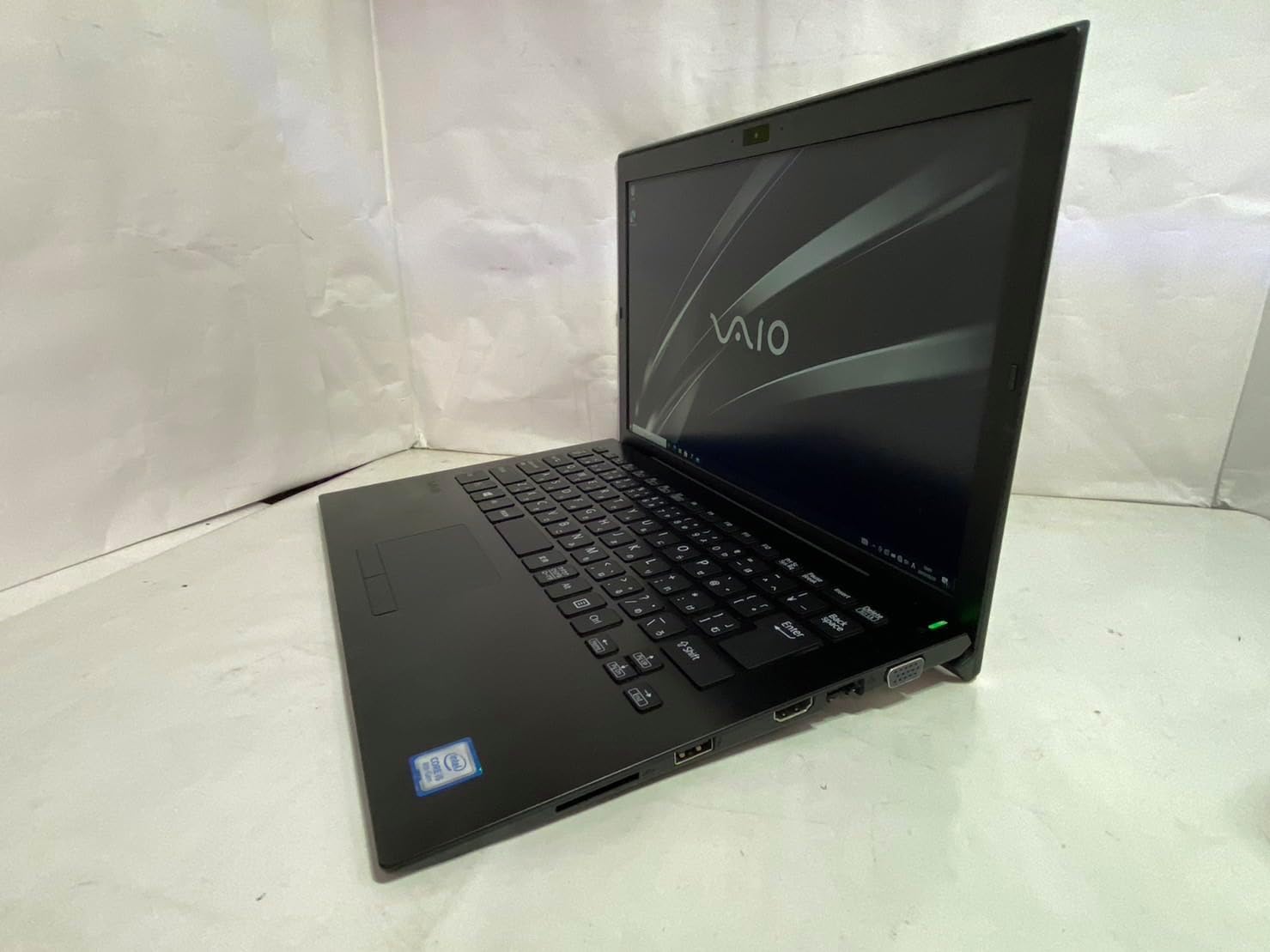
Рисунок 2.2: Левая сторона view of the SONY VAIO Pro PK VJPK11 laptop. This image shows the left side of the laptop, highlighting various ports such as USB, HDMI, and a VGA port, along with a ventilation grille.

Рисунок 2.3: Вершина view of the SONY VAIO Pro PK VJPK11 laptop with the lid closed. This image displays the sleek black finish of the laptop's lid, featuring the prominent silver VAIO logo in the center.
3. Настройка
3.1 Распаковка
Carefully remove the laptop and all accessories from the packaging. Ensure all components are present:
- SONY VAIO Pro PK VJPK11 Laptop
- Адаптер переменного тока и шнур питания
- Документация (данное руководство, гарантийная информация)
3.2 Подключение к источнику питания
- Подключите адаптер переменного тока к разъему питания на вашем ноутбуке.
- Подключите шнур питания к адаптеру переменного тока.
- Insert the power cord into a grounded electrical outlet.
- Allow the battery to charge fully before initial use, or use the laptop while connected to power.
3.3 Первоначальная загрузка и установка Windows
Press the power button to turn on the laptop. Follow the on-screen instructions to complete the Windows 10 Pro setup process. This typically involves selecting your region, language, accepting license agreements, and creating a user account.
4. Инструкция по эксплуатации
4.1 Включение/выключение питания
- Для включения: Нажмите кнопку питания, расположенную на ноутбуке.
- Выключить: Нажмите кнопку «Пуск», затем «Питание» и выберите «Выключить».
- Начать заново: Нажмите кнопку «Пуск», затем «Питание» и выберите «Перезапустить».
- Чтобы заснуть: Click the Start button, then Power, and select 'Sleep', or close the laptop lid.
4.2 Клавиатура и сенсорная панель
The laptop features a standard QWERTY keyboard and a multi-touch touchpad. Use the touchpad for cursor control and gestures. Refer to Windows settings for customizing touchpad sensitivity and gestures.
4.3 Подключение периферийных устройств
- USB-устройства: Connect USB devices (e.g., mouse, external drive) to the available USB 3.0 ports.
- Внешний дисплей: Use the HDMI or VGA port to connect an external monitor or projector. Press Клавиша Windows + P to manage display modes.
- Проводная сеть (LAN): Connect an Ethernet cable to the LAN port for a wired internet connection.
- SD-карта: Insert an SD card into the dedicated SD card slot for data transfer.
4.4 Использование Webcam and Bluetooth
- Webкамера: Интегрированный webcam can be used for video calls and conferencing. Access it through applications like Camera or communication software.
- Bluetooth: Enable Bluetooth in Windows settings to connect wireless devices such as headphones, speakers, or mice.
5. Техническое обслуживание
5.1 Чистка ноутбука
Используйте мягкую, безворсовую ткань, слегкаampened with water or a screen cleaner to clean the display and exterior surfaces. Avoid harsh chemicals or abrasive materials. Ensure the laptop is powered off and unplugged before cleaning.
5.2 Уход за аккумулятором
To prolong battery life, avoid extreme temperatures. If storing the laptop for an extended period, ensure the battery is charged to approximately 50%.
5.3 Обновления программного обеспечения
Regularly check for and install Windows updates and driver updates from the SONY support website to ensure system stability and security.
5.4 Резервное копирование данных
Периодически создавайте резервные копии важных данных на внешнем диске или в облачном хранилище, чтобы предотвратить потерю данных.
6. Поиск Неисправностей
This section addresses common issues you might encounter with your SONY VAIO Pro PK VJPK11.
6.1 Нет питания
- Ensure the AC adapter is securely connected to the laptop and a working power outlet.
- Проверьте работоспособность розетки, подключив к ней другое устройство.
- Если аккумулятор полностью разряжен, дайте ему зарядиться в течение нескольких минут, прежде чем пытаться включить устройство.
6.2 Проблемы с отображением
- If the screen is blank, try adjusting the display brightness using the function keys.
- If an external monitor is connected, ensure the correct display output mode is selected (Windows key + P).
- Перезагрузите ноутбук.
6.3 Проблемы с подключением Wi-Fi
- Убедитесь, что Wi-Fi включен в настройках Windows.
- Перезагрузите маршрутизатор и модем.
- Проверьте, могут ли другие устройства подключаться к той же сети Wi-Fi.
- Обновите драйверы беспроводной сети.
6.4 Laptop Running Slow
- Закройте ненужные приложения, работающие в фоновом режиме.
- Проверьте диспетчер задач на наличие процессов, потребляющих много ресурсов ЦП или ОЗУ.
- Выполните очистку и дефрагментацию диска (для HDD, не обязательно для SSD).
- Убедитесь, что Windows и драйверы обновлены.
7. Технические характеристики
Key technical specifications for the SONY VAIO Pro PK VJPK11 laptop:
| Особенность | Спецификация |
|---|---|
| Модель | SONY VAIO Pro PK VJPK11 (VJPK11C11N) |
| Процессор | Intel Core i5-8250U (1.60GHz) |
| БАРАН | 8.00 ГБ DDR3 SDRAM |
| Хранилище | 256GB SSD (SATA) |
| Отображать | 14.0-inch Wide (1920x1080 pixels) |
| Графика | Интегрированная графика Intel |
| Операционная система | Окна 10 Pro 64bit |
| Порты | VGA, HDMI, USB 3.0, LAN, SD Card Slot |
| Связность | Локальная сеть, Bluetooth |
| Webкулачок | Интегрированный Webкулачок |
8. Гарантия и поддержка
For information regarding your product's warranty, please refer to the warranty card included with your purchase or visit the official SONY support website. For technical assistance, contact SONY customer support or your authorized dealer.
Онлайн поддержка: https://www.sony.com/electronics/support


