1. Введение
This manual provides essential instructions for setting up, operating, and maintaining your Huawei H158-381 5G CPE Pro 5 Router. Please read this guide thoroughly before using the device to ensure proper functionality and safety.
2. Содержимое упаковки
Убедитесь, что в комплект поставки вашего товара входят все перечисленные ниже предметы:
- Маршрутизатор Huawei H158-381 5G CPE Pro 5
- Адаптер питания 12 В 3 А
- Краткое руководство (настоящее руководство)
3. Продукт закончилсяview
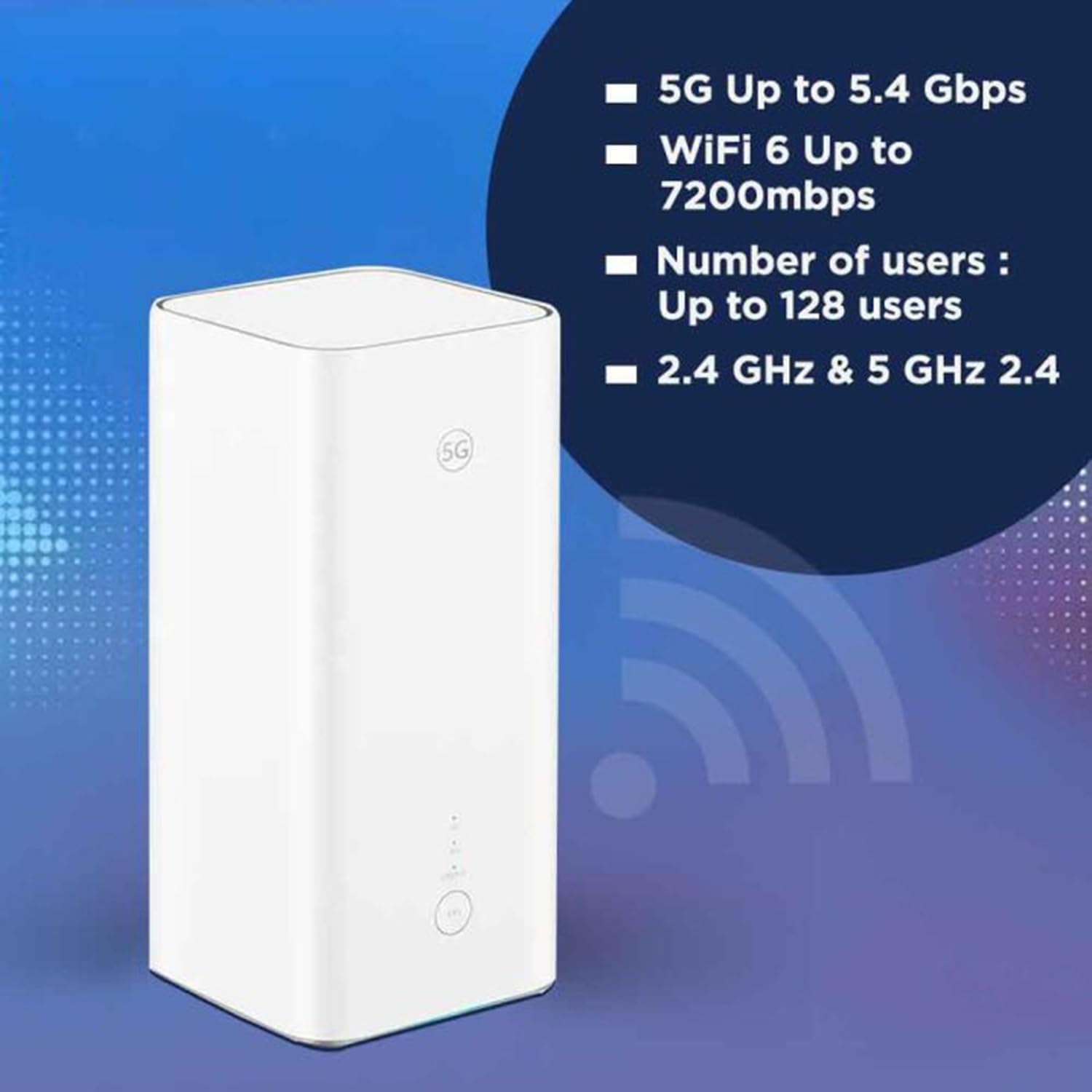
The Huawei H158-381 5G CPE Pro 5 Router is a high-performance wireless router designed for advanced internet connectivity. It supports both 5G and 4G networks, offering high-speed data transmission and robust Wi-Fi capabilities.
Основные характеристики:
- 5G and 4G Network Compatibility: Supports 5G frequencies in NSA and SA modes (n1/3/5/7/20/28/71/38/40/41/77/78/79) and 4G bands (B1/3/5/7/8/18/19/20/26/28/32/34/38/39/40/41/42/43). Note: 2G and 3G are not supported.
- Высокоскоростные данные: Achieves download speeds up to 5.4 Gbps and upload speeds up to 500 Mbps on 5G (network dependent).
- Wi-Fi 6 (AX7200): Provides Wi-Fi speeds up to 7200 Mbps across 2.4 GHz and 5 GHz bands, supporting up to 128 connected users.
- Безопасность WPA3: Enhanced wireless security protocol for a safer network.
- Nano-SIM Slot: Для мобильного широкополосного подключения.
- Integrated 5G NR Antenna: Features a 12 dBi internal antenna for optimized signal reception.
- Порты Ethernet: Includes 2 Ethernet ports for wired connections.
Физические компоненты:


4. Руководство по установке
4.1 Установка SIM-карты
- Locate the Nano-SIM card slot on your router.
- Insert a Nano-SIM card into the slot. Ensure the SIM card is correctly oriented according to the diagram near the slot.
- Важный: It is recommended to disable the PIN code of your SIM card using a mobile phone before inserting it into the router for a smoother setup process.
4.2 Подключение питания
- Connect the provided 12V 3A power adapter to the router's power input port.
- Подключите адаптер питания к подходящей электрической розетке.
- The router will automatically power on. Wait for the status indicators to stabilize.
4.3 Начальная конфигурация
Once powered on, the router will attempt to connect to the mobile network. You can access the router's web interface or use the dedicated mobile application for further configuration, such as changing Wi-Fi names and passwords.
5. Инструкция по эксплуатации
5.1 Подключение устройств через Wi-Fi
- На вашем устройстве (смартфоне, ноутбуке, планшете) выполните поиск доступных сетей Wi-Fi.
- Select the Wi-Fi network name (SSID) corresponding to your router. The default SSID and password are usually found on a label at the bottom of the router.
- Введите пароль Wi-Fi при появлении запроса.
- Теперь ваше устройство должно быть подключено к Интернету.
5.2 Подключение устройств через Ethernet
The router features two Ethernet ports for wired connections:
- Connect one end of an Ethernet cable to an Ethernet port on the back of the router.
- Connect the other end of the Ethernet cable to the Ethernet port on your device (e.g., computer, gaming console, smart TV).
- The device should automatically establish a wired network connection.
6. Расширенные функции
6.1 Поддержка внешней антенны
The Huawei H158-381 router supports external 5G antennas to enhance signal reception. To utilize this feature:
- Install your external 5G antennas according to their respective instructions.
- Connect the external antennas to the designated external antenna ports on the router.
- Open the router's management application (e.g., Deco app), navigate to Advanced > External Antennas, and activate the external antennas option.
- When activated, the external antennas will replace a portion of the internal antennas for signal reception.
6.2 Видеообзор продукта
Посмотрите это видео для быстрого обзораview of the Huawei H158-381 5G CPE Pro 5 Router's features and benefits.
Видео 6.1: A product summary video showcasing the Huawei H158-381 5G CPE Pro 5 Router's design and core functionalities.
7. Технические характеристики
| Особенность | Спецификация |
|---|---|
| Бренд | ХУАВЭЙ |
| Производитель | ХУАВЭЙ |
| Ряд | Н158-381 |
| Размеры продукта | 10.3 x 10.3 x 22.6 см; 915 г |
| Номер модели товара | Н158-381 |
| Цвет | Белый |
| Тип подключения | Wi-Fi |
| Тип беспроводной связи | 802.11ax |
| Количество портов Ethernet | 2 |
| Томtage | 12 Вольт |
| Операционная система | RouterOS |
| Батарейки в комплекте | Нет |
| Гарантированные обновления программного обеспечения до | 23 мая 2025 г. |
| Название модели | Н158-381 |
| Особые возможности | ВПС |
| Класс диапазона частот | Двухполосный |
| Стандарт беспроводной связи | 802.11ax |
| Совместимые устройства | Game console, tablet, personal computer, smartphone, smart television, streaming device, security camera, printer, smart thermostat |
| Рекомендуемое использование продукта | Дом, Бизнес |
| Включенные компоненты | Manual, 12V 3A Charger, Router H158-381 |
| Технология подключения | Ethernet, Wi-Fi |
8. Техническое обслуживание
Для обеспечения долговечности и оптимальной работы вашего маршрутизатора, примите во внимание следующие рекомендации по техническому обслуживанию:
- Размещение: Разместите маршрутизатор в центре, вдали от препятствий и других электронных устройств, которые могут создавать помехи.
- Уборка: Держите роутер в чистоте и не допускайте попадания пыли. Для чистки используйте мягкую сухую ткань.
- Обновления прошивки: Regularly check for and install firmware updates to benefit from improved performance, security, and new features. This can usually be done through the router's web интерфейс или мобильное приложение.
- Вентиляция: Ensure the router has adequate ventilation to prevent overheating. Do not cover ventilation openings.
9. Поиск Неисправностей
Если у вас возникли проблемы с маршрутизатором, попробуйте выполнить следующие действия по устранению неполадок:
- Нет соединения с интернетом:
- Проверьте, правильно ли вставлена и активирована SIM-карта.
- Ensure the router is powered on and all indicator lights are functioning as expected.
- Restart the router by unplugging it from the power source, waiting 30 seconds, and plugging it back in.
- Verify your mobile data plan is active and has sufficient data.
- Низкая скорость Wi-Fi:
- Подойдите ближе к маршрутизатору, чтобы улучшить уровень сигнала.
- Сократите количество подключенных устройств и активностей, потребляющих большую полосу пропускания.
- Проверьте наличие помех от других электронных устройств.
- Если уровень сигнала постоянно низкий, рассмотрите возможность использования внешних антенн.
- Невозможно получить доступ к настройкам маршрутизатора:
- Убедитесь, что ваше устройство подключено к сети Wi-Fi маршрутизатора или через кабель Ethernet.
- Verify you are entering the correct IP address (usually 192.168.8.1 or 192.168.1.1) in your web браузер.
- Убедитесь, что вы используете правильное имя пользователя и пароль администратора.
If problems persist, consult the official Huawei support webсайт или обратитесь в службу поддержки клиентов для получения дополнительной помощи.
10. Гарантия и поддержка
Для получения информации о гарантии обратитесь к гарантийному талону, прилагаемому к вашему изделию, или посетите официальный сайт HUAWEI. website. Technical support and customer service contact details can also be found on the HUAWEI support portal.


