1. Введение и окончаниеview
The Calix GigaCenter 844E-1 is a high-performance wireless router and modem designed to provide robust and reliable internet connectivity for home and small office environments. It supports dual-band Wi-Fi (2.4GHz and 5GHz) for optimal wireless performance and includes multiple Ethernet ports for wired connections. This manual provides detailed instructions for setting up, operating, maintaining, and troubleshooting your GigaCenter 844E-1 device.
2. Особенности продукта
- Двухдиапазонный Wi-Fi: Supports 2.4GHz and 5GHz frequencies for flexible and high-speed wireless connections (802.11ac, 802.11n, 802.11a/g/b compatible).
- High LAN Data Rate: Capable of up to 1000 Mbps for fast wired connections.
- Несколько портов: Includes Ethernet (RJ-45) ports (4 LAN ports), USB 2.0, and RJ-11 ports for versatile connectivity.
- Встроенный модем: Functions as both a router and a modem, simplifying network setup.
- Компактный дизайн: Designed for efficient space utilization.
3. Содержимое упаковки
Пожалуйста, проверьте наличие всех предметов в вашей посылке:
- Calix GigaCenter 844E-1 Wireless Router Modem
- Блок питания от адаптера переменного тока
- (Optional: Ethernet Cable, Phone Cable - may vary by package)
4. Руководство по установке
Follow these steps to set up your Calix GigaCenter 844E-1:
- Размещение устройства: Place the GigaCenter 844E-1 in a central location in your home, away from obstructions and sources of interference (e.g., microwaves, cordless phones). Ensure adequate ventilation.
- Подключите питание: Connect the provided AC Adapter Power Supply to the "POWER" port on the back of the GigaCenter 844E-1 and then plug the adapter into a standard electrical outlet. The Power indicator light on the front panel should illuminate.

Рисунок 4.1: Передняя часть view of the Calix GigaCenter 844E-1 showing indicator lights and the included power adapter.
- Подключиться к Интернет-источнику: Connect your internet service provider's (ISP) cable or fiber optic line to the appropriate WAN/Broadband port on the GigaCenter 844E-1. This port is typically labeled "ETH-WAN" or "Broadband". The Broadband indicator light should turn solid green once a connection is established.

Рисунок 4.2: Сторона view of the GigaCenter 844E-1 highlighting the ETH-WAN, Power, and Phone ports.
- Подключение проводных устройств (опционально): Use standard Ethernet cables to connect computers, gaming consoles, or other network devices to the "ETHERNET 1-4" ports on the back of the GigaCenter 844E-1. The corresponding Ethernet indicator light will illuminate when a device is connected and active.

Figure 4.3: Top/back view of the GigaCenter 844E-1 displaying the USB, Reset, Ethernet (LAN), and Phone ports.
- Connect Phone Devices (Optional): If your service includes voice, connect analog phones to the "PHONE 1" or "PHONE 2" ports using RJ-11 cables.
- Первоначальное подключение к Wi-Fi:
- Locate the Wi-Fi Network Name (SSID) and Password (WPA Key) on the label usually found on the bottom or back of your GigaCenter 844E-1.
- На вашем беспроводном устройстве (ноутбуке, смартфоне, планшете) выполните поиск доступных сетей Wi-Fi.
- Select your GigaCenter's SSID and enter the WPA Key when prompted.
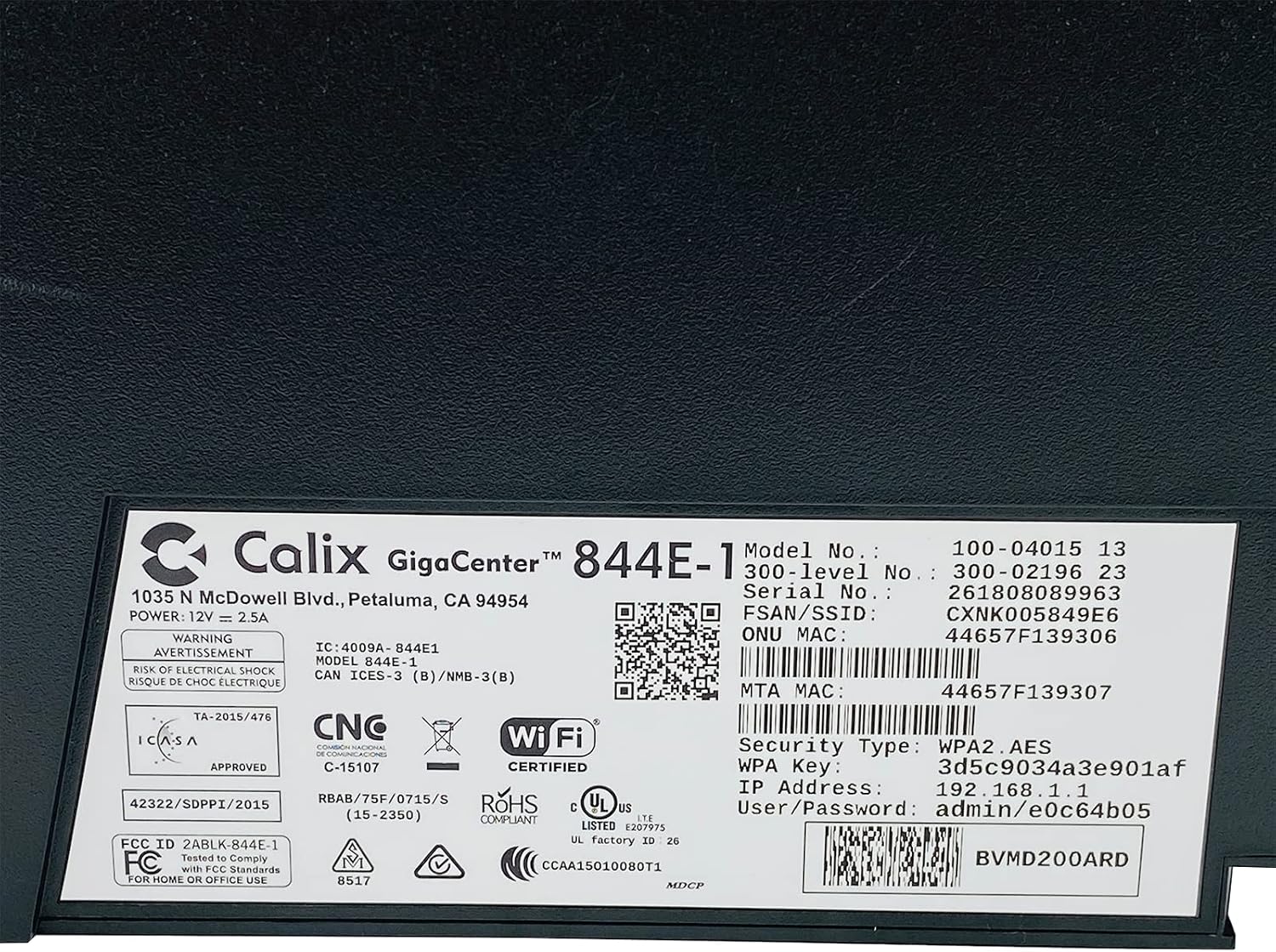
Рисунок 4.4: Подробная информация view of the bottom label, providing essential information such as model number, serial number, Wi-Fi SSID, and WPA Key for network access.
- Проверить соединение: После подключения откройте web browser and try to access a webсайт (например, www.google.com). If successful, your GigaCenter 844E-1 is set up and ready for use.
5. Инструкция по эксплуатации
5.1 Индикаторные лампы
The front panel of the GigaCenter 844E-1 features several indicator lights that provide status information:
| Свет | Статус | Описание |
|---|---|---|
| ВЛАСТЬ | Сплошной зеленый | Устройство включено. |
| ШИРОКОПОЛОСНАЯ | Сплошной зеленый | Интернет-соединение активно. |
| УСЛУГА | Сплошной зеленый | Service is active and provisioned. |
| WIFI 2.4 ГГц | Постоянно горит зеленый/мигает | 2.4 GHz Wi-Fi is active/data transfer. |
| WIFI 5 ГГц | Постоянно горит зеленый/мигает | 5 GHz Wi-Fi is active/data transfer. |
| ЭТЕРНЕТ 1-4 | Постоянно горит зеленый/мигает | Wired connection active/data transfer. |
| PHONE 1-2 | Постоянно горит зеленый/мигает | Phone service active/in use. |
| USB | Постоянно горит зеленый/мигает | USB device connected/data transfer. |
| ВПС | Мигающий | Выполняется сопряжение WPS. |
5.2 Доступ к Web Интерфейс
To configure advanced settings, you can access the GigaCenter's web интерфейс:
- Ensure your device is connected to the GigaCenter via Wi-Fi or Ethernet.
- Откройте web browser and enter the IP Address (e.g., 192.168.1.1) found on the product label into the address bar.
- Enter the User/Password (e.g., admin/e0c64b05) from the product label when prompted.
- You can now configure settings such as Wi-Fi name, password, port forwarding, and parental controls.
6. Техническое обслуживание
- Уборка: Для очистки внешней поверхности устройства используйте мягкую сухую ткань. Не используйте жидкие чистящие средства или аэрозоли.
- Вентиляция: Убедитесь, что вентиляционные отверстия устройства не заблокированы, чтобы предотвратить перегрев.
- Обновления прошивки: Periodically check with your Internet Service Provider (ISP) for available firmware updates to ensure optimal performance and security.
- Перезагрузка: Если у вас возникли проблемы с подключением, попробуйте перезагрузить устройство, отключив адаптер питания на 10 секунд, а затем снова подключив его.
7. Поиск Неисправностей
В этом разделе рассматриваются распространенные проблемы, с которыми вы можете столкнуться:
7.1 Нет подключения к Интернету
- Проверьте кабели: Ensure all cables (power, internet source, Ethernet) are securely connected.
- Индикаторные лампы: Verify that the POWER, BROADBAND, and SERVICE lights are solid green. If not, refer to Section 5.1 or contact your ISP.
- Перезагрузите устройство: Power cycle the GigaCenter 844E-1 by unplugging it for 10 seconds and plugging it back in.
- ISP Outage: Check with your ISP for any service outagв вашем районе.
7.2 Wi-Fi не работает или работает медленно
- Wi-Fi Lights: Ensure the WIFI 2.4 GHz and/or WIFI 5 GHz lights are solid green.
- Пароль: Double-check that you are entering the correct Wi-Fi password (WPA Key).
- Уровень сигнала: Move closer to the GigaCenter 844E-1 to improve signal strength.
- Вмешательство: Уменьшите помехи от других электронных устройств.
- Оптимизация канала: Доступ к web interface to change Wi-Fi channels if experiencing congestion.
7.3 Невозможно получить доступ Web Интерфейс
- IP-адрес: Confirm you are using the correct IP Address (e.g., 192.168.1.1).
- Связь: Ensure your device is connected to the GigaCenter's network.
- Реквизиты для входа: Verify the User/Password from the product label.
- Брандмауэр/Антивирус: Временно отключите на вашем компьютере все брандмауэры и антивирусные программы, которые могут блокировать доступ.
7.4 Функциональность WPS
The WPS (Wi-Fi Protected Setup) button allows for easy connection of WPS-compatible devices without manually entering the password. Press the WPS button on the GigaCenter 844E-1 and then activate WPS on your client device within two minutes. The WPS light will flash during the pairing process.
8. Технические характеристики
| Особенность | Деталь |
|---|---|
| Модель | GigaCenter 844E-1 (100-04015 13) |
| Бренд | Чашевидная структура |
| Технология связи | Wireless-Wi-Fi 802.11ac, Ethernet (RJ-45) Hub/Switch, 5G |
| Стандарты беспроводной связи | 802.11ac, 802.11n, 802.11a/g/b |
| Класс диапазона частот | Двухдиапазонный (2.4 ГГц, 5 ГГц) |
| Maximum LAN Data Rate | 1000 Мбит/с |
| Порты | 4 x Ethernet (RJ-45), 1 x USB 2.0, 2 x RJ-11 (Phone) |
| Совместимые устройства | Personal Computer, Network Devices |
| Рекомендуемое использование | Дом |
| Включенные компоненты | Источник питания |
| Вес товара | 3 фунта |
9. Информация по технике безопасности
- Не подвергайте устройство воздействию воды или влаги.
- Не открывайте устройство casinг. По всем вопросам обслуживания обращайтесь к квалифицированному персоналу.
- Используйте только прилагаемый адаптер питания.
- Держите устройство вдали от источников тепла и прямых солнечных лучей.
- Обеспечьте надлежащую вентиляцию, чтобы предотвратить перегрев.
10. Гарантия и поддержка
For warranty information and technical support, please contact your Internet Service Provider (ISP) or the vendor from whom you purchased this device. The Calix GigaCenter 844E-1 is typically provided and supported by your ISP as part of your internet service package.
For general inquiries or to find more information about Calix products, you may visit the official Calix website (if available, search online for "Calix official webсайт").


