1. Введение
This manual provides comprehensive instructions for the setup, operation, and maintenance of your Epson EcoTank L8180 Multifunction A3+ Photo Printer. Please read this manual thoroughly to ensure proper use and to maximize the performance and longevity of your device. Keep this manual for future reference.
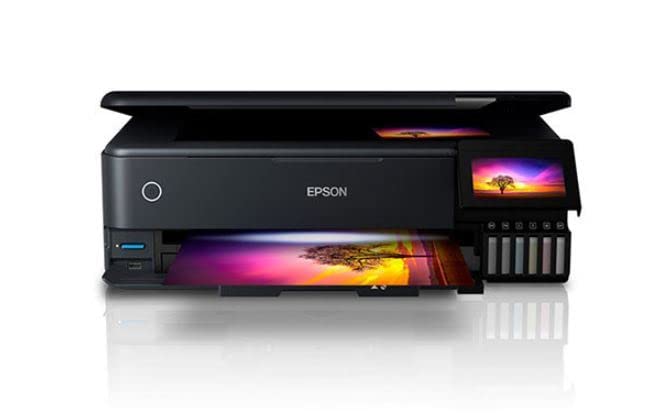
Figure 1: Epson EcoTank L8180 Printer. This image shows the front view of the Epson EcoTank L8180 printer, highlighting its compact design and front-loading paper tray.
2. Содержимое упаковки
Убедитесь, что все предметы включены в комплект:
- Принтер Epson EcoTank L8180
- Силовой кабель
- Initial Ink Bottle Set (Cyan, Magenta, Yellow, Black, Light Cyan, Light Magenta)
- Руководство по настройке
- Software CD-ROM (for Windows/macOS)
- USB-кабель
3. Настройка
3.1 Распаковка и размещение
- Remove the printer from its box and remove all protective materials, tapes, and films.
- Установите принтер на ровную, устойчивую поверхность, оставив вокруг него достаточно места для вентиляции и работы.
3.2 Заполнение чернильниц
The EcoTank L8180 uses a cartridge-free ink tank system. Follow these steps to fill the ink tanks:
- Откройте крышку блока чернильных картриджей.
- Uncap the ink bottle for the corresponding color. Each bottle has a unique key to prevent incorrect filling.
- Insert the ink bottle into the filling port. The ink will automatically start flowing into the tank. Do not squeeze the bottle.
- Как только резервуар заполнится, подача чернил прекратится. Извлеките флакон и закройте его крышкой.
- Repeat for all six ink colors (Cyan, Magenta, Yellow, Black, Light Cyan, Light Magenta).
- Закройте крышку блока чернильниц.
3.3 Подключение питания и первоначальная настройка
- Connect the power cable to the printer and then to an electrical outlet.
- Нажмите кнопку питания, чтобы включить принтер.
- Follow the on-screen instructions on the 10.9cm color touchscreen to select your language, date, and time.
- The printer will then initiate the ink charging process. This may take several minutes. Do not turn off the printer during this process.
- Once ink charging is complete, the printer is ready for software installation.

Figure 2: Printer Touchscreen Interface. This image displays a close-up of the printer's 10.9cm color touchscreen, showing a user interacting with the interface.
3.4 Установка программного обеспечения и подключение
Install the printer software on your computer or mobile device to enable full functionality.
- For Computer (Windows/macOS): Insert the provided Software CD-ROM or download the latest drivers and utilities from the official Epson support webсайт. Следуйте инструкциям на экране для установки.
- Варианты подключения:
- USB-подключение: Подключите принтер к компьютеру с помощью USB-кабеля.
- Wi-Fi-соединение: On the printer's touchscreen, navigate to the Wi-Fi setup menu and follow the instructions to connect to your wireless network.
- Ethernet-подключение: Подключите кабель Ethernet от принтера к маршрутизатору или сетевому концентратору.
- Для мобильных устройств: Download the Epson Smart Panel app from your device's app store. Follow the in-app instructions to connect your mobile device to the printer via Wi-Fi.

Figure 3: Wireless Printing from Mobile. This image illustrates the Epson EcoTank L8180 printer receiving a print job wirelessly from a smartphone, demonstrating its Wi-Fi connectivity.
4. Инструкция по эксплуатации
4.1 Загрузка бумаги
The printer supports various paper types and sizes, up to A3+.
- Откройте держатель бумаги и выдвиньте выходной лоток.
- Adjust the edge guides to the width of your paper.
- Load paper into the rear paper feed or front paper cassette, depending on the paper type and size. Ensure the print side is facing the correct direction.
- For photo paper, use the dedicated photo paper tray.
4.2 Печать документов и фотографий
- Откройте документ или фотографию, которую хотите распечатать, на своем компьютере или мобильном устройстве.
- Выбирать Печать из меню приложения.
- Choose the Epson L8180 as your printer.
- Adjust print settings such as paper size (e.g., A3+, A4), media type (e.g., Glossy Photo Paper), print quality, and color options.
- Нажмите Печать.
4.3 Сканирование документов
The L8180 features a flatbed scanner for scanning documents and photos.
- Поднимите крышку сканера.
- Положите документ или фотографию на стекло сканера лицевой стороной вниз, совместив его с угловой меткой.
- Осторожно закройте крышку сканера.
- From your computer, open the Epson Scan software or use the scan function on the printer's control panel.
- Select scan settings (e.g., resolution, color mode, destination folder) and initiate the scan.
4.4 Копирование документов
Use the printer's control panel to make copies.
- Поместите документ на стекло сканера, как описано в разделе 4.3.
- На сенсорном экране принтера выберите Копировать вариант.
- Adjust settings such as number of copies, paper size, and quality.
- Нажмите Начинать кнопку, чтобы начать копирование.
4.5 Direct Printing (Memory Card/USB)
The L8180 allows direct printing from memory cards and USB drives.
- Insert a memory card into the card slot or a USB flash drive into the USB port.
- На сенсорном экране принтера выберите Карта памяти or USB вариант.
- Browse and select the photos or documents you wish to print.
- Adjust print settings and press Печать.
4.6 CD/DVD Printing
The printer supports direct printing onto printable CDs/DVDs.
- Open the CD/DVD tray cover on the printer.
- Place a printable CD or DVD onto the CD/DVD tray, ensuring it is correctly seated.
- Insert the CD/DVD tray into the printer's dedicated slot.
- Use the Epson Print CD software on your computer to design and print onto the disc.

Figure 4: CD/DVD Printing Function. This image shows a printable CD being loaded into the Epson EcoTank L8180 printer's dedicated tray for direct disc printing.
5. Техническое обслуживание
5.1 Заправка чернил
When an ink tank level is low, refill it using genuine Epson ink bottles. Refer to Section 3.2 for detailed ink filling instructions.
Важный: Use only genuine Epson Claria ET Premium Ink to ensure optimal print quality and prevent damage to the printer.
5.2 Очистка печатающей головки
Если качество печати ухудшилось (например, появились пропуски линий, блеклые отпечатки), выполните очистку печатающей головки.
- На сенсорном экране принтера перейдите к Обслуживание or Настраивать.
- Выбирать Очистка печатающей головки.
- Follow the on-screen prompts. This process uses a small amount of ink.
- After cleaning, print a nozzle check pattern to verify improvement. If print quality is still poor, repeat the cleaning process up to three times.
5.3 Проверка сопла
Perform a nozzle check to diagnose print quality issues before cleaning.
- На сенсорном экране принтера перейдите к Обслуживание or Настраивать.
- Выбирать Проверка форсунок.
- The printer will print a pattern. Examine the pattern for any gaps or missing segments.
5.4 Printer Cleaning
Регулярно очищайте внешнюю поверхность принтера мягкой тряпкой.ampИспользуйте безворсовую ткань. Не используйте абразивные чистящие средства или растворители.
6. Поиск Неисправностей
6.1 Общие проблемы и решения
- Принтер не отвечает:
- Ensure the printer is powered on and connected securely (USB, Wi-Fi, Ethernet).
- Check for error messages on the printer's touchscreen.
- Перезагрузите принтер и компьютер/маршрутизатор.
- Убедитесь, что в диалоговом окне печати вашего приложения выбран правильный принтер.
- Плохое качество печати:
- Perform a nozzle check (Section 5.3) and print head cleaning (Section 5.2).
- Убедитесь, что чернильные картриджи заполнены должным образом.
- Use genuine Epson ink and appropriate paper types for your print job.
- Проверьте настройки печати в вашем приложении, чтобы убедиться, что они соответствуют типу бумаги и желаемому качеству.
- Застревание бумаги:
- Turn off the printer and carefully remove any jammed paper from the paper trays or inside the printer.
- Убедитесь, что бумага загружена правильно, не имеет складок и не имеет заломов.urlред.
- Не перегружайте лотки для бумаги.
- Проблемы с подключением к Wi-Fi:
- Убедитесь, что принтер находится в зоне действия вашего беспроводного маршрутизатора.
- Проверьте правильность введенного пароля Wi-Fi.
- Перезагрузите беспроводной маршрутизатор и принтер.
- Check for any network interference.
6.2 Коды ошибок
If an error code appears on the printer's screen, refer to the on-screen instructions or the Epson support website for specific solutions related to that code.
7. Технические характеристики
| Особенность | Деталь |
|---|---|
| Название модели | Л8180 |
| Размеры продукта (Д x Ш x В) | 37.9 x 52.3 x 16.9 сантиметров |
| Вес товара | 14.6 кг |
| Максимальный размер носителя | А3+ |
| Технология печати | Ink Tank (6-colour Epson Claria ET Premium Ink) |
| Цвета чернил | Cyan, Magenta, Yellow, Black, Light Cyan, Light Magenta |
| Maximum Print Resolution (Color/B&W) | 5760 x 1440 точек на дюйм |
| Maximum Print Speed (Color/B&W) | 32 частей на миллион |
| Тип сканера | Платформа |
| Maximum Copy Speed (Black and White) | 32 частей на миллион |
| Двусторонняя печать | Автоматический |
| Максимальная емкость входного листа | 120 листов |
| Метод контроля | Touch (10.9cm color touchscreen) |
| Технология связи | Wi-Fi, Ethernet, USB |
| Совместимые устройства | Laptops, PC, Tablets |
| Совместимость с операционными системами | Windows XP and later, macOS |
| Ватtage | 17 Вт · ч |
| Особые возможности | A3+ Borderless Photo Printing, Direct printing via memory card slot, USB port, Ethernet, CD/DVD printing |

Figure 5: Printer Dimensions. This image provides a diagram showing the physical dimensions (width, depth, height) of the Epson EcoTank L8180 printer in millimeters.
8. Гарантия и поддержка
8.1 Информация о гарантии
Принтер Epson EcoTank L8180 поставляется в комплекте с Ограниченная гарантия. For specific terms and conditions, including warranty duration and coverage details, please refer to the warranty card included with your product or visit the official Epson support webсайт.
8.2 Поддержка клиентов
For technical assistance, troubleshooting, or service inquiries, please contact Epson customer support:
- Онлайн поддержка: Посетите официальную поддержку Epson website for FAQs, drivers, manuals, and contact information.
- Телефонная поддержка: Refer to your product documentation or the Epson webсайт для получения местных номеров службы поддержки.
При обращении в службу поддержки подготовьте модель вашего принтера (L8180) и серийный номер.


