1. Введение
This manual provides comprehensive instructions for the safe and efficient operation of your CLABEL 220B Thermal Bluetooth Label Printer. This portable, inkless label maker is designed for various applications in small businesses, offices, and homes, supporting label widths from 20mm to 50mm.
2. Содержимое упаковки
Пожалуйста, убедитесь, что все перечисленные ниже предметы включены в ваш пакет:
- CLABEL 220B Thermal Bluetooth Label Printer
- 1 Roll of Thermal Labels
- USB-кабель для зарядки
- Руководство пользователя (этот документ)
3. Продукт закончилсяview
Familiarize yourself with the components of your CLABEL 220B printer.
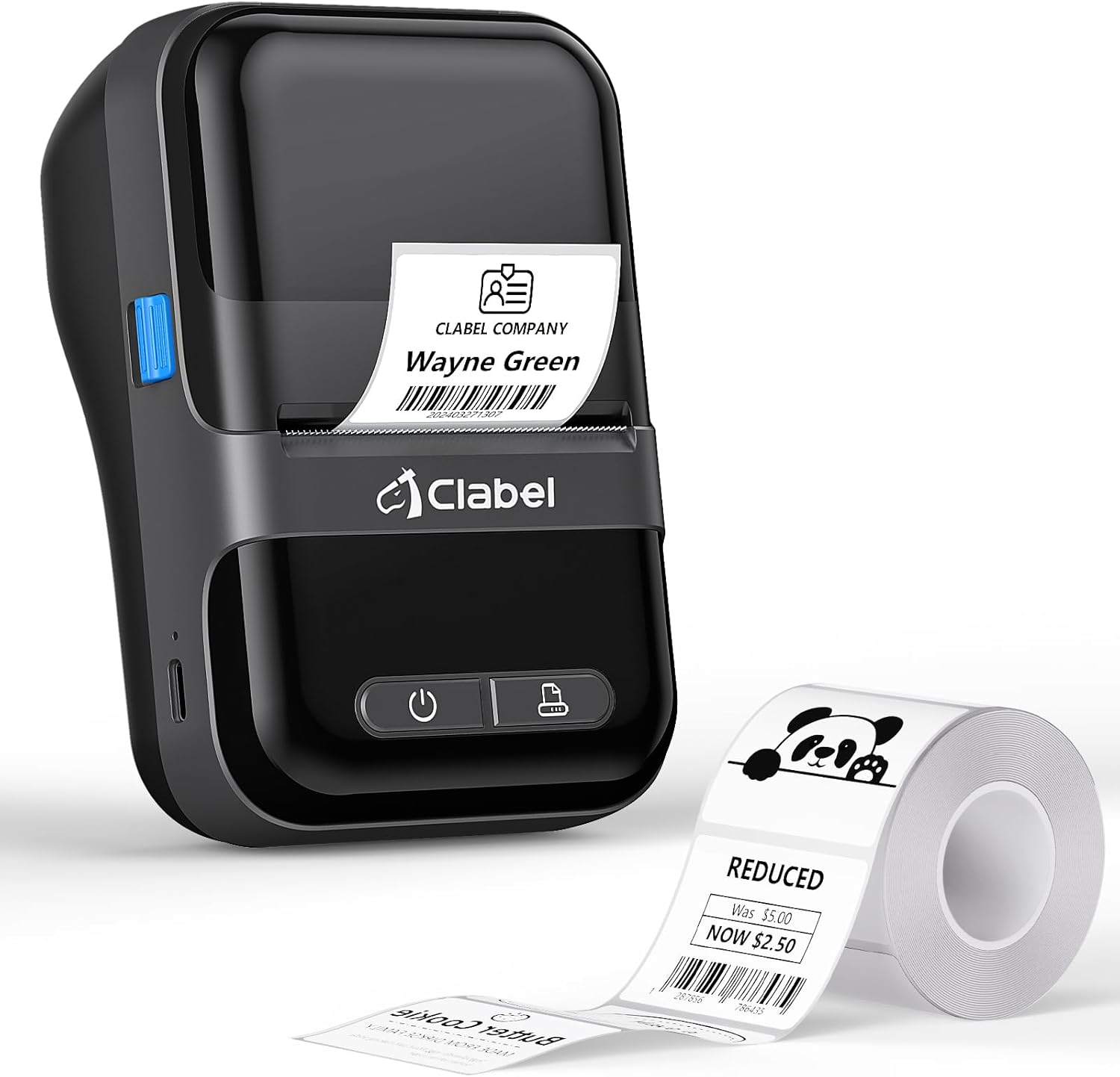
Image: The CLABEL 220B printer, showcasing its compact design, a printed label emerging from the output slot, and a roll of blank labels.
The printer features a power button, a feed button, and a label compartment. The charging port is typically located on the side or back.
4. Настройка
4.1. Зарядка принтера
Before initial use, fully charge the printer. Connect the provided USB cable to the printer's charging port and to a 5V-2A power adapter (not included) or a computer's USB port. The charging indicator light will show the charging status.
4.2. Загрузка этикеток
Follow these steps to correctly load the thermal labels:

Image: Step-by-step guide for label installation, showing opening the cover, setting jam protection, inserting labels, and closing the cover.
- Откройте крышку принтера.
- Set the jam protection to "OPEN" if applicable.
- Insert the label roll into the compartment, ensuring the printable side faces up and the labels are aligned on the left.
- Pull out a small length of labels and close the cover securely.
5.Подключение
5.1. Mobile Phone Connection (Bluetooth)
The CLABEL 220B supports connection with iOS and Android devices via Bluetooth.

Image: Mobile phone connection steps, illustrating downloading the 'Clabel trade' app, enabling Bluetooth, and connecting to the printer within the app.
- Download the "CLABEL trade" app from your device's app store (iOS App Store or Android Google Play Store).
- Убедитесь, что на вашем мобильном телефоне включен Bluetooth.
- Open the "CLABEL trade" app and connect to your printer from the device list.
5.2. Подключение к ПК (USB)
For Windows PCs, connect the printer using the provided USB cable.

Image: Computer connection steps, detailing turning on the printer, connecting via USB, downloading the driver/app, and printing.
- Включите принтер.
- Подключите принтер к компьютеру с помощью USB-кабеля.
- Download the necessary driver or application from the official CLABEL brand webсайт.
- Open the application, create or select a label, and initiate printing.
6. Инструкция по эксплуатации
6.1. Using the CLABEL Trade App
The "CLABEL trade" app offers extensive features for label creation and management:
- Access over 30 business label templates.
- Utilize more than 450 common symbols for various applications.
- Create and customize your own label templates.
- Edit and typeset labels with text, barcodes, QR codes, images, and more.
6.2. Пакетная печать
The printer supports batch printing, allowing you to import data from Excel tables to print multiple labels efficiently. This feature helps improve printing efficiency by setting the printing quantity without repetitive operations.
6.3. Recommended Label Sizes and Uses
The CLABEL 220B printer supports labels with a width of 20-50mm and a length of 15-100mm, accommodating various styles and applications.

Image: Recommended label sizes for business applications, including price tags, barcodes, logos, and product information (e.g., 40x40mm, 50x50mm).

Image: Recommended label sizes for food applications, such as bakery items, ingredient lists, and price & date labels (e.g., 40x30mm, 50x40mm).

Image: Recommended label sizes for office organization, including labels for letters, addresses, folders, and cables (e.g., 25x78mm, 50x30mm).
7. Техническое обслуживание
To ensure optimal performance and longevity of your CLABEL 220B printer, follow these maintenance guidelines:
- Очистка печатающей головки: Регулярно очищайте термоголовку спиртовой салфеткой, чтобы удалить пыль или остатки клея. Перед чисткой убедитесь, что принтер выключен и остыл.
- Внешняя очистка: Протрите корпус принтера мягкой сухой тканью. Избегайте использования агрессивных химикатов или абразивных материалов.
- Хранилище: Храните принтер в прохладном, сухом месте, вдали от прямых солнечных лучей и экстремальных температур.
- Уход батареи: For long-term storage, charge the battery to about 50% every three months to prevent deep discharge.
8. Поиск Неисправностей
If you encounter issues with your CLABEL 220B printer, refer to the following common problems and solutions:
| Проблема | Возможная причина | Решение |
|---|---|---|
| Принтер не включается | Низкий заряд батареи или проблема с питанием | Charge the printer fully. Ensure the power button is pressed correctly. |
| Poor print quality (light or spotty) | Dirty print head, incorrect label type, or low battery | Clean the print head. Ensure you are using thermal labels. Charge the printer. Adjust print density in the app if available. |
| Labels are misaligned or jammed | Labels not loaded correctly | Open the cover, re-align the label roll, and ensure it's properly seated. Refer to Section 4.2. |
| Невозможно подключиться через Bluetooth | Отключение Bluetooth, проблемы с приложением или принтер не обнаруживается | Ensure Bluetooth is enabled on your phone and the printer is on. Restart the app and printer. Try re-pairing the device. |
| PC connection issues | Driver not installed, incorrect cable, or software issue | Install the correct driver from the CLABEL website. Ensure the USB cable is functional. Restart PC and printer. |
If the problem persists, please contact CLABEL customer support for further assistance.
9. Технические характеристики
Key technical specifications for the CLABEL 220B Thermal Bluetooth Label Printer:
- Модель: 220Б
- Технология печати: Термальный
- Связь: Bluetooth, USB
- Выход на принтер: Монохромный
- Максимальное разрешение печати: 203 точек на дюйм
- Максимальный размер носителя: 25-50 мм (ширина)
- Совместимые устройства: Smartphones (iOS, Android), Windows XP or above
- Емкость аккумулятора: 2200мАч
- Потребляемая мощность: 2.2 Вт (в рабочем режиме)
- Размеры продукта: 4.65"Д x 4.6"Ш x 2.88"В
- Вес товара: 14.1 унции (400 граммов)
10. Гарантия и поддержка
The CLABEL 220B Thermal Bluetooth Label Printer comes with a limited warranty. For specific warranty terms and conditions, please refer to the documentation included with your purchase or visit the official CLABEL webсайт.
For additional support, including detailed user guides and installation manuals, please refer to the following resources:
- Official CLABEL Webсайт: CLABEL Store
- Руководство пользователя (PDF): Скачать руководство пользователя
- Руководство по установке (PDF): Загрузить руководство по установке
For technical assistance or customer service inquiries, please contact CLABEL support through their official channels.


