1. Введение
The Hama MW-650 is a versatile 6-button optical wireless mouse designed for multi-device use. It offers flexible connectivity options via a 2.4 GHz USB-A receiver and Bluetooth, allowing seamless switching between up to three devices. The optical sensor provides precise cursor control, and adjustable DPI settings cater to various user preferences. This manual provides detailed instructions for setup, operation, maintenance, and troubleshooting to ensure optimal performance of your device.
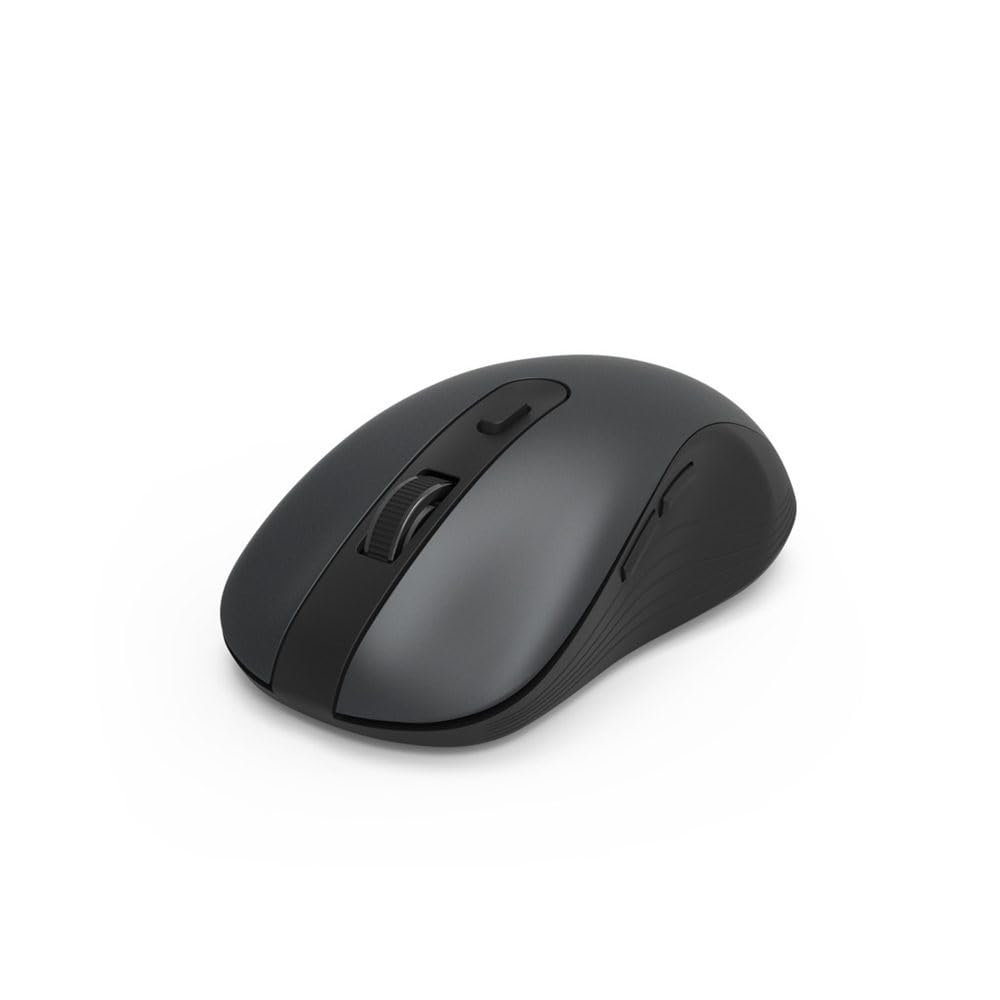
Image 1.1: Hama MW-650 Wireless Mouse (Top View)
2. Содержимое упаковки
Проверьте комплектацию на наличие следующих предметов:
- 1 x Hama MW-650 6-Button Optical Wireless Mouse
- 1 х USB-A приемник
- 2 батарейки типа АА «Миньон»
- 1 x Руководство по эксплуатации (этот документ)

Image 2.1: Hama MW-650 Product Packaging
3. Настройка
3.1. Установка аккумулятора
- Найдите батарейный отсек на нижней стороне мыши.
- Откройте крышку батарейного отсека.
- Вставьте две батарейки типа AA Mignon, соблюдая правильную полярность (+/-).
- Плотно закройте крышку батарейного отсека.
3.2. Включение/выключение питания
On the underside of the mouse, slide the ON/OFF switch to the 'ON' position to power on the mouse. Slide it to 'OFF' when not in use to conserve battery life.

Image 3.1: Underside of Hama MW-650 Mouse with ON/OFF Switch and Receiver
3.3. Варианты подключения
The Hama MW-650 mouse supports two wireless connection methods: 2.4 GHz via USB-A receiver and Bluetooth.
3.3.1. 2.4 GHz USB-A Receiver Connection
- Remove the USB-A receiver from its storage slot on the underside of the mouse.
- Plug the USB-A receiver into an available USB-A port on your computer or laptop.
- Операционная система должна автоматически обнаружить и установить необходимые драйверы.
- The mouse will connect automatically. The LED indicator for BT1/BT2 will not be lit when using the USB receiver.
3.3.2. Подключение по Bluetooth.
The mouse can connect to two separate Bluetooth devices (BT1 and BT2).
- Убедитесь, что мышь включена.
- Press the 'BT1' or 'BT2' button on the underside of the mouse to select the desired Bluetooth channel. The corresponding LED will flash slowly.
- To enter pairing mode, press and hold the selected 'BT1' or 'BT2' button for approximately 3 seconds until the LED flashes rapidly.
- На вашем устройстве (ПК, ноутбуке, планшете, смартфоне) включите Bluetooth и выполните поиск новых устройств.
- Select "Hama MW-650" from the list of available devices to pair.
- Once successfully paired, the LED will stop flashing and remain steadily lit for a few seconds before turning off.
4. Инструкция по эксплуатации
4.1. Основные функции мыши
The Hama MW-650 features 6 buttons and a scroll wheel:
- Левая кнопка мыши: Primary function, typically for selecting items or opening links.
- Правая кнопка мыши: Secondary function, typically for context menus.
- Колесо прокрутки: For scrolling up and down documents or web страниц. Также может быть использована для функции средней кнопки мыши.
- Кнопка разрешения: Расположен за колесиком прокрутки и используется для регулировки чувствительности курсора.
- Кнопки «Вперед/Назад»: Located on the side of the mouse, typically used for navigating web страницы или папки.
4.2. Переключение между устройствами
The MW-650 mouse allows you to switch between three connected devices (one via USB receiver, two via Bluetooth).
- To switch to a Bluetooth-connected device, press the 'BT1' or 'BT2' button on the underside of the mouse. The corresponding LED will light up briefly.
- To switch to the device connected via the USB receiver, press the 'USB' button (or the button without a BT label) on the underside of the mouse.

Image 4.1: Multi-Device Connectivity Example

Image 4.2: Multi-Device Setup with Monitor
4.3. Регулировка чувствительности DPI
The mouse offers adjustable DPI (Dots Per Inch) settings to control cursor speed and sensitivity. Press the DPI button located behind the scroll wheel to cycle through the available sensitivities:
- 800 точек на дюйм
- 1200 точек на дюйм (по умолчанию)
- 1600 точек на дюйм
- 2000 точек на дюйм
- 2400 точек на дюйм
Each press of the DPI button will change the sensitivity, allowing you to find the setting that best suits your task or preference.
5. Управление энергопотреблением
The Hama MW-650 mouse is designed with intelligent power management features to conserve battery life:
- Автоматический режим ожидания: The mouse will automatically enter a standby mode after a period of inactivity. To wake it up, simply move the mouse or click any button.
- Переключатель Вкл/Выкл: For extended periods of non-use, slide the ON/OFF switch on the underside of the mouse to the 'OFF' position to completely power down the device and maximize battery life.
6. Уход и обслуживание
6.1. Уборка
Чтобы сохранить производительность и внешний вид вашей мыши:
- Ensure the mouse is powered off before cleaning.
- Для протирки поверхности мыши используйте мягкую, сухую, безворсовую ткань.
- Для удаления стойких загрязнений слегкаampСмочите ткань водой или мягким чистящим раствором. Избегайте использования агрессивных химикатов и абразивных материалов.
- Периодически очищайте область оптического датчика на нижней стороне мыши ватным тампоном, чтобы обеспечить точное отслеживание.
6.2. Замена батареи
When the mouse's performance degrades or it stops responding, it may be time to replace the batteries.
- Power off the mouse using the ON/OFF switch.
- Откройте батарейный отсек на нижней стороне.
- Remove the old AA batteries and dispose of them according to local regulations.
- Insert new AA Mignon batteries, observing correct polarity.
- Закройте батарейный отсек.
7. Поиск Неисправностей
If you encounter issues with your Hama MW-650 mouse, please refer to the following common solutions:
| Проблема | Возможное решение |
|---|---|
| Мышь не реагирует. |
|
| Движение курсора хаотичное или медленное. |
|
| Невозможно переключаться между устройствами. |
|
| Сбой сопряжения по Bluetooth. |
|
8. Технические характеристики
| Номер модели | 00182617 (MW-650) |
| Технология связи | 2.4GHz RF (USB-A Receiver), Bluetooth 5.0 |
| Технология обнаружения движения | Оптический |
| Чувствительность DPI | 800 / 1200 / 1600 / 2000 / 2400 DPI (adjustable) |
| Количество кнопок | 6 (включая колесико прокрутки) |
| Форм-фактор | Правая рука |
| Источник питания | 2 x AA Mignon Batteries (included) |
| Срок службы батареи | До 288 дней (в зависимости от использования) |
| Совместимые операционные системы | Windows 11/10/8/7, Android 4.3 or higher, macOS 10.10 or higher, iOS 13 or higher |
| Размеры продукта (Д x Ш x В) | 11.3 x 6.3 x 4 см (4.41 x 2.48 x 1.57 дюймов) |
| Вес товара | 3.62 унции |
| Цвет | Черный |
9. Гарантия и поддержка
Информацию о гарантии и технической поддержке можно получить на официальном сайте Hama. webили обратитесь в службу поддержки напрямую. Сохраните чек на случай предъявления гарантийных претензий.
- Производитель: Хама ГмбХ & Ко КГ
- Webсайт: www.hama.com


