1. Введение
The Milfra Smart Plug (Model 501) is a versatile smart home device designed to bring convenience and efficiency to your daily life. This smart plug allows you to control your electronic devices remotely, via voice commands, or through scheduled timers. It features a 16A capacity, a built-in USB charging port, and is compatible with popular smart home ecosystems like Amazon Alexa and Google Home. This manual provides detailed instructions for setting up, operating, and maintaining your Milfra Smart Plug.

Изображение: Оверview of the Milfra Smart Plugs, highlighting their compact design and integrated USB port.
2. Информация по технике безопасности
Please read and understand all safety instructions before using the Milfra Smart Plug. Failure to follow these instructions may result in electric shock, fire, or other hazards.
- The smart plug is made from high-quality, flame-retardant PC-V0 materials for enhanced safety.
- Features built-in short-circuit protection, over-voltage protection, over-current protection, and overheating protection.
- Не разбирайте и не модифицируйте устройство.
- Не подвергайте устройство воздействию воды или чрезмерной влажности.
- Ensure the connected appliance's power consumption does not exceed the smart plug's maximum load (16A, 2000W).
- The USB port cannot be controlled via the app and remains continuously powered.
- This product is certified with CE, RoHS, and REACH for health and safety.
3. Особенности продукта
The Milfra Smart Plug offers a range of features designed to enhance your smart home experience:
- USB-порт зарядки: Conveniently charge your USB-powered devices directly from the smart plug.
- Timer and Countdown Function: Schedule your devices to turn on or off at specific times or after a set duration using the "Smart Life" app.
- Physical ON/OFF Button: Control the main socket directly on the device, in addition to app control.
- Группировка устройств: Integrate and control multiple smart plugs or other smart devices within your home.
- Семейный доступ: Share control of your smart plugs with family members through the app.
- Голосовое управление: Compatible with Amazon Alexa, Google Home Assistant, and supports SmartThings for hands-free operation.
- Дистанционное управление: Turn devices on/off from anywhere using the "Smart Life" or "Tuya" app on your smartphone.

Image: Key features and compatibility of the Milfra Smart Plug.
4. Настройка
4.1 Установка приложения
To control your Milfra Smart Plug, you need to download and install the "Smart Life" or "Tuya" app on your smartphone or tablet. These apps are available for both iOS and Android devices.
- Искать "Smart Life" or "Tuya Smart" in the Apple App Store (for iOS) or Google Play Store (for Android).
- Загрузите и установите приложение.
- Откройте приложение и зарегистрируйте новую учетную запись или войдите в систему, если она у вас уже есть.
4.2 Сопряжение устройств
Follow these steps to pair your Milfra Smart Plug with the app:
- Plug the Milfra Smart Plug into a standard wall outlet. The indicator light on the plug should start blinking rapidly, indicating it's in pairing mode. If not, press and hold the physical ON/OFF button for 5-10 seconds until it blinks rapidly.
- Open the "Smart Life" or "Tuya" app on your smartphone.
- Нажмите на кнопку "+" icon in the top right corner to add a device.
- Выберите «Электрическая розетка» или «Розетка (Wi-Fi)» из списка устройств.
- Убедитесь, что индикаторная лампочка быстро мигает.
- Enter your Wi-Fi network password (ensure you are connected to a 2.4GHz Wi-Fi network, as 5GHz is not supported).
- The app will begin connecting to the smart plug. Once connected, the indicator light will stop blinking and remain solid.
- You can now rename the device for easier identification (e.g., "Living Room Lamp").
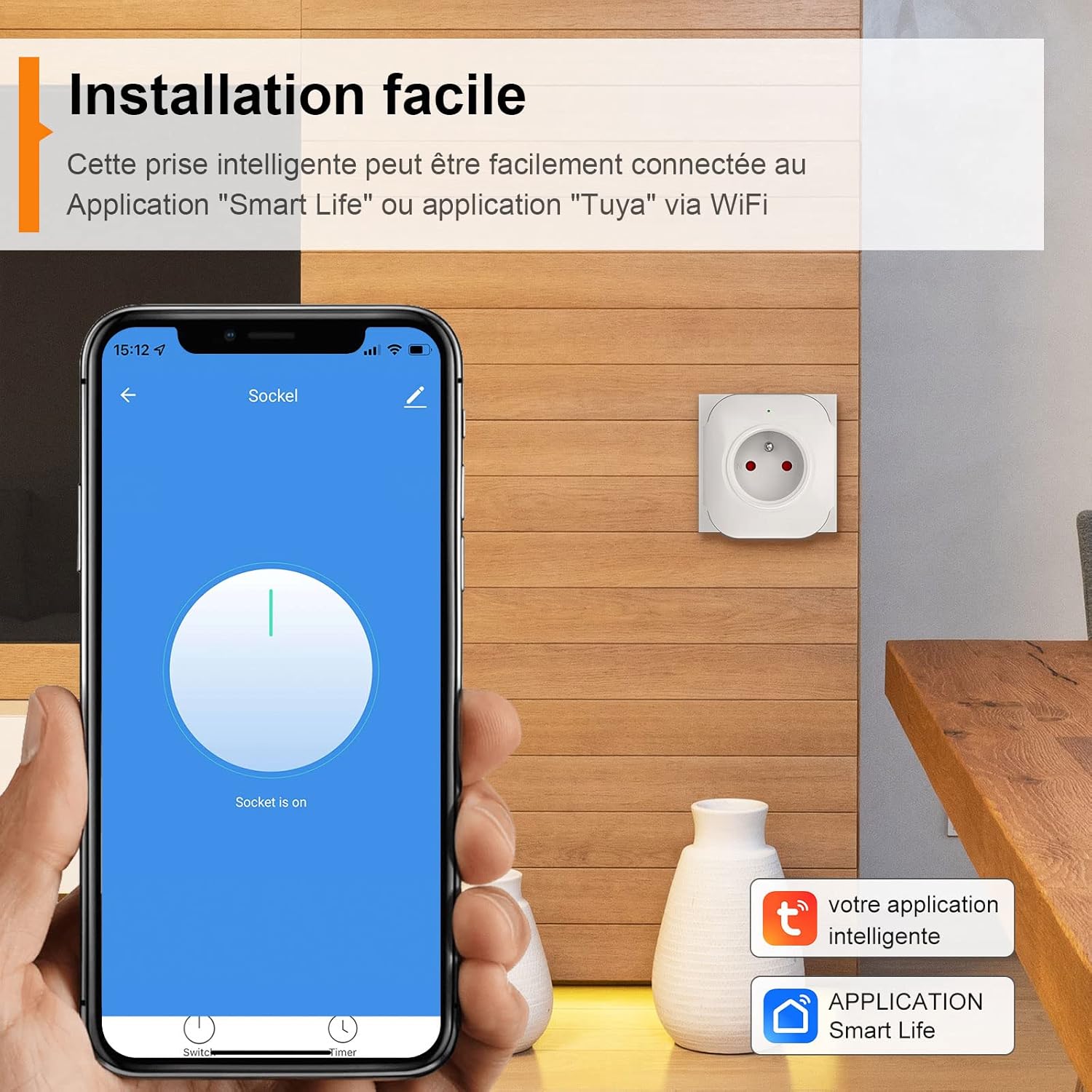
Image: Easy installation process using the Smart Life app.
5. Инструкция по эксплуатации
5.1 Удаленное управление через приложение
Once paired, you can control your Milfra Smart Plug from anywhere using the "Smart Life" or "Tuya" app.
- Откройте приложение и выберите умную розетку, которой хотите управлять.
- Tap the ON/OFF button on the app interface to toggle the power to the connected appliance.
- You can also group multiple smart plugs to control them simultaneously.

Image: Remote control functionality of the smart plug via the app.
5.2 Голосовое управление (Alexa и Google Home)
The Milfra Smart Plug is compatible with Amazon Alexa and Google Home Assistant, allowing for convenient voice control.
- Link the App: In your Alexa or Google Home app, enable the "Smart Life" or "Tuya Smart" skill/action. You will need to link your Smart Life/Tuya account.
- Откройте для себя устройства: Once linked, ask your voice assistant to "Discover devices" or manually add the device in the app.
- Голосовые команды: Используйте такие команды, как:
- «Алекса, включи [название устройства]»
- «Окей, Google, выключи [название устройства]»
- "Alexa, set [device name] to 50%" (if applicable for dimmable devices, though not directly for this plug)

Изображение: Бывшийampуправление голосом с помощью Amazon Alexa.
5.3 Функция таймера и обратного отсчета
Automate your devices by setting schedules and countdowns:
- Таймер: In the app, select your smart plug and navigate to the "Timer" or "Schedule" section. Set specific ON/OFF times for different days of the week.
- Обратный отсчет: Use the countdown feature to turn a device off after a set period (e.g., turn off a lamp after 30 minutes).

Image: Setting up timer programming for automated control.
5.4 Семейный доступ
Share control of your smart plugs with family members without sharing your account password:
- In the app, go to the device settings or "Home Management" section.
- Select "Share Device" or "Add Member".
- Enter the account (email or phone number) of the family member you wish to share with. They must also have a "Smart Life" or "Tuya" account.
- The shared member will receive an invitation and can then control the device from their own app.

Image: Family sharing feature allowing multiple users to control smart devices.
5.5 USB-зарядка
The integrated USB port provides a convenient charging solution for your devices.
- Simply plug your USB charging cable into the USB port on the smart plug.
- Note that the USB port is always active and cannot be controlled via the app or voice commands.
- USB Output: 5V/1A.

Image: USB charging functionality of the smart plug.
6. Техническое обслуживание
To ensure the longevity and proper functioning of your Milfra Smart Plug, follow these simple maintenance guidelines:
- Keep the smart plug clean by wiping it with a soft, dry cloth.
- Не используйте агрессивные химикаты или абразивные чистящие средства.
- Перед чисткой убедитесь, что вилка отсоединена от розетки.
- Store the plug in a cool, dry place when not in use.
7. Поиск Неисправностей
| Проблема | Возможная причина | Решение |
|---|---|---|
| Умная розетка не может подключиться к Wi-Fi. | Incorrect Wi-Fi password; 5GHz Wi-Fi network; plug too far from router; router issues. |
|
| Устройство в приложении отключено. | Wi-Fi disconnected; power outagе; вилка отключена. |
|
| Голосовое управление не работает. | Skill/action not enabled; device not discovered; incorrect device name. |
|
| USB-порт не заряжает. | Cable issue; device issue; power issue. |
|
8. Технические характеристики
| Атрибут | Ценить |
|---|---|
| Бренд | Милфра |
| Номер модели | 501 |
| Материал | Поликарбонат (ПК) |
| Цвет | Белый |
| Номинальный ток | 16A (Макс.) |
| Номинальный объемtage | 100–240 В переменного тока (50/60 Гц) |
| Номинальная мощность | 2000 Вт |
| USB-выход | 5В/1А |
| Частота беспроводной связи | 2.4ГГц |
| Беспроводной стандарт | IEEE802.11b/g/n |
| Совместимые устройства | Alexa, Google Home, SmartThings |
| Размеры продукта | 73 х 69 х 36.5 мм |
| Вес товара | 550 g (for 4-pack, individual weight not specified) |

Image: Detailed dimensions and technical specifications of the Milfra Smart Plug.
9. Гарантия и поддержка
Milfra products are designed for reliability and performance. For warranty information and technical support, please refer to the official Milfra webили обратитесь в службу поддержки клиентов. Сохраните чек о покупке в качестве подтверждения покупки на случай предъявления гарантийных претензий.
Для получения дополнительной помощи посетите, пожалуйста, Milfra Store on Amazon.


