1. Введение
This manual provides essential information for the safe and efficient operation of your GIGABYTE AORUS FO48U 48" 4K OLED Gaming Monitor. Please read this manual thoroughly before using the product and retain it for future reference. The AORUS FO48U is designed to deliver a high-performance visual experience with its 4K OLED display, fast refresh rate, and advanced features.
2. Информация по технике безопасности
Соблюдайте следующие меры предосторожности, чтобы предотвратить повреждение монитора и обеспечить безопасность пользователя:
- Не подвергайте монитор воздействию дождя или влаги во избежание возгорания или поражения электрическим током.
- Не открывайте монитор casing. Внутри нет деталей, подлежащих обслуживанию пользователем. По всем вопросам обслуживания обращайтесь к квалифицированному персоналу.
- Установите монитор на устойчивую ровную поверхность, чтобы предотвратить его падение.
- Обеспечьте достаточную вентиляцию вокруг монитора. Не закрывайте вентиляционные отверстия.
- Используйте только адаптер питания и кабели, предоставленные производителем или указанные им в инструкции.
- Отключайте монитор от розетки во время грозы или если он не используется в течение длительного времени.
- Не прикасайтесь к экрану острыми предметами, чтобы не повредить его.
3. Содержимое упаковки
Убедитесь, что все перечисленные ниже предметы включены в ваш пакет:
- GIGABYTE AORUS FO48U 48" 4K OLED Gaming Monitor
- Кабель питания
- Кабель HDMI 2.1
- Кабель DP 1.4
- USB 3.0 B to A cable
- Краткое руководство (QSG)
- Гарантийный талон
- AORUS Remote Control
4. Настройка
4.1 Физическая установка
The monitor can be set up using its included stand or a VESA-compatible wall mount.
Сборка подставки:
Follow the instructions in the Quick Start Guide to securely attach the stand to the monitor base. Ensure all screws are tightened.
Установка настенного крепления VESA:
The AORUS FO48U supports VESA wall mounts with a 300 x 300mm pattern. Remove the stand if already attached. Use appropriate screws and a VESA-compatible bracket (not included) to mount the monitor. Refer to your wall mount's instructions for specific installation steps.

Изображение: сзади view of the AORUS FO48U monitor, highlighting the VESA 300x300mm mounting points for wall installation.
4.2 Подключение кабелей
Connect the necessary cables to the monitor's I/O ports. Ensure the monitor is powered off before connecting or disconnecting cables.

Изображение: детальная сторона view of the monitor's I/O ports, including USB 3.0, USB Upstream, USB Type-C (KVM), DisplayPort 1.4, HDMI 2.1, Headphone Jack, and Audio Line-Out.
- Подключение питания: Подключите кабель питания к разъему питания монитора, а затем к розетке.
- Видео вход: Connect your PC or gaming console using either the provided HDMI 2.1 cable or DisplayPort 1.4 cable. The monitor features two HDMI 2.1 ports and one DisplayPort 1.4.
- USB-соединения: Connect the USB 3.0 B to A cable from your PC to the monitor's USB Upstream port to enable the monitor's USB 3.0 ports and KVM functionality.
- USB Type-C (KVM): For KVM functionality, connect a USB Type-C cable (10Gbps Type-C cable required, not always included) from your device to the monitor's USB Type-C port. This allows control of multiple devices with a single keyboard and mouse connected to the monitor.
- Аудиовыход: Use the Headphone Jack or Audio Line-Out for external audio devices.
4.3 Первоначальное включение питания
After connecting all necessary cables, press the power button on the monitor to turn it on. The monitor will automatically detect the active input source. If no signal is detected, ensure your source device is powered on and correctly connected.
5. Инструкция по эксплуатации
5.1 Навигация по экранному меню (OSD)
The monitor's settings can be adjusted using the OSD menu, typically accessed via a joystick or buttons on the monitor's rear or bottom edge, or with the included AORUS Remote Control.
- Use the joystick/buttons or remote to navigate through menu options.
- Press to select an option or enter a sub-menu.
- Move left/right or up/down to adjust values or select different settings.
- Press the back button or move the joystick in a specific direction (as indicated on-screen) to exit menus.
5.2 Основные характеристики
The AORUS FO48U offers several features for an enhanced viewОпыт игры и развлечений:
- Разрешение 4K UHD (3840x2160): Provides crisp, detailed visuals.
- Частота обновления 120 Гц: Ensures smooth motion for gaming and fast-paced content.
- 1ms (GTG) Response Time: Сводит к минимуму двоение изображения и размытие при движении.
- FreeSync Premium Support: Синхронизирует частоту обновления монитора с видеокартой для плавной игры без разрывов изображения.
- 10-bit Color / 98% DCI-P3 / 130% sRGB: Delivers accurate and vibrant color reproduction.

Image: Visual comparison demonstrating the difference between 1ms response time at 120Hz refresh rate and 5ms response time at 60Hz, illustrating smoother motion with higher specifications.
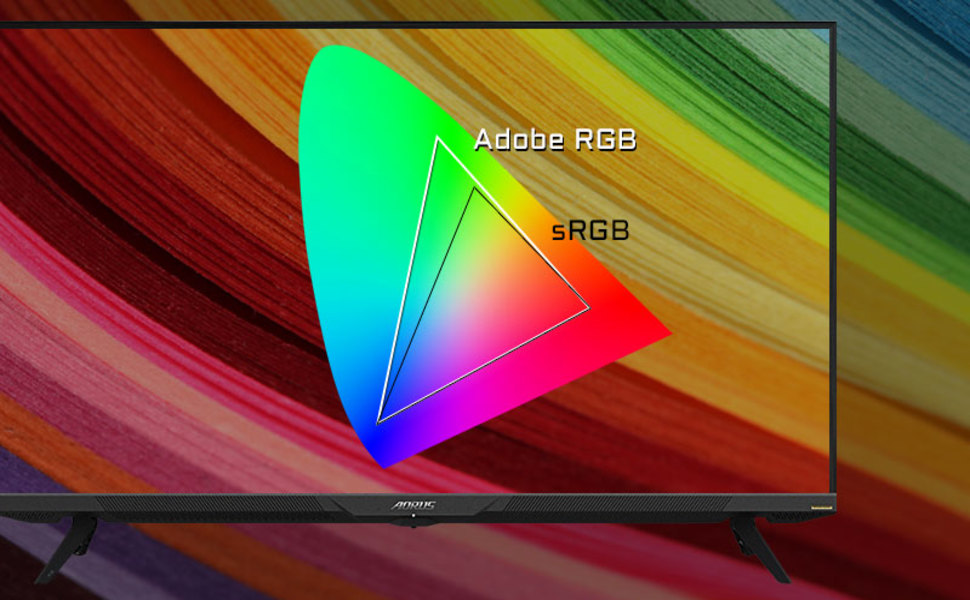
Image: A visual representation of color gamut, comparing Adobe RGB and sRGB color spaces, indicating the monitor's wide color coverage.
5.3 Особенности
The monitor includes several advanced features accessible via the OSD or OSD Sidekick software:
- OSD Sidekick: A software utility that allows you to control OSD settings directly from your desktop.
- Picture-in-Picture (PiP) / Picture-by-Picture (PbP): Display content from multiple sources simultaneously on the screen.
- Панель инструментов: Real-time hardware information display (e.g., CPU/GPU temperature, fan speed).
- Черный эквалайзер: Enhances visibility in dark areas without overexposing bright areas.
- Game Assist: Provides in-game enhancements like crosshairs, timers, and refresh rate counters.
- Space Audio: Offers 5 modes of audio experiences for immersive sound.
- KVM Feature: Allows you to control multiple devices (e.g., two PCs) connected to the monitor using a single keyboard and mouse. Connect devices via USB Type-C and USB 3.0 Upstream ports.

Image: A diagram showing how the Type-C KVM feature allows switching between a desktop PC and a laptop connected to the monitor using one keyboard and mouse.
6. Техническое обслуживание
6.1 Очистка монитора
To clean the monitor, first unplug the power cord. Use a soft, lint-free cloth lightly dampened with water or a mild, non-abrasive screen cleaner. Do not spray cleaner directly onto the screen. Avoid using alcohol, ammonia, or abrasive cleaners, as they can damage the screen surface.
6.2 OLED Care and Burn-in Prevention
OLED displays are susceptible to image retention (burn-in) if static images are displayed for extended periods. To prolong the life of your OLED panel:
- Avoid displaying static images (e.g., desktop icons, taskbars, logos) for long durations.
- Используйте заставки или динамические обои.
- Enable the monitor's built-in OLED care features (e.g., pixel shift, pixel refresh, logo luminance adjustment) through the OSD menu.
- Уменьшайте яркость экрана, когда он не нужен.
- Power off the monitor when not in use.
7. Поиск Неисправностей
Если у вас возникли проблемы с монитором, ознакомьтесь со следующими распространенными проблемами и решениями:
| Проблема | Возможная причина | Решение |
|---|---|---|
| Нет изображения на экране | Power cable disconnected; Video cable disconnected or loose; Incorrect input source selected; Source device off. | Check power and video cable connections; Ensure source device is on; Select correct input source via OSD. |
| Изображение размыто или искажено | Incorrect resolution; Video cable quality; Graphics card driver issues. | Set display resolution to 3840x2160; Use high-quality HDMI 2.1 or DP 1.4 cables; Update graphics drivers. |
| Screen randomly turns off/on | Loose video cable; Power supply issue; Monitor firmware issue; Source device instability. | Ensure video cables are securely connected; Try a different power outlet; Check for and install the latest monitor firmware updates from GIGABYTE's website; Test with a different source device. |
| Нет звука | Volume too low or muted; Incorrect audio output selected; Audio cable disconnected. | Adjust monitor volume; Select correct audio output in PC settings; Ensure external speakers/headphones are connected. |
| KVM feature not working | Incorrect USB cable; USB Upstream cable not connected; Devices not properly configured. | Ensure a 10Gbps USB Type-C cable is used for Type-C connection; Connect the USB 3.0 B to A cable to your primary PC; Refer to the OSD Sidekick software for KVM setup. |
8. Технические характеристики
Key technical specifications for the GIGABYTE AORUS FO48U monitor:
| Особенность | Деталь |
|---|---|
| Размер экрана | 48 дюйма |
| Тип панели | OLED |
| Разрешение | 3840 x 2160 (4K UHD) |
| Частота обновления | 120 Гц |
| Время отклика | 1ms (GTG) |
| Цветовая гамма | 98 % DCI-P3/130 % sRGB |
| Глубина цвета | 10-битный |
| Viewугол наклона | 178°(Г)/178°(В) |
| Связность | 2x HDMI 2.1, 1x DisplayPort 1.4, 1x USB Type-C (KVM), 2x USB 3.0, 1x USB 3.0 Upstream, Earphone Jack, Audio Line-Out |
| Спикеры | 2x 15W, 1x 20W (Space Audio) |
| VESA Mount | 300 х 300 мм |
| Размеры (ШxВxГ) | 26.58 x 42.07 x 9.89 дюйма (с подставкой) |
| Масса | 39.8 фунта (с подставкой) |
9. Гарантия и поддержка
For detailed warranty information, please refer to the warranty card included in your product package or visit the official GIGABYTE website. For technical support, driver downloads, and further assistance, please visit the GIGABYTE support page or contact their customer service.
Официальный представитель GIGABYTE Webсайт: www.gigabyte.com


