1. Продукт закончилсяview
The Makeid L1-A Label Maker is a portable and rechargeable wireless label printer designed for creating custom labels at home, school, or work. It connects wirelessly via Bluetooth to compatible Android and iOS devices, allowing users to design personalized labels using a dedicated mobile application. This device utilizes thermal printing technology to produce clear and lasting prints on waterproof, fade-resistant, and residue-free label tapes. It features a built-in cutter for easy label separation.
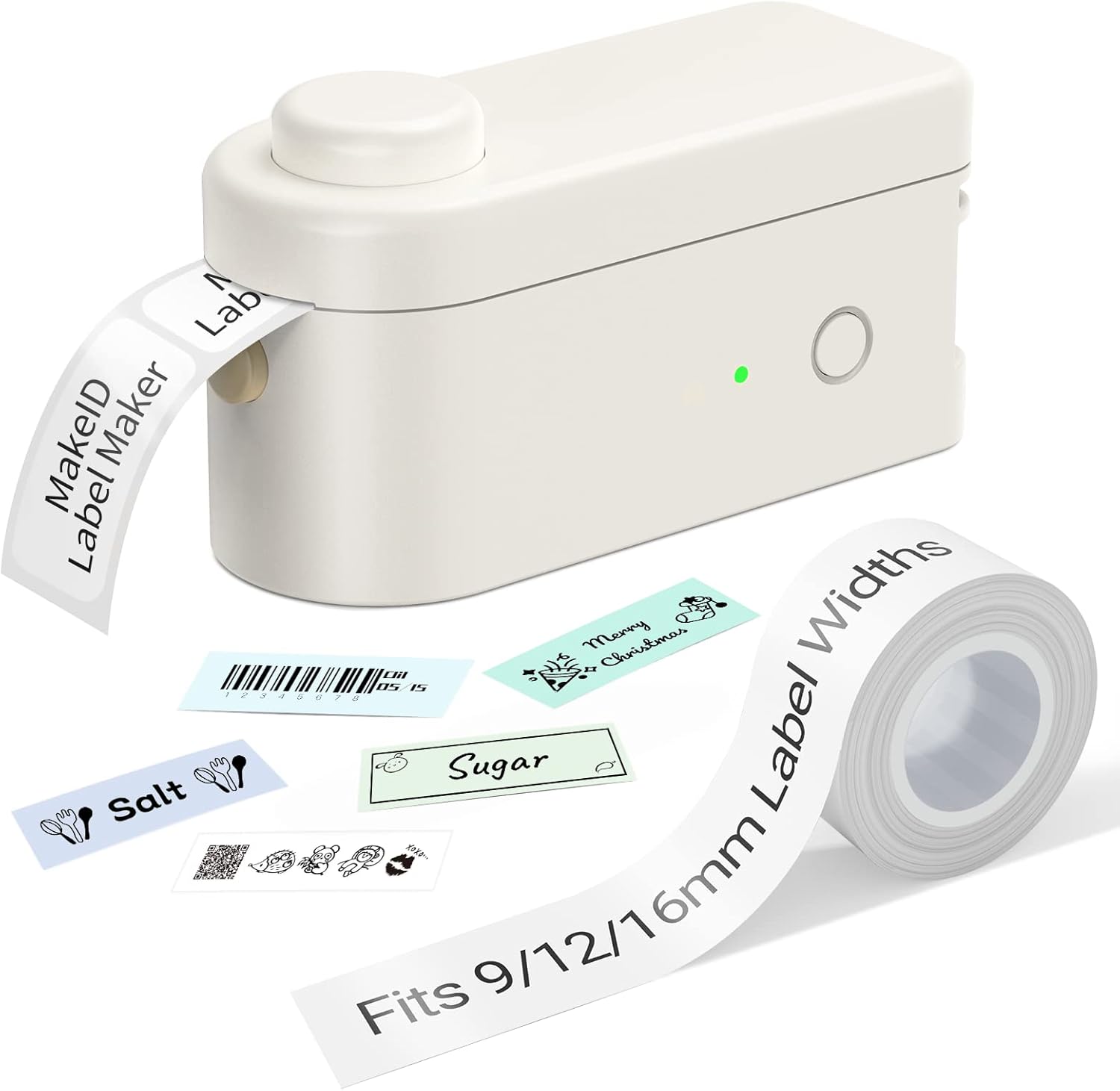
Figure 1: Makeid L1-A Label Maker with a roll of label tape and examples of printed labels, demonstrating its compact size and output capabilities.
2. Информация по технике безопасности
- Не подвергайте устройство воздействию экстремальных температур, прямых солнечных лучей или высокой влажности.
- Держите устройство вдали от воды и других жидкостей.
- Не пытайтесь разбирать или ремонтировать устройство самостоятельно. Обратитесь к квалифицированному специалисту.
- Use only Makeid approved label tapes and accessories.
- Хранить в недоступном для детей месте.
- Обеспечьте надлежащую вентиляцию во время зарядки.
3. Руководство по установке
3.1 Распаковка и первоначальная оплата
Carefully remove the label maker and any accessories from the packaging. Before first use, fully charge the device using the provided USB cable. The charging indicator light will typically change color or turn off when charging is complete.
3.2 Наклеивание этикеточной ленты
- Откройте крышку отсека для ленты на этикеточном принтере.
- Insert the label tape cartridge, ensuring it clicks into place securely.
- Gently pull a small length of tape out of the cartridge, extending it slightly past the cutter.
- Закройте крышку отсека для ленты.

Figure 2: The Makeid label maker with its tape compartment open, illustrating the process of inserting a label tape cartridge.
3.3 Загрузка приложения и подключение по Bluetooth
The Makeid label maker operates via a dedicated mobile application. Download the "MakeID-Life" app from your device's app store (Google Play for Android, App Store for iOS).

Figure 3: Step-by-step guide within the Makeid app demonstrating how to turn on Bluetooth, select the L1 model, and confirm the connection for printing.
- Убедитесь, что на вашем смартфоне или планшете включен Bluetooth.
- Open the MakeID-Life app.
- Turn on the Makeid label maker by pressing the power button.
- Within the app, navigate to the device connection section (often indicated by a Bluetooth icon or "Connect Device").
- Select the "L1" model from the list of available devices.
- Confirm the connection. The app will indicate when the device is successfully paired.
4. Инструкция по эксплуатации
4.1 Разработка этикеток
The MakeID-Life app provides a versatile interface for label design. You can:
- Enter text and choose from multiple font styles.
- Add numbers, symbols, emojis, and icons.
- Create continuous labels or die-cut labels (depending on tape type).
- Adjust label length and other parameters.

Figure 4: The Makeid-Life app displaying various font choices and customization features, including the ability to add images, QR codes, and barcodes to labels.
4.2 Печать этикеток
После завершения разработки дизайна этикетки в приложении:
- Нажмите кнопку «Печать» в приложении.
- The label maker will begin printing the label.
- After printing, wait for the label to fully emerge from the printer.
- Press the built-in cutter button to cleanly cut the label.

Рисунок 5: Examples of labels created with the Makeid label maker, demonstrating its versatility for continuous labels (9mm, 12mm, 16mm widths) and die-cut labels, suitable for various classification needs.

Figure 6: Demonstrations of the Makeid label maker's practical applications, including personal item identification, business product labeling, kitchen organization, and cautionary reminders.
5. Техническое обслуживание
5.1 Очистка печатающей головки
Для обеспечения оптимального качества печати периодически очищайте печатающую головку термопринтера. Используйте мягкую безворсовую ткань, слегка протирая ею головку.ampened with isopropyl alcohol. Gently wipe the print head surface. Ensure the device is turned off and unplugged before cleaning.
5.2 Хранение
Store the label maker in a cool, dry place away from direct sunlight and extreme temperatures. Remove the label tape cartridge if the device will not be used for an extended period.
6. Поиск Неисправностей
| Проблема | Возможная причина | Решение |
|---|---|---|
| Устройство не включается. | Низкий заряд батареи; кнопка питания нажата неправильно | Charge the device; Press and hold the power button for a few seconds. |
| Невозможно подключиться через Bluetooth | Bluetooth off on phone/tablet; Device not in pairing mode; App issue | Ensure Bluetooth is on; Restart the label maker; Restart the app; Forget device in phone's Bluetooth settings and re-pair. |
| Poor print quality / Faded print | Print head dirty; Incorrect tape installed; Low battery | Clean the print head; Ensure correct Makeid tape is used; Charge the device. |
| Tape jam / Label not feeding | Tape not installed correctly; Obstruction in tape path | Re-install tape cartridge; Check for any debris and carefully remove. |
7. Технические характеристики
- Бренд: Макейд
- Название модели: Л1-А
- Технологии подключения: Bluetooth
- Технология печати: Термальный
- Особые характеристики: Portable, Wireless, Built-in Cutter
- Compatible Tape Widths: 9мм, 12мм, 16мм
- Выход на принтер: Монохромный
- Максимальная скорость печати: 25 частей на миллион
- Вес товара: 0.28 фунта (приблизительно 127 г)
- DPI Resolutions: 203DPI, 300DPI (model dependent)
8. Гарантия и поддержка
Specific warranty information is typically provided with your product packaging or on the manufacturer's official webПодробную информацию о гарантийном покрытии и условиях см. на этих ресурсах.
For technical support, troubleshooting assistance beyond this manual, or inquiries about replacement parts and accessories, please visit the official Makeid website or contact their customer service department. Contact information can usually be found on the product packaging or the Makeid brand store page.
Note: As per the provided product data, specific warranty duration or direct support contact details are not available in this document.


