
Dell 7920 Tower
Dell Precision 7920 Tower Workstation User Manual
Model: 7920 Tower
Введение
This manual provides essential information for setting up, operating, maintaining, and troubleshooting your Dell Precision 7920 Tower Workstation. This high-performance system is designed for demanding tasks such as VR, CG, AI, 4K editing, and rendering, featuring powerful Intel Xeon Gold processors, ample DDR4 memory, and robust storage solutions.
Please read this manual thoroughly before using the workstation to ensure optimal performance and longevity.
Руководство по настройке
Распаковка и первоначальный осмотр
Carefully remove the workstation from its packaging. Inspect the unit for any signs of physical damage that may have occurred during transit. Retain all packaging materials for future use or if the unit needs to be returned.

Рисунок 1: Передняя часть view of the Dell Precision 7920 Tower Workstation, showcasing its black chassis with a mesh front panel and front I/O ports.
Подключение периферийных устройств
Before powering on, connect all necessary peripherals. Refer to the port diagram for proper connection points.
- Монитор: Connect your display to the Nvidia Quadro P1000 graphics card using one of the four Mini Display Ports. Adapters may be required.
- Клавиатура и мышь: Connect your USB keyboard and mouse to any available USB 3.1 Gen 1 Type A ports on the front or rear. PS/2 ports are also available on the rear.
- Сеть: Connect an Ethernet cable to one of the two RJ45 Network ports on the rear.
- Власть: Connect the power cable to the power supply unit (PSU) inlet on the rear of the workstation and then to a grounded electrical outlet.

Рисунок 2: Сзади view of the Dell Precision 7920 Tower Workstation, displaying various I/O ports including USB, network, audio, and power connections.

Figure 3: Detailed diagram illustrating the front and rear ports and slots of the Dell Precision 7920 Tower Workstation, with numbered labels for identification.
Key to Ports & Slots:
- Power button/Power light
- Индикатор активности диска
- Слот для SD-карты
- USB-порты 3.0
- USB 3.0 Type-C port with PowerShare
- Порт USB 3.0 Type-C
- Порт для гарнитуры
- Drive access release latch
- Слоты для плат расширения
- 5.25 inch bay (optional)
- Оптический привод
- Разъем кабеля питания
- USB-порты 3.0
- Drive carriers
- Discrete graphics card slot (optional)
- Слот для троса безопасности
- Кольцо с замком
- Порт линейного выхода
- Microphone/Line-in port
- Последовательный порт
- Порт мыши PS/2
- Порт клавиатуры PS/2
- Network port (managed optionally)
- Сетевой порт
- USB 3.0 port (supports smart Power-On)
- Слоты для плат расширения
Инструкция по эксплуатации
Включение и начальная загрузка
Once all peripherals are connected, press the power button on the front of the workstation. The system will begin its boot sequence. The Dell Precision 7920 comes pre-installed with Windows 11 Professional 64-bit.
Конфигурация системы
Upon first boot, you may be prompted to complete the Windows setup process, including user account creation and network configuration. Follow the on-screen instructions.
Управление хранением
The workstation is equipped with 2x 1TB SSDs and 2x 4TB HDDs, providing a total of 10TB of storage. These drives are hot-swappable, allowing for easy expansion or replacement without powering down the system. For optimal performance, install operating systems and frequently used applications on the SSDs.
Производительность графики
The Nvidia Quadro P1000 4GB graphics card is optimized for professional applications requiring high graphical fidelity and computational power, such as CAD, video editing, and 3D rendering. Ensure your graphics drivers are up to date for the best performance.
Обслуживание
Уборка
Regularly clean the exterior of the workstation with a soft, lint-free cloth. For dust accumulation on vents and internal components, use compressed air. Ensure the system is powered off and unplugged before cleaning internal parts.
Обновления программного обеспечения
Keep your operating system (Windows 11 Pro) and all drivers, especially graphics drivers, updated to ensure system stability, security, and optimal performance. Windows Update can manage most system updates automatically.
Internal Component Access
The Dell Precision 7920 Tower is designed for easy access to internal components for upgrades or maintenance. The side panel can be removed to access memory slots, expansion cards, and drive bays.

Рисунок 5: В разобранном виде view of the Dell Precision 7920 Tower Workstation, illustrating the modular design and accessibility of internal components such as fans, drives, and expansion cards.
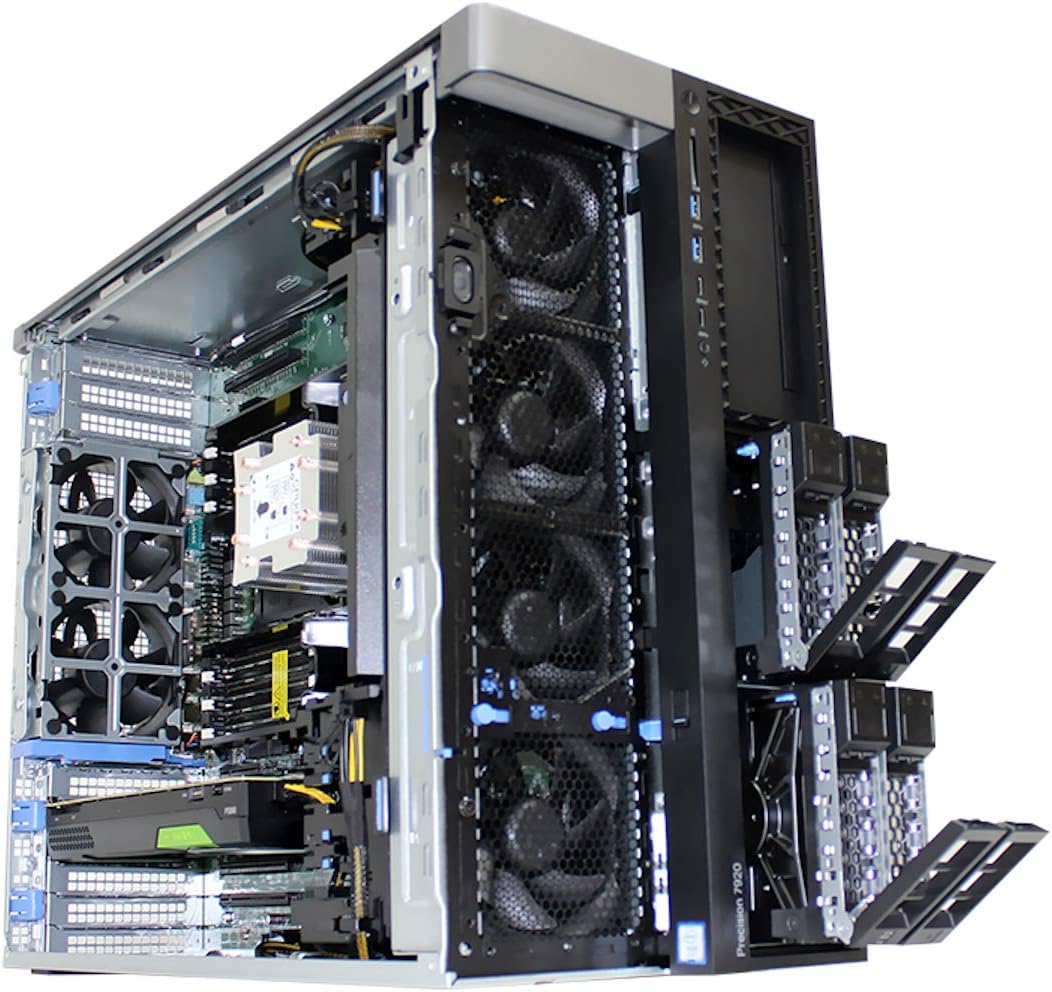
Рисунок 6: Внутренний view of the Dell Precision 7920 Tower Workstation with the side panel removed, showing the accessible drive bays and cooling system.
Поиск неисправностей
Распространенные проблемы и решения
- Нет питания:
Ensure the power cable is securely connected to both the workstation and a working electrical outlet. Verify the power supply unit (PSU) switch is in the 'On' position. Test the outlet with another device.
- Нет дисплея:
Check that the monitor is powered on and the video cable is securely connected to both the graphics card and the monitor. Ensure the correct input source is selected on your monitor. Try connecting to a different display port on the graphics card.
- Замедление работы системы:
Check Task Manager for high CPU or RAM usage by specific applications. Ensure sufficient free space on your SSD. Run a disk cleanup and defragmentation (for HDDs). Update drivers and operating system.
- Периферийное устройство не обнаружено:
Try connecting the peripheral to a different USB port. Restart the workstation. Check Device Manager in Windows for any unrecognized devices and install necessary drivers.
- Optical Drive Issues:
If the optical drive is not powering up or detecting discs, ensure its power and SATA data cables are securely connected internally. Refer to the internal component access section for guidance.
Технические характеристики
| Компонент | Спецификация |
|---|---|
| Система | Dell Precision 7920 Tower Workstation |
| Процессор | 2x Intel Xeon Gold 6130 16-Core 2.1GHz (3.7GHz Turbo) |
| Память | 192GB DDR4 Memory (upgradable to 1.5TB) |
| Хранилище | 2x 1TB SSD + 2x 4TB HDD (Removable Hot Swap) |
| Видеокарта | Nvidia Quadro P1000 4GB (4x Mini Display Ports) |
| Оптический привод | ДВД |
| Передние порты ввода / вывода | 2x USB 3.1 Gen 1 Type A, 2x USB 3.1 Type C, 1x Universal Audio Jack |
| Задние порты ввода/вывода | 6x USB 3.1 Gen 1 Type A, 1x Serial, 2x RJ45 Network, 2x PS2, 1x Audio Line out, 1x Audio Line in/Microphone |
| Источник питания | Блок питания 1450W |
| Операционная система | Windows 11 Профессиональная 64-бит |
| Размеры (ДxШxВ) | 22.29 x 8.58 x 17.05 дюйма |
Гарантия и поддержка
This Dell Precision 7920 Tower Workstation is a renewed product. It is tested and certified to look and work like new. The refurbishing process includes functionality testing, basic cleaning, inspection, and repackaging. The product ships with a minimum 90-day warranty.
For technical support or warranty claims, please refer to the documentation provided by the seller or contact the seller directly. Dell may require a support contract for direct assistance with renewed products.
For additional information or to purchase extended protection plans, please visit the product page on Amazon.com or contact your reseller.
- Продавец: Tech Supply Direct
- Гарантия: Minimum 90-day warranty
- Политика возврата: 90-дневный возврат/замена
Ask a question about this manual
Ask about setup, troubleshooting, compatibility, parts, safety, or missing instructions. Manuals+ will review the question and use this page’s manual context to help answer it.