1. Введение
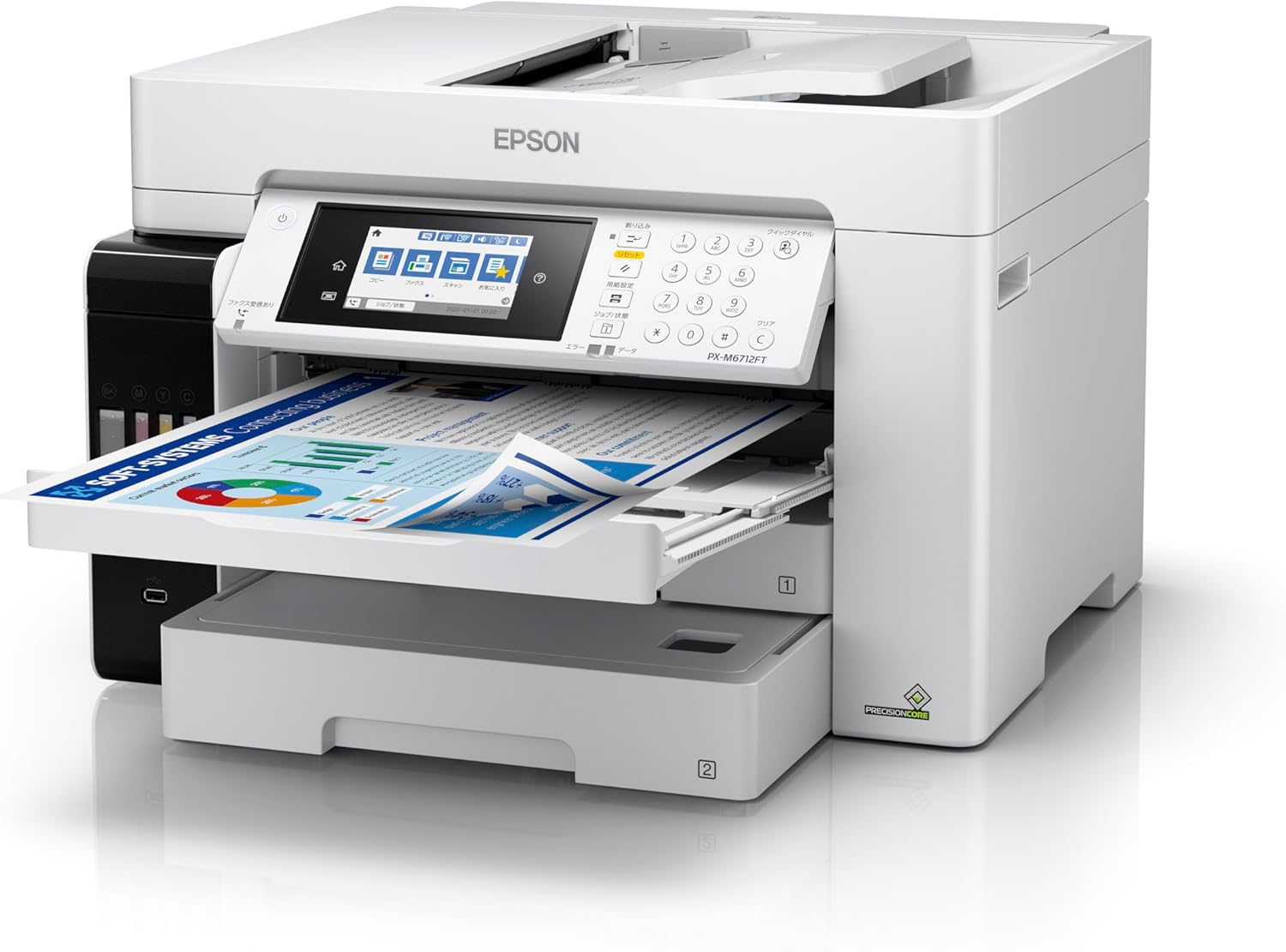
This manual provides detailed instructions for setting up, operating, and maintaining your Epson EcoTank PX-M6712FT A3 Color Inkjet Multifunction Printer. This device offers low printing costs, large ink capacity, and high-speed printing, making it suitable for various business needs. It integrates print, scan, copy, and fax functions, supporting A3+ paper sizes and featuring a large 550-sheet paper capacity.
For additional support and resources, please visit the official Магазин Epson.
2. Информация по технике безопасности
Перед использованием принтера внимательно ознакомьтесь со всеми инструкциями по технике безопасности, чтобы предотвратить травмы или повреждения. Сохраните это руководство для дальнейшего использования.
- Всегда подключайте принтер к заземленной розетке.
- Не размещайте принтер под прямыми солнечными лучами, вблизи источников тепла, а также в местах с повышенной запыленностью или влажностью.
- Keep ink bottles out of reach of children. If ink is swallowed, seek medical attention immediately.
- Avoid touching internal components of the printer, especially during operation.
- Use only genuine Epson ink bottles and recommended paper types for optimal performance and to avoid damage.
3. Настройка
3.1 Распаковка и размещение
Carefully remove the printer from its packaging. Ensure all protective materials and tapes are removed. Place the printer on a stable, level surface with adequate space around it for ventilation and paper handling.


3.2 Заполнение чернильниц
The EcoTank system allows for easy and mess-free ink refilling. Open the ink tank unit cover located on the side of the printer. Unscrew the cap of each ink bottle and insert it into the corresponding color tank. The ink will automatically fill and stop when the tank is full. Close the caps and the tank unit cover.

3.3 Подключение питания и первоначальная настройка
Connect the power cord to the printer and then to a power outlet. Turn on the printer. Follow the on-screen instructions on the control panel to complete the initial setup, including language selection and date/time settings.
3.4 Установка программного обеспечения
Insert the provided software disk into your computer or download the latest drivers and software from the Epson support website. Follow the on-screen prompts to install the necessary software for printing, scanning, and faxing.
Сетевое подключение 3.5
The printer supports Ethernet, USB, and Wi-Fi connectivity. For Wi-Fi setup, navigate to the network settings on the printer's control panel and select your Wi-Fi network. Enter the password if prompted. For Ethernet, connect a network cable from the printer to your router or network hub.
3.6 Загрузка бумаги
The printer features two front paper cassettes, each holding 250 sheets, for a total standard capacity of 500 sheets. It also has a rear manual feed tray for specialized media. Load paper into the desired tray, ensuring it is aligned correctly. The printer supports A3+ paper sizes.

4. Инструкция по эксплуатации
4.1 Базовая печать
To print a document from your computer, select the Epson PX-M6712FT from your printer list. Adjust print settings such as paper size (A4, A3+, etc.), color/monochrome, and duplex printing as needed. The printer offers high-speed printing at approximately 25 images per minute (ipm) and a first print out time of about 5.5 seconds.

4.2 Копирование документов
Place your document on the scanner glass or in the Automatic Document Feeder (ADF). On the printer's touchscreen control panel, select the 'Copy' function. Adjust settings like number of copies, color/monochrome, and paper size. Press the Start button to begin copying.

4.3 Сканирование документов
Place your document on the scanner glass or in the ADF. Select the 'Scan' function from the control panel. Choose your scan destination (e.g., computer, cloud service, USB drive) and adjust scan settings. Press Start to scan.
4.4 Факс
Load your document into the ADF. Select the 'Fax' function on the control panel. Enter the recipient's fax number using the keypad or select from your address book. Press Start to send the fax.
4.5 Мобильная печать
The Epson PX-M6712FT supports mobile printing via Wi-Fi. Download the Epson iPrint app or use compatible mobile printing services. Connect your mobile device to the same Wi-Fi network as the printer and follow the app's instructions to print documents or photos directly from your device.
5. Техническое обслуживание
5.1 Проверка уровня чернил и заправка
Regularly check the ink levels in the EcoTank system. When a tank is low, refill it using the appropriate color ink bottle as described in Section 3.2. The 'Just Insert and Fill' system ensures easy and clean refilling.
5.2 Очистка печатающей головки
If print quality declines (e.g., missing lines, streaking), perform a print head cleaning from the printer's maintenance menu on the control panel. This process clears clogged nozzles.
5.3 Waste Ink Tank Replacement
The printer has a user-replaceable waste ink tank. When prompted by the printer, replace the waste ink tank. Refer to the user guide for specific instructions on how to access and replace this component.

5.4 Очистка тракта подачи бумаги
If paper jams occur frequently or print quality is affected by smudges, clean the paper path rollers. Consult the detailed user guide for instructions on how to perform this procedure safely.
6. Поиск Неисправностей
This section addresses common issues you might encounter with your Epson PX-M6712FT printer.
- Принтер не отвечает: Ensure the printer is powered on and properly connected to your computer or network. Check for any error messages on the control panel.
- Застревание бумаги: Follow the on-screen instructions or refer to the detailed user guide to clear any jammed paper. Always remove paper gently to avoid tearing.
- Плохое качество печати: Perform a nozzle check and print head cleaning (Section 5.2). Ensure you are using appropriate paper and genuine Epson ink. Note that bleeding may occur with certain markers or paper combinations; it is recommended to wait approximately 5 minutes after printing before using markers.
- Проблемы с подключением: For Wi-Fi, verify your network connection and password. For USB, ensure the cable is securely connected. For Ethernet, check the network cable and router connection.
- Ink Bleeding: Epson does not guarantee printed paper in environments where it is exposed to water. Bleeding may occur depending on the marker used or the combination with the paper.
For more complex issues, refer to the comprehensive user guide available on the Epson support webсайт или обратитесь в службу поддержки клиентов Epson.
7. Технические характеристики
| Особенность | Спецификация |
|---|---|
| Номер модели | PX-M6712FT |
| Бренд | Эпсон |
| Форм-фактор | All-in-One (Print, Scan, Copy, Fax) |
| Технология печати | Струйный |
| Вывод на принтер | Цвет |
| Максимальное разрешение печати (монохромный режим) | 1200 точек на дюйм |
| Поддержка размеров листов | А3+ |
| Двусторонняя печать | Да |
| Paper Capacity (Standard) | 500 sheets (2 x 250-sheet front cassettes) |
| Max Load Capacity (ADF) | 100 листов |
| Max Copies per Session | 999 |
| Тип сканера | Фото |
| Технология связи | Ethernet, USB, Wi-Fi |
| Совместимые устройства | Настольные ПК, Ноутбуки |
| Тип контроллера | Сенсорная панель управления |
| Размеры продукта (Ш x Г x В) | 97.6 х 51.5 х 52.1 см |
| Вес товара | 24.5 Килограмма |
| Включенные компоненты | 1 ink bottle of each color, power cord, software disk, user guide, warranty claim form |
8. Гарантия и поддержка
8.1 Информация о гарантии
The Epson EcoTank PX-M6712FT comes with a 1-year on-site repair warranty. Please retain your purchase receipt and the warranty claim form included with your product for any warranty services.

8.2 Поддержка клиентов
For technical assistance, troubleshooting, or warranty claims, please contact Epson customer support. You can find contact information and additional resources on the official Epson webсайт.


