1. Введение
This manual provides detailed instructions for the installation, operation, and maintenance of your Dynavin N7-VT7 PRO Radio Navigation System. This system is designed as a direct replacement for the factory radio in VW Touareg models from 2003 to 2009, integrating seamlessly with your vehicle's existing systems.
Ключевые особенности включают в себя:
- 7-inch capacitive LCD touch screen display (1024 x 600 resolution)
- Integrated GPS navigation with maps for North America, Europe, or Australia
- Bluetooth для звонков без помощи рук и потоковой передачи аудио
- Apple CarPlay and Android Auto compatibility via USB
- USB and Micro SD card media playback
- AM/FM radio tuner
- Backup camera readiness
- Integration with vehicle's DSP processor (if equipped)
2. Информация по технике безопасности
Важное юридическое предупреждение:
- Installation must be performed by a trained specialist.
- Ensure the vehicle is de-energized before beginning installation.
- In some cases, the vehicle battery may need to be disconnected. Consult your vehicle manufacturer's guidelines.
- Modifying vehicle electronics may affect manufacturer warranty.
Always prioritize safety during installation and operation. Avoid operating the system's complex functions while driving to prevent distractions.
3. Настройка и установка
The Dynavin N7-VT7 PRO is designed for plug-and-play installation, integrating with your vehicle's factory wiring and controls. Professional installation is highly recommended to ensure proper functionality and to avoid damage to the unit or vehicle.
3.1 Содержимое упаковки
Убедитесь, что в упаковке присутствуют все компоненты:
- Dynavin N7-VT7 PRO Head Unit
- GPS-антенна
- USB-кабель
- Wiring Harnesses (vehicle-specific)
- Руководство пользователя (этот документ)
- Внешний микрофон (если входит в комплект)
3.2 Установка оконченаview
The unit replaces the existing factory radio. Specific steps for removal of the old unit and installation of the new Dynavin system will vary slightly depending on your vehicle's trim. Refer to a qualified installer or vehicle-specific guides for detailed instructions.

Рисунок 3.1: The Dynavin N7-VT7 PRO unit seamlessly integrated into a Volkswagen Touareg dashboard, demonstrating its OEM-look design.
After physical installation, connect all wiring harnesses, the GPS antenna, and any external accessories like a backup camera or SiriusXM tuner (sold separately).
4. Инструкция по эксплуатации
The Dynavin N7-VT7 PRO features an intuitive touchscreen interface. Most functions are accessible via the main menu or dedicated physical buttons.
4.1 Основной интерфейсview
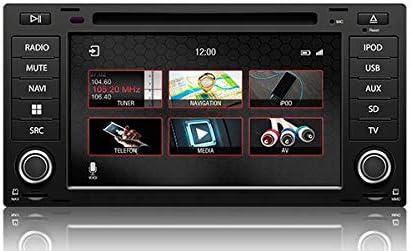
Рисунок 4.1: The main menu screen displaying various function icons such as Radio, Navigation, Telephone, Media, and AV input.
From the main screen, tap on the desired icon to access functions like Radio, Navigation, Bluetooth (Telefon), Media (USB/SD), and AV input.
4.2 Работа с радио
Tap the "Radio" icon from the main menu or press the physical "RADIO" button. You can tune to AM/FM stations, save presets, and access features like RDS (Radio Data System) where available.

Рисунок 4.2: The radio interface showing station presets and current frequency. Users can navigate between stations using the on-screen arrows or physical controls.
For SiriusXM compatibility, an SXV300 Tuner (sold separately) is required. Once installed, access SiriusXM through the dedicated icon or source selection.

Рисунок 4.3: The SiriusXM interface displaying channel information and presets, allowing access to satellite radio content.
4.3 Навигационная система
Tap the "Navigation" icon to launch the integrated GPS navigation software. The system comes pre-loaded with maps for North America, Europe, or Australia, depending on your region.
- Въезд в страну назначения: Enter addresses, points of interest, or coordinates.
- Маршрутная инструкция: Follow turn-by-turn voice prompts and on-screen directions.
- Карта View: Переключение между 2D и 3D views, adjust zoom levels.
4.4. Bluetooth-подключение
Подключите свой смартфон через Bluetooth для звонков в режиме громкой связи и потоковой передачи аудио.
- Go to the "Telefon" (Bluetooth) menu.
- Включите Bluetooth на своем смартфоне и найдите доступные устройства.
- Select "Dynavin" from the list on your phone and confirm the pairing code.
- После сопряжения вы сможете совершать/принимать звонки и слушать потоковую музыку.
4.5 Apple CarPlay и Android Auto
Connect your compatible smartphone via USB to use Apple CarPlay or Android Auto. This allows you to access select phone apps directly on the Dynavin display.

Рисунок 4.4: The Apple CarPlay interface displaying common applications like Phone, Music, Maps, and Messages, integrated with the Dynavin unit.
Ensure your phone's operating system is up to date for optimal performance with CarPlay or Android Auto.
4.6 Воспроизведение мультимедиа (USB/SD)
Insert a USB drive or Micro SD card into the designated ports. The system supports various audio and video formats. Tap the "Media" icon to browse and play content.
4.7 Настройки звука
Access the sound settings to adjust audio output, equalizer, and balance/fader controls. The system integrates with your vehicle's DSP processor if equipped.

Рисунок 4.5: The sound settings interface, allowing users to adjust audio parameters such as balance, fader, and specific sound profiles within the vehicle cabin.
Additional sound options may include confirmation tones, PDC (Park Distance Control) and warning tones, and settings for factory ampспасатели.
4.8 Системные настройки
The system settings menu allows you to configure various aspects of the unit, including:
- Область: Set the geographical region for radio and navigation.
- Цвет: Adjust display color schemes.
- Камера: Configure backup camera settings.
- Яркость: Manually adjust screen brightness.
- Часовой пояс: Установите правильный часовой пояс.
- Обеспечить регресс: Configure reverse camera and PDC integration.

Рисунок 4.6: The system settings interface, showing options for region, display color, camera settings, brightness adjustment, time zone, and reverse camera configuration.
5. Техническое обслуживание
5.1 Очистка дисплея
Аккуратно протрите сенсорный экран мягкой безворсовой тканью. Для удаления стойких загрязнений слегка потрите.ampСмочите ткань водой или безопасным чистящим средством для экранов. Избегайте использования абразивных материалов и едких химикатов.
5.2 обновлений прошивки
Periodic firmware updates may be released to improve performance, add features, or address issues. Check the official Dynavin website or contact your distributor for information on available updates and instructions for installation.
6. Поиск Неисправностей
If you encounter issues with your Dynavin N7-VT7 PRO, refer to the following common solutions:
- Нет питания: Check all wiring connections and vehicle fuses. Ensure the vehicle battery is properly connected.
- Нет звука: Проверьте подключение динамиков. Проверьте уровни громкости и настройки отключения звука. Убедитесь, что выбран правильный источник звука.
- Потеря сигнала GPS: Убедитесь, что антенна GPS установлена правильно и имеет свободное пространство. view неба.
- Проблемы с сопряжением Bluetooth: Delete previous pairings from both the unit and your phone. Restart both devices and attempt pairing again.
- Сенсорный экран не отвечает: Perform a soft reset (refer to specific instructions from Dynavin support if available).
- Apple CarPlay/Android Auto не подключаются: Ensure your phone is compatible and its operating system is updated. Try a different USB cable.
For persistent issues, contact Dynavin customer support or your authorized dealer for assistance.
7. Технические характеристики
| Особенность | Спецификация |
|---|---|
| Номер модели | N7-VWTG-PRO |
| Размер дисплея | 7 дюйма |
| Разрешение дисплея | 1024 х 600 |
| Тип дисплея | Capacitive LCD, Anti-glare Touchscreen |
| Операционная система | DynOS |
| Связность | USB-порт, Bluetooth-порт |
| Тип карты | North America, Europe, or Australia (region-specific) |
| Тип обслуживания автомобиля | Car (VW Touareg 2003-2009) |
| Размеры упаковки | 13 x 11 x 9 дюйма |
8. Гарантия и поддержка
For warranty information, please refer to the documentation provided with your purchase or contact your authorized Dynavin dealer. J&T Distributing is the official distributor of Dynavin in North America and can provide support for products purchased through their channels.
For technical assistance, troubleshooting, or inquiries regarding firmware updates, please visit the official Dynavin webсайт или обратитесь в службу поддержки клиентов.