1. Введение
This manual provides essential instructions for setting up, operating, and maintaining your PRITOM K7 7-inch Kids Tablet. Please read this guide thoroughly to ensure proper use and to maximize your child's learning and entertainment experience.
2. Что в коробке
- 1 x PRITOM 7-inch Tablet PC
- 1 х Зарядное устройство
- 1 х Руководство пользователя
- 1 х USB-кабель
- 1 кабель OTG
- 1 x пленка для экрана
- 1 x Silicone Kid-Proof Case
3. Устройство перешлоview
The PRITOM K7 tablet is designed with a durable, kid-friendly silicone case that includes a built-in stand and handles for easy carrying and viewing. It features a 7-inch IPS HD display and dual cameras.
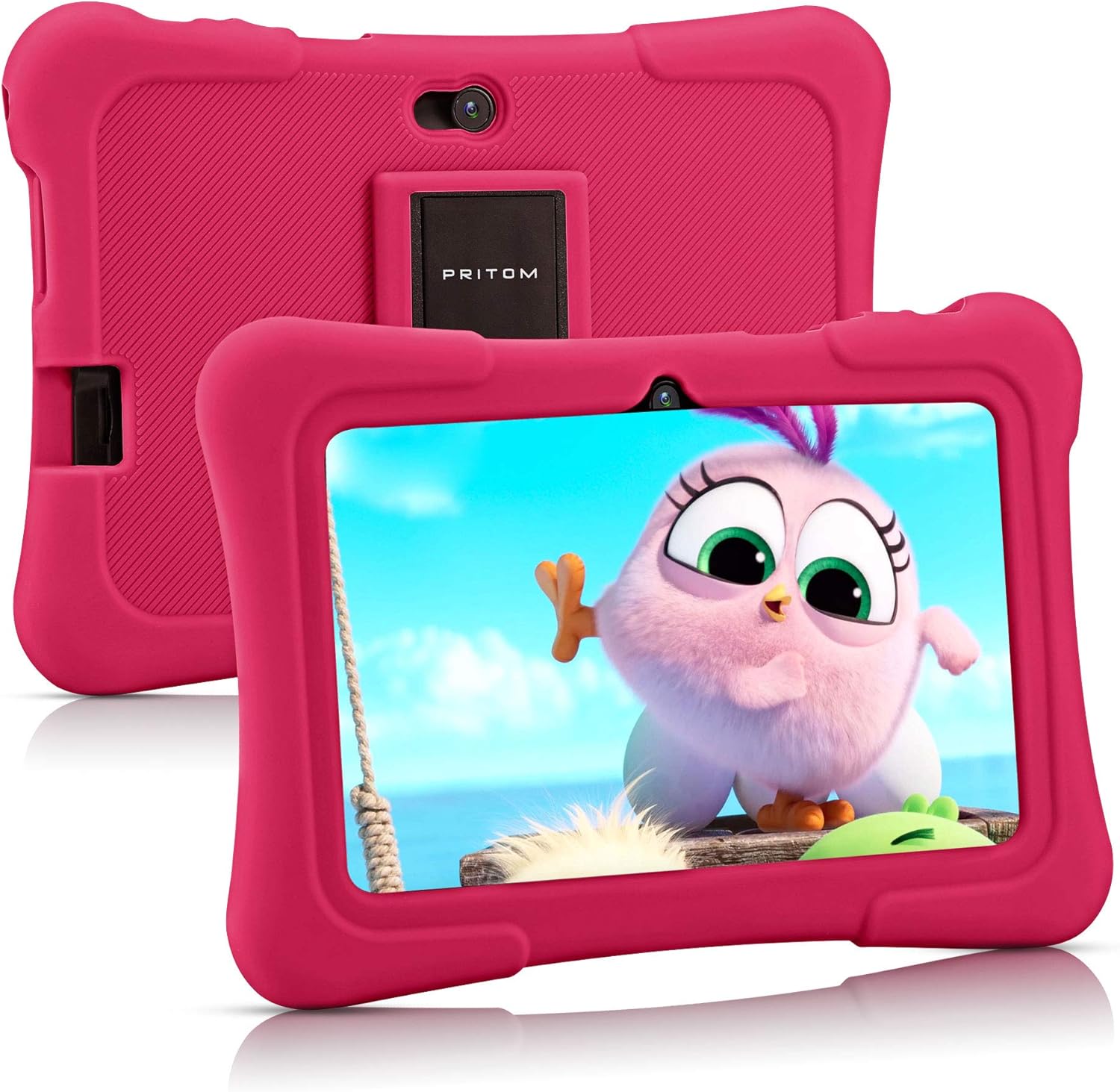
Image: PRITOM K7 7-inch Kids Tablet in its protective pink silicone case.

Image: Diagram illustrating the location of the power button, DC jack, Micro USB port, mic, 3.5mm earphone jack, volume buttons, Micro SD card slot, front camera, rear camera, and speaker.
4. Настройка
4.1 Первоначальное включение питания
- Нажмите и удерживайте Кнопка питания (located on the top edge) for a few seconds until the screen lights up.
- Следуйте инструкциям на экране, чтобы выбрать язык и регион.
4.2 Подключение к Wi-Fi
- На главном экране коснитесь Настройки икона.
- Выбирать Сеть и Интернет, затем Wi-Fi.
- Включить Wi-Fi On.
- Выберите нужную сеть Wi-Fi из списка.
- Введите пароль, если потребуется, и нажмите Соединять.
4.3 Setting Up Parental Controls (iWawa Kids Software)
The PRITOM K7 comes with pre-installed iWawa Kid's software, offering a safe and controlled environment for children.
- Найдите и нажмите iWawa app icon on the home screen.
- Follow the on-screen instructions to create a child profile. This typically involves setting up a password for parental access, defining screen time limits, and selecting age-appropriate content.
- Within the iWawa app, you can manage applications, set content filters, and monitor usage.

Image: The iWawa Kids Software interface, showing pre-installed educational and game applications.
5. Эксплуатация планшета
5.1 Навигация
- Сенсорный экран: Для навигации используйте касания, свайпы и масштабирование по экрану.
- Домашняя кнопка: Возврат на главный домашний экран.
- Кнопка «Назад»: Возврат к предыдущему экрану.
- Кнопка последних приложений: Отображает недавно использованные приложения.
5.2 Downloading Apps
Beyond the pre-installed iWawa apps, you can download additional applications from the Google Play Store.
- Exit the iWawa app (if active) by entering the parental password.
- Найдите и нажмите Магазин Google Play icon on the main Android home screen.
- Искать Загрузите и установите нужные приложения, следуя инструкциям на экране.
Функциональность камеры 5.3°
The tablet features a front-facing and rear-facing camera for photos and videos.
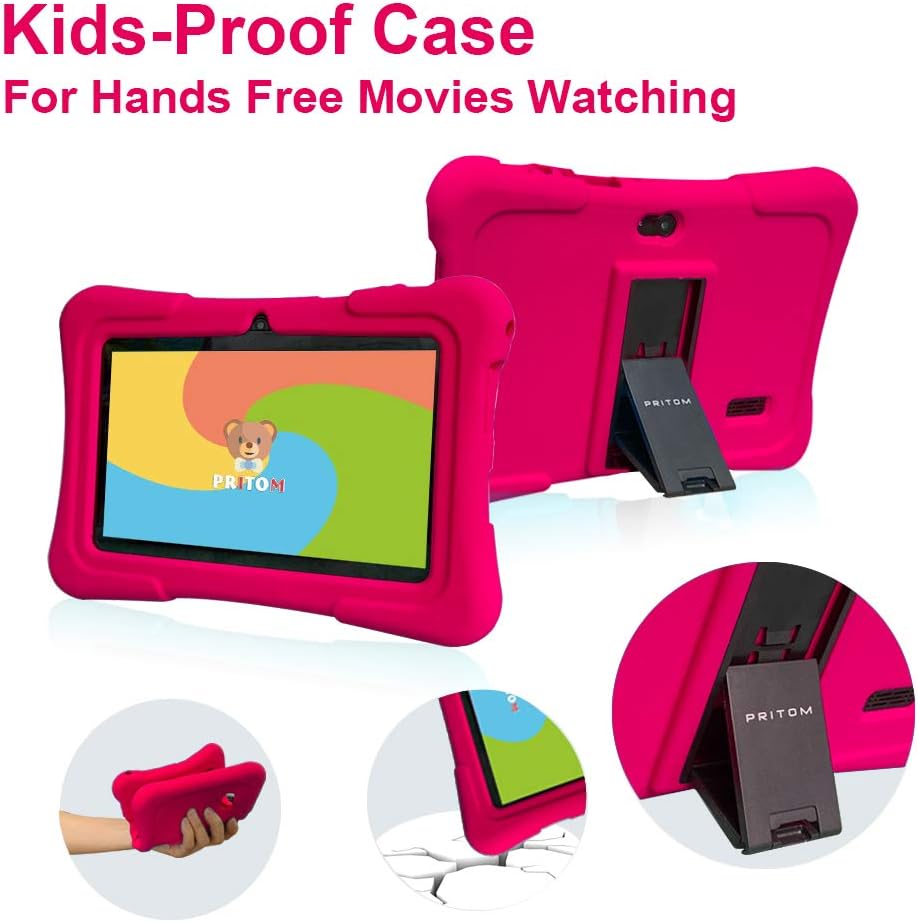
Image: The PRITOM K7 tablet displaying a family photo, highlighting its 7-inch IPS screen and camera capabilities.
- Нажмите на Камера значок приложения.
- Select between the front and rear camera using the toggle icon.
- Нажмите кнопку спуска затвора, чтобы сделать фотографию или начать/остановить запись видео.
5.4 Воспроизведение медиа
The tablet supports various media formats for videos, music, and photos.
- Видео: Use the pre-installed video player or download a third-party app from the Google Play Store.
- Музыка: Use the Music app to play audio files.
- Фото: View images in the Gallery app.
Видео: Оверview of the PRITOM 7-inch Kids Tablet, demonstrating its features and functionality, including the user interface and protective case.
Video: A short demonstration of the kids tablet, showcasing its design and some interactive elements.
Video: A brief look at the PRITOM Kids Tablet, highlighting its 7-inch screen and 32GB storage capacity.
6. Техническое обслуживание
6.1 Зарядка аккумулятора
Connect the provided charger to the tablet's DC jack or Micro USB port and plug it into a power outlet. The battery indicator on the screen will show charging status.
6.2 Управление хранением
The tablet has 32 GB of internal storage, expandable up to 512 GB using a Micro SD card.
- Locate the Micro SD card slot (refer to Device Overview диаграмму).
- Gently insert a compatible Micro SD card until it clicks into place.
- Чтобы управлять хранилищем, перейдите по ссылке Настройки > Хранилище.
6.3 Очистка
Use a soft, dry, lint-free cloth to clean the screen and exterior of the tablet. Avoid using harsh chemicals or abrasive materials.

Image: The PRITOM K7 tablet secured in its pink kid-proof silicone case, featuring a functional kickstand for hands-free viewинж.
7. Поиск Неисправностей
- Планшет не включается: Убедитесь, что аккумулятор заряжен. Подключите зарядное устройство и повторите попытку.
- Экран не отвечает: Выполните мягкую перезагрузку, удерживая кнопку питания в течение 10-15 секунд.
- Проблемы с подключением к Wi-Fi: Check if Wi-Fi is enabled in settings. Restart your router and the tablet.
- Сбои приложений: Clear the app's cache (Settings > Apps > [App Name] > Storage > Clear Cache) or reinstall the app.
- Parental control issues: Verify the parental password and check settings within the iWawa app.
8. Технические характеристики
| Особенность | Деталь |
|---|---|
| Размер экрана | 7 дюйма |
| Разрешение экрана | 1024x600 Pixels (IPS HD) |
| Операционная система | Андроид 13 |
| Процессор | Quad-Core (1.5 GHz Unisoc) |
| БАРАН | 2 ГБ SDRAM DDR3 |
| Внутреннее хранилище | 32 ГБ (расширяемая память до 512 ГБ с помощью карты Micro SD) |
| Камеры | Передняя 2MP, задняя 0.3MP |
| Связность | WiFi (802.11bgn), Bluetooth |
| Срок службы батареи | Average 3 years (device lifespan) |
| Вес товара | 1.15 фунта |
| Размеры продукта | 8.3 x 5.9 x 0.7 дюйма |
9. Гарантия и поддержка
For warranty information and customer support, please refer to the documentation included with your purchase or visit the official PRITOM webСохраните чек о покупке для предъявления гарантийных претензий.


