1. Введение
This manual provides detailed instructions for the setup, operation, and maintenance of your Tera Wireless Barcode Scanner, Model 8541733886. Please read this manual thoroughly before using the device to ensure proper functionality and to prevent damage.
The Tera Wireless Barcode Scanner offers versatile connectivity and efficient scanning capabilities for various barcode types, both printed and digital.
2. Продукт закончилсяview
2.1 Компоненты
В комплект обычно входит:
- Tera Wireless Barcode Scanner
- Hands-Free Stand
- Беспроводной USB-адаптер 2.4 ГГц
- USB-кабель для зарядки/передачи данных
- Руководство по эксплуатации (данный документ)

Image: Tera Wireless Barcode Scanner, showing the scanner unit, flexible stand, 2.4GHz USB dongle, and USB cable.
2.2 Основные характеристики
- 3 режима подключения: Supports Bluetooth, 2.4GHz wireless, and USB 2.0 wired connections.
- Широкая совместимость: Works with POS systems, iOS, Android, Windows, Mac OS, and Linux. Supports Bluetooth HID, SPP, and BLE protocols.
- Быстрое и точное сканирование: Equipped with an ARM32Bit Cortex CPU and a Japan-manufactured scanner head, achieving decoding speeds up to 500 scans per second.
- Два режима загрузки:
- Режим мгновенной загрузки: Barcodes are transmitted to your device immediately upon scanning.
- Автономный режим хранения: Stores up to 50,000 barcodes internally when out of range, allowing for later upload.
- Multi-Language Barcode Support: Capable of scanning barcodes in English, Spanish, German, French, Italian, and Japanese. Ensure your keyboard language matches the selected language for correct input.
- Versatile Barcode Symbologies:
- 1D: UPC-A, UPC-E, EAN-8, EAN-13, Code 128, Code 39, Code 93, Code 11, Interleaved 2 of 5, Matrix 2 of 5, Standard 2 of 5, Coda bar, MSI Plessey, RSS и т. д.
- 2D: QR-код, матрица данных, PDF417, ацтекский код, Maxicode и т. д.
- Прочность: Designed to withstand impacts from drops of up to 1.5 meters (5 feet) onto concrete.
- Длительный срок службы батареи: Built-in 2200mAh battery supports approximately 57,000 scans on a full charge, with up to 15 days of standby time.
3. Настройка
3.1 Зарядка сканера
Before first use, fully charge the scanner. Connect the USB charging cable to the scanner's charging port and to a USB power source (e.g., computer USB port, USB wall adapter). The indicator light will show charging status.

Image: Illustration showing the scanner's 2200mAh battery capacity and its ability to withstand a 1.5-meter drop.
3.2 Режимы подключения
Сканер поддерживает три способа подключения:

Image: Visual representation of the three connection modes: Bluetooth, 2.4G Wireless via USB dongle, and USB Wired connection.
3.2.1 USB Wired Mode (Plug & Play)
- Подключите сканер напрямую к компьютеру с помощью прилагаемого USB-кабеля.
- The computer will typically recognize the device automatically without requiring driver installation.
- Сканер готов к использованию.

Image: The scanner connected to a laptop, illustrating its plug-and-play functionality and compatibility with various operating systems including Windows, Mac OS, Linux, and Android.
3.2.2 Беспроводной режим 2.4 ГГц
- Insert the 2.4GHz USB dongle into an available USB port on your computer or device.
- Включите сканер штрихкодов. Он должен автоматически подключиться к адаптеру.
- A successful connection is usually indicated by a specific sound or light on the scanner.
3.2.3 Режим Bluetooth
- Ensure your device (smartphone, tablet, computer) has Bluetooth enabled.
- Put the scanner into Bluetooth pairing mode (refer to the scanner's quick start guide for specific instructions, usually by scanning a special barcode).
- On your device, search for available Bluetooth devices and select "Tera Barcode Scanner" (or similar name).
- Подтвердите сопряжение, если будет предложено.
Примечание: Wireless range varies. Indoors with obstacles, Bluetooth range is approximately 33ft, and 2.4GHz wireless is approximately 98ft. Outdoors in barrier-free environments, Bluetooth range is approximately 65ft, and 2.4GHz wireless is approximately 328ft.
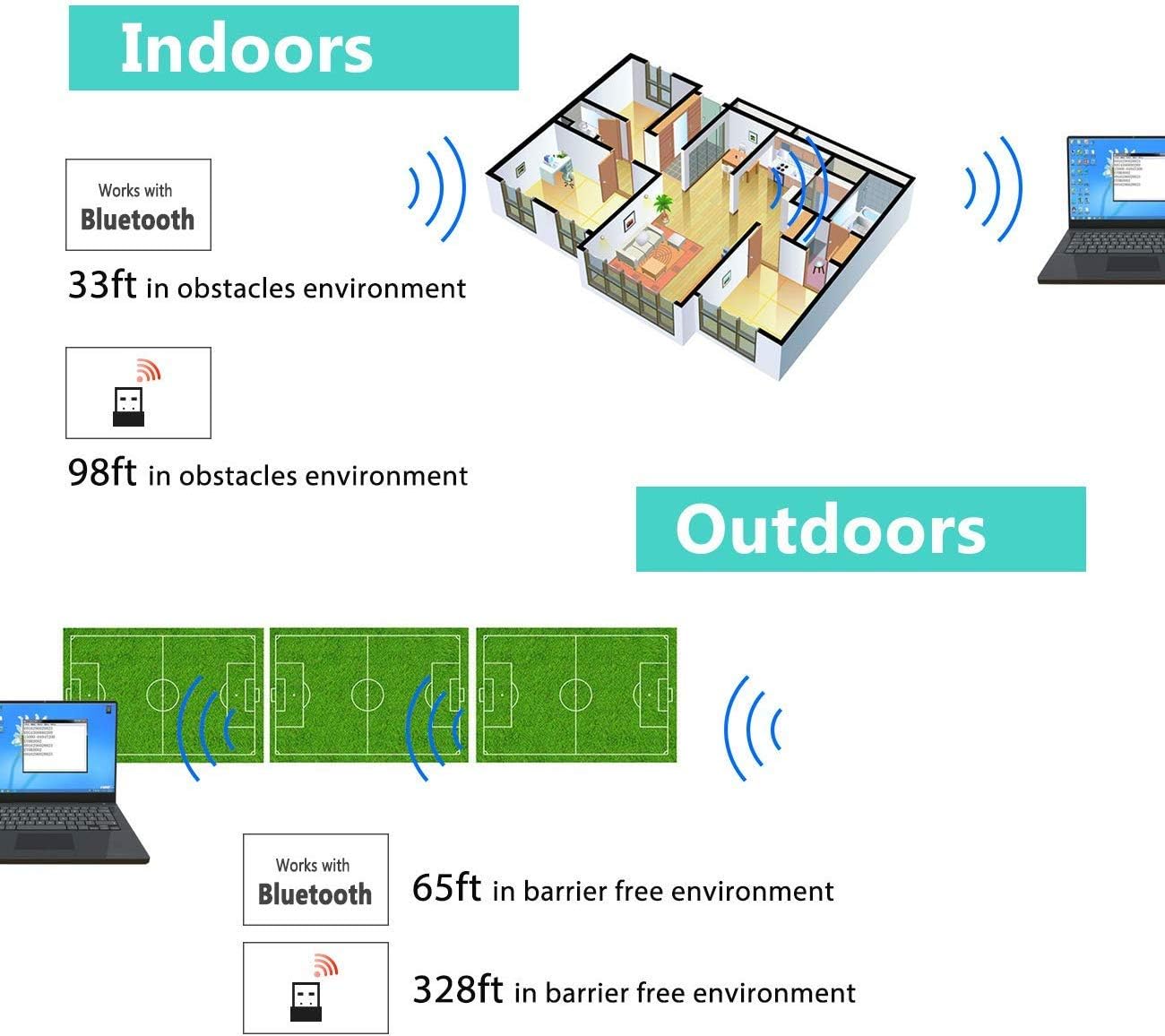
Image: Diagram illustrating the effective wireless range of the scanner in both indoor (with obstacles) and outdoor (barrier-free) environments for Bluetooth and 2.4GHz connections.
4. Инструкция по эксплуатации
4.1 Сканирование штрихкодов
The scanner can read both 1D and 2D barcodes, including QR codes, from printed materials and digital screens.
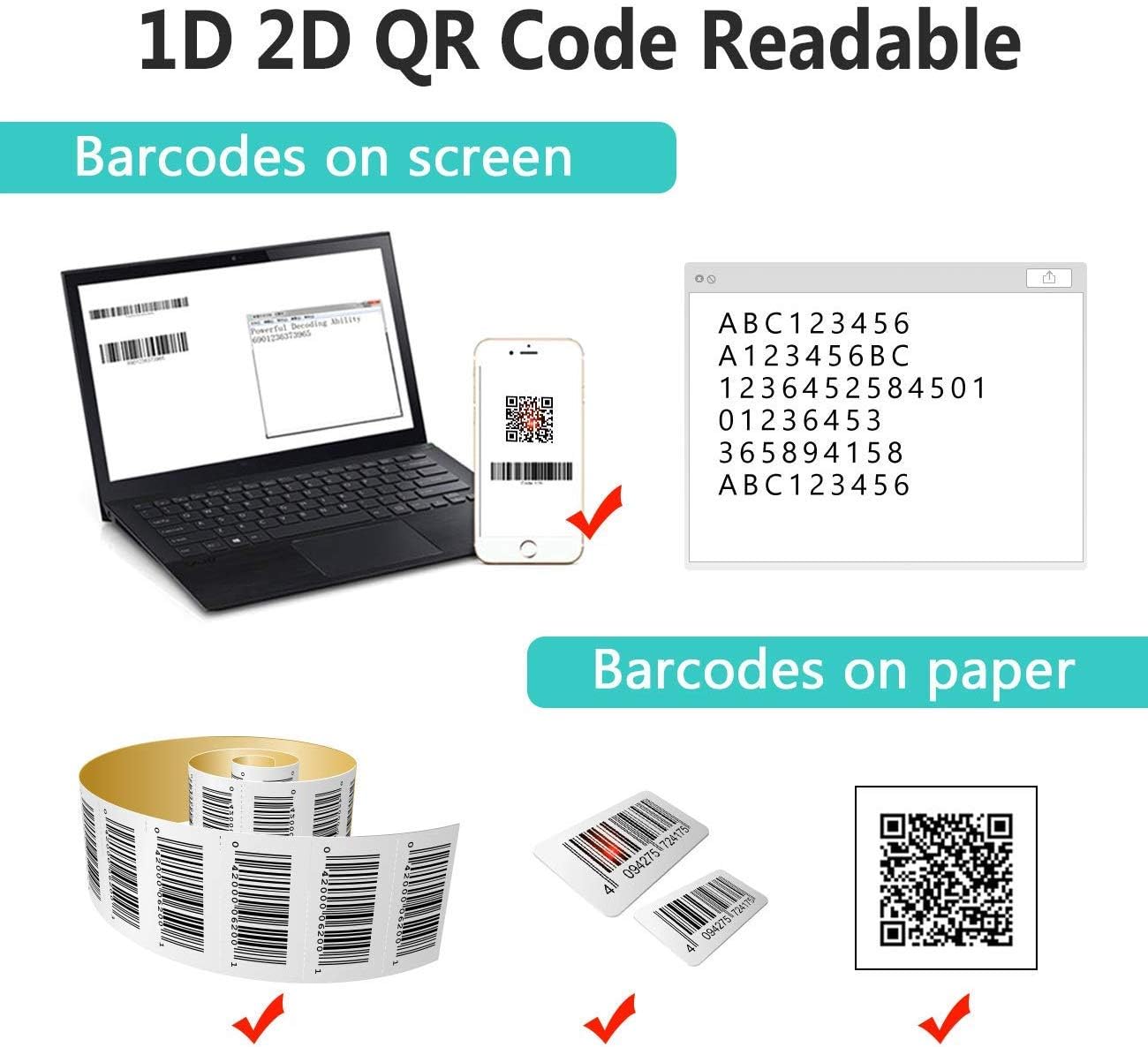
Image: The scanner demonstrating its ability to read 1D and 2D barcodes from both digital screens (laptop, smartphone) and physical printed labels.
Чтобы отсканировать штрих-код:
- Наведите окошко сканера на штрихкод.
- Press the trigger button (or allow the sensor to activate in automatic modes).
- A successful scan is indicated by a beep and/or a green light.
4.2 Режимы сканирования
Сканер поддерживает три основных режима сканирования:

Image: The barcode scanner mounted on its stand, highlighting its 360-degree rotation capability and the three available scanning modes: Key Trigger Mode, Sensor Activated Mode, and Continuous Scan Mode.
- Режим ключевого триггера: Scan by manually pressing the trigger button for each barcode.
- Sensor Activated Mode: The scanner automatically activates when a barcode is detected in its field of view.
- Режим непрерывного сканирования: The scanner continuously emits a scan beam, reading any barcode that passes through it.
Refer to the quick start guide or programming barcodes for instructions on how to switch between these modes.
4.3 Режимы загрузки данных
Сканер предлагает два способа загрузки отсканированных данных:
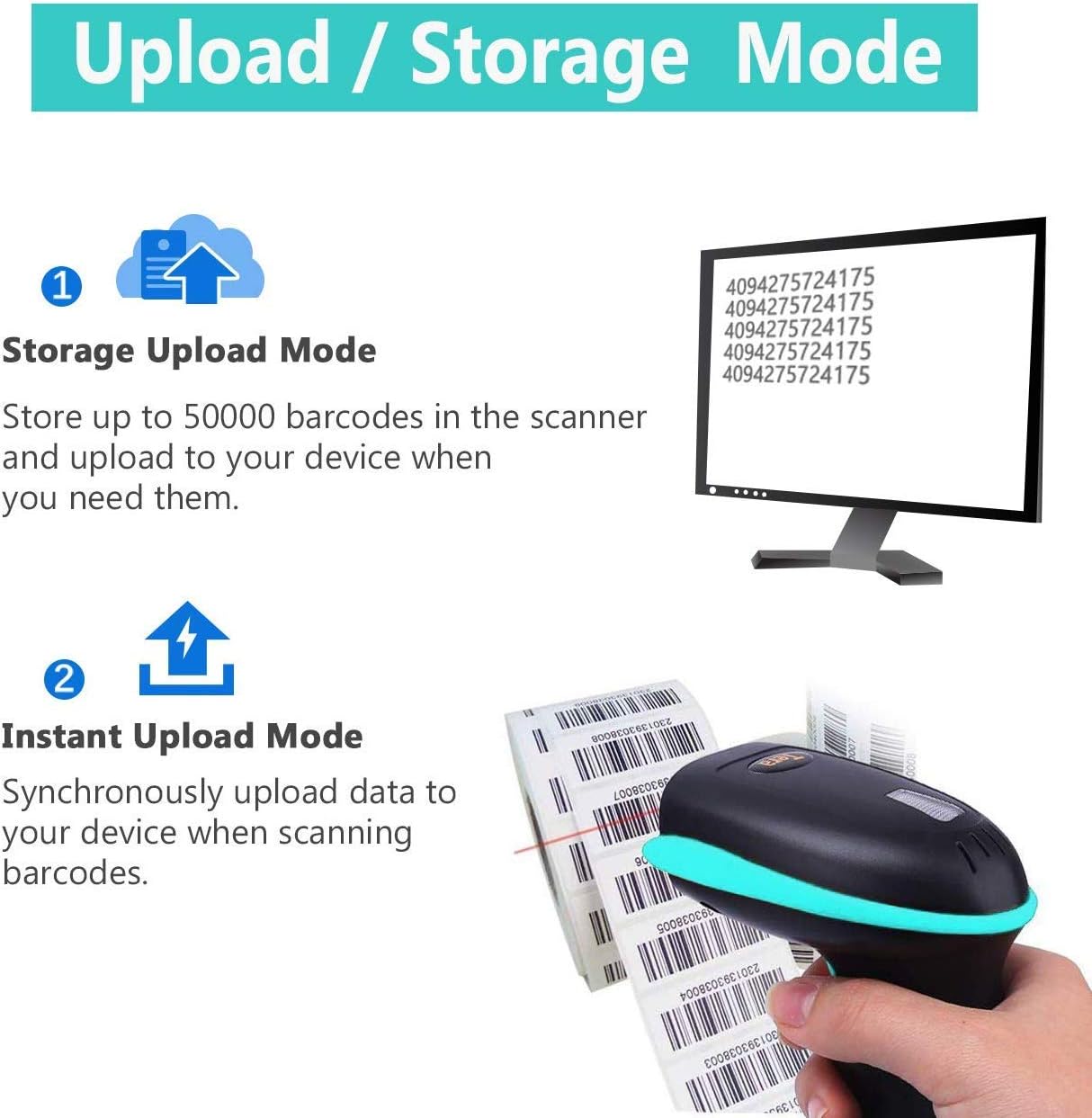
Image: Illustration of the two data upload modes: Storage Upload Mode, where barcodes are stored internally and uploaded later, and Instant Upload Mode, where data is transmitted immediately.
- Режим мгновенной загрузки: Barcodes are sent to your connected device immediately after scanning. This is suitable for real-time data entry.
- Автономный режим хранения: If the scanner is out of range or not connected, it will store scanned barcodes internally. Up to 50,000 barcodes can be stored. Once reconnected, you can upload the stored data to your device.
To switch between upload modes, scan the appropriate programming barcode found in the quick start guide.
5. Техническое обслуживание
5.1 Очистка
- Используйте мягкую, чистую ткань, слегка смоченнуюampened with water or a mild cleaning solution to wipe the scanner's exterior.
- Do not use abrasive cleaners, solvents, or excessive liquid, as these can damage the device.
- Keep the scanning window clean and free of dust or smudges to ensure optimal reading performance.
5.2 Уход за аккумулятором
- Регулярно заряжайте сканер, особенно если он будет храниться длительное время.
- Избегайте частой полной разрядки аккумулятора, так как это может сократить срок его службы.
- Когда сканер не используется, храните его в прохладном, сухом месте.
5.3 Хранение
When not in use, store the scanner in a safe place to prevent physical damage. The included stand can be used for convenient storage and hands-free operation.
6. Поиск Неисправностей
| Проблема | Возможная причина | Решение |
|---|---|---|
| Сканер не включается. | Низкий заряд батареи. | Charge the scanner for at least 2-3 hours. |
| Сканер не считывает штрихкоды. |
|
|
| No data transmitted to device. |
|
|
| Сканер непрерывно издает звуковые сигналы или работает с перебоями. | Configuration error or internal issue. | Perform a factory reset (refer to the quick start guide for the reset barcode). If the issue persists, contact support. |
7. Технические характеристики
- Номер модели: 8541733886
- Размеры продукта: 6.1 x 2.55 x 3.54 дюйма
- Вес товара: 1.05 фунта
- Аккумулятор: 1 литий-ионный аккумулятор (2200 мАч)
- Связь: Bluetooth, 2.4GHz Wireless, USB 2.0 Wired
- Совместимые устройства: Desktop, Laptop, Smartphone (POS, iOS, Android, Windows, Mac OS, Linux)
- Источник питания: Проводной электрический (для зарядки)
- Производитель: Тера
- Первая доступная версия: 7 мая 2019 г.
8. Гарантия и поддержка
8.1 Информация о гарантии
For specific warranty details, please refer to the warranty card included with your product or visit the official Tera webСохраните чек о покупке в качестве подтверждения покупки для предъявления гарантийных претензий.
8.2 Поддержка клиентов
If you encounter any issues not covered in this manual or require further assistance, please contact Tera customer support. Contact information can typically be found on the product packaging, the official Tera webсайте или через вашего розничного продавца.
При обращении в службу поддержки, пожалуйста, подготовьте номер модели вашего продукта (8541733886) и информацию о покупке.


Image: Illustrations representing customer service and technical support teams available to assist users.


