Введение
This manual provides essential instructions for setting up, operating, maintaining, and troubleshooting your Microsoft Surface Pro 2017. The Surface Pro 2017 is a versatile 2-in-1 device designed to function as both a powerful laptop and a portable tablet, offering a seamless computing experience.
Внимательно прочтите данное руководство, чтобы обеспечить правильное использование и максимально продлить срок службы вашего устройства. Сохраните это руководство для дальнейшего использования.
Что в коробке?
Upon unboxing your Microsoft Surface Pro 2017, verify that all components are present:
- Устройство Microsoft Surface Pro 2017
- Адаптер переменного тока
Note: Additional accessories such as the Surface Pen, Type Cover, or Surface Dial are sold separately and may not be included with your device.
Настраивать
1. Первоначальное включение и зарядка
- Подключите адаптер питания: Plug the AC power adapter into a wall outlet and then connect the magnetic charging connector to the charging port on your Surface Pro. The LED indicator on the connector will illuminate when charging.
- Включение питания: Press and hold the power button located on the top edge of the device for a few seconds until the Microsoft logo appears on the screen.
2. Установка Windows
Follow the on-screen prompts to complete the initial Windows setup. This process typically includes:
- Выбор вашего региона и языка.
- Подключение к сети Wi-Fi.
- Принятие лицензионного соглашения.
- Создание учетной записи Microsoft или вход в систему с ее помощью.
- Setting up security features like Windows Hello (facial recognition) or a PIN.
3. Подключение к Wi-Fi
- During Windows setup, you will be prompted to connect to a network. Select your desired Wi-Fi network from the list and enter the password if required.
- If you need to connect later, go to Начинать > Настройки > Сеть и Интернет > Wi-FiВключите Wi-Fi, выберите свою сеть и нажмите Соединять.
Инструкция по эксплуатации
Basic Device Orientation and Controls
The Surface Pro 2017 features a 12.3-inch PixelSense display with multi-touch support. Key physical controls include:
- Кнопка питания: Located on the top edge, used to turn the device on/off, sleep, or wake.
- Кнопки громкости: Расположен сбоку, используется для регулировки громкости звука.
- Подставка: Integrated on the back, allows for multiple viewуглы.
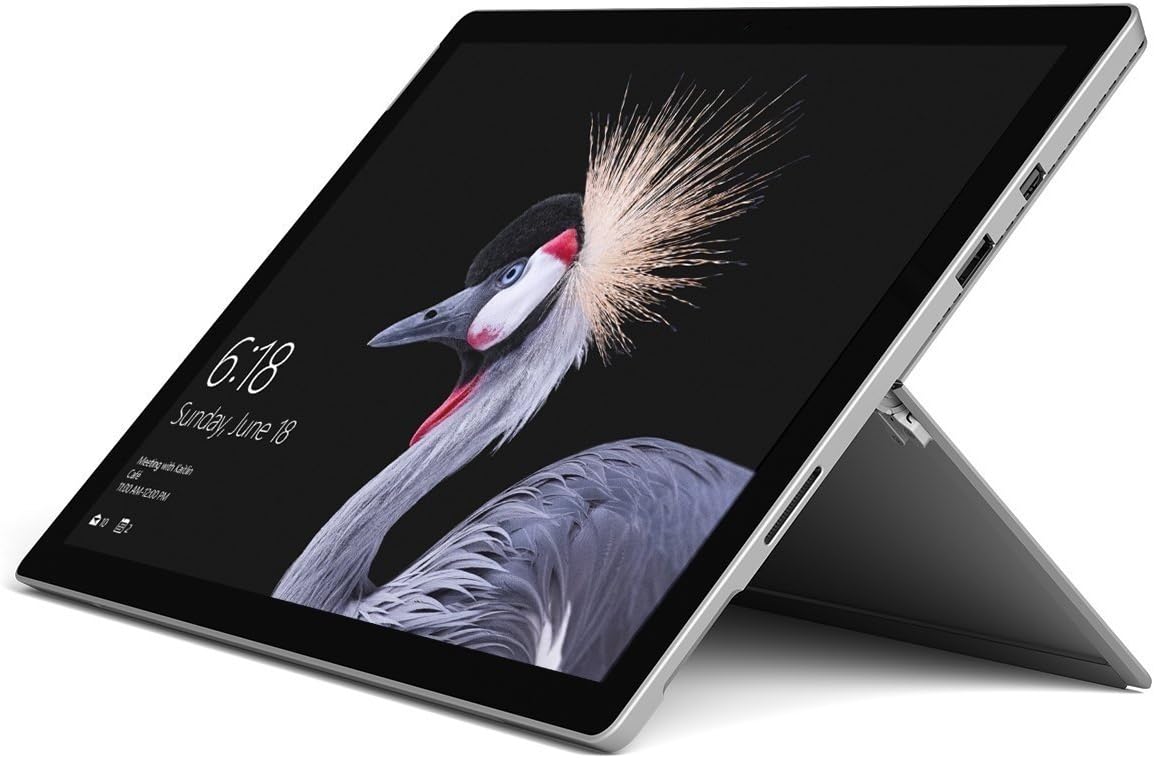
Image: Microsoft Surface Pro 2017 in laptop mode with its kickstand extended, showcasing the device's display.
Использование подставки
The integrated kickstand allows you to position your Surface Pro at various angles for comfortable viewing, typing, or drawing. Gently pull the kickstand out from the back of the device until it reaches your desired angle.
Управление питанием
- Спящий режим: Briefly press the power button to put the Surface Pro into sleep mode. Press it again to wake the device.
- Неисправность: Перейти к Начинать > Власть > Неисправность.
- Перезапуск: Перейти к Начинать > Власть > Перезапуск.
Подключение периферийных устройств
The Surface Pro 2017 includes various ports for connecting external devices:
- Порт USB 3.0: For connecting USB drives, keyboards, mice, and other compatible accessories.
- Мини DisplayPort: Для подключения к внешним мониторам или проекторам.
- Устройство чтения карт памяти microSD: Для расширения хранилища или переноса fileс карт памяти.
- Порт подключения поверхности: Для питания и подключения к аксессуарам Surface Dock.
- Разъем для наушников 3.5 мм: Для аудиовыхода.
Bluetooth: To connect Bluetooth devices (e.g., headphones, mice), go to Начинать > Настройки > Устройства > Bluetooth и другие устройства. Ensure Bluetooth is turned on, then select "Add Bluetooth or other device" and follow the pairing instructions.

Изображение: вид сбокуfile of the Microsoft Surface Pro 2017, highlighting the various ports available for connectivity.
Обслуживание
Cleaning Your Surface Pro
- Экран: Используйте мягкую, безворсовую ткань, слегкаampened with water or an approved screen cleaner. Avoid harsh chemicals or abrasive materials.
- Тело: Wipe the exterior with a soft, dry cloth. Do not allow liquids to enter openings.
- Порты: Keep ports free of dust and debris. Use compressed air carefully if needed, holding the can upright.
Уход за аккумулятором
- Избегайте экстремальных температур, так как они могут сократить срок службы батареи.
- Для обеспечения оптимальной работоспособности аккумулятора избегайте его постоянной полной разрядки или 100%-ного заряда в течение длительного времени.
- Use only the official Microsoft AC power adapter or a compatible charger.
Обновления программного обеспечения
Regularly update your Windows operating system and device drivers to ensure optimal performance, security, and compatibility. Go to Начинать > Настройки > Обновление и безопасность > Центр обновления Windows для проверки и установки обновлений.
Поиск неисправностей
В этом разделе рассматриваются распространенные проблемы, с которыми вы можете столкнуться при использовании Surface Pro 2017.
Device Will Not Turn On
- Убедитесь, что устройство заряжено. Подключите адаптер питания и подождите несколько минут, прежде чем пытаться включить его.
- Perform a two-button shutdown: Press and hold the volume-up button and the power button simultaneously for at least 15 seconds, then release both. Wait 10 seconds, then press the power button again to turn on the Surface.
Screen Not Responding to Touch
- Перезагрузите устройство.
- Убедитесь, что экран чистый и на нем нет мусора.
- Check for available Windows updates, as driver updates can resolve touch issues.
Проблемы с подключением Wi-Fi
- Убедитесь, что Wi-Fi включен в Настройки > Сеть и Интернет > Wi-Fi.
- Restart your Surface Pro and your Wi-Fi router.
- Забудьте о сети и подключитесь заново: Перейти к Настройки > Сеть и Интернет > Wi-Fi, click on your network, then Забывать. Reconnect and enter the password.
Технические характеристики
| Особенность | Спецификация |
|---|---|
| Название модели | Поверхность Про 2017 |
| Номер модели товара | 7Y30 |
| Размер экрана | 12.3 дюйма |
| Разрешение экрана | 2736 x 1824 пикселей |
| Процессор | Intel Core m3-7Y30 (1 GHz Intel_Mobile_CPU) |
| БАРАН | 4 ГБ DDR4 SDRAM |
| Хранилище | SSD-накопитель 128 ГБ |
| Видеокарта | Integrated (Intel) |
| Операционная система | Окна |
| Тип беспроводной связи | 802.11abg |
| Вес товара | 1.89 фунта |
| Размеры продукта | 11.5 x 7.9 x 0.3 дюйма |
| Цвет | Серебро |
Гарантия и поддержка
For detailed warranty information, please refer to the warranty card included with your purchase or visit the official Microsoft support webУсловия гарантии могут различаться в зависимости от региона и продавца.
For technical support, driver downloads, and additional resources, please visit the official Microsoft Support webсайт: support.microsoft.com/surface


