1. Введение
This manual provides essential information for the installation, configuration, operation, and maintenance of the MOXA AWK-1137C-US-T 802.11n Wireless AP Client. This device is designed for industrial wireless applications, offering reliable 802.11n connectivity in challenging environments with a wide operating temperature range.
2. Информация по технике безопасности
- Перед чисткой или обслуживанием устройства всегда отключайте питание.
- Обеспечьте правильное заземление во избежание опасности поражения электрическим током.
- Эксплуатируйте устройство в указанных диапазонах температуры и влажности.
- Не подвергайте устройство воздействию влаги или экстремальных температур.
- Только квалифицированный персонал должен выполнять установку и техническое обслуживание.
3. Содержимое упаковки
Убедитесь, что ваш пакет содержит следующие предметы:
- MOXA AWK-1137C-US-T Wireless AP Client unit
- Краткое руководство по установке
- Документационный компакт-диск (или ссылка на онлайн-ресурсы)
- Mounting kit (if applicable)
- Power adapter or terminal block (if applicable)
Если какие-либо предметы отсутствуют или повреждены, немедленно свяжитесь с продавцом.
4. Аппаратное обеспечение большеview
The AWK-1137C-US-T features robust industrial design. Key components typically include:
- Порты Ethernet: Для проводных сетевых подключений.
- Антенные разъемы: For external antennas to optimize wireless signal.
- Потребляемая мощность: Terminal block for DC power input.
- Светодиодные индикаторы: Provide status information for power, WLAN, and Ethernet activity.
- Кнопка сброса: For restoring factory default settings.
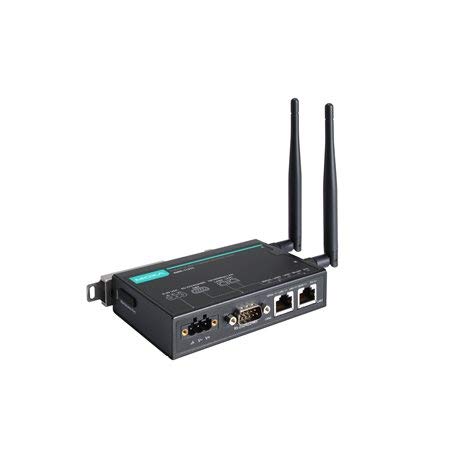
Figure 1: MOXA AWK-1137C-US-T Wireless AP Client. This image shows the compact industrial design of the device, typically featuring antenna ports, Ethernet connections, and power input.
5. Настройка
5.1 Монтаж
The AWK-1137C-US-T supports DIN-rail mounting. Attach the DIN-rail kit to the device and snap it onto a standard DIN-rail. Ensure the device is securely fastened to prevent vibration or accidental dislodgement.
5.2 Подключение питания
- Connect a suitable DC power source (e.g., 12-48 VDC) to the device's power input terminal block.
- Ensure correct polarity (+ and -) as indicated on the device.
- Tighten the screws on the terminal block to secure the power wires.
Сетевое подключение 5.3
- Connect an Ethernet cable from your network switch or router to the Ethernet port on the AWK-1137C-US-T.
- Attach appropriate antennas to the antenna connectors. Ensure they are securely tightened.
5.4 Начальная конфигурация
Для доступа к устройству webинтерфейс управления на основе:
- Connect a computer directly to the device's Ethernet port or ensure it is on the same network segment.
- Configure your computer's IP address to be in the same subnet as the device's default IP address (refer to the Quick Installation Guide for the default IP).
- Откройте web browser and enter the device's default IP address.
- Войдите в систему, используя имя пользователя и пароль по умолчанию (см. Краткое руководство по установке).
- Change the default password immediately for security.
6. Операционная
Режимы работы 6.1
The AWK-1137C-US-T can operate in various modes, including Access Point (AP) and Client mode. Select the appropriate mode based on your network requirements.
- Режим точки доступа (AP): The device acts as a central hub for wireless clients to connect.
- Клиентский режим: The device connects to an existing Access Point, extending wired network connectivity wirelessly.
6.2 Настройки беспроводной сети
Configure the following wireless parameters via the web интерфейс:
- SSID: The name of your wireless network.
- Канал: Select an appropriate wireless channel to avoid interference.
- Группа: Configure for 2.4 GHz or 5 GHz operation, depending on the model and environment.
- Мощность передачи: Adjust the output power for optimal coverage and compliance.
6.3 Настройки безопасности
Implement strong wireless security to protect your network:
- Шифрование: Use WPA2/WPA3-PSK or Enterprise for robust security.
- Password/Passphrase: Choose a strong, unique password.
- Фильтрация MAC-адресов: Optionally restrict access to specific devices.
7. Техническое обслуживание
7.1 обновлений прошивки
Регулярно проверяйте МОКСА website for the latest firmware updates. Firmware updates can provide new features, performance improvements, and security patches. Follow the instructions provided with the firmware package for a safe update process.
7.2 Очистка
Clean the device periodically with a soft, dry cloth. Do not use liquid or aerosol cleaners. Ensure the device is powered off before cleaning.
7.3 Экологические соображения
Ensure the operating environment remains within the specified temperature and humidity limits (-40 to 75°C). Avoid placing the device near heat sources or in direct sunlight.
8. Поиск Неисправностей
8.1 Нет питания
- Проверьте подключение кабеля питания и убедитесь, что источник питания активен.
- Проверьте уровень напряжения питания.tage is within the device's specified range.
- Inspect the power input terminal block for loose connections.
8.2 Нет подключения к сети
- Check Ethernet cable connections and ensure they are properly seated.
- Verify that the network switch or router is functioning correctly.
- For wireless connections, ensure the SSID, security settings, and channel match the connected AP/client.
- Check the LED indicators for network activity.
8.3 Низкая скорость беспроводного соединения
- Ensure antennas are properly connected and positioned for optimal signal.
- Check for sources of interference (e.g., other wireless devices, microwave ovens).
- Adjust the wireless channel to a less congested one.
- Verify that the device is operating in 802.11n mode and not a slower standard.
8.4 Сброс к заводским настройкам
If configuration issues persist, you may need to reset the device to its factory default settings. Locate the reset button (often recessed) and press and hold it for approximately 5-10 seconds while the device is powered on. The device will reboot with default settings.
9. Технические характеристики
| Особенность | Спецификация |
|---|---|
| Номер модели | AWK-1137C-US-T |
| Беспроводной стандарт | 802.11n |
| Рабочий диапазон | US Band |
| Рабочая температура | -40 до 75°С |
| Размеры упаковки | 7.87 x 6.57 x 1.97 дюйма |
| Вес товара | 1.15 фунта |
| Производитель | МОКСА |
| Дата первой доступности | 30 апреля 2018 г. |
10. Гарантия и поддержка
10.1 Информация о гарантии
MOXA products typically come with a standard warranty. For detailed warranty terms and conditions, please refer to the official MOXA webсайт или гарантийный талон, прилагаемый к продукту. Сохраните чек о покупке для предъявления гарантийных претензий.
10.2 Техническая поддержка
For technical assistance, product documentation, or driver downloads, please visit the official MOXA support website. You can also contact MOXA's customer support team directly through the contact information provided on their webсайт.


