1. Введение
This manual provides detailed instructions for the setup, operation, and maintenance of your Waveshare 13.3-inch Capacitive Touch Screen LCD (V1). This display features a 1920x1080 resolution, HDMI input, IPS panel for wide viewing angles, and a durable toughened glass cover. Please read this manual thoroughly before using the product to ensure proper functionality and longevity.
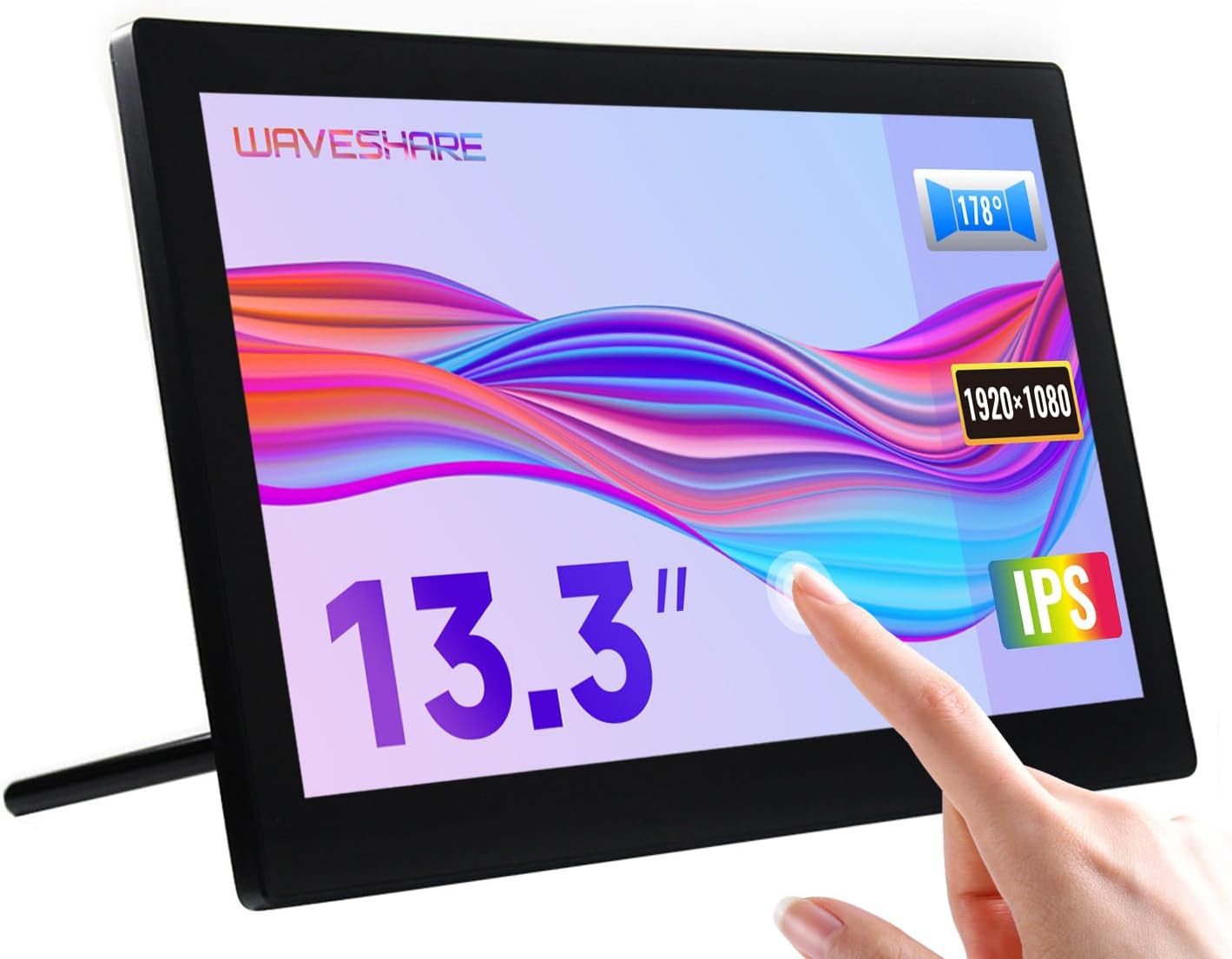
Image 1.1: The Waveshare 13.3-inch Capacitive Touch Screen LCD, showcasing its touch functionality and sleek design.
2. Информация по технике безопасности
- Убедитесь, что источник питания vol.tage matches the product's requirements to prevent damage.
- Avoid exposing the display to extreme temperatures, humidity, or direct sunlight.
- Не разбирайте устройство. По всем вопросам обслуживания обращайтесь к квалифицированному персоналу.
- Keep the screen away from strong magnetic fields.
- Handle with care to avoid dropping or impacting the screen, especially the toughened glass panel.
3. Содержимое упаковки
Проверьте наличие всех предметов в упаковке:
- Waveshare 13.3-inch HDMI LCD (H) Display
- Адаптер питания
- HDMI-кабель
- USB-A to Micro-USB Cable (for touch functionality)
- Руководство пользователя (этот документ)
4. Продукт закончилсяview
4.1. Особенности
- 13.3-inch IPS panel with 1920x1080 resolution.
- Capacitive 10-point touch control (operating system dependent).
- Toughened glass panel with up to 6H hardness.
- HDMI and VGA display interfaces.
- Built-in Hi-Fi speakers and 3.5mm audio jack.
- Supports various devices including Raspberry Pi, Jetson Nano, PCs, and game consoles.
- Integrated case with a 75° back stand and VESA mounting holes (75x75mm).

Image 4.1: Detailed features and system compatibility of the display.
4.2 Физические компоненты
The display includes various ports and control buttons:
- VGA Display Port: For video input via VGA.
- Порт HDMI: For video input via HDMI.
- Аудиоразъем 3.5 мм: Для аудиовыхода.
- Touch Port (USB): For connecting the touch functionality to your device.
- Входное напряжение 12 В: Для подключения адаптера питания.
- Кнопки "Назад": Power, direction controls, and Menu/Enter/Return buttons for OSD navigation.

Изображение 4.2: Сзади view of the display with ports and a Raspberry Pi connection exampле.
5. Инструкции по настройке
5.1. Первоначальное подключение
- Подключить видео: Use the provided HDMI cable to connect the display's HDMI port to your source device (e.g., Raspberry Pi, PC). If using VGA, connect a VGA cable.
- Connect Touch (USB): Connect the USB-A to Micro-USB cable from your source device's USB port to the display's Touch Port. This enables touch functionality.
- Подключите питание: Plug the power adapter into the display's 12V Power Input, then connect it to a power outlet.
- Включение питания: Press the power button on the back of the display. The screen should illuminate and display content from your source device.

Image 5.1: Display showing a Windows desktop after successful connection.
5.2. Соединение Exampле
The display supports various connection configurations:
- Working with Raspberry Pi 4: Connect HDMI for video and USB for touch. Power the display with its 12V adapter.
- Working with Raspberry Pi Zero W: Requires additional mini HDMI adapter and USB cable. Connect mini HDMI for video and USB for touch. Power the display with its 12V adapter.
- Working with AI Computer Jetson Nano: Connect HDMI for video and USB for touch. Power the display with its 12V adapter.
- Working with Mini PC: Connect HDMI for video and USB for touch. Power the display with its 12V adapter.

Image 5.2: Visual guide for connecting the display to different devices.
6. Инструкция по эксплуатации
6.1. Экранное меню (OSD)
The OSD menu allows you to adjust display settings such as brightness, contrast, and input source. Use the back buttons (direction controls and Menu/Enter/Return) to navigate and select options.
- Нажмите МЕНЮ кнопка для открытия экранного меню.
- Используйте Направление кнопки для навигации по пунктам меню.
- Нажимать МЕНЮ again (or the designated Enter button) to select an option or confirm a setting.
- Используйте Возвращаться кнопка для возврата назад или выхода из меню.
6.2. Displaying Content
Once connected and powered on, the display will automatically detect the active video input. Ensure your source device is outputting video to the selected HDMI or VGA port.

Image 6.1: The display showing multimedia content from a web браузер.
6.3. Сенсорное управление
The display features capacitive 10-point touch control. Ensure the USB touch cable is connected to your source device for touch functionality. Driver-free operation is supported on most compatible operating systems.

Image 6.2: Illustration of touch control and audio features.
6.4. Аудио выход
The display includes built-in Hi-Fi speakers for audio output. Alternatively, you can connect external speakers or headphones to the 3.5mm audio jack for private listening or higher quality audio.
7. Device & System Support
The Waveshare 13.3-inch display offers broad compatibility:
- Raspberry Pi: Supports all versions of Raspberry Pi.
- Supports Raspberry Pi OS, 10-point touch, driver free.
- Supports Ubuntu / Kali / WIN10 IoT, single point touch, driver free.
- Supports Retropie, driver free.
- Jetson Nano: Supports Ubuntu, single point touch, driver free.
- ПК: Supports Windows 11 / 10 / 8.1 / 8 / 7, 10-point touch, driver free.
- Игровые консоли: Поддерживает Xbox360, PS4, Switch (только дисплей и звук).

Изображение 7.1: оконченоview of supported devices and operating systems.
8. Техническое обслуживание
- Очистка экрана: Используйте мягкую, безворсовую ткань, слегкаampСмочите экран водой или раствором для очистки экрана. Избегайте использования агрессивных химикатов и абразивных материалов.
- Общий уход: Keep the display free from dust. When not in use for extended periods, consider covering it to prevent dust accumulation.
- Хранилище: Store the display in a cool, dry place, away from direct sunlight and extreme temperatures.
9. Поиск Неисправностей
| Проблема | Возможная причина | Решение |
|---|---|---|
| Нет изображения/Черный экран |
|
|
| Touch not working |
|
|
| Нет звука |
|
|
10. Технические характеристики
| Особенность | Деталь |
|---|---|
| Размер экрана | 13.3 дюйма |
| Разрешение | 1920x1080 (FHD 1080p) |
| Панель дисплея | ИПС |
| Viewугол наклона | 178° |
| Тип сенсорного экрана | Capacitive, 10-point touch |
| Твердость сенсорной панели | Up to 6H Toughened Glass |
| Интерфейс дисплея | HDMI, VGA |
| Аудиовыход | Built-in Hi-Fi Speakers, 3.5mm Audio Jack |
| Входная мощность | 12 В постоянного тока |
| Размеры продукта (ДxШxВ) | 7.09 x 3.94 x 3.54 дюймов (приблизительно 180 x 100 x 90 мм) |
| Вес товара | 2.2 фунта (приблизительно 1 кг) |
| Материал корпуса | Поликарбонат/АБС |

Image 10.1: Physical dimensions of the display.
11. Гарантия и поддержка
Waveshare products are designed for reliability and performance. For warranty information, technical support, or further assistance, please visit the official Waveshare webсайт или свяжитесь со службой поддержки клиентов напрямую. Сохраните чек о покупке в качестве доказательства покупки для гарантийных претензий.
Официальный сайт Waveshare Webсайт: www.waveshare.com


