1. Введение
This manual provides detailed instructions for the setup, operation, and maintenance of your OMBAR Gaming Keyboard, Model OM-K617. Please read this manual thoroughly before using the product to ensure proper functionality and longevity.
2. Содержимое упаковки
Убедитесь, что все перечисленные ниже предметы включены в ваш пакет:
- OMBAR Gaming Keyboard (Model OM-K617)
- Встроенный USB-кабель
3. Настройка
The OMBAR Gaming Keyboard is a plug-and-play device, requiring no additional driver installation for basic functionality.
- Connect the integrated USB cable from the keyboard to an available USB port on your computer.
- Операционная система автоматически обнаружит и установит необходимые драйверы.
- The keyboard's LED backlighting will illuminate upon successful connection.
4. Особенности
4.1.Основные характеристики
- 104 клавиш защиты от фантомных нажатий: Обеспечивает точную регистрацию нескольких одновременных нажатий клавиш, что крайне важно для игр.
- 8 Multimedia Hotkeys: Dedicated keys for quick access to common functions.
- Эргономичная подставка для запястья: Integrated design to provide comfort during extended use.
- Светодиодная подсветка: Customizable backlighting with multiple colors and modes.
- Прочная конструкция: Made from ABS plastic for durability.
- Механические переключатели: Provides tactile feedback for precise key presses.
4.2. Расположение клавиш и функции
The keyboard features a standard 104-key layout with several enhancements for user convenience.
- Enlarged Enter Key: Designed for easier access.
- Extended Spacebar: Contributes to reduced hand fatigue during prolonged typing or gaming.
Dedicated Multimedia Hotkeys:
Located above the function keys, these hotkeys provide instant control over various applications and media playback.
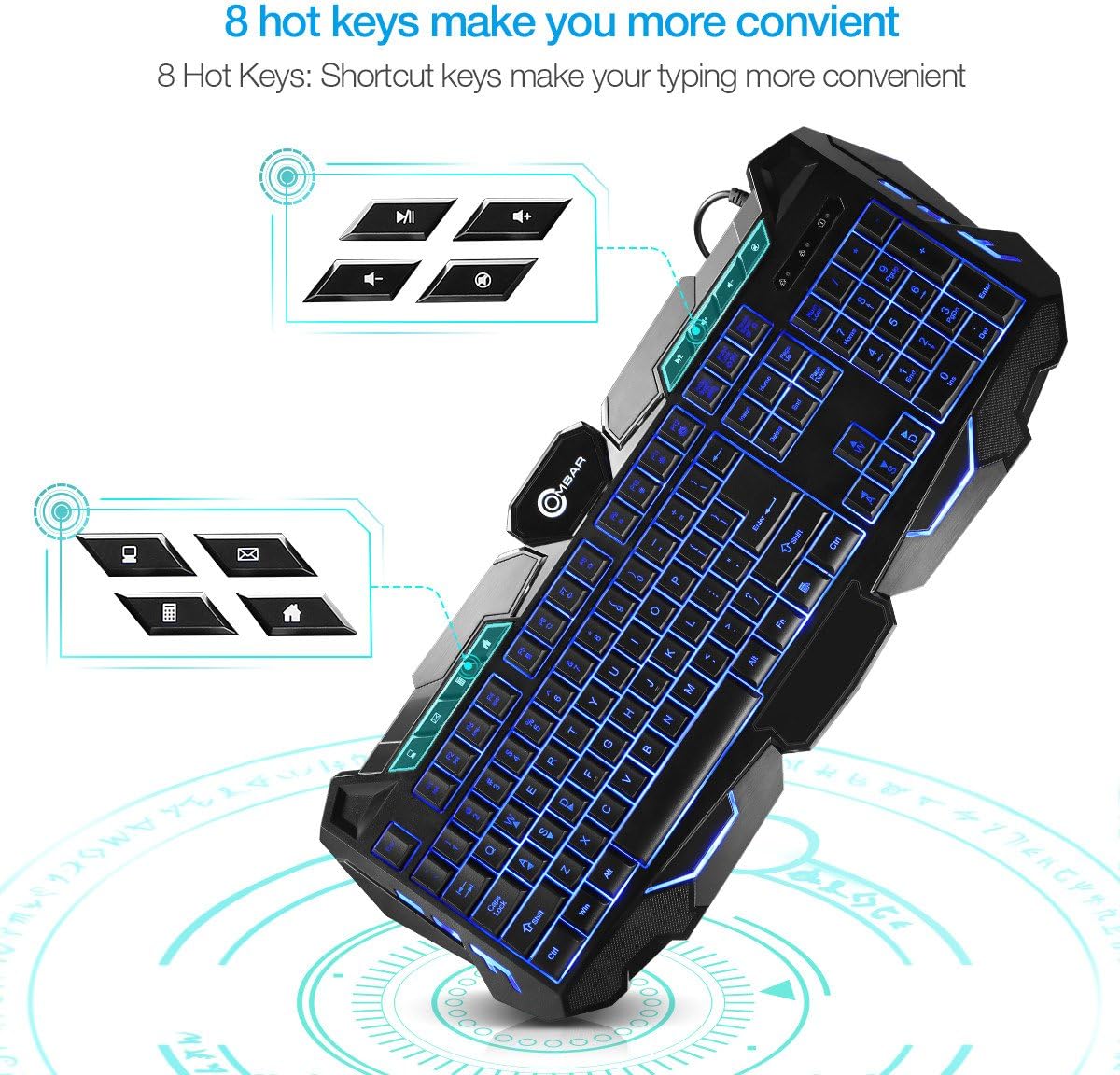
Image: Close-up of the OMBAR Gaming Keyboard highlighting the dedicated multimedia hotkeys. These keys allow quick access to functions like opening file explorer, email, calculator, web browser, controlling media playback (play/pause, volume up/down), and muting audio.
- File Исследователь: Opens your computer's file браузер.
- Электронная почта: Запускает ваш почтовый клиент по умолчанию.
- Калькулятор: Opens the system calculator.
- Web Браузер: Opens your default internet browser.
- Воспроизведение/Пауза: Управляет воспроизведением мультимедиа.
- Увеличение/уменьшение громкости: Регулирует громкость системы.
- Немой: Отключает звук.
Функциональные (Fn) сочетания клавиш:
Держите Fn key and press the corresponding F-клавиша for additional functions:
- Fn+F1: Предыдущий трек
- Fn+F2: Следующий трек
- Fn+F3: Decrease Report Rate (RPS-)
- Fn+F4: Increase Report Rate (RPS+)
- Fn+F5: Открыть калькулятор
- Fn+F6: Обновить страницу
- Fn+F7: Back Page (Web Браузер)
- Fn+F8: Forward Page (Web Браузер)
- Fn+F9: Set Backlight Brightness to 20%
- Fn+F10: Set Backlight Brightness to 60%
- Fn+F11: Set Backlight Brightness to 100%
- Fn+F12: Activate Gaming Mode (disables Windows key to prevent accidental interruptions during gameplay).

Image: The OMBAR Gaming Keyboard with blue backlighting, illustrating the Fn key and the Print Screen key, which when pressed together activate Gaming Mode.
5. Инструкция по эксплуатации
5.1. Управление светодиодной подсветкой
The keyboard features three backlight colors (Red, Blue, Purple) and two lighting modes (Static and Breathing).

Image: A visual representation of the OMBAR Gaming Keyboard's three available LED backlight colors: red, blue, and purple.
- Изменение цвета: Нажмите Лампочка key (usually located near the F12 key or Scroll Lock) to cycle through Red, Blue, and Purple backlight colors.
- Изменение режимов: Нажмите Fn + Лампочка key to switch between Static (constant light) and Breathing (pulsating light) modes.
- Регулировка яркости: Использовать Фн + Ф9 (20%), Фн + Ф10 (60%), and Фн + Ф11 (100%) to adjust backlight intensity.
- Turning Off Backlighting: Continue cycling through brightness levels or modes until the lights turn off, or use a specific Fn combination if available.
5.2. Общее использование
The keyboard is designed for both gaming and general office tasks. Its anti-ghosting feature ensures that all key presses are registered accurately, even during intense gaming sessions.
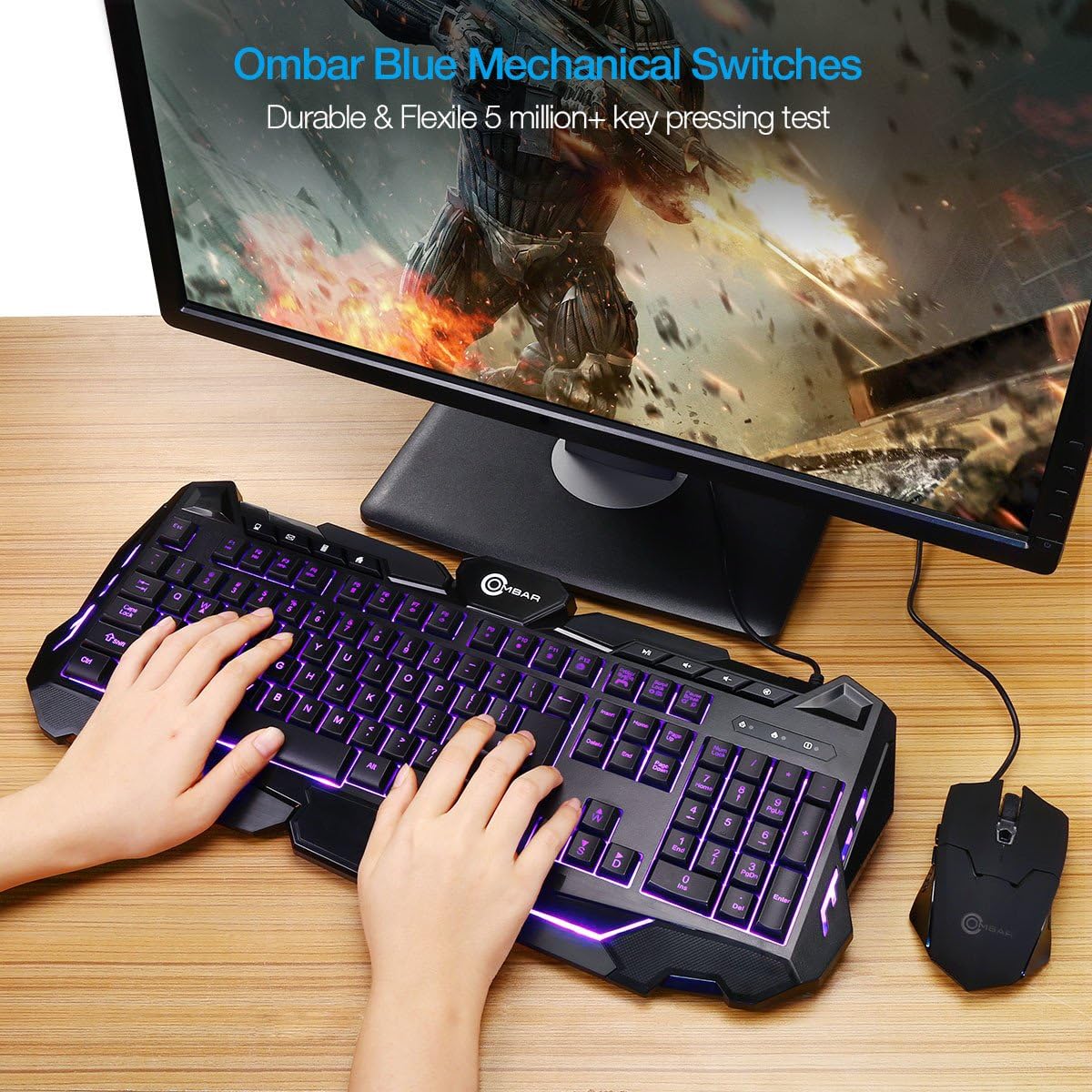
Image: A user actively typing on the OMBAR Gaming Keyboard, showcasing its purple LED backlighting in a typical desktop setup with a monitor and mouse.
For optimal performance, ensure the keyboard is connected directly to a USB port on your computer rather than through a USB hub, especially for gaming.
6. Техническое обслуживание
- Уборка: Use a soft, dry cloth to wipe the surface of the keyboard. For deeper cleaning, use compressed air to remove dust and debris from between the keys. Avoid using harsh chemicals or abrasive materials.
- Разливы: In case of liquid spills, immediately disconnect the keyboard from your computer. Turn it upside down to drain any liquid and allow it to dry completely before reconnecting.
- Хранилище: Если вы не используете клавиатуру в течение длительного времени, храните ее в прохладном, сухом месте, вдали от прямых солнечных лучей и экстремальных температур.
7. Поиск Неисправностей
If you encounter any issues with your OMBAR Gaming Keyboard, please refer to the following common solutions:
- Клавиатура не отвечает:
- Убедитесь, что USB-кабель надежно подключен к клавиатуре и компьютеру.
- Попробуйте подключить клавиатуру к другому USB-порту вашего компьютера.
- Перезагрузите компьютер.
- Подсветка не работает:
- Нажмите Лампочка key to cycle through colors and modes.
- Использовать Fn + F9/F10/F11 для регулировки яркости.
- Клавиши не регистрируются или повторяются:
- Продуйте поврежденные клавиши сжатым воздухом, чтобы удалить загрязнения.
- Убедитесь в отсутствии конфликтов программного обеспечения.
- Compatibility with KVM Switches:
Note that this keyboard may not function correctly when connected through certain KVM (Keyboard, Video, Mouse) switches. For optimal performance, especially in gaming, direct connection to the PC is recommended.
8. Технические характеристики
| Бренд | ОМБАР |
| Номер модели | OM-K617 |
| Технология связи | USB |
| Описание клавиатуры | Игровой |
| Особые возможности | Backlit, Ergonomic, Wrist Rest |
| Материал | Пластик (АБС) |
| Вес товара | 2.2 фунта |
| Размеры упаковки | 19.8 x 9.25 x 1.5 дюйма |
| Совместимые устройства | Игровая консоль, ПК |
| Тип переключателя | Механический |
9. Официальное видео о продукте
Video: An official product video demonstrating the OMBAR Gaming Keyboard's features, including its build quality, key layout, multimedia hotkeys, LED backlighting options (red, blue, purple, static, breathing), and performance during gameplay. The video also provides a sound test of the keys.
10. Гарантия и поддержка
For warranty information or technical support, please refer to the documentation provided with your purchase or contact OMBAR customer service through their official webсайт. Сохраните чек о покупке на случай гарантийных претензий.


