Продукт болееview
The Eincar Android 6.0 Car Stereo is a versatile in-car entertainment and navigation system designed for a seamless driving experience. It features a 6.2-inch digital capacitive touchscreen, a 1.6GHz Quad-core CPU, 1GB RAM, and 16GB ROM, running on Android 6.0 Marshmallow. This unit supports a wide range of functionalities including GPS navigation, Bluetooth for hands-free calling and music streaming, Wi-Fi connectivity, USB and SD card media playback, and phone mirroring.
Ключевые особенности включают в себя:
- Android 6.0 Marshmallow Operating System with Quad Core CPU and 16GB internal storage.
- 6.2-inch Digital Capacitive Touchscreen for high-definition display and responsive interaction.
- Built-in Wi-Fi for internet access and app downloads from Google Play Store.
- Integrated GPS for online and offline navigation with 3D maps and voice guidance.
- Bluetooth for hands-free calling and audio streaming, supporting both built-in and external microphones.
- Support for USB and SD card media playback, including 1080P HD video.
- Phone Mirroring function for both Android and iPhone devices.
- Compatibility with external OBD2 scanners for vehicle diagnostics (additional device required).
- Support for front and rear camera input for enhanced safety.
- Customizable startup logo, dynamic background, and multi-color button illumination.
- Steering wheel control compatibility for convenient operation.

Image: The Eincar car stereo displaying its Android 6.0 interface with various application icons such as Facebook, Gmail, GPS Test Plus, Maps, Music, and Radio.
Настройка и установка
This section provides instructions for the physical installation and initial setup of your Eincar car stereo.
1. Распаковка и проверка комплектующих.
Аккуратно извлеките все компоненты из коробки. Убедитесь, что все перечисленные ниже предметы присутствуют:
- Eincar Car Stereo Unit
- ISO Cable (Plug and Play)
- Внешний микрофон
- GPS-антенна
- AV-кабель
- Install Brackets (Pair)
- Руководство пользователя (этот документ)
- Схемы электропроводки
- Гарантийный талон
- Сертификат

Image: A diagram showing the dimensions of the Eincar car stereo unit and an illustration of all included accessories, such as the ISO cable, external microphone, GPS antenna, AV cable, installation brackets, user manual, wiring diagrams, warranty card, and certificate.
2. Физическая установка
The unit is a standard 2 DIN size. Before installation, compare the stereo with your car's central console to ensure compatibility. Refer to the included Схемы электропроводки for detailed connection instructions.
- Монтаж: Use the provided install brackets to secure the unit in your car's dashboard.
- Подключение питания: Connect the ISO Cable to your vehicle's wiring harness. Ensure proper polarity.
- Антенные соединения:
- Подключите GPS-антенна to the designated port on the back of the unit. Position the antenna in a location with clear sky view для оптимального приема сигнала.
- Connect your car's FM/AM radio antenna.
- Внешний микрофон: Plug in the external microphone for clearer hands-free calls. Position it near the driver for best audio pickup.
- USB/SD Connections: If applicable, connect any external USB cables or insert SD cards into their respective slots.
- Вход для камеры (опционально): If installing front or rear cameras, connect them to the designated CAM-IN RCA ports. The unit supports automatic switching to the rear camera when reversing.
- Аудиовыход (опционально): Подключить внешний amplifiers or subwoofers to the audio output RCA ports if desired.
3. Первое включение и основные настройки
After physical installation, turn on your vehicle's ignition to power on the unit.
- Язык и время: Navigate to "System Settings" to set your preferred language and synchronize the time via network or manually.
- Wi-Fi-соединение:
- Перейдите в «Настройки» > «Wi-Fi».
- Turn on Wi-Fi and search for available networks.
- Select your desired network and enter the password to connect.

Image: The car stereo screen illustrating Wi-Fi connectivity and the option to connect via 3G/4G dongle for internet access.
For 3G/4G connectivity, an external USB 3G/4G Dongle and a local Internet SIM card are required (not included). Connect the dongle to a USB port on the unit.
- Настройка GPS: The unit supports online and offline navigation apps. While a map isn't pre-installed, you can download your preferred navigation application from the Google Play Store.
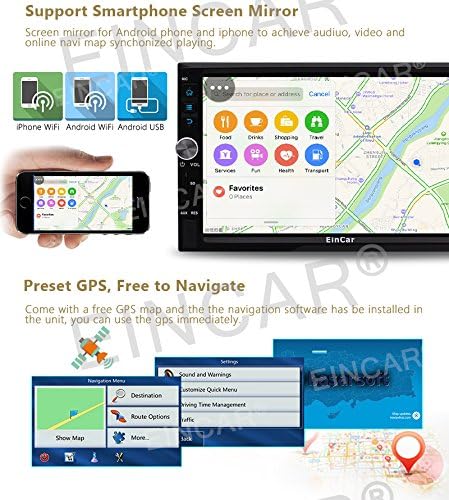
Image: The car stereo displaying a GPS navigation map and an illustration of smartphone screen mirroring functionality.
- Управление на рулевом колесе: If your vehicle supports steering wheel controls, navigate to "System Settings" > "Steering Wheel Control" to configure the buttons. Follow the on-screen prompts to map each function.

Image: A composite image showing various user interface elements of the Eincar car stereo, including the radio tuner, car logo selection, wallpaper settings, steering wheel control configuration, illuminating light button options, and system settings menu.
- Customize Startup Logo/Wallpaper: You can personalize the unit by setting a custom startup logo or changing the screen background image through the system settings.
Инструкция по эксплуатации
This section details the various functions and how to operate your Eincar car stereo.
1. Базовая навигация и управление
The unit features a capacitive touchscreen for intuitive control. Physical buttons and knobs are also available for common functions.
- Ручка регулировки громкости: Поверните, чтобы отрегулировать громкость. Нажмите, чтобы отключить/включить звук.
- Кнопка питания: Нажмите и удерживайте, чтобы включить/выключить устройство. Короткое нажатие включает/выключает экран.
- Домашняя кнопка: Возвращается на главный экран Android.
- Кнопка «Назад»: Возврат к предыдущему экрану или меню.
- Apps/Widgets: Access installed applications and widgets from the main interface.
2. GPS-навигация
The unit supports various navigation applications. Once a navigation app is installed (e.g., Google Maps, iGO), launch it from the app menu.
- Введите пункт назначения, используя экранную клавиатуру.
- Select your preferred route.
- Follow voice guidance and on-screen directions.
- The unit supports dual zone function, allowing radio/Bluetooth/USB/SD playback while navigating.
3. Функции Bluetooth
Подключите свой смартфон через Bluetooth для совершения звонков в режиме громкой связи и потоковой передачи музыки.
- Сочетание:
- Enable Bluetooth on your smartphone and on the car stereo (via the Bluetooth app).
- Искать available devices on your phone and select "EinCar" (or similar device name).
- Подтвердите код сопряжения на обоих устройствах.
- Звонки в режиме громкой связи: Once paired, you can dial numbers, answer calls, and view call history directly from the stereo's screen. The unit supports built-in and external microphones for clear calls.
- Музыка Bluetooth: Stream audio from your paired smartphone to the car stereo. Control playback (play/pause, skip tracks) from the stereo or your phone.

Image: The car stereo displaying its 9-band equalizer settings for sound customization and the Bluetooth interface for hands-free calling, including a dial pad and contact synchronization.
4. Воспроизведение мультимедиа
Устройство поддерживает различные источники медиа:
- USB / SD-карта: Insert a USB drive or SD card (up to 32GB, some models support up to 64GB) containing audio or video files. The unit supports formats like RMVB, AVI, MOV, RM, FLV, MKV for video, and MP3, MP4, WMA, WAV, APE, FLAC, MPC for audio.
- DVD/CD-плеер: Insert a DVD or CD into the disc slot for playback.
- AM/FM-радио: Access the radio tuner application. The unit has 3*6 FM and 2*6 AM stations preset capability. Use the scan function to find local stations.
- Online Video/Streaming: With Wi-Fi connected, you can access online video platforms or stream content through installed apps.

Image: The car stereo displaying video playback from a USB/SD card, along with illustrations of USB and Micro SD card inputs, and the dual zone function allowing simultaneous navigation and media playback.
5. Phone Mirroring (Easy Connection)
Mirror your smartphone screen onto the 6.2-inch display. This feature supports both Android phones and iPhones.
- Launch the "Easy Connection" or "Phone Mirror" app on the stereo.
- Follow the on-screen instructions to connect your phone via USB or Wi-Fi.
- Once connected, your phone's screen will be displayed on the stereo, allowing for audio and video synchronization.
6. Ввод с камеры
The unit supports both front and rear camera inputs. When a rear camera is connected, the display will automatically switch to the rear view когда автомобиль включается задним ходом.
- Ensure cameras are properly connected to the RCA ports.
- Доступ к камере view manually through the dedicated camera app if available, or it will activate automatically for the rear camera.
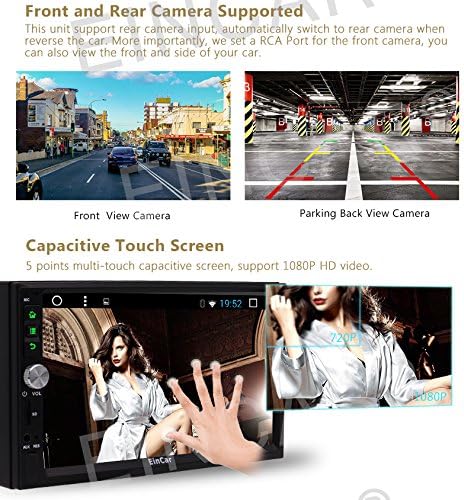
Image: A split image showing examples of a front view camera display and a parking back view camera display on the car stereo, along with an illustration demonstrating the multi-touch capacitive screen functionality.
7. OBD2 (бортовая диагностика)
The unit is compatible with most Bluetooth type OBD2 scanners (sold separately). This allows you to monitor real-time data and trouble codes from your vehicle's computer.
- Connect your Bluetooth OBD2 scanner to your vehicle's OBD-II port.
- Pair the OBD2 scanner with the car stereo via Bluetooth.
- Launch a compatible application like "Torque" (if not pre-installed, you may obtain the APK file from the manufacturer).
- View vehicle data and diagnostic information through the app.
Обслуживание
Proper maintenance ensures the longevity and optimal performance of your Eincar car stereo.
- Очистка экрана: Аккуратно протрите сенсорный экран мягкой безворсовой тканью. Для удаления стойких загрязнений слегка потрите.ampСмочите ткань водой или безопасным чистящим средством для экранов. Избегайте использования абразивных материалов и едких химикатов.
- Генеральная уборка: Следите за тем, чтобы устройство и окружающая область были чистыми от пыли и мусора. Для очистки вентиляционных отверстий и щелей используйте мягкую щетку или сжатый воздух.
- Обновления программного обеспечения: Периодически проверяйте наличие обновлений программного обеспечения на официальном сайте производителя. website or through the unit's system settings (if an update feature is available). Updates can improve performance and add new features.
- Избегайте экстремальных температур: Не подвергайте устройство длительному воздействию экстремальных температур (жары или холода), так как это может повредить электронные компоненты.
- Защищайте от жидкостей: Не допускайте попадания жидкостей внутрь устройства, так как это может привести к серьезным повреждениям.
Поиск неисправностей
В этом разделе рассматриваются распространенные проблемы, с которыми вы можете столкнуться, и предлагаются решения.
| Проблема | Возможная причина | Решение |
|---|---|---|
| Блок не включается. | Отсутствие питания; перегоревший предохранитель; неправильная проводка. | Check vehicle's ignition; Inspect the unit's fuse and replace if necessary; Verify all power and ground wires are correctly connected according to the wiring diagram. |
| Нет звука из динамиков. | Слишком низкая громкость; Включен режим отключения звука; Неправильное подключение динамиков; AmpПроблема с усилителем (если он внешний). | Increase volume; Check if mute is active; Verify speaker connections; Check external ampПитание и разъемы усилителя. |
| GPS signal weak or no signal. | GPS antenna not properly connected or obstructed; Poor satellite visibility. | Ensure GPS antenna is securely connected; Relocate antenna to a position with clear sky view (e.g., dashboard, outside); Try again in an open area. |
| Не удается выполнить сопряжение Bluetooth-устройства. | Bluetooth not enabled on unit or phone; Device too far; Incorrect pairing process. | Ensure Bluetooth is enabled on both devices; Keep devices within close range; Restart both devices and try pairing again; Check pairing instructions in the manual. |
| Wi-Fi connection unstable or not connecting. | Неверный пароль; Слабый сигнал; Проблемы с роутером. | Verify Wi-Fi password; Move closer to the Wi-Fi hotspot; Restart the Wi-Fi router/hotspot; Try connecting to a different network. |
| Сенсорный экран не отвечает. | Временный программный сбой; проблема с калибровкой экрана. | Restart the unit by turning off the vehicle ignition and turning it back on; If issue persists, perform a system reset (refer to system settings, note this may erase data). |
| Приложения зависают или работают медленно. | Слишком много запущенных приложений; Мало места в памяти; Ошибка программного обеспечения. | Close unused apps; Clear cache for problematic apps; Free up storage space; Check for system software updates. |
Если проблема сохраняется после применения этих решений, обратитесь в службу поддержки клиентов.
Технические характеристики
| Особенность | Деталь |
|---|---|
| Номер модели продукта | a-BR.AN395GNN1 |
| Операционная система | Android 6.0 Зефир |
| Процессор | 1.6 ГГц четырехъядерный |
| БАРАН | 1 ГБ |
| ПЗУ (внутреннее хранилище) | 16 ГБ |
| Размер экрана | 6.2 дюймов |
| Тип дисплея | Digital Capacitive Touchscreen (LCD) |
| Разрешение | High Definition (supports 1080P HD video) |
| Связность | Bluetooth, USB, Wi-Fi |
| Поддержка типов носителей | SD Card, USB Drive (up to 32GB/64GB), DVD, CD |
| Аудиовыход | Support Subwoofer/Audio Output (Optional) |
| Интернет-подключение | Built-in Wi-Fi, supports external USB 3G/4G Dongle (Optional) |
| Вход камеры | Supports Front and Rear Camera (CAM-IN) |
| Совместимость с OBD2 | Most Bluetooth type OBD2 scanners (Optional) |
| Особые возможности | Phone Mirroring, Steering Wheel Control, Customizable Startup Logo/Wallpaper, Multi-color Button Light, Dual Zone Function |
Информация о гарантии
Your Eincar car stereo comes with a warranty. Please refer to the included Гарантийный талон for specific terms, conditions, and duration of the warranty period. Keep your proof of purchase for warranty claims.
The warranty typically covers manufacturing defects and malfunctions under normal use. It does not cover damage caused by improper installation, misuse, accidents, unauthorized repairs, or natural disasters.
Поддержка клиентов
For technical assistance, troubleshooting beyond this manual, or warranty inquiries, please contact Eincar customer support.
Прежде чем обращаться в службу поддержки, подготовьте следующую информацию:
- Номер модели продукта: a-BR.AN395GNN1
- Дата покупки
- Подробное описание проблемы
- Any troubleshooting steps you have already attempted
Контактную информацию службы поддержки обычно можно найти на официальном сайте производителя. webили на гарантийном талоне, прилагаемом к вашему изделию.


