1. Введение
This manual provides essential information for the setup, operation, and maintenance of your Epson SureColor P400 Wireless Color Photo Printer. Please read this manual thoroughly before using the printer to ensure optimal performance and longevity.
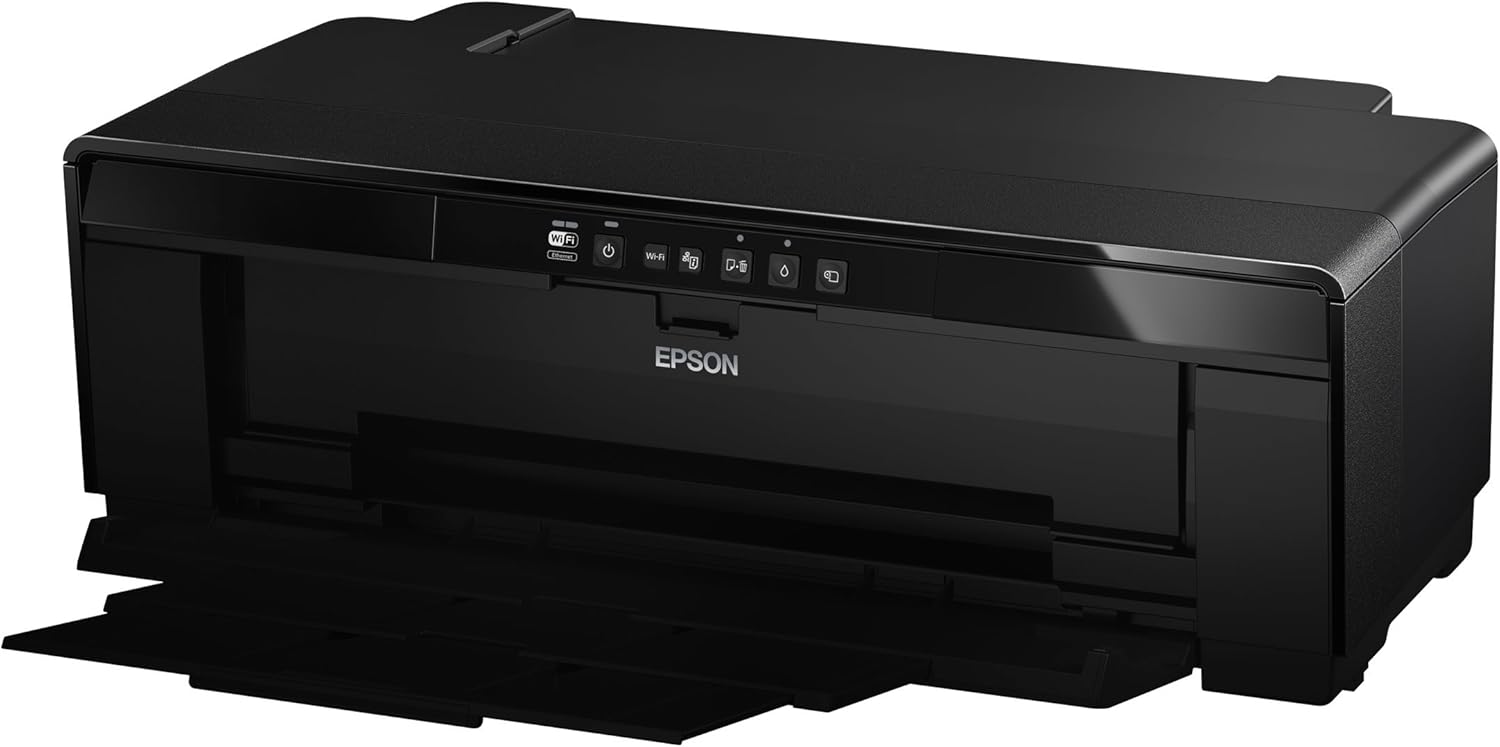
Изображение 1: Спереди view of the Epson SureColor P400 Wireless Color Photo Printer.
2.Основные характеристики
- UltraChrome HG2 Ink: Utilizes an 8-color pigment ink set, including Red and Orange inks, for vibrant, true-to-life color and deep blacks.
- Gloss Optimizer: Provides a smooth, professional finish to prints.
- Универсальная обработка мультимедиа: Supports 13-inch wide cut-sheet and roll paper, fine art paper, and art board up to 1.3 mm thick.
- Связь: Features Wireless (Wi-Fi), Ethernet, and USB 2.0 for flexible printing options.
- Individual Ink Cartridges: High-capacity 14 mL cartridges allow for replacement of only the color needed.

Изображение 2: оконченоview of the Epson SureColor P400 highlighting advanced paper handling, versatile connectivity, and the MicroPiezo printhead.
3. Руководство по установке
3.1 Распаковка и размещение
- Осторожно извлеките принтер из упаковки.
- Установите принтер на устойчивую, ровную поверхность, обеспечив достаточное пространство вокруг него для работы и вентиляции.
- Удалите с принтера все защитные ленты и упаковочные материалы.
3.2 Установка чернильных картриджей
- Open the printer cover to access the ink cartridge slots.
- Unpack each 14 mL ink cartridge (Cyan, Gloss Optimizer, Magenta, Matte Black, Orange, Photo Black, Red, Yellow).
- Insert each cartridge into its corresponding color-coded slot until it clicks into place.
- Закройте крышку принтера.
Video 1: Official Epson SureColor P400 overview, demonstrating key features and ink installation. This video provides a visual guide to the printer's capabilities and how to manage ink cartridges.
3.3 Подключение питания
- Подключите шнур питания к принтеру, а затем к розетке.
- Нажмите кнопку питания, чтобы включить принтер.
3.4 Установка программного обеспечения и подключение
- Install the printer software on your computer (PC or Mac) from the provided CD or Epson's official webсайт.
- Follow the on-screen instructions to set up your preferred connection method:
- Беспроводная связь (Wi-Fi): Подключите принтер к беспроводной сети.
- Ethernet: Подключите кабель Ethernet от принтера к маршрутизатору или сетевому концентратору.
- USB 2.0: Подключите принтер к компьютеру с помощью USB-кабеля (в комплект не входит).

Image 3: Illustration of the Epson SureColor P400's compatibility and connectivity features, showing various devices and connection types.
4. Инструкция по эксплуатации
4.1 Загрузка бумаги
The SureColor P400 offers multiple paper loading options:
- Auto Sheet Feeder: For photo, matte, and plain papers. Load paper into the top rear slot.
- Rear Single Sheet Fine Art Paper Path: For heavier fine art papers and specialty media.
- Roll Paper Holder: For 8.3-inch or 13-inch wide roll paper, ideal for panoramas up to 129 inches long.
- Front Straight-Through Path: Handles art board up to 1.3 mm thick.

Image 4: Diagram illustrating the three media feed options available on the Epson SureColor P400, including the top-loading auto-sheet feeder, front fine-art media feed, and roll media feed.

Image 5: The Epson SureColor P400 is capable of printing on a wide range of media, including various types of Epson Legacy Papers, Velvet Fine Art, Premium Photo Paper Luster, and Exhibition Canvas Gloss.
4.2 Печать
- Убедитесь, что принтер включен и подключен к вашему устройству.
- Откройте на компьютере документ или изображение, которое вы хотите распечатать.
- Select "Print" from your application's menu.
- Выберите принтер Epson SureColor P400.
- Adjust print settings such as paper type, size, and quality in the printer driver dialog box.
- Нажмите кнопку «Печать», чтобы начать процесс печати.
5. Техническое обслуживание
5.1 Замена чернильных картриджей
- When an ink cartridge is low or empty, a notification may appear on your computer or the printer's indicator light will signal.
- Press the ink droplet button on the printer's control panel to move the print head to the replacement position.
- Откройте крышку картриджа с чернилами.
- Нажмите на язычок на пустом картридже, чтобы освободить его, затем вытащите его прямо.
- Unpack a new genuine Epson ink cartridge and insert it firmly into the correct slot until it clicks.
- Close the ink cartridge cover and press the ink droplet button again to return the print head to its home position.
5.2 Очистка печатающей головки
If print quality declines or you notice missing lines or incorrect colors, perform a print head cleaning:
- Access the printer utility software on your computer.
- Select "Head Cleaning" or "Nozzle Check" to initiate the cleaning cycle.
- Follow the on-screen prompts. Repeat if necessary.
5.3 Cleaning the Paper Path
If you experience streaks on your prints, the paper path may need cleaning. Refer to the user guide for detailed instructions on how to clean the internal components, such as the pad that collects excess ink.
6. Поиск Неисправностей
- Принтер не отвечает:
- Проверьте подключение питания и убедитесь, что принтер включен.
- Verify network or USB cable connection.
- Перезагрузите принтер и компьютер.
- Низкое качество печати (полосы, выцветание):
- Проверьте уровень чернил и замените пустые картриджи.
- Выполните очистку печатающей головки и проверку дюз.
- Убедитесь, что вы используете соответствующие настройки бумаги для вашего типа носителя.
- Clean the paper path if streaks persist.
- Застревание бумаги:
- Turn off the printer and carefully remove any jammed paper from the input or output trays.
- Refer to the user guide for instructions on clearing internal paper jams.
7. Технические характеристики
| Особенность | Деталь |
|---|---|
| Номер модели | C11CE85201 |
| Размеры продукта (Д x Ш x В) | 12.8" x 24.5" x 8.6" |
| Вес товара | 27.1 фунта |
| Технология печати | Inkjet (Pigment-based ink) |
| Вывод на принтер | Цвет |
| Максимальное разрешение печати | 5760 x 1440 точек на дюйм |
| Цвета чернил | Cyan, Magenta, Yellow, Photo Black, Matte Black, Red, Orange, Gloss Optimizer |
| Технология связи | USB 2.0, Wireless (Wi-Fi), Ethernet |
| Поддерживаемые размеры носителей | Up to 13" x 129" (roll paper), 13" x 19" (sheet) |
| Максимальная емкость входного листа | 1 (single sheet feed for specialty media) |
| Двусторонняя печать (дуплексная печать) | Да |
| Потребляемая мощность | Printing: Approx. 20 W; Sleep mode: Approx. 1.4 W; Power off: Approx. 0.15 W |
| Совместимые устройства | ПК, Мак |

Image 6: Contents of the Epson SureColor P400 box, including the printer, ink cartridges, power cord, and user guide. Note that the USB cable is not included.
8. Информация о гарантии
Specific warranty details for the Epson SureColor P400 are not provided in this manual. Please refer to the warranty card included with your product or visit the official Epson webсайт для получения самой актуальной и полной информации о гарантии.
9. Поддержка клиентов
For technical assistance, troubleshooting, or further inquiries, please visit the official Epson support website or contact Epson customer service. Support resources often include FAQs, driver downloads, and contact information for live assistance.
Вы можете посетить Магазин Epson на Amazon для получения дополнительной информации о продукте и аксессуарах.


