1. Введение
The COUGAR Evolution Galaxy is a full tower computer case designed for enthusiasts, offering a spacious interior and advanced cooling capabilities. This manual provides detailed instructions for the assembly, operation, and maintenance of your computer case, ensuring optimal performance and longevity.
2.Основные характеристики
- Просторный салон: Accommodates up to 8 PCI cards, providing flexibility for multiple graphics solutions.
- Усовершенствованная система охлаждения: Supports up to 7 fans, including dual 12cm COUGAR TURBINE HYPER-SPIN Bearing Silent Fans, with a unique dual-fan-set management system for excellent ventilation.
- Совместимость с материнской платой: Supports Extended ATX and ATX motherboards.
- Прочная конструкция: Made from SECC Alloy Steel for robust protection.
- Подключение к передней панели: Features 4 USB 3.0 ports for high-speed data transfer.
- Bottom Mount PSU: Power supply mounts at the bottom for improved thermal management.
3. Настройка и установка
3.1 Распаковка и осмотр
Carefully remove the computer case from its packaging. Inspect for any signs of damage during transit. Retain all packaging materials for future transport or warranty claims.
3.2 Установка материнской платы
- Remove the side panel by unscrewing the thumbscrews at the rear of the case.
- Установите заглушку для разъемов ввода/вывода, входящую в комплект материнской платы, в заднее отверстие корпуса.
- Align the motherboard with the pre-installed standoffs. If necessary, install additional standoffs according to your motherboard's form factor.
- Gently place the motherboard onto the standoffs and secure it with screws.
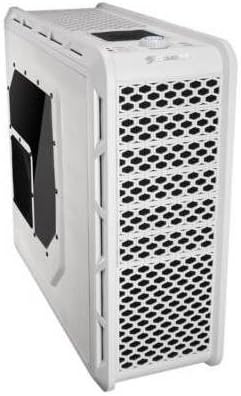
Рисунок 1: Интерьер view of the COUGAR Evolution Galaxy case, highlighting the motherboard tray and tool-less drive bays.
3.3 Установка привода
The COUGAR Evolution Galaxy features tool-less drive bays for easy installation.
- 5.25" Devices (Optical Drives): Remove the front panel bay cover. Slide the 5.25" device into the bay until it clicks into place.
- 3.5-дюймовые жесткие диски: Slide the hard drive into the designated 3.5" drive tray until it secures.
- 2.5-дюймовые SSD/HDD: These can be mounted in the 3.5" trays using adapter screws or dedicated 2.5" mounts if available.

Рисунок 2: Детальное изображение интерьера. view showing the orange tool-less drive bay mechanisms for easy installation of storage devices.
3.4 Установка блока питания
The power supply unit (PSU) mounts at the bottom rear of the case.
- Position the PSU into the designated compartment at the bottom rear.
- Закрепите блок питания к корпусу с помощью винтов с задней стороны.
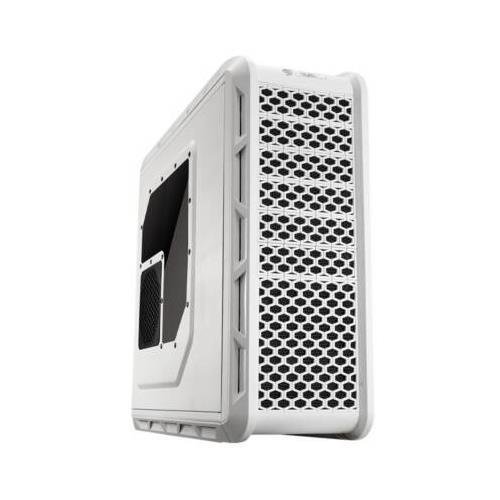
Рисунок 3: Сзади view of the COUGAR Evolution Galaxy case, illustrating the bottom-mounted power supply area, multiple PCI expansion slots, and the rear exhaust fan.
3.5 Управление кабелями
Utilize the cutouts and tie-down points behind the motherboard tray to route cables. This improves airflow and maintains a clean interior aesthetic.
3.6 Fan and Front Panel Connections
Connect all case fans to the motherboard or the integrated fan controller. Connect the front panel headers (USB 3.0, audio, power switch, reset switch, HDD LED, Power LED) to the corresponding pins on your motherboard. Refer to your motherboard manual for pin assignments.
4. Инструкция по эксплуатации
4.1 Включение
Once all components are installed and connected, ensure the power supply switch is in the 'ON' position. Press the power button on the front panel of the case to start your system.
4.2 Контроллер вентилятора
The COUGAR Evolution Galaxy includes an integrated fan controller. Use the controls on the top panel to adjust fan speeds for optimal balance between cooling performance and noise levels. Connect your case fans to this controller for centralized management.
4.3 Порты передней панели
The front panel provides convenient access to USB 3.0 ports and audio jacks for headphones and microphones. Ensure these are correctly connected to your motherboard's internal headers during setup.

Рисунок 4: Передняя сторона под углом view of the COUGAR Evolution Galaxy case, showcasing the mesh front panel for airflow and the top-mounted controls and ports.
5. Техническое обслуживание
5.1 Очистка пылевого фильтра
The case is equipped with dust filters to prevent dust accumulation inside. Regularly clean these filters (e.g., monthly) by removing them and washing with water or using a vacuum cleaner. Ensure filters are completely dry before reinstallation.
5.2 Генеральная уборка
Используйте мягкий, damp cloth to clean the exterior surfaces of the case. Avoid abrasive cleaners or solvents that may damage the finish. For interior cleaning, use compressed air to remove dust from components and fans.
5.3 Осмотр вентилятора
Periodically check all fans for proper operation. Ensure they are spinning freely and quietly. Replace any fans that are noisy or not functioning correctly to maintain optimal cooling.

Рисунок 5: Сторона view of the COUGAR Evolution Galaxy case, featuring a clear side panel window and a dedicated fan mount for additional cooling.
6. Поиск Неисправностей
- Система не включается:
- Check all power connections, including the PSU to the wall outlet, PSU to motherboard, and front panel power switch header.
- Убедитесь, что переключатель блока питания находится в положении «ВКЛ».
- Вентиляторы не вращаются:
- Verify fan cables are securely connected to the motherboard or fan controller.
- Check fan controller settings if applicable.
- Front Panel USB Ports Not Working:
- Ensure the USB 3.0 header cable from the case is correctly connected to the motherboard.
- Check motherboard BIOS settings for USB port enablement.
7. Технические характеристики
| Особенность | Спецификация |
|---|---|
| Тип корпуса | Полный башня |
| Совместимость с материнской платой | Extended ATX, ATX |
| Материал | Alloy Steel (SECC) |
| Цвет | Белый |
| Вес товара | 29.8 фунта |
| Размер вентилятора | 12 Centimeters (Dual COUGAR TURBINE HYPER-SPIN Bearing Silent Fans included) |
| Метод охлаждения | Воздух |
| Тип крепления блока питания | Нижнее крепление |
| Количество портов USB 3.0 | 4 |
8. Гарантия и поддержка
Информацию о гарантии и техническую поддержку можно получить на официальном сайте COUGAR. webна сайте или обратитесь к местному продавцу. Сохраните чек о покупке для предъявления гарантийных претензий.


