1. Продукт закончилсяview
The Gioteck EX-05S High Definition Headset is designed to deliver superior stereo game sound and crystal-clear voice communication. It is compatible with multiple platforms including PS4, PS3, Xbox 360, PC, and Mac. This headset features 40mm high-quality stereo drivers, a noise-isolating microphone, and breathable micro-fibre ear cups for extended comfort.
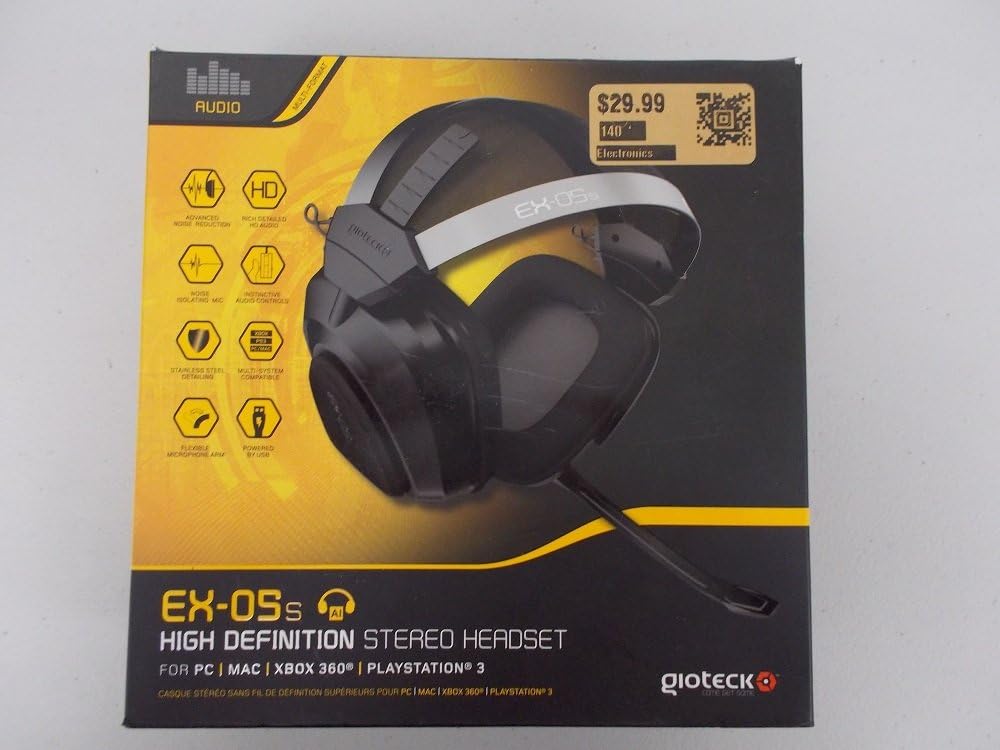
Figure 1.1: Gioteck EX-05S Headset packaging, highlighting key features and compatibility.

Рисунок 1.2: Сторона view of the Gioteck EX-05S Headset, showing the ear cup and microphone arm.
2. Особенности
- 40mm High Quality Stereo Drivers: Delivering rich, detailed audio for an immersive gaming experience.
- Noise Isolating Microphone: Designed to eliminate echo and external noise for clear communication.
- Breathable Micro-Fibre Ear Cups: Ensures comfort during long gaming sessions.
- Расширенное шумоподавление: Minimizes game sound interference from external speakers.
- Flexible and 180-Degree Rotating Microphone Arm: Allows for optimal microphone positioning.
- Instinctive and Accessible Controls: Conveniently located controls for voice and game sound adjustments.
- Stainless Steel Detailing: Provides durability and a premium finish.
- Совместимость с несколькими платформами: Works with PS4, PS3, Xbox 360, PC, and Mac.
3. Содержимое упаковки
Пожалуйста, убедитесь, что в вашей посылке присутствуют все перечисленные ниже предметы:
- Gioteck EX-05S Universal High Definition Stereo Headset
4. Руководство по установке
4.1 Connecting to Gaming Consoles (PS4, PS3, Xbox 360)
- Locate the 3.5mm audio jack on your gaming controller or console.
- Insert the 3.5mm connector from the EX-05S headset firmly into the audio jack.
- Ensure your console's audio settings are configured to output game audio and chat through the connected headset. Refer to your console's system settings for specific audio output configurations.
4.2 Подключение к ПК/Mac
- For PCs with separate audio and microphone jacks, you may need a PC splitter cable (not included) to connect the single 3.5mm headset jack to your computer's audio output and microphone input ports.
- For devices with a combined 3.5mm audio/microphone jack, simply plug the headset's 3.5mm connector directly into the port.
- Adjust your computer's sound settings to select the EX-05S headset as the default playback and recording device.
5. Инструкция по эксплуатации
5.1 Регулятор громкости
The EX-05S headset features an inline control box on the cable. Use the volume dial to adjust the overall audio level of your game and chat sound.
5.2 Отключение микрофона
A switch or button on the inline control box allows you to quickly mute or unmute your microphone. Ensure the microphone is unmuted when you wish to communicate.
5.3 Расположение микрофона
The flexible microphone arm can be rotated 180 degrees. Position the microphone approximately 1-2 inches from your mouth for optimal voice clarity and to minimize background noise.
6. Техническое обслуживание и уход
- Уборка: Use a soft, dry cloth to clean the headset. For ear cups, a slightly damp Можно использовать ткань, но следите за тем, чтобы влага не попадала внутрь защитных решеток динамиков. Не используйте агрессивные химикаты или абразивные чистящие средства.
- Хранилище: Храните гарнитуру в прохладном, сухом месте, вдали от прямых солнечных лучей и экстремальных температур. Избегайте спутывания кабеля.
- Умение обращаться: Always grasp the plug when disconnecting the cable, rather than pulling on the cable itself, to prevent damage to the wiring.
- Амбушюры: The breathable micro-fibre ear cups can be gently wiped clean. Avoid excessive pressure or stretching.
7. Поиск Неисправностей
7.1 Нет звука из гарнитуры
- Убедитесь, что разъем 3.5 мм полностью вставлен в аудиопорт.
- Check the inline volume control on the headset cable and ensure it is turned up.
- Verify your device's (console, PC, Mac) audio output settings are configured to send sound to the headset.
- Проверьте работу гарнитуры на другом устройстве, чтобы исключить проблему, специфичную для данного устройства.
7.2 Микрофон не работает
- Check the microphone mute switch on the inline control box and ensure it is unmuted.
- Verify your device's (console, PC, Mac) microphone input settings are configured to receive input from the headset.
- Убедитесь, что держатель микрофона расположен правильно и ничем не загорожен.
- Test the microphone on another device or application to confirm functionality.
7.3 Static or Distorted Audio
- Убедитесь, что соединение надежное и свободно от мусора.
- Try adjusting the volume levels on both the headset and the connected device.
- Move away from potential sources of electromagnetic interference (e.g., Wi-Fi routers, cordless phones).
- Проверьте с помощью другого источника звука или устройства.
8. Технические характеристики
| Особенность | Деталь |
|---|---|
| Название модели | E5SUNI-11-MU |
| Технология связи | Проводной |
| Включенные компоненты | Наушники |
| Возрастной диапазон (Описание) | Взрослый |
| Материал | Нержавеющая сталь |
| Конкретные области применения продукта | Игровой |
| Совместимые устройства | Gaming Consoles, Computers |
| Тип управления | Регулятор громкости |
| Особенность кабеля | Выдвижной |
| Вес товара | 669 грамма (1.47 фунта) |
| Метод контроля | Голос |
| Тип аудиодрайвера | Динамический драйвер |
| Форма наушника | Накладные наушники |
| Разъем для наушников | 3.5 мм Jack |
| Размеры продукта | 8.46 x 7.87 x 3.94 дюйма |
9. Гарантия и поддержка
Gioteck products are manufactured to high standards and undergo rigorous testing. For information regarding warranty coverage, technical support, or service, please refer to the official Gioteck webили обратитесь в службу поддержки напрямую. Сохраните чек на случай предъявления гарантийных претензий.
Для получения самой актуальной информации о поддержке посетите сайт: www.gioteck.com/support


