1. Введение
This manual provides detailed instructions for the setup, operation, and maintenance of your Vibe Axcess 5-in-1 Universal Remote. Please read this manual thoroughly before using the remote control to ensure proper functionality and to maximize your user experience. This remote is designed to control up to five different audio/video devices.
2. Продукт закончилсяview
The Vibe Axcess 5-in-1 Universal Remote is designed to consolidate control of multiple home entertainment devices into a single unit. It features dedicated buttons for various functions and device types.
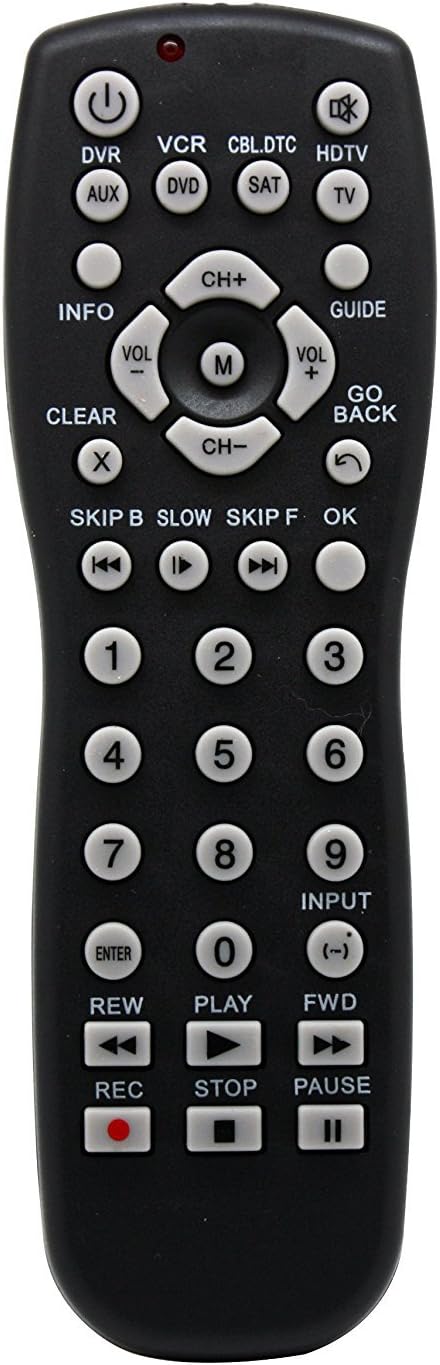
Рисунок 1: Передний view of the Vibe Axcess 5-in-1 Universal Remote. This image displays the remote's layout, including device selection buttons (DVR, VCR, CBL.DTC, HDTV, AUX, DVD, SAT, TV), navigation pad, number keys, and media control buttons (REW, PLAY, FWD, REC, STOP, PAUSE).

Рисунок 2: Packaging of the Vibe Axcess 5-in-1 Universal Remote. The packaging highlights the remote's 5-in-1 capability and compatibility with various device types such as DVD/VCR, HDTV, DVD, AUX, and CBL/SAT/CABLE.
3. Настройка
3.1 Установка аккумулятора
- Найдите крышку батарейного отсека на задней стороне пульта дистанционного управления.
- Сдвиньте крышку вниз или нажмите на защелку и поднимите, чтобы открыть.
- Вставьте две (2) батарейки AAA, убедившись, что положительный (+) и отрицательный (-) полюса соответствуют схемам внутри отсека.
- Установите крышку батарейного отсека на место, сдвинув ее на место до щелчка.
Примечание: Always use fresh batteries and replace both batteries at the same time. Do not mix old and new batteries or different types of batteries.
3.2 Программирование пульта дистанционного управления
To control your devices, the universal remote must be programmed with the correct codes for each device. There are typically two methods for programming:
3.2.1 Прямой ввод кода
This method involves entering a specific code from a code list (usually provided with the remote or available online) for your device's brand.
- Включите устройство, которым хотите управлять (например, телевизор, DVD-плеер).
- Press and hold the desired device button on the remote (e.g., TV, ДВД) for approximately 3 seconds until the indicator light (usually red) illuminates and stays on.
- While the indicator light is on, enter the 3-digit or 4-digit code for your device's brand using the number keys.
- If the code is valid, the indicator light will turn off. If the light flashes and remains on, the code was invalid; re-enter the code.
- Проверьте работу пульта дистанционного управления, нажав кнопку. ВЛАСТЬ button. If the device turns off, the code is correct. If not, try the next code listed for your brand.
3.2.2 Автоматический поиск кода
If you cannot find a code or direct code entry fails, use the auto code search method.
- Включите устройство, которым хотите управлять.
- Нажмите и удерживайте нужную кнопку устройства (например, TV) for approximately 3 seconds until the indicator light illuminates and stays on.
- Удерживая кнопку устройства, нажмите ВЛАСТЬ button once. The indicator light will start flashing, indicating it is searching for a code.
- Point the remote at the device and wait for the device to turn off. This may take several minutes as the remote cycles through codes.
- Как только устройство выключится, немедленно нажмите ВХОДИТЬ Нажмите кнопку для сохранения кода. Индикатор погаснет.
- Test the remote's functions. If some functions do not work, repeat the auto search process to find a more compatible code.
4. Инструкция по эксплуатации
Once programmed, operating your Vibe Axcess 5-in-1 Universal Remote is straightforward.
- Выберите устройство: Нажмите соответствующую кнопку устройства (например, TV, ДВД, CBL.DTC) for the device you wish to control. The indicator light will briefly illuminate to confirm selection.
- Включение/выключение питания: Нажмите ВЛАСТЬ кнопка для включения или выключения выбранного устройства.
- Регулятор громкости: Используйте ГРОМКОСТЬ+ и VOL- кнопки регулировки громкости.
- Управление каналом: Используйте СН+ и CH- кнопки переключения каналов.
- Цифровые клавиши: Use the number keys (0-9) to directly enter channel numbers or other numerical inputs.
- Навигация: Используйте крестовину (вверх, вниз, влево, вправо) и OK кнопка для навигации по меню.
- Средства управления мультимедиа: Использовать ИГРАТЬ, ПАУЗА, ОСТАНАВЛИВАТЬСЯ, РЭВ, Вперед, и РЕК for controlling media playback on compatible devices.
5. Техническое обслуживание
5.1 Очистка
To clean your remote, gently wipe it with a soft, dry cloth. Do not use abrasive cleaners, solvents, or harsh chemicals, as these can damage the remote's finish or internal components.
5.2. Замена батареи
When the remote's performance degrades or the indicator light fails to illuminate, it is time to replace the batteries. Follow the battery installation steps in Section 3.1. Dispose of used batteries responsibly according to local regulations.
6. Поиск Неисправностей
- Пульт не работает:
- Проверьте, правильно ли установлены батарейки и не разряжены ли они. При необходимости замените.
- Ensure you have selected the correct device button (e.g., TV for your television).
- Verify that the remote is programmed with the correct code for your device. Re-program if unsure.
- Убедитесь, что между пультом дистанционного управления и инфракрасным датчиком устройства нет никаких препятствий.
- Некоторые функции не работают:
- Some universal remote codes may not support all original remote functions. Try another code for your device brand using the programming steps.
- Ensure the device you are trying to control supports the specific function (e.g., not all TVs have a dedicated 'INFO' button function).
- Индикаторная лампа не горит:
- Проверьте и замените батареи.
- If the issue persists after battery replacement, the remote may be faulty.
7. Технические характеристики
- Модель: OT795-KO
- Бренд: Атмосфера
- Размеры продукта: 10.7 x 4 x 0.8 дюйма
- Вес товара: 4 унции
- Аккумуляторы: Требуются 2 батарейки ААА (не входят в комплект)
- Максимальное количество поддерживаемых устройств: 5
- Технологии подключения: Инфракрасный
- Особая особенность: Универсальный
8. Гарантия и поддержка
For information regarding warranty coverage or technical support, please refer to the documentation included with your purchase or contact the retailer where the product was acquired. Specific warranty terms may vary.


