Введение
This manual provides comprehensive instructions for the installation, operation, and maintenance of the AudioCodes MediaPack MP-118 Analog VoIP Gateway. The MP-118 is designed to connect traditional analog devices and PSTN/ISDN networks to VoIP services, supporting 4 FXS and 4 FXO analog lines.
Продукт болееview
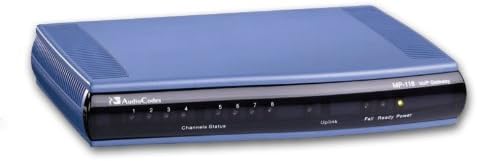
Рисунок 1: Передняя часть view of the AudioCodes MediaPack MP-118 VoIP Gateway. The front panel features status LEDs for channels, uplink, and power.
The AudioCodes MediaPack MP-118 is a robust analog VoIP gateway, facilitating the integration of legacy telephony equipment with modern IP communication systems. It includes 4 FXS ports for connecting analog phones or fax machines and 4 FXO ports for connecting to PSTN lines or PBX extensions. The device operates on a single 100/10 BaseT Ethernet connection and is powered by an AC power supply.
Настройка и установка
Содержимое упаковки
- AudioCodes MediaPack MP-118 VoIP Gateway
- Адаптер переменного тока
- Ethernet-кабель
- Краткое руководство пользователя (если применимо)
Подключение шлюза
- Подключение питания: Connect the provided AC power adapter to the gateway's power input and then to a standard electrical outlet.
- Подключение к сети: Connect an Ethernet cable from the gateway's 100/10 BaseT port to your network switch or router.
- FXS Port Connection: Connect analog phones, fax machines, or other FXS-compatible devices to the FXS ports (typically labeled 1-4).
- FXO Port Connection: Connect PSTN lines or PBX extensions to the FXO ports (typically labeled 5-8).
Начальная конфигурация
Upon initial power-up, the gateway will perform a self-test. Refer to the Операционная section for details on LED indicators. Network configuration and SIP registration typically require access to the device's web-based management interface or command-line interface. Consult the full administration guide for detailed configuration steps, including IP address assignment, SIP server registration, and dial plan setup.
Управление шлюзом
Светодиодные индикаторы
The front panel of the MP-118 features several LED indicators to provide status information:
- Светодиод питания: Indicates power status. Solid green typically means the device is powered on and operating correctly.
- Готовый светодиод: Indicates system readiness. Solid green when the gateway is fully initialized and ready for operation.
- Uplink LED: Indicates Ethernet link status. Blinking or solid green indicates network activity.
- Channel Status LEDs (1-8): Each LED corresponds to an FXS or FXO port.
- Выключенный: Port is idle or not connected.
- Сплошной зеленый: Port is active (e.g., phone off-hook, call in progress).
- Мигающий зеленый: May indicate a specific status like ringing or a configuration issue, depending on firmware.
Basic Call Operations
Once configured, analog devices connected to the FXS ports can make and receive calls via the VoIP network. FXO ports allow calls to be routed between the VoIP network and the PSTN. The gateway supports basic conference call capabilities and multi-line operation, depending on the connected devices and SIP server configuration.
Обслуживание
- Обновления прошивки: Periodically check the AudioCodes support website for firmware updates. Keeping the firmware current ensures optimal performance and security.
- Уборка: Clean the exterior of the device with a soft, dry cloth. Do not use liquid cleaners or aerosols. Ensure ventilation openings are clear of dust.
- Условия окружающей среды: Ensure the gateway is operated within recommended temperature and humidity ranges to prevent damage. Avoid direct sunlight and excessive heat.
- Резервная конфигурация: Regularly back up the gateway's configuration settings to prevent data loss in case of a reset or failure.
Поиск неисправностей
| Проблема | Возможная причина | Решение |
|---|---|---|
| Индикатор отсутствия питания | Адаптер питания отключен или неисправен. | Check power connections. Ensure the adapter is securely plugged into the gateway and a working electrical outlet. Test the outlet with another device. |
| Uplink LED is off | Ethernet cable disconnected or network issue. | Verify the Ethernet cable is securely connected to both the gateway and the network device. Check network switch/router status. Try a different Ethernet cable. |
| Analog phone has no dial tone | FXS port not connected, not configured, or SIP registration failure. | Ensure the phone is correctly plugged into an FXS port. Check the channel status LED. Verify SIP registration status via the gateway's management interface. Consult your VoIP service provider. |
| Cannot make or receive calls via PSTN | FXO port not connected, not configured, or PSTN line issue. | Ensure the PSTN line is correctly plugged into an FXO port. Check the channel status LED. Verify FXO port configuration and dial plan settings. Test the PSTN line directly. |
Технические характеристики
| Особенность | Деталь |
|---|---|
| Номер модели | MP118/4S/4O/SIP |
| Аналоговые порты | 4 FXS (Foreign Exchange Subscriber) for analog devices, 4 FXO (Foreign Exchange Office) for PSTN/PBX lines |
| Протоколы VoIP | SIP (Session Initiation Protocol), MGCP, H.323 |
| Интерфейс Ethernet | Single 100/10 BaseT |
| Источник питания | Corded Electric (AC Power Supply) |
| Размеры (Д x Ш x В) | 8.66 x 6.77 x 1.65 дюйма (220 x 172 x 42 мм) |
| Масса | 1.1 фунта (500 граммов) |
| Совместимые устройства | VoIP services, PSTN/ISDN networks, analog devices (phones, fax machines, answering machines), computer systems |
| Возможность конференц-связи | Базовый |
| Многострочный режим работы | Поддерживается |
Информация о гарантии
AudioCodes products typically come with a standard manufacturer's warranty. For specific warranty terms and conditions, including duration and coverage, please refer to the warranty card included with your product or visit the official AudioCodes webСохраните чек о покупке для предъявления гарантийных претензий.
Поддержка клиентов
For technical assistance, advanced configuration guides, or further support, please visit the official AudioCodes support portal or contact their customer service department. You may find additional resources, FAQs, and software downloads on their webсайт.
- AudioCodes Official Webсайт: www.audiocodes.com
- Портал поддержки: Обратитесь к официальному website for the latest support contact information and resources.


