Введение
This manual provides instructions for the setup, operation, maintenance, and troubleshooting of your Microsoft Wireless Optical Mouse Blue, Model K80-00004. Please read this manual thoroughly before using your device.
Что в коробке?
Проверьте наличие всех предметов в упаковке:
- Microsoft Wireless Optical Mouse
- Беспроводной приемник
- 2 батарейки типа АА (предварительно установлены или поставляются отдельно)
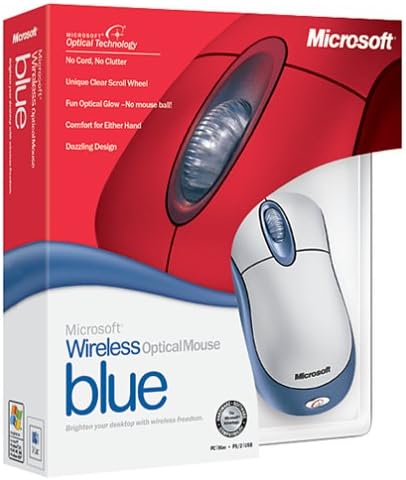
Image: Retail packaging of the Microsoft Wireless Optical Mouse Blue, showing the mouse and receiver.
Настраивать
1. Установите батареи.
- Найдите батарейный отсек на нижней стороне мыши.
- Откройте крышку батарейного отсека.
- Вставьте две батарейки типа АА, соблюдая полярность (+/-).
- Закройте крышку батарейного отсека.

Изображение: Спереди view of the Microsoft Wireless Optical Mouse Blue, showing the top buttons and scroll wheel. The battery compartment is on the underside.
2. Connect the Wireless Receiver
- Подключите беспроводной USB-приемник к свободному USB-порту вашего компьютера.
- Allow your operating system to detect and install the necessary drivers. This process is usually automatic.
- For optimal performance, ensure the receiver is placed at least 12 inches away from other wireless devices or large metal objects.
3. Optional Software Installation (IntelliPoint)
- While not required for basic functionality, installing Microsoft IntelliPoint software provides advanced customization options for your mouse buttons and scroll wheel.
- Refer to the Microsoft support website for the latest IntelliPoint software compatible with your operating system.
4. Set Orientation (Calibration)
- After initial setup, it is recommended to perform an "Orientation Set" or calibration if available through the IntelliPoint software or your operating system's mouse settings. This helps optimize tracking performance.
Инструкция по эксплуатации
The Microsoft Wireless Optical Mouse Blue is designed for comfortable and precise navigation.
Основные функции
- Щелчок левой кнопкой мыши: Основная кнопка для выбора элементов, открытия fileа также взаимодействие с программным обеспечением.
- Щелкните правой кнопкой мыши: Дополнительная кнопка для доступа к контекстным меню и дополнительным параметрам.
- Колесо прокрутки: Прокрутите колесо вверх или вниз, чтобы прокручивать документы и web pages. The scroll wheel may also function as a clickable button for additional commands, depending on software configuration.
Беспроводная работа
- The mouse operates wirelessly up to 6 feet (approximately 1.8 meters) from its receiver.
- Optical technology scans the desktop surface for precise cursor movement without the need for a mouse pad on most surfaces.
- The mouse is designed for comfortable use with either the right or left hand.

Изображение: под углом view of the Microsoft Wireless Optical Mouse Blue, highlighting its ergonomic shape and blue/silver design.
Обслуживание
Замена батареи
- The mouse requires two AA batteries.
- When battery power is low, your computer may display a notification (if IntelliPoint software is installed) or mouse performance may degrade.
- Replace batteries as described in the "Install Batteries" section under Setup.
- Для оптимальной работы всегда используйте свежие, высококачественные батарейки.
Уборка
- To clean the mouse, gently wipe the surface with a soft, damp ткань.
- Избегайте использования едких химикатов или абразивных чистящих средств, так как они могут повредить отделку.
- Следите за тем, чтобы жидкость не попала во внутренние компоненты мыши.
Travel Considerations
- The Microsoft Wireless Optical Mouse is a transmitting device. When traveling by air, it is recommended to remove the batteries from the mouse before boarding to comply with airline regulations regarding electronic devices.
Поиск неисправностей
Mouse Not Responding or Lagging
- Проверьте батареи: Убедитесь, что батареи установлены правильно и имеют достаточный заряд. При необходимости замените.
- Проверьте подключение приемника: Ensure the wireless receiver is securely plugged into a functioning USB port. Try a different USB port.
- Близость: Ensure the mouse is within 6 feet of the receiver. Reduce obstacles between the mouse and receiver.
- Вмешательство: Other wireless devices (e.g., Wi-Fi routers, cordless phones) can cause interference. Move the receiver away from such devices.
- Поверхность: Ensure the mouse is used on a suitable surface. Highly reflective or transparent surfaces may affect optical tracking.
- Повторная синхронизация: Some wireless mice have a re-sync button on both the mouse and receiver. Consult the full product manual or Microsoft support for specific re-sync procedures for this model if issues persist.
Clicking Issues
- If clicks are not registering or require multiple presses, check for physical obstructions or debris around the buttons.
- Убедитесь, что мышь включена и подключена.
Совместимость программного обеспечения
- The IntelliPoint software may have specific operating system requirements. For example, older versions may not be compatible with newer operating systems like Windows Vista or later.
- Always download the latest software from the official Microsoft support webсайт для вашей конкретной операционной системы.
Технические характеристики
| Особенность | Деталь |
|---|---|
| Номер модели | К80-00004 |
| Бренд | Майкрософт |
| Технология связи | Беспроводной |
| Обнаружение движения | Оптический |
| Цвет | Blue / Silver |
| Аккумуляторы | 2 батарейки типа АА (в комплекте) |
| Вес товара | 13.6 унций (приблизительно 385.5 граммов) |
| Размеры продукта | 9.3 x 8.9 x 2.1 дюйма (прибл. 23.6 x 22.6 x 5.3 см) |
| Первая доступная дата | 1 августа 2002 г. |
Информация о гарантии
According to the legal disclaimer, this product is sold without a warranty. Please refer to your point of purchase for any return or exchange policies.
Поддерживать
For further assistance, driver downloads, or updated information regarding your Microsoft Wireless Optical Mouse Blue, please visit the official Microsoft support webсайт.
You can typically find support resources by searching for "Microsoft support" and your product model number (K80-00004).


